
Quick Answer: Open PowerShell and run:
irm https://claude.ai/install.ps1 | iex |
Restart your terminal, then type claude to launch. If it shows "not recognized," add .local\bin to your PATH manually.
If you've been searching how to install Claude Code on Windows, you've probably noticed one problem: most tutorials were written for macOS or skip the Windows-specific steps entirely.
That's frustrating — especially now that AI coding assistants have become standard tools for serious developers.
I tested the Claude Code installation on multiple Windows 10 and Windows 11 machines, cross-referenced Anthropic's official documentation, and documented every error I hit along the way. Here's what actually works in 2026.
The short version: Getting Claude Code running on Windows now takes under five minutes. Anthropic released a native Windows installer that removes the old WSL-only requirement. No Node.js. No Linux headaches. One PowerShell command.
What Is Claude Code?
Claude Code is Anthropic's terminal-native AI coding assistant.Claude vs GPT-4o (2026) Instead of pasting code into a browser chat and copying results back, Claude Code lives directly inside your terminal. It reads your project files, writes and edits code, runs shell commands, handles git workflows, and works through multi-step tasks using plain English.
Think of it as a capable AI pair programmer that understands your entire codebase — not just a snippet you've shared with it.
Real-world use cases where it genuinely saves time:
Refactoring: Reducing duplicated logic across large codebases
Debugging: Surfacing the cause of issues like async race conditions or React hydration mismatches
Test generation: Writing Jest or Pytest suites for existing production code
Git workflows: Natural language commits, diffs, and branch management
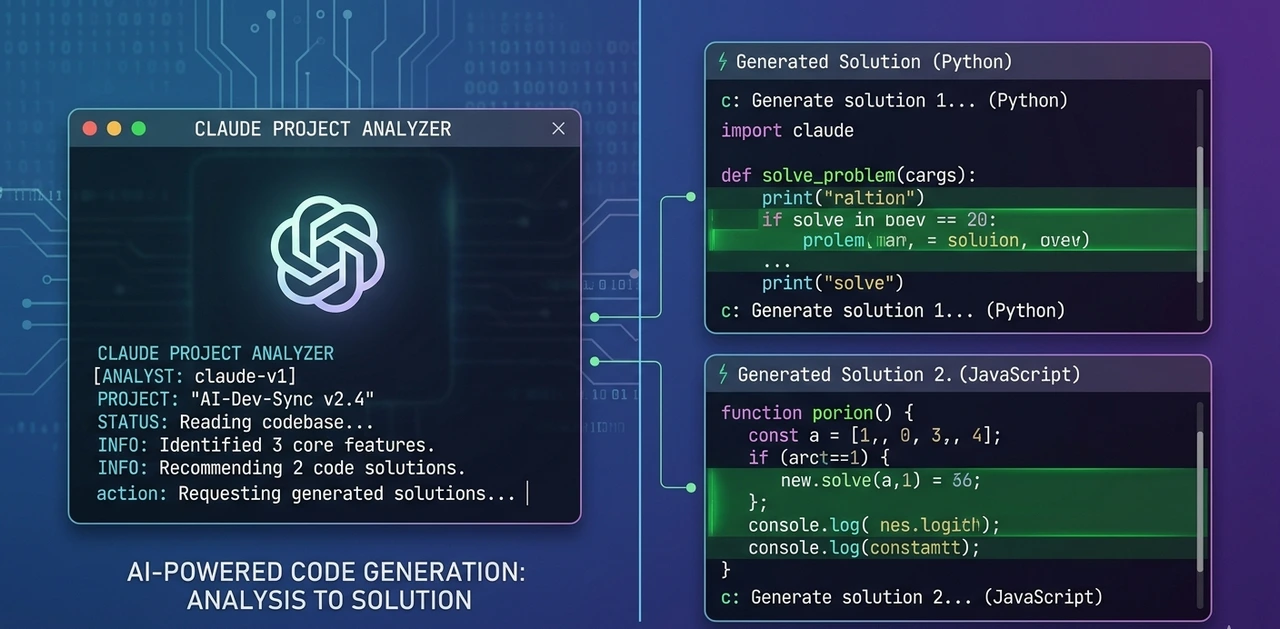
For developers who live in the terminal, this is a meaningful workflow upgrade — not just a novelty.
System Requirements

Before running any installation command, confirm your machine has:
Requirement | Details |
OS | Windows 10 (latest build) or Windows 11 (recommended) |
Git for Windows | Mandatory. Claude Code uses Git Bash internally. Download from git-scm.com. During setup, keep "Add Git to PATH" checked. |
Account | Claude Pro ($20/mo), Claude Max ($100/mo), or an Anthropic API key. No free tier. |
Internet | Required for authentication and AI processing |
The Git requirement surprises many people. Even when you launch Claude Code from PowerShell, it generates and runs commands internally that assume a Bash-style shell environment. Git Bash provides that bridge on Windows.
Method 1: Native PowerShell Installer (Recommended)
This is Anthropic's officially recommended method. It's the fastest, requires no prerequisites beyond Git, and handles auto-updates for you.
Step 1: Open PowerShell
Press Win + X and select Windows Terminal or PowerShell. Admin privileges are not required.
Step 2: Run the installer
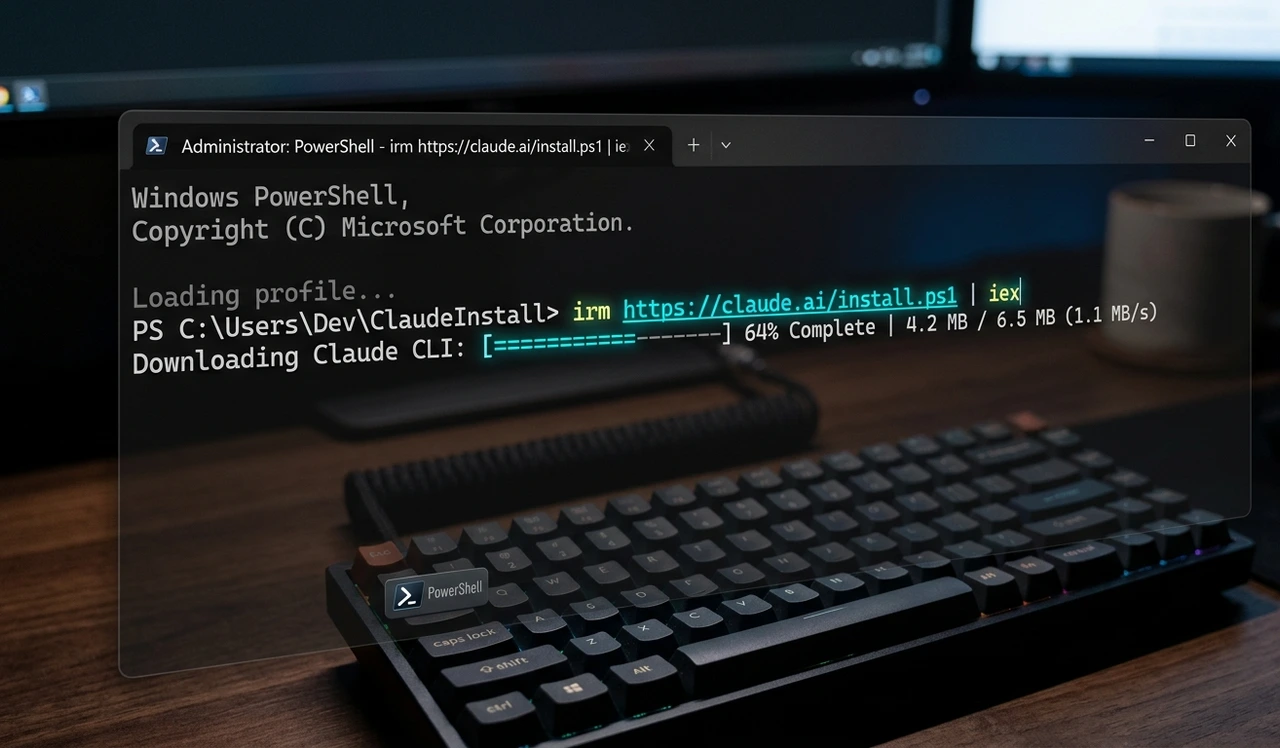
irm https://claude.ai/install.ps1 | iex
This downloads and installs Claude Code natively. Typical install time is 2–4 minutes depending on your connection.
Step 3: Restart your terminal
This step is critical and the most commonly skipped.Windsurf AI IDE vs Cursor in 2026 Close PowerShell completely and reopen it. PATH changes don't apply to active terminal sessions — most "claude not recognized" errors come from skipping this.
Step 4: Verify the installation
claude --version
You should see a version number like 1.x.x. If you do, you're done with installation.
Step 5: Authenticate
claude
A browser window opens automatically. Sign into your Anthropic account and approve terminal access. Your session token is saved locally — you won't need to log in again on future launches.
Step 6: Run a diagnostic
claude doctor
This built-in command checks your installation, PATH, Git health, and authentication status. Run it before troubleshooting anything — it surfaces most common issues in plain language.
Method 2: WinGet (Windows Package Manager)
If you prefer a package manager approach:
winget install Anthropic.ClaudeCode
Important: WinGet does not auto-update Claude Code. Run this periodically to stay current:
winget upgrade Anthropic.ClaudeCode
There's also a known lag where Claude Code notifies you of a new version before it appears in the WinGet repository. If the winget upgrade shows nothing available, wait a few hours and try again.
Method 3: WSL 2 (For Linux-First Workflows)
WSL is no longer required to run Claude Code on Windows, but it's a valid option — especially if your projects already live inside WSL or you work with containers.
Step 1: Install WSL 2 (run PowerShell as Administrator):
wsl --install
Restart when prompted.
Step 2: Open Ubuntu from the Start menu and complete the initial setup.
Step 3: Inside the Ubuntu terminal, run:
curl -fsSL https://claude.ai/install.sh | sh
When to choose WSL over native:
Your development environment is already Linux-based
You work extensively with Docker containers
You need a more isolated security sandbox for command execution
When to stick with native Windows:
Your projects live on the Windows filesystem
You want the fastest setup with minimal overhead
You don't already use WSL regularly
Deprecated Method: npm Install
Many older tutorials still recommend:
npm install -g @anthropic-ai/claude-code
This is now officially deprecated by Anthropic. How to Use ReAct Loops It technically still works if you have Node.js 18+ installed, but you're signing up for a worse update experience and unnecessary dependency management. Use the native installer unless you have a very specific reason not to.
Troubleshooting: "claude is not recognized"

This is the most common error after installation.Claude CodeThe cause is almost always that ~/.local\bin isn't in your Windows PATH.
Fix 1 — Restart your terminal first. PATH changes don't apply to active sessions. Close and reopen PowerShell, then try claude again before doing anything else.
Fix 2 — Add the path via PowerShell:
[Environment]::SetEnvironmentVariable("PATH", "$env:PATH;$env:USERPROFILE\.local\bin", [EnvironmentVariableTarget]::User)
$env:PATH = "$env:PATH;$env:USERPROFILE\.local\bin"
Fix 3 — Via System Properties: Press Win + R, type sysdm.cpl, go to Advanced → Environment Variables → Path (User) → Edit → New, and add:
C:\Users\YourUsername\.local\bin
Other Common Errors
Authentication hangs or fails
Disable VPN temporarily
Switch to Chrome or Edge (Brave and some other browsers can cause OAuth redirect issues)
Retry the login flow
PowerShell script blocked
Set-ExecutionPolicy RemoteSigned -Scope CurrentUser
Git-related failures during use (not during install) Claude Code may install successfully but fail when executing commands if Git isn't properly on your PATH. Open a fresh terminal and run git --version. If Git isn't found, reinstall Git for Windows with "Add Git to PATH" checked.
Windows-Specific Quirks to Know
Image paste uses Alt+V, not Ctrl+V. On Windows, Ctrl+V pastes text only. To share screenshots with Claude Code (error screenshots, design mockups, etc.), capture with Win + Shift + S, then paste using Alt+V. This is a known platform-specific behavior, not a bug.
Git for Windows vs PowerShell as the shell tool. If Git for Windows is installed, Claude Code uses Bash as its internal shell tool. If Git is absent, it falls back to PowerShell. The Bash environment handles far more use cases cleanly, so install Git even if you're doing all your interactive work from PowerShell.
Keeping Claude Code Updated
Install Method | Auto-Update? | Manual Update Command |
Native PowerShell | ✅ Yes | claude update |
WinGet | ❌ No | winget upgrade Anthropic.ClaudeCode |
npm (deprecated) | ❌ No | npm update -g @anthropic-ai/claude-code |
The native installer runs on the latest channel by default, applying updates in the background. You can switch to stable (roughly a one-week delay, skips releases flagged with critical bugs) if you're in a production-sensitive environment.
Native Windows vs WSL: Side-by-Side
Feature | Native Windows | WSL 2 |
Setup time | Fast (one command) | Slower (WSL install + restart) |
Best for | Windows-first workflows | Linux-first, containerized work |
File system | Best for Windows files | Best for Linux-native files |
Shell compatibility | Occasional friction | Near-seamless Bash experience |
Security sandbox | Standard | More isolated |
For most developers reading this guide: go native. WSL adds overhead that only pays off if you're already living inside a Linux environment.
Common Mistakes to Avoid
1. Skipping the terminal restart. Every PATH-related error after a clean install comes from this. Restart before troubleshooting anything else.
2. Using the npm installation method. Officially deprecated. Unless you have a specific reason, use the native installer.
3. Not having Git for Windows installed. Claude Code will appear to install successfully but fail when it tries to execute commands. Always check git --version first.
4. Using the wrong browser for authentication. Chrome and Edge work reliably. Brave has caused OAuth redirect issues in testing.
5. Trying to paste images with Ctrl+V. Use Alt+V for image paste on Windows.
Who Should Use Claude Code?
Great fit if you:
Write code regularly and want AI that understands your full project — not just a snippet
Want deep VS Code or JetBrains integration alongside terminal usage
Already have Claude Pro or Max and want more value from the subscription
Handle git workflows regularly and want natural language control over them
Probably not the right fit if you:
Only use AI tools occasionally
Prefer a visual interface over a terminal
Are looking for a free option (there isn't one)
Final Verdict
The Claude Code Windows installation experience has improved dramatically. What once required WSL, Node.js, and significant Linux familiarity now takes a single PowerShell command and under five minutes for most people.
The one-time setup pays off quickly if you're doing serious development work. Claude Code is one of the stronger terminal-based AI coding tools available, and it's actively improving with every release.
Follow Method 1 (native PowerShell installer), install Git for Windows beforehand, and restart your terminal after installation — and you'll be running claude in your project directory within minutes.
Frequently Asked Questions
No. Anthropic's native Windows installer works directly on Windows 10 and Windows 11. WSL remains a valid option for Linux-first workflows but is no longer required.
Yes it's mandatory. Claude Code uses Git Bash internally for command execution. Download from git-scm.com and install with default settings, keeping "Add Git to PATH" checked.
Almost always a PATH issue. First try restarting your terminal. If that doesn't fix it, add $env:USERPROFILE\.local\bin to your PATH manually using the PowerShell command in the troubleshooting section above.
No. Claude Code requires a Claude Pro subscription ($20/mo), Claude Max ($100–200/mo), or an Anthropic API key with billing configured at console.anthropic.com. There is no free tier.
Technically yes, but officially deprecated. Anthropic's documentation now lists the native installer as the recommended path. Stick with the PowerShell method unless you have a specific reason to use npm.
Native installer: auto-updates in the background. You can also run claude update manually. WinGet: run winget upgrade Anthropic.ClaudeCode — WinGet does not auto-update.
Capture with Win + Shift + S, then paste into Claude Code using Alt+V (not Ctrl+V). This is the correct shortcut for image paste on Windows.
Typically 2–5 minutes on modern hardware. Older machines or slower connections may take slightly longer.
learn more HustletoAI.com