I sat staring at a blinking terminal cursor at 11:47 PM on a Tuesday. Six hours into what should have been a two-minute install. My Node.js version was wrong, my PATH was broken, my authentication kept timing out, and the internet was full of guides that assumed I already knew what WSL2 was.
That night broke me. And it also made me build this.
This is the Claude Code setup guide I wish existed when I started. It is not written for developers. It is written for the person who runs a business, manages a team, creates content, or builds products and who has heard enough about AI coding agents that they finally want in. Building Multi-Agent You do not need to be technical. You need to be willing to follow instructions carefully and tolerate a few terminal commands.
Let's go.
The Messy Truth: What Claude Code Actually Is (And What It Isn't)
Here is the thing nobody tells you upfront: Claude Code is not a chatbot plugin. It is not a button inside your browser. It is a command-line agent that lives in your terminal, reads your actual files, and executes real actions on your computer.
That distinction matters enormously.
When you talk to Claude on claude.ai, you are working inside a contained conversation window. Context window management the way an AI keeps track of everything said in a session is handled automatically. You hit send. Claude responds. Clean.
Claude Code operates differently. It reads your entire project directory, reasons across multiple files simultaneously, runs shell commands, writes code, and commits changes to GitHub. It is closer to hiring a junior developer who works inside your computer than it is to using a chat interface.
This is powerful. It is also why setup can feel like defusing a bomb if you are doing it without a map.
The second brutal truth: Claude Code is not free. It requires at minimum a Claude Pro subscription at $20/month. The free Claude tier does not include it. If you are free, you will need to upgrade before a single line of this guide applies to you.
Third brutal truth: Windows users have it harder than Mac and Linux users. Not insurmountably harder but meaningfully harder. I will address this directly.
The Core Framework: Setting Up Claude Code in Plain English
Before touching Building Multi-Agent Workflows a single command, here is the high-level mental model. Think of this as five layers of a building you are constructing, in order:
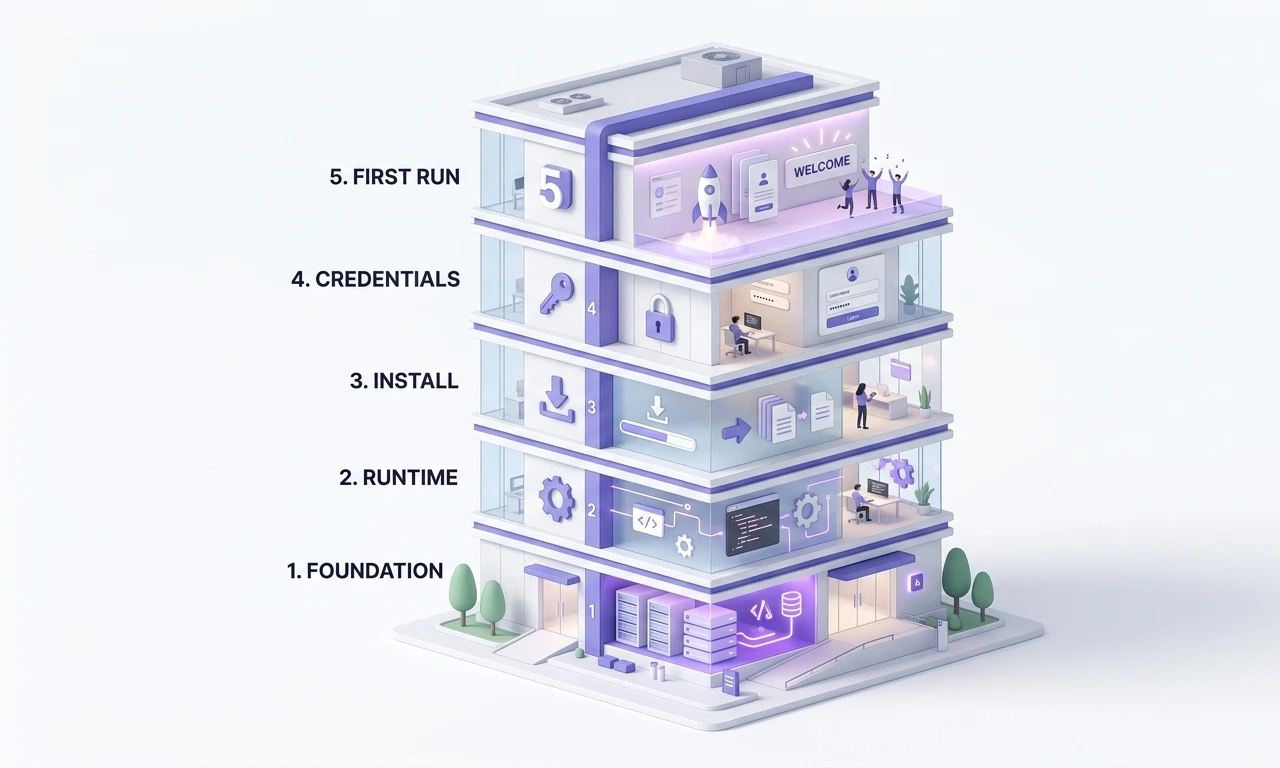
The Foundation — Your operating system is prepared to run Claude Code
The Runtime — Node.js is installed (only needed for the legacy npm path; the native installer skips this)
The Install — Claude Code itself is downloaded and configured
The Credentials — Your Anthropic account is authenticated
The First Run — You point Claude Code at a real project and watch it work
Let's build each floor.
Floor 1: Choosing Your Installation Method (This Decision Matters)
Anthropic now recommends the native binary installer as the primary installation method. The native installer requires no Node.js and works on macOS, Windows, and Linux. If you installed Claude Code six months ago using the npm command, you may want to migrate.
There are two installation paths:
Path A — Native Installer (Recommended for everyone) No Node.js dependency. Faster startup. Auto-updates in the background. This is what you want.
Path B — npm Global Install (Legacy) If you prefer using npm, you can install Claude Code globally, but this method requires Node.js 18 or higher. It still works, but it introduces version conflicts and permission headaches that the native installer avoids entirely.
My recommendation: Use Path A. Full stop.
PRO TIP: If you already have a Node.js-based installation, you can migrate to the native installer and your configuration files in ~/.claude/settings.json and project settings in .claude/ will be preserved during migration. You lose nothing.
Floor 2: Mac Installation (The Easy Path)
Open your Terminal. It lives in Applications → Utilities → Terminal.
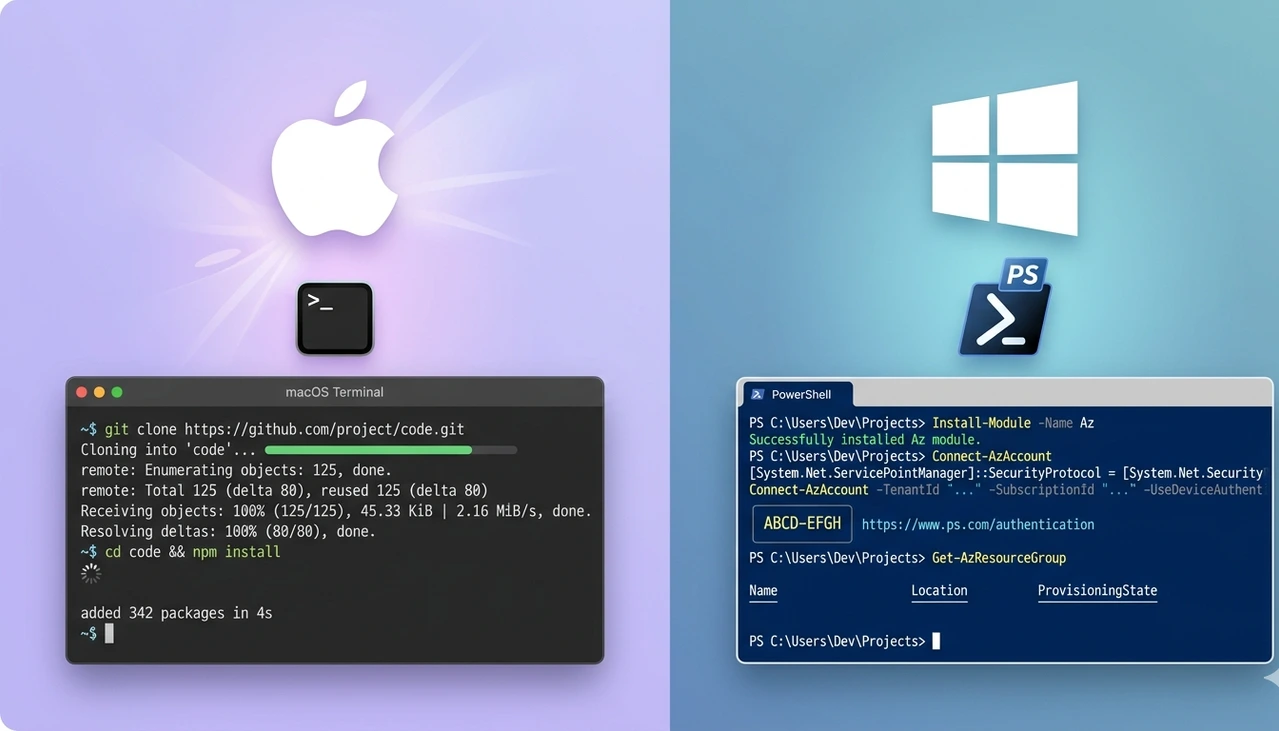
Run this single command:
curl -fsSL https://claude.ai/install.sh | bash
After it finishes, reload your shell:
source ~/.zshrc
Verify everything worked:
claude --version
claude doctor
Claude Code should now be installed at ~/.claude/bin/claude or ~/.local/bin/claude.
If you see commands not found after install, check your global npm bin path and verify it is in your PATH environment variable. Claude vs GPT-4o (2026)Make sure your shell is loading your configuration file, such as ~/.zshrc, so that global binaries are accessible.
Floor 3: Windows Installation (Where Most People Get Stuck)
Windows is where I lost my six hours. Here is what I learned.
Claude Code on Windows requires Git for Windows or WSL. You can launch Claude from PowerShell, CMD, or Git Bash. There are two routes:
Option A: Native Windows with Git for Windows (Simplest)
Install Git for Windows if you do not have it.
Open PowerShell (not as Administrator you do not need elevated permissions).
Run the native installer:
- irm https://claude.ai/install.ps1 | iex
If Claude Code cannot find your Git Bash after install, set the path in your settings.json file: {"env": {"CLAUDE_CODE_GIT_BASH_PATH": "C:\\Program Files\\Git\\bin\\bash.exe"}}
Option B: WSL2 (More Powerful, More Setup)
WSL2 (Windows Subsystem for Linux) creates a full Linux environment inside Windows. It is more capable for serious development work. Run from PowerShell as Administrator:
wsl --install -d Ubuntu
Then, inside your Ubuntu terminal:
curl -fsSL https://claude.ai/install.sh | bash
CRITICAL WARNING: Never use sudo npm install -g with Claude Code. This creates permission issues and security vulnerabilities that will cause persistent problems throughout your setup. If you see permission errors, fix your npm configuration — do not reach for sudo.
Floor 4: Authentication Connecting Claude Code to Your Account
Once installed, you need to link Claude Code to your Anthropic subscription.
Run:
claude
On your first launch, you will be prompted to log in or provide an API key. Two options:
Option A: Subscription Login (Recommended for most people) Sign in with your Anthropic account. This uses your existing Pro, Max, or Team plan credits. Claude Code draws from the same token budget as your regular Claude usage.
Option B: API Key (For developers building pipelines) Visit console.anthropic.com, generate an API key starting with sk-, and set it:
export ANTHROPIC_API_KEY="sk-your-key-here"
For most non-technical users running Claude Code for their own projects, Option A is the right call. You pay your subscription, you use the tool, the billing is handled.
Floor 5: Your First Real Session
Navigate to a project folder. Any folder on your computer that contains files you want Claude Code to analyze or edit.
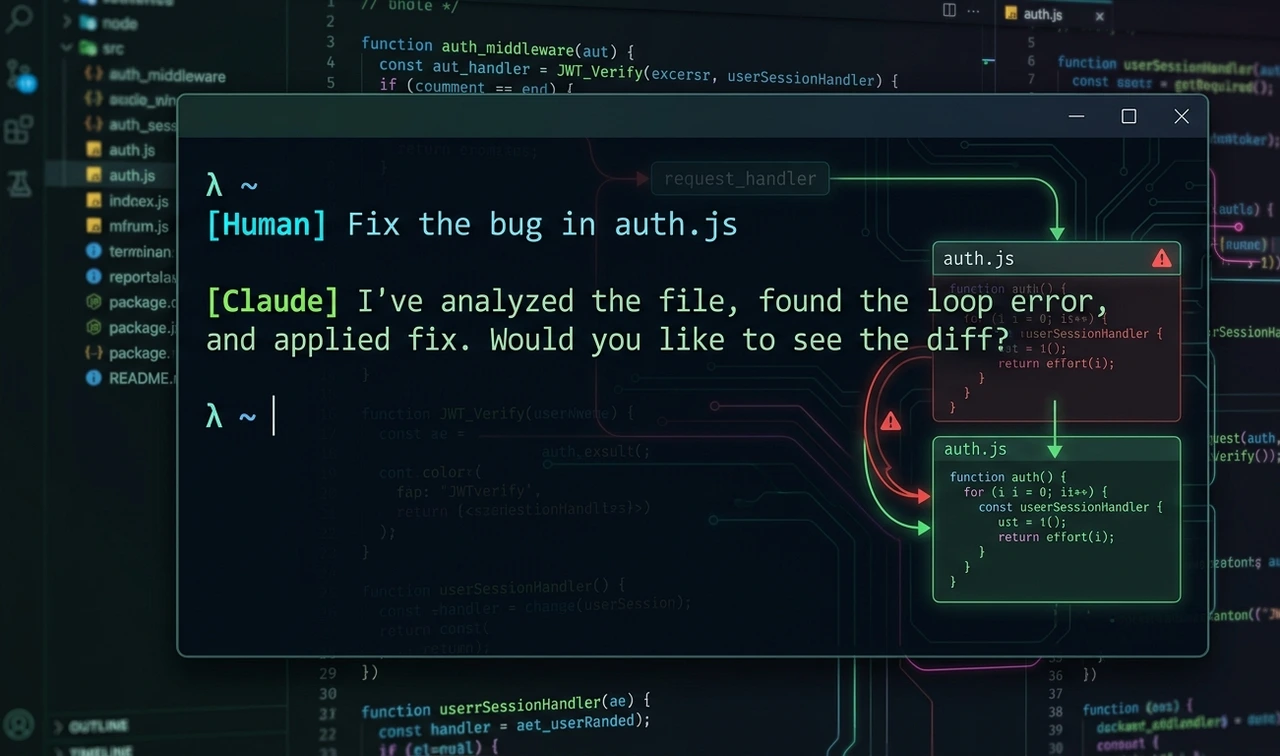
cd ~/Documents/MyProject
claude
You are now inside a Claude Code session. Try these opening commands:
explain this codebase architecture — Claude reads your files and gives you a plain-English map
What does the file X.py do? — Context-aware file analysis
fix the bug in authentication.js — Actual code editing
Inside a session, use slash commands to control Claude Code's behavior:
Slash Command | What It Does |
/help | Shows all available commands |
/clear | Starts a fresh conversation (important for context window management) |
/compact | Summarizes the current session to free up context |
/config | Opens settings |
/quit | Exits Claude Code |
The 2026 Production Reality: What It Really Costs and How to Stay Safe
Pricing: The Honest Breakdown
Here is where I want to save you money. Most guides either skip pricing entirely or give you a vague "it depends." Let me give you actual numbers.
Claude Code costs $20/month on the Pro plan, $100 or $200/month on Max, or pay-per-token via the Anthropic API. There is no free Claude Code plan.
Plan | Monthly Cost | Best For | Claude Code Access |
Free | $0 | Basic chat only | ❌ Not included |
Pro | $20/mo | Individuals, light-to-moderate use | ✅ Included |
Max 5x | $100/mo | Heavy professional use, daily sessions | ✅ Included + Opus 4.6 |
Max 20x | $200/mo | Full-time power users, multi-agent | ✅ Unlimited band |
API Pay-as-Go | Variable | Automation, CI/CD pipelines | ✅ Per-token billing |
The counter-intuitive advice nobody gives you: Start on Pro. The internet conversation about Claude Code is dominated by power users who are already on Max and burning thousands of tokens per day. Most individual developers should still start on Pro. Upgrade when shared-limit resets interrupt valuable work often enough that waiting costs more than the premium.
If you hit limits occasionally, try enabling extra usage before upgrading. Anthropic lets you continue through pay-as-you-go pricing once your included limit is reached, and you can put a monthly cap on how much you are willing to spend.
Hypothetical Case Study: Sarah, a solo founder using Claude Code for her SaaS
Sarah runs a one-person software business. She uses Claude Code for 2-3 hours a day primarily refactoring legacy code, generating documentation, and writing test suites. She is not an engineer, but she knows enough to read code.
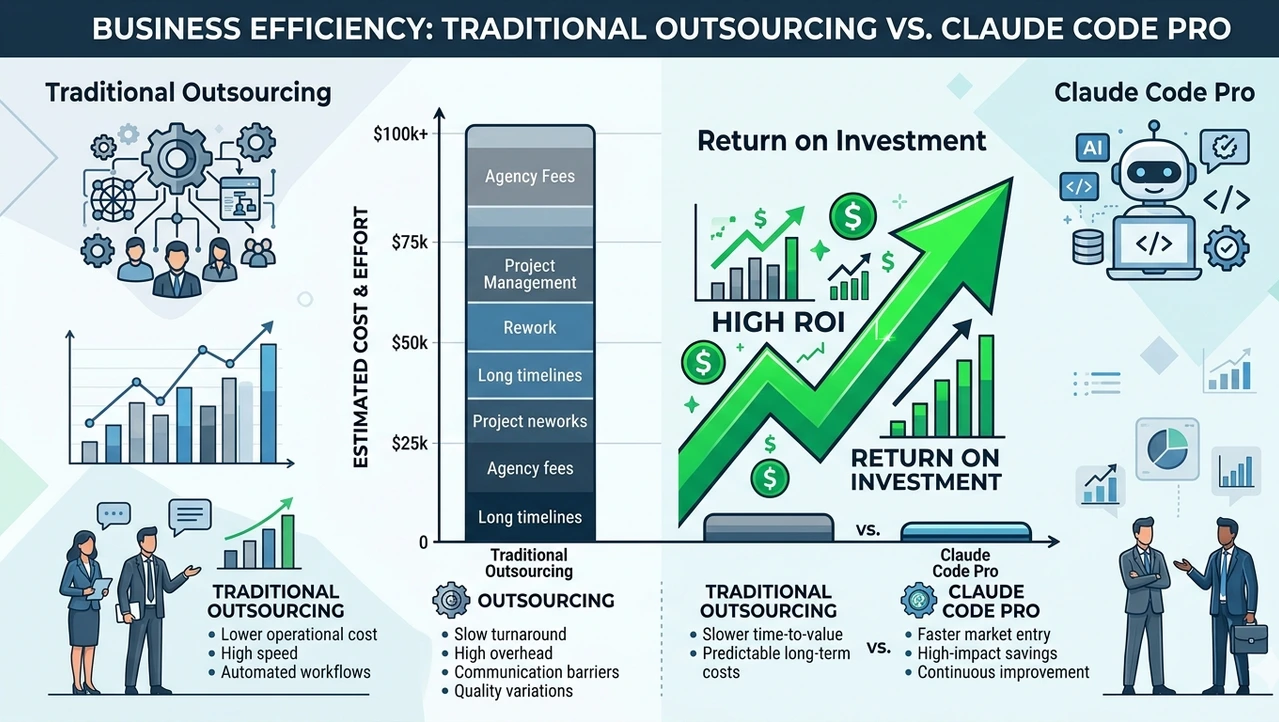
Before Claude Code: she outsourced these tasks at $75/hour, spending roughly $1,200/month on a part-time contractor.
After Claude Code on Pro ($20/month): She handles 80% of those tasks herself. The contractor now focuses only on truly complex architecture work, costing $300/month.
Net monthly savings: $880. ROI on her $20 subscription: 4,400%.
The latency bottleneck she did hit: Pro limits interrupted her once or twice a week during heavy weeks. She added extra usage with a $50 cap. Total monthly spend: ~$45. Still a landslide win.
Security: The Things That Can Go Wrong
Claude Code executes real commands on your computer. It can read files, write files, run scripts, and make network requests. This is not a toy. Before you hand it access to a production codebase, understand these guardrails:
What Claude Code can do without asking:
Read any file in your project directory
Write and overwrite files
Run shell commands
Make HTTP requests
What you should do to limit risk:
Run Claude Code inside project-specific directories only. Do not cd to your root home directory and launch Claude. Point it at specific project folders.
Use version control. Always work inside a Git repository. Before a major Claude Code session, create a branch. If something goes wrong, git reset is your undo button.
Do not expose API keys. Never paste credentials, secret keys, or passwords directly into a Claude Code session. Claude Code will read your .env files if they are in the directory — this is by design for development, but keep this in mind in shared environments.
Review before you commit. Claude Code works fast. Resist the urge to blindly accept every change. Use git diff to review what changed before committing anything.
PRO TIP: Think of Claude Code like a very capable, very fast junior engineer. You would not let a new hire deploy to production without a code review. Apply the same standard here. Zero-shot prompting asking Claude to complete a task in a single instruction without examples works well for small contained tasks. For anything touching production logic, break it into reviewed steps.
Context Window Management: The Hidden Performance Lever
This is the part most beginner guides completely skip.
Every Claude Code session has a context window, a maximum amount of information the model can hold in its "working memory" at once. Claude Sonnet 4.6's 1M token context window is currently available via API only. Through subscription plans, the effective working context per session is smaller.
When your context fills up, Claude's responses get worse. It starts forgetting earlier parts of the conversation. It gives inconsistent answers. This is not a bug — it is a physics-of-the-model problem.
How to manage it:
Use /compact regularly during long sessions. This summarizes the session into a compressed form, freeing up context without starting over.
Use /clear when switching to a completely different task.
Structure your sessions around focused, single-purpose tasks rather than marathon catch-all sessions.
Use vector embeddings-style thinking: instead of dumping your entire codebase into context, direct Claude Code to specific files and modules. "Look at src/auth/login.js" is better than "look at everything."
PRO TIP — The Counter-Intuitive One: Smaller, more frequent sessions often outperform one long mega-session. The model's attention degrades at the edges of a packed context window. Fresh sessions maintain precision.
The 48-Hour Action Plan
No recap. No summary. Just what you do right now, in order.
Hour 0–1: Account and Prerequisites
[ ] Log in to claude.com/pricing and confirm you are on Pro or higher. If not, upgrade now.
[ ] On Mac: open Terminal. On Windows: install Git for Windows from git-scm.com.
[ ] Run claude --version to check if you already have an older install. If you do, plan to migrate to the native installer.
Hour 1–2: Install Claude Code
[ ] Mac/Linux: run curl -fsSL https://claude.ai/install.sh | bash
[ ] Windows (native): run irm https://claude.ai/install.ps1 | iex in PowerShell
[ ] Run claude doctor and fix any issues it surfaces before moving on. Do not skip this step.
[ ] Authenticate with your Anthropic account on first launch.
Hour 2–4: First Real Session
[ ] Create a new folder called claude-test on your Desktop.
[ ] Drop any project files you want to experiment with into that folder — code, a document, anything.
[ ] cd ~/Desktop/claude-test and run claude
[ ] Ask Claude Code to explain what it sees. Then ask it to do something small, summarize a file, fix obvious errors, add comments.
[ ] Use git init inside the folder so you have an undo mechanism.
Hour 4–24: Build Your First Real Workflow
[ ] Identify one real task in your work that currently takes you more than an hour a week. Write it down.
[ ] Design a single focused prompt for Claude Code to handle that task. Be specific. Include file names, expected outputs, constraints.
[ ] Run it. Review the output with git diff. Commit only what you approve.
[ ] Note how many times Claude Code needed clarification. Each clarification is a signal for how to make your prompt more precise next time.
Hour 24–48: Optimize and Decide Your Plan
[ ] Track your usage. Did you hit limits? How many sessions did you run?
[ ] If you hit limits twice or more, explore enabling extra usage with a spending cap before upgrading to Max.
[ ] Set up a project-specific .claude/ settings file in your primary working directory.
[ ] Install the Claude desktop app alongside Claude Code for tasks that benefit from the chat interface — they complement each other. Claude Code for execution, Claude chat for thinking and planning.
This guide will be updated as Anthropic releases new versions of Claude Code. Prices and features verified against official Anthropic documentation as of April 2026. For the most current installation documentation, visit docs.claude.com.
Published on HustleToAI.com — Built for operators who take AI seriously.