The year 2026 has marked the beginning of a new era in software development, one being called "Vibe Coding." This is a style of building where developers no longer just write code manually, but instead interact with AI in plain natural language to build entire applications. Tools like Cursor, Windsurf, and Lovable have torn down the technical barriers that once separated ideas from execution, shifting the focus of programming from syntax memorization to pure logic and creativity. If you are a founder or a developer, understanding these tools is no longer optional it is a professional requirement.

Here is the uncomfortable truth most Cursor tutorials skip: the majority of developers using Cursor AI are getting maybe 30% of what it can actually do. They use it like a smarter autocomplete. They prompted it the way they Googled things in 2019. They completely miss the features that save hours every single week.
This guide changes that. Whether you installed Cursor yesterday or have been using it for months, by the end of this article you will know exactly how to prompt it like a senior engineer, configure it for your team's standards, and extract the productivity gains that make the $20 per month feel like stealing.
What Is Cursor AI And Why Did It Cross $2 Billion in Revenue Faster Than Most SaaS Companies?
Cursor is a full AI-native code editor built as a fork of VS Code by Anysphere Inc. It crossed $2 billion in annualized revenue by early 2026 and now counts over one million daily active users not because of great marketing, but because developers who try it tend not to go back.
The key difference from every other AI coding tool is architectural. When you open a project in Cursor, three things happen that do not happen in other editors:
It indexes your entire codebase and builds a semantic map of your project
It understands how your files, functions, and modules relate to each other
Every AI suggestion is made with that full project context not just the file currently open
GitHub Copilot reads your open tabs. Cursor reads your entire project. That single architectural difference explains why it costs twice as much and why most serious developers say it is worth every cent.
2026 Benchmark: In a March 2026 iBuild Research test, Cursor completed a responsive TailwindCSS data table component in 2 rounds of prompting. Windsurf needed 3 rounds. GitHub Copilot required 5 rounds plus manual fixes. In speed comparisons, Cursor responded in 320ms versus Copilot's 890ms on comparable tasks.
The Core Cursor AI Features Most Developers Only Half-Know
1. Tab Completion Powered by Cursor's Proprietary Fusion Model

This is not autocomplete with a different name. Cursor's Tab completion is fundamentally different:
It predicts multi-line code blocks based on your current file and your recent editing patterns
It suggests entire functions from a single plain-English comment
In 2026, Cursor introduced Predictive Editing it anticipates your next several coding steps and can execute them with a single keystroke
Beginner tip: Type a plain English comment describing what you want, then press Tab:
// fetch user data from the API and cache the response for 5 minutes |
Cursor writes the full implementation. No prompt window needed. No copy-pasting from ChatGPT.
2. Composer Mode The Feature That Actually Separates Cursor From Everything Else
Composer is where Cursor pulls decisively ahead of every competitor. You give it one natural language instruction, and it applies coordinated changes across multiple files simultaneously while understanding how those files relate to each other architecturally.
Example prompt that actually works in Composer:
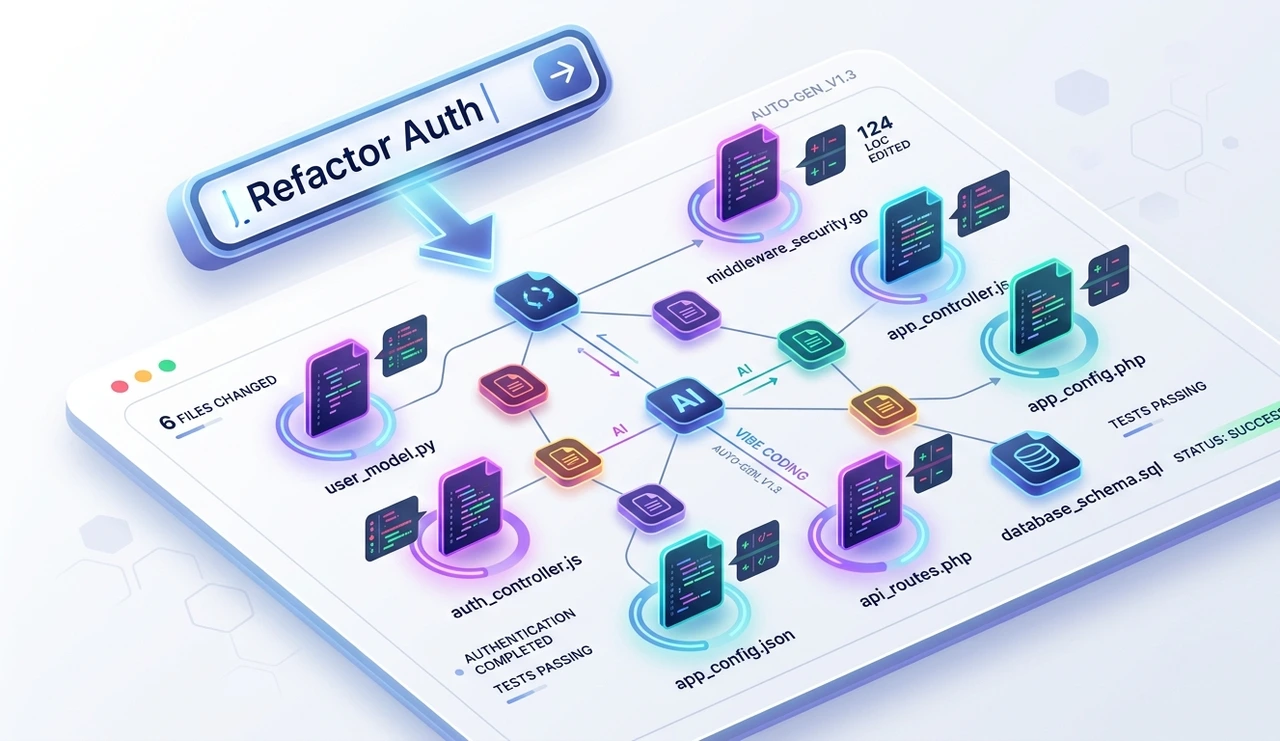
"@routes/auth.js @middleware/authenticate.js Refactor the authentication system to use JWT tokens instead of session cookies. Update the middleware, the login endpoint, and any frontend calls that depend on it."
In VS Code with Copilot, that same task requires multiple sequential instructions, manual file-switching between sessions, and stitching the changes together yourself. In Cursor, it is one prompt.
How to open Composer:Cmd+I on Mac / Ctrl+I on Windows.
3. Agent Mode with YOLO Mode — Your AI That Acts, Not Just Suggests
Agent Mode (activated with Cmd/Ctrl + .) handles complex, multi-step tasks autonomously. It can run terminal commands, check for errors, and iterate on its own output without stopping to ask you for permission at each step.
YOLO Mode is the most underrated feature inside Agent Mode. When enabled, it runs tests and fixes build errors automatically without prompting you for confirmation each time. A real workflow example:
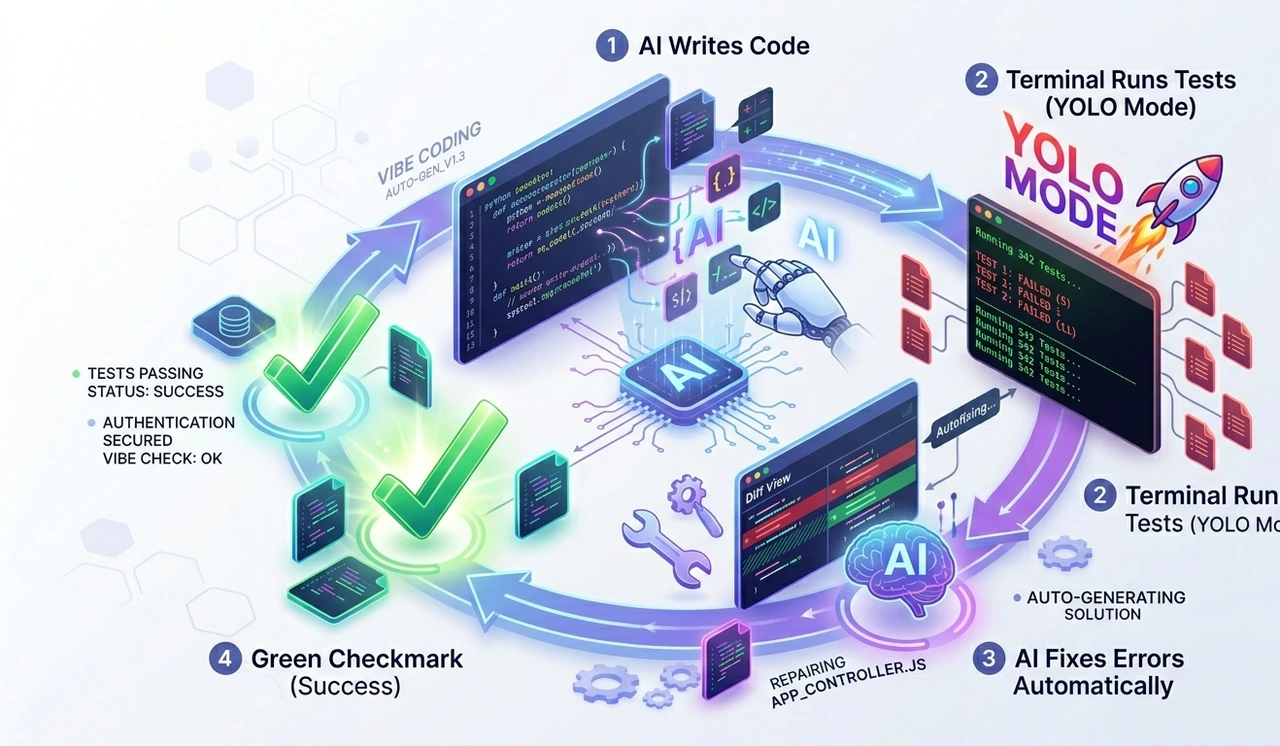
You change TypeScript code
YOLO Mode runs tsc, finds the compile errors automatically
It fixes them, re-runs the compiler, and keeps iterating
You come back to green tests
How to set it up: Go to Cursor Settings → enable YOLO Mode → configure trusted commands:
"any kind of tests are always allowed like vitest, npm test, nr test, etc. also basic build commands like build, tsc, etc." |
As of version 2.6 (March 2026), Agent Mode also supports:
Background Agents running on remote virtual machines
Automations triggered by external events like GitHub webhooks or Slack messages
Bugbot for automated PR reviews covering up to 200 pull requests per month on the Pro plan
4. Codebase Indexing and the @ System
Cursor indexes codebases up to 500MB with sub-second query times as of the 2026 specification. The @ system lets you be precise about what context you feed the AI in any given prompt:
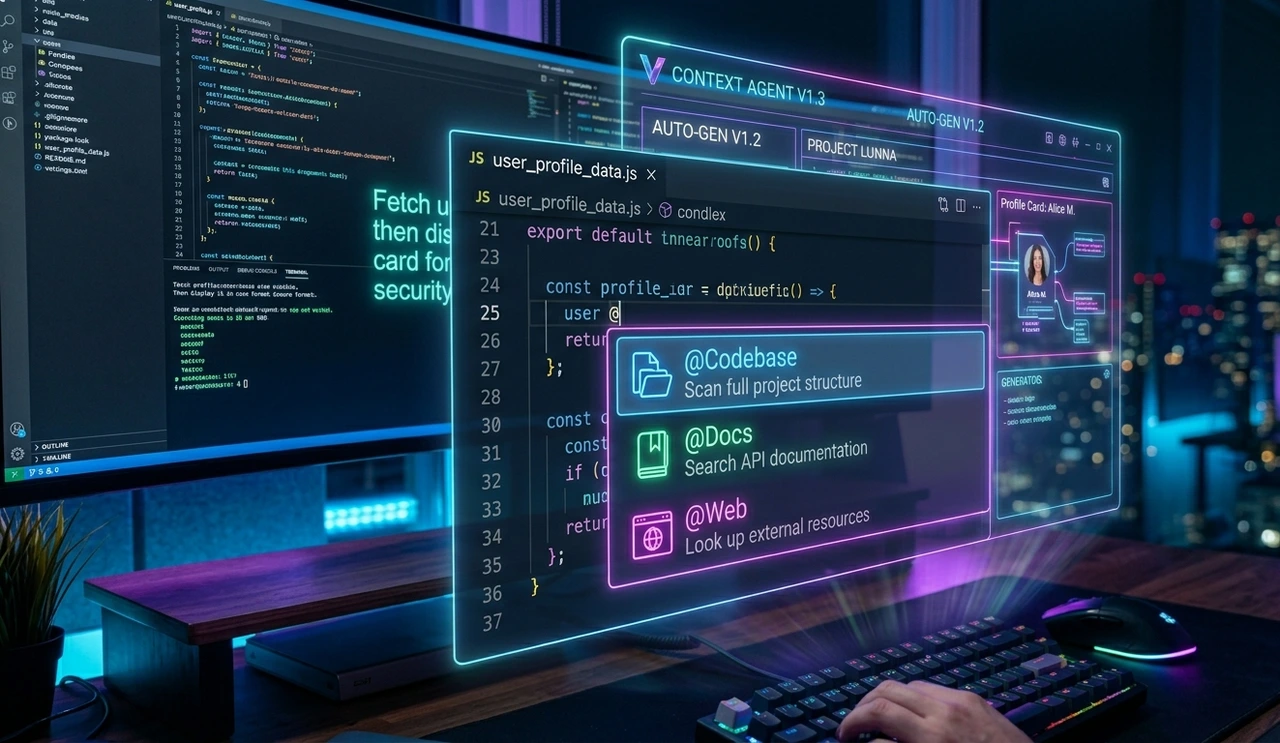
@ Command | What It Does |
@filename | Include a specific file in the AI's context |
@folder | Reference an entire directory |
@docs | Pull in external documentation you have indexed |
@web | Cursor searches the internet in real time for answers |
@Commit | Reference your current working git state |
Pro move: Before starting a complex refactor, type @ and select every file the change will touch before writing your instruction. Cursor plans the changes with all of them in context at once, rather than making changes piecemeal.
5. .cursorrules — Custom AI Instructions That Persist Across Your Entire Project
The .cursorrules file lets you define exactly how Cursor should behave for your specific project. Store these in .cursor/rules/ as plain Markdown or JSON files. Think of this file as the onboarding document you would hand a new senior engineer on their first day — your stack, your conventions, your anti-patterns, and your non-negotiables.
Example: cursorrules configuration for a TypeScript React project:
{ "rules": { "context_initialization": { "steps": [ "ALWAYS read project_overview.md and task_list.md before taking any action" ] }, "code_standards": [ "Use TypeScript with strict mode always enabled", "Never import lodash — use native JavaScript array methods instead", "Follow React hooks naming convention: use[FeatureName]", "Write JSDoc comments on all exported functions", "Include error handling for all async operations" ], "safety_requirements": [ "NEVER break type safety", "ALWAYS maintain proper error handling", "ALWAYS document new public APIs" ] } } |
Once this file exists, every AI interaction in that project respects these rules including every Composer session and every Agent task. You stop re-explaining your architecture in every prompt and start shipping consistent, standards-compliant code.
6. Adding External Documentation, PDFs, and GitHub Repos
One of the most underused Cursor AI features is the ability to feed it external documentation as indexed context. You can give Cursor access to internal API specs, third-party SDK documentation, and your team's architecture decision records — permanently, without pasting into every conversation.
How to add a PDF or GitHub repository as a Cursor doc:
Convert the PDF to Markdown using a tool like Marker (which handles OCR for scanned documents)
Paste the Markdown into a public GitHub Gist
In Cursor: open @Docs → Add New Doc → paste the Gist URL
Assign it a clear name and index it
Reference it in any prompt with @YourDocName
For a GitHub repository, tools like uithub.com let you extract specific file types (for example, all Markdown files by appending ?ext=md). Merge the relevant files into a single Markdown document — keep it under 60,000 tokens — and follow the same indexing process.
Advanced Prompting Techniques: The Gap Between Beginners and Professionals
Most beginners treat Cursor like a fancy search bar. Professionals use it like a technical co-founder who has read every line of their codebase. Here is where the gap actually shows up.
Technique 1: Chain-of-Thought Prompting
Instead of asking Cursor for an answer directly, ask it to reason through the problem step by step first.
Weak approach:
"Fix the authentication bug."
Strong approach:
"Walk through how the login request flows from the frontend form all the way to the database query. Identify at which point the session token is being dropped, explain what is causing it, then fix the underlying issue."
The step-by-step framing forces the AI to surface its reasoning before acting which catches wrong assumptions before they become wrong code changes. This is especially valuable for bugs that involve multiple files or unclear root causes.
Technique 2: Few-Shot Prompting — Teach by Example Before You Ask
If you want Cursor to write code that matches your existing style, show it one clear example before making your request. This is called few-shot prompting, and it is dramatically more effective than describing your style in abstract terms.
Here is how we write API route handlers in this project: // GET /api/users/:id export async function getUser(req: Request, res: Response) { try { const user = await UserService.findById(req.params.id); if (!user) return res.status(404).json({ error: 'User not found' }); return res.json({ data: user }); } catch (err) { logger.error(err); return res.status(500).json({ error: 'Internal server error' }); } } Now write the POST /api/users route handler following exactly the same pattern. |
You get code that looks like it belongs in your codebase not generic boilerplate that needs to be reformatted before merging.
Technique 3: Be Specific About the "Why," Not Just the "What"
This is the single most impactful change most beginners can make immediately.
Weak prompt:
"Fix the login bug."
Strong prompt:
"The login endpoint at /api/auth/login is returning a 500 error when the email field is submitted empty. The expected behavior is a 400 response with the body { error: 'Email is required' }. Update the request validation logic in the route handler and add a test case that specifically covers the empty email scenario."
The more context you provide about the expected behavior, the constraint, and the current failure mode the fewer correction rounds you need.
Technique 4: Load Context Before You Write the Prompt
Beginners write the prompt, then add context as an afterthought. Professionals load the context first, then write the instruction.
@UserService.ts @UserService.test.ts @IUserService.ts Refactor the getUser() method to handle the case where a user's account is suspended. Add the suspended status check to the service implementation, update the TypeScript interface, and add test coverage for both the active and suspended account scenarios. |
Referencing all three files upfront means Cursor produces changes that are consistent across the service, its interface, and its tests in a single pass, with no mismatches between them.
Technique 5: Break Large Tasks Into Composable Prompts
Agent Mode is powerful, but it works best on well-scoped tasks with clear success criteria. Instead of:
"Build me an e-commerce checkout flow."
Do this sequence:
"Create the CartContext with add, remove, and clear methods. Use TypeScript with strict types throughout."
"Build the CheckoutForm component that reads from CartContext. Include client-side field validation on all required fields."
"Write the API endpoint for processing a Stripe payment. Handle card decline errors with appropriate user-facing messages."
"Write integration tests for the complete checkout flow covering successful payment, declined card, and empty cart scenarios."
Each prompt builds on the previous result. Cursor maintains session context throughout. You get production-quality, tested code instead of a prototype that half-works.
Technique 6: Use Plan Mode Before Acting on Large Changes
The most experienced Cursor users in the developer community consistently recommend a two-stage workflow: plan first, act second.
Before asking Cursor to make significant changes to your codebase, ask it to explain what it intends to do:
"Before making any code changes: explain your complete plan for refactoring the authentication system. List every file you will touch and describe exactly what change you will make to each one."
Review the plan carefully. If Cursor has misunderstood your architecture or missed a critical file, correct it at the planning stage before a single line of code changes. This one habit eliminates the majority of large-scale Cursor mistakes that developers run into.
Technique 7: Log Failures in Your .cursorrules File
Every time Cursor produces an incorrect output on your project wrong pattern, violated convention, missed edge case add a rule to your .cursorrules file documenting the failure and the correct behavior.
Over time, your .cursorrules file becomes a learning document that prevents Cursor from making the same project-specific mistakes twice. Teams that maintain this file carefully report dramatically more consistent AI output across the codebase.
Cursor AI Pricing: The Full 2026 Breakdown (Including the Billing Trap to Avoid)
Cursor's pricing changed significantly in June 2025, moving from a simple fixed-request model to a credit-based system. This change caused serious billing surprises for some developers. One community member reported their costs jumping from approximately $100 per month to $20–30 per day after the switch. Cursor acknowledged the communication failure publicly and issued refunds for the affected period. The credit model is here to stay, so you need to understand it before choosing a plan.
How the credit system actually works:
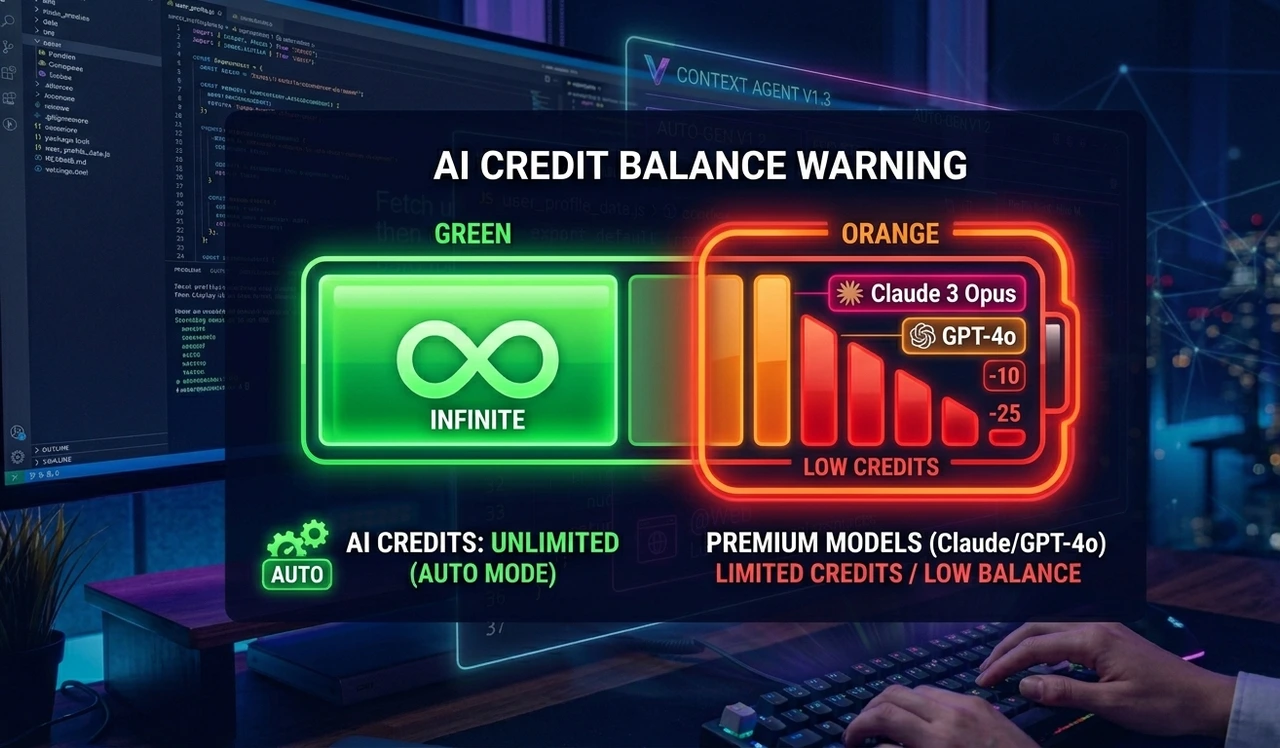
Every paid plan includes a monthly credit pool equal to the plan price in dollars
Auto mode where Cursor selects the most cost-efficient model automatically is completely unlimited on all paid plans and does not consume credits
Credits are consumed only when you manually select a specific premium model like Claude Sonnet or GPT-4o
Claude Sonnet depletes credits roughly 2x faster than Gemini for the same task model choice significantly affects your monthly bill
When credits run out, you can switch back to Auto mode (still unlimited) or pay overages at the same API rates with no markup
Plan | Monthly Price | Credit Pool | Best For |
Hobby | $0 | None | First-time evaluation only |
Pro | $20/month | $20 of API credits | Individual daily development |
Pro+ | $60/month | $60 of API credits (3x) | Heavy power users hitting Pro limits |
Ultra | $200/month | $200 of API credits (20x) | Full-time AI-native developers |
Teams | $40/user/month | $40/user of API credits | Teams of 3+ needing shared rules and billing |
Enterprise | Custom | Pooled usage | Audit logs, SCIM, SSO, granular controls |
Annual billing saves 20% across all tiers.
The practical advice most pricing guides skip: Start by using Auto mode exclusively for the first month. Only manually select Claude Sonnet or GPT-4o for tasks that genuinely demand the highest model capability, large architectural refactors, complex debugging sessions. For routine completions and standard Agent tasks, Auto mode is unlimited and fast enough that you will rarely notice the difference.
Is Cursor AI Free? The Honest 2026 Answer
Yes Cursor has a genuine free Hobby tier that requires no credit card. Here is exactly what you get:
Limited Tab completions sufficient to evaluate the feature, not enough for a full workday
Limited Agent requests same situation
A one-week Pro trial applied automatically when you create your account
The honest assessment: the Hobby plan exists for evaluation, not production work. You will hit its limits during any serious coding session. For anyone making Cursor their primary editor, Pro at $20/month is the realistic starting point. The one-week Pro trial at signup gives you enough time to determine whether that investment is right for you.
Cursor vs VS Code: The Honest 2026 Comparison
This is the question every developer asks before switching. Here is the full breakdown without the marketing language.
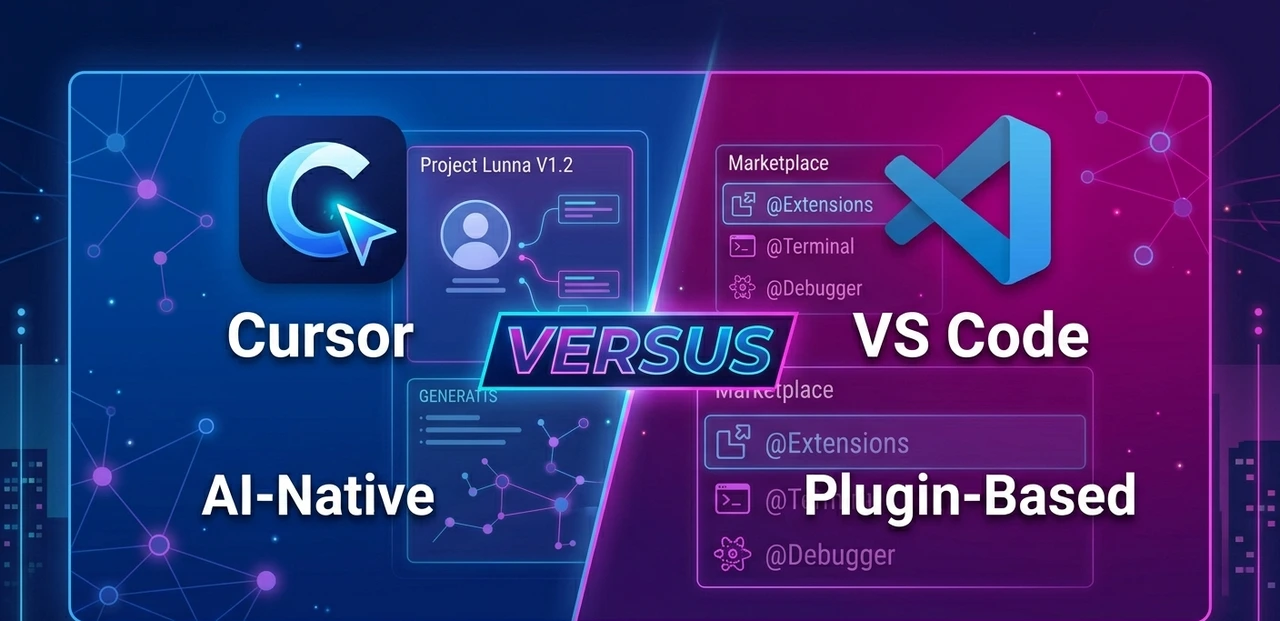
Feature | Cursor | VS Code + Copilot |
AI Architecture | AI-native, built into the editor core | Plugin-based, layered on top of the editor |
Codebase Indexing | Full repository, up to 500MB | Open tabs plus limited workspace scanning |
Context Window | Up to 272k tokens | Up to 128k tokens (GitHub Copilot) |
Multi-file Editing | Composer Mode one prompt, multiple files | Sequential commands across separate sessions |
Model Support | GPT-4o, Claude, Gemini, DeepSeek, xAI | Primarily OpenAI models |
Extensions | Most VS Code extensions supported | Full marketplace with 30,000+ extensions |
Jupyter Notebooks | Limited — a genuine weak spot | Strong native support with AI integration |
Pricing | From $20/month | From $10/month (Copilot Individual) |
Open Source | No — proprietary fork of VS Code | Yes — MIT licensed |
Agent Automations | Yes, including external event triggers | Yes — Agent Mode launched March 2026 |
Context Fatigue Reduction | ~40% less than Copilot (internal benchmarks) | Baseline reference |
Enterprise Compliance | SOC 2 Type II | SOC 2 Type I plus ISO 27001 certification |
Who should choose Cursor:
Developers doing complex multi-file work — refactoring, feature builds, architectural changes
Teams that want shared cursor rules and consistent AI behavior across the codebase
Developers who switch between AI models depending on task complexity
Who should stay with VS Code + Copilot:
Data scientists who work heavily in Jupyter Notebooks
Developers who rely on niche VS Code extensions with compatibility concerns
Enterprise teams that require ISO 27001 audit trails and mature compliance documentation
The important context: The gap is narrowing. Microsoft shipped Agent Mode, Background Agents, and MCP support across January through March 2026. VS Code is no longer just catching up, it is a serious contender again. For developers who are price-sensitive or deeply invested in the VS Code ecosystem, the case for staying is stronger now than it was a year ago.
Cursor Composer Guide: A Complete Step-by-Step Walkthrough for Beginners
If you have just installed Cursor and want to run your first real multi-file edit, follow these exact steps.
Step 1: Open Composer Press Cmd+I on Mac or Ctrl+I on Windows. The Composer panel opens in the sidebar.
Step 2: Set your context Type @ and select the specific files you want Cursor to work with. If your task touches the whole project or you are not sure which files are involved, skip this step — Cursor will use its full codebase index automatically.
Step 3: Write the instruction like you are briefing a senior developer Be specific about the current situation, the expected outcome, and any relevant constraints:
"@routes/auth.js @middleware/authenticate.js Add rate limiting to the login endpoint. The limit should be a maximum of 5 attempts per IP address per 10 minutes. Use the express-rate-limit package that is already in package.json — do not add new dependencies."
Step 4: Read the diff before accepting anything Cursor will display the proposed changes as a line-by-line diff. Read it. AI-generated code moves fast but is not infallible. Treat every Cursor output like a pull request from a smart junior developer reviewing it before merging.
Step 5: Accept, reject, or refine
Click Accept All to apply every proposed change
Click individual change hunks to accept specific changes selectively
If something looks incorrect, type a follow-up correction in the same Composer session without starting over — Cursor retains the session context
Best AI Code Editor 2026: How Cursor Compares to the Full Competitive Landscape
Cursor vs Windsurf
Windsurf raised its Pro plan from $15/month to $20/month in March 2026, making it price-equivalent with Cursor at every tier. The competitive choice now comes down entirely to workflow preference:
Windsurf's advantage: Stronger out-of-the-box multi-IDE support, working natively with JetBrains IDEs like IntelliJ IDEA and PyCharm
Cursor's advantage: More mature agent automations, external event triggers, and a faster-moving development roadmap
Cursor vs GitHub Copilot
Cursor costs twice as much as Copilot Individual ($20 vs $10/month). The capability difference is real and justifies the premium for most professional developers:
Cursor's full-repository semantic indexing has no equivalent in Copilot at the individual tier
Composer Mode versus Copilot's sequential multi-file workflow is a meaningful daily productivity difference
Copilot remains the better choice for developers who cannot or will not leave JetBrains IDEs, or for teams that need mature enterprise compliance documentation
For teams: Cursor Teams at $40/user versus Copilot Business at $19/user — the same capability-versus-cost story applies.
Cursor vs Claude Code
Claude Code is Anthropic's terminal-based coding agent — it is not an IDE replacement. It is optimized for complex architectural reasoning tasks run from the command line, with persistent memory and skills. Many professional developers use both tools in tandem: Claude Code for deep reasoning work in the terminal, Cursor for day-to-day editing in a GUI environment.
[Cursor vs Claude Code review here]
Pros and Cons of Cursor AI: The Unfiltered Assessment
What Cursor Gets Right
Full codebase context — The semantic repository index is the single largest productivity advantage over any plugin-based tool. Nothing else currently matches it at the individual developer tier.
Composer Mode — Multi-file edits from one natural language instruction. No other editor does this as smoothly or as reliably.
Multi-model flexibility — Switch between Claude Sonnet, GPT-4o, Gemini, and DeepSeek depending on the complexity and nature of each task.
Familiar interface — Built on VS Code. Your keyboard shortcuts, themes, and the majority of your extensions transfer over without configuration.
.cursorrules — Project-level AI behavior that persists across every session without repeating yourself.
YOLO Mode — Automated test-and-fix loops that save significant time on TypeScript-heavy or test-driven codebases.
Agent Automations — Always-on agents triggered by GitHub or Slack events, available since March 2026.
Bugbot — PR review that understands logic errors and missing edge cases, not just syntax issues.
Where Cursor Falls Short
Unpredictable billing — The credit-based system introduced in June 2025 can produce surprise overages if you use premium models heavily. The system burned users once already, and careful monitoring is required.
Weak Jupyter Notebook support — Data scientists will find VS Code meaningfully more capable for notebook-based workflows.
Proprietary codebase — There is no open-source escape route. You are entirely dependent on Anysphere's pricing and roadmap decisions.
Extension compatibility gaps — A small number of niche VS Code extensions have compatibility issues, particularly those that conflict with Cursor's native AI layer.
Context ceiling at enterprise scale — Even 272k tokens have limits when working with very large monorepos or extremely long refactoring sessions.
Compliance immaturity — Enterprises requiring ISO 27001-level audit trails will find VS Code with Copilot Enterprise more mature in this dimension.
Frequently Asked Questions:
Yes. The Hobby tier is genuinely free with no credit card required. It includes limited Tab completions and limited Agent requests, plus a one-week Pro trial on signup. It is not designed for full-time professional use that requires the Pro plan at $20/month as a minimum.
Since June 2025, every paid plan includes a monthly credit pool equal to the subscription price in dollars. Auto mode is completely unlimited — credits only deplete when you manually select a specific premium model. Claude Sonnet depletes credits roughly twice as fast as Gemini, so model selection has a significant impact on your monthly bill. Overages are billed at the same public API rates with no markup.
For complex, multi-file professional development: yes, meaningfully so. Composer Mode and full codebase indexing are genuine advantages with no current equivalent in the VS Code plugin ecosystem at the individual tier. For Jupyter Notebook workflows, niche extension requirements, and enterprise compliance: VS Code still holds real advantages. The right answer depends entirely on what you build every day.
Composer is Cursor's multi-file editing feature. You describe a task in natural language once, and Cursor applies coordinated changes across multiple files simultaneously — using its codebase index to understand how those files relate architecturally, so the changes are consistent across all of them.
YOLO Mode is a setting inside Agent Mode that allows Cursor to run tests and fix build errors automatically without asking for your confirmation at each step. You configure it with a list of trusted commands such as tsc, vitest, and npm run build. It is one of the most underrated time-saving features in the entire editor for developers working in TypeScript or test-driven environments.
The majority of VS Code extensions work in Cursor because it is built as a fork of VS Code. The exceptions are extensions that conflict with Cursor's native AI layer — notably, attempting to run GitHub Copilot inside Cursor simultaneously tends to cause conflicts.
It is a project-level configuration file stored in .cursor/rules/ that defines how Cursor's AI should behave specifically within your project. You can specify coding standards, architectural conventions, anti-patterns to avoid, and initialization steps. Every AI interaction in that project — from Tab completions to full Composer sessions — automatically respects these rules without you having to repeat yourself.
Final Verdict: Should You Switch to Cursor in 2026?
For professional developers building real products not just following tutorials, Cursor Pro at $20/month is one of the highest-ROI tools available in 2026. The Composer Mode alone will recover that monthly cost in the first serious multi-file refactor you run. Add YOLO Mode for automated test-fix loops, .cursorrules for consistent project-wide AI behavior, and the full codebase indexing, and you are looking at a fundamentally different relationship with your own codebase.
For data scientists working primarily in Jupyter Notebooks, or enterprise teams with strict ISO 27001 compliance requirements: stay with VS Code and Copilot for now. Microsoft moved significantly in early 2026, and the ecosystem maturity gap in those specific areas is real.
The Vibe Coding era is not about replacing developers. It is about eliminating the friction between having a clear idea and shipping working, tested code. Cursor — used with the prompting techniques and configurations described in this guide — is currently the best tool available for exactly that job.