Introduction
If you launch Claude Desktop and all you see is an empty white pane with the minimize, maximize, and close buttons floating on top no sidebar, no chat box, nothing you've run into one of the most reported Claude Desktop bugs on Windows. This OS-Specific Complete Fix Guide exists because the causes (and the fixes) genuinely differ between Windows 11 and Windows 10, and between GPU-driver problems, MSIX installer quirks, and simple cache corruption.
Who is affected: This issue shows up across almost every Windows configuration laptops with hybrid Intel/NVIDIA graphics, desktops with high-refresh monitors, machines with 125–150% display scaling, and PCs that recently applied a Windows Update. It affects both the standard installer version and the Microsoft Store (MSIX) version of the app.
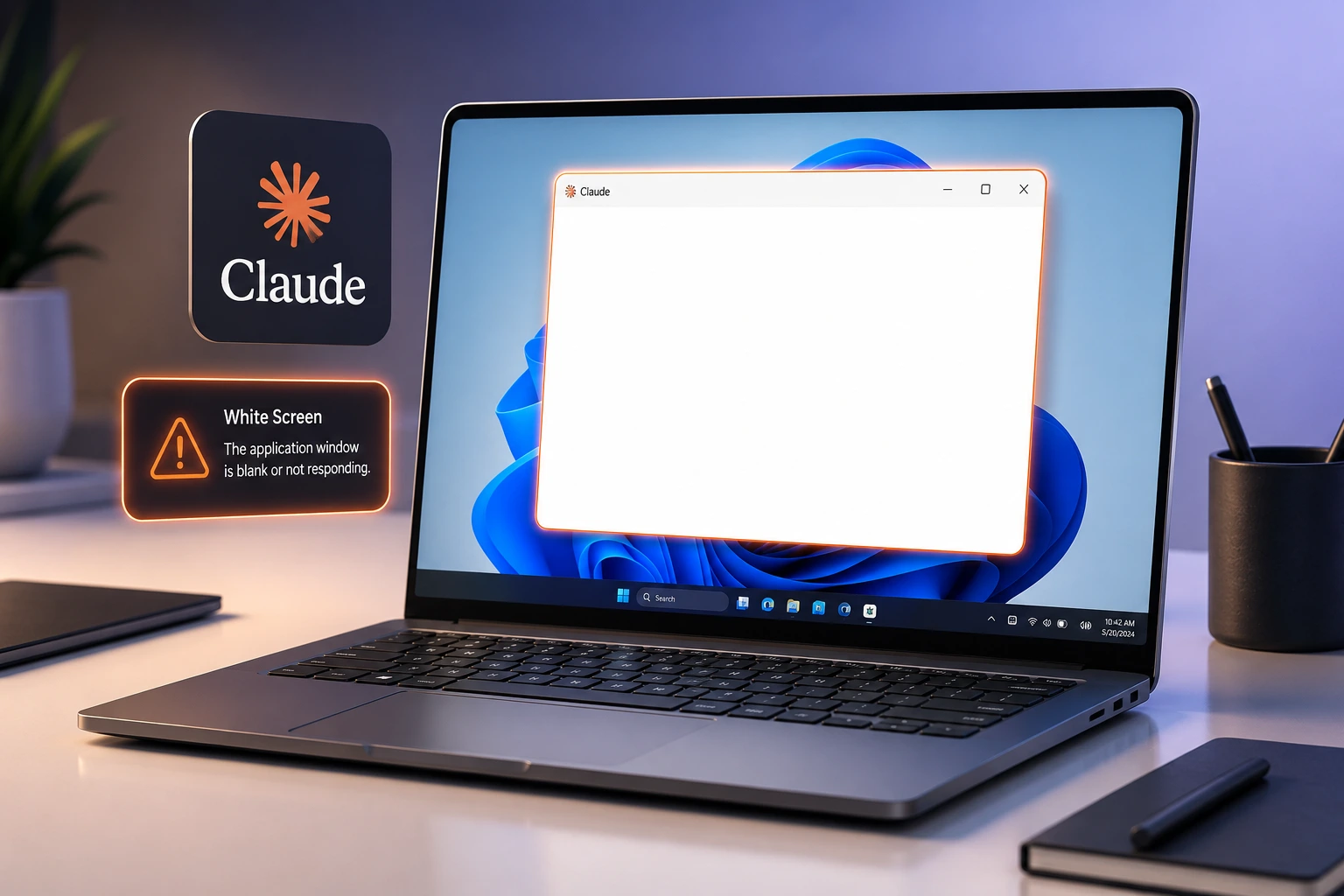
Why it happens: Claude Desktop is built on Electron, which renders its interface using a Chromium-based GPU pipeline. When that pipeline fails to initialize because of a driver conflict, a display-configuration change, a corrupted cache, or a blocked network call the window still opens, but nothing gets painted onto it. The result is a blank white (sometimes black) screen.
What you'll learn: In this guide, you'll find every documented cause of the claude desktop white screen Windows problem, the exact symptoms to look for, numbered step-by-step solutions with real commands and claudedesktop.exe flags, advanced fixes involving logs and environment variables, and prevention tips so it doesn't happen again after Windows update.
What Causes This Problem?
The Claude app white screen on Windows 11 issue rarely has a single root cause. Based on widely reported cases, here are the main categories:
Cause Category | What's Happening |
|---|---|
GPU/rendering failure | Electron's Chromium engine can't initialize a hardware-accelerated GPU context, so the UI never paints. |
Display configuration changes | Switching monitors, changing resolution, toggling HDR, or changing scaling (100% → 150%) while the app's window state is cached from a different display setup. |
Sleep/hibernate/resume issues | The GPU context is lost when Windows hibernates (not just sleeps) and isn't properly recovered when the app resumes. |
Window minimize/restore bugs | Some versions fail to repaint the window content after it's been occluded, minimized, or sent to the background. |
Corrupted Electron cache | Cached GPU shader files or renderer cache in the app's local data folder become corrupted, often after a crash or forced shutdown. |
Network/firewall/proxy issues | If Claude Desktop can't reach its backend or its own analytics/update endpoints, some renderer initialization steps can stall. |
Faulty or outdated GPU drivers | Especially common on hybrid graphics laptops (Intel integrated + NVIDIA/AMD discrete) and Windows ARM64 (Snapdragon) devices. |
MSIX/Microsoft Store install quirks | The Store-packaged build sandboxes the app differently than the standard .exe installer, which can interact poorly with GPU flags. |
Windows Update side effects | A recent Windows Update can reset display driver settings, GPU scheduling settings, or scaling preferences — all of which affect Electron's rendering. |
Authentication/session hiccups | Less common, but a stuck sign-in state can occasionally prevent the main UI from mounting after the splash screen. |
Antivirus/security software interference | Some endpoint security tools intercept or sandbox Electron's renderer process, blocking it from completing initialization. |
AppData write-permission or Controlled Folder Access blocks | If Windows or security software prevents the app from writing to %AppData% at all, it can fail before ever reaching the rendering stage — no config/cache folders get created, and no error is shown. |
Symptoms
Here's how to recognize this specific issue rather than a different Claude Desktop problem:
Visual symptom: The window opens with a title bar and window controls (minimize/maximize/close), but the content area is completely white (sometimes black) no sidebar, no chat, no loading spinner.
No error dialog: In most reported cases, Windows does not show a crash dialog, and the Windows Event Viewer's Application log shows nothing unusual.
Task Manager shows multiple processes: Opening Task Manager typically reveals several claude.exe or Claude Desktop processes running in the background even though nothing renders.
Application Hang events: In more severe cases, Event Viewer logs an Application Hang (Event ID 1002) for claude.exe with the description "Top level window is idle."
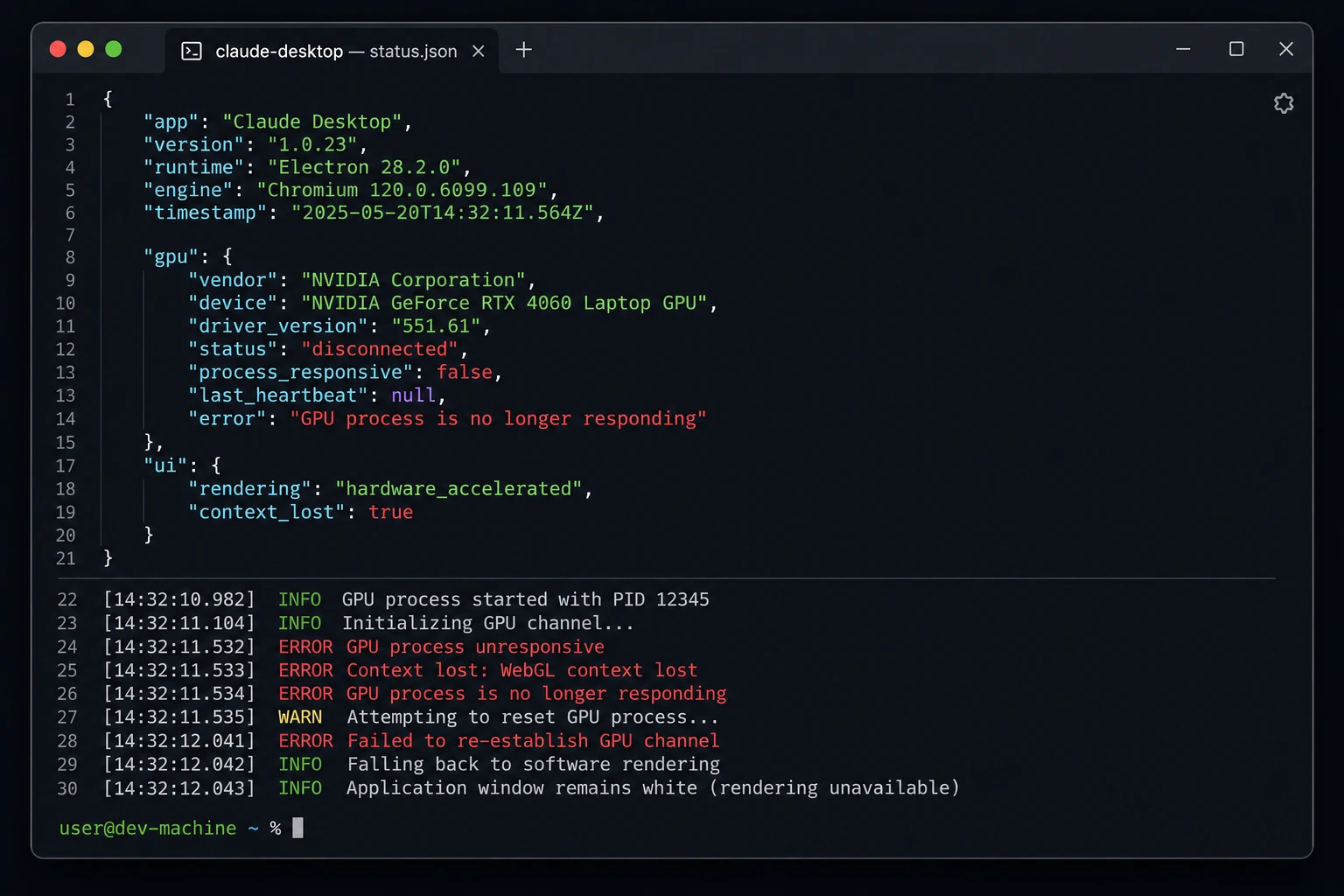
GPU log anomalies: Advanced users who inspect gpu-info.json in the app's log folder may see GPU devices listed with "active": false, indicating the GPU never actually initialized.
Recurs after minimizing: A common pattern is that the app renders fine on first launch, then goes blank after you minimize it or switch to another window and come back.
Persists across reinstalls: In the more stubborn cases, uninstalling and reinstalling doesn't fix it because leftover configuration folders (%AppData%\Claude and %LocalAppData%\AnthropicClaude) aren't fully cleared.
No local data folders created at all: In the most severe documented cases, %AppData%\Claude and %LocalAppData%\AnthropicClaude never even get created on disk, which points to the app failing during its very first initialization step rather than a later rendering hiccup repeated reinstalls won't fix this variant because there's nothing corrupted to clean up in the first place.
Not the same as the general Windows "white window" bug: Some Windows 10/11 users have separately reported a small blank white window appearing at startup or unlock that's unrelated to Claude it's tied to a Chrome-associated scheduled task called RunPlatformExperienceHelperOnUnlock. If your white window is tiny, appears briefly in a screen corner, and shows up even when Claude Desktop isn't running, that's a different issue check Task Scheduler under Task Scheduler Library → GoogleUserPEH rather than following the fixes below.
Step-by-Step Solutions
Work through these in order — Fix 1 resolves the majority of cases, and each subsequent fix targets a progressively deeper cause.
Fix 1: Force-Quit and Relaunch (The First Thing to Try)
Why it works: Most white-screen episodes are a one-time renderer failure. Fully killing every Claude process and starting fresh forces Electron to reinitialize its GPU context from a clean state.
Steps:
Right-click the Claude icon in the Windows system tray (bottom-right, near the clock) and select Quit.
Open Task Manager (Ctrl + Shift + Esc) and confirm no claude.exe processes remain. If any do, select each and click End Task.
Relaunch Claude Desktop from the Start Menu.
# PowerShell alternative — force-kill all Claude processes
Get-Process claude -ErrorAction SilentlyContinue | Stop-Process -Force
Get-Process claude -ErrorAction SilentlyContinue | Stop-Process -Force
Expected result: The app reopens with the normal chat interface. If it's still white, move to Fix 2.
Screenshot suggestion: Task Manager with multiple claude.exe entries highlighted before ending them.
Fix 2: Restart Windows
Why it works: A full reboot clears stuck background processes, frees GPU memory, and resets any driver state that got corrupted mid-session this is especially effective after a Windows Update.
Steps:
Save your work in other applications.
Click Start → Power → Restart (not Shut Down a full restart clears more state than sleep/hibernate resume).
After restart, launch Claude Desktop again.
Expected result: The app should render normally. This step alone resolves a large share of "just spins" or "just white" launch issues.
Fix 3: Launch with GPU Acceleration Disabled
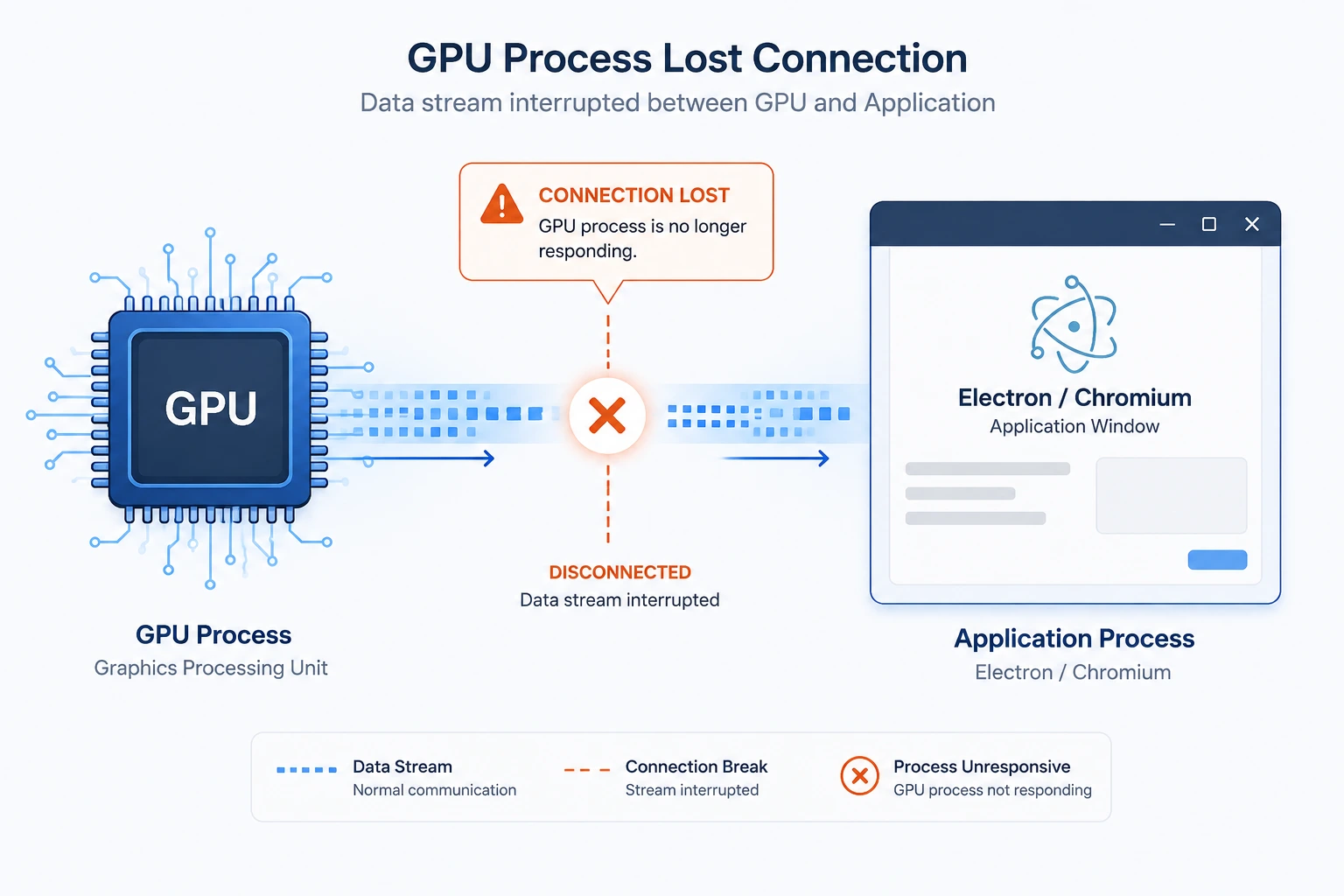
Why it works: If the root cause is a GPU driver conflict, disabling hardware acceleration forces Electron to fall back to software rendering, which sidesteps the broken GPU path entirely.
Steps:
Fully quit Claude Desktop (see Fix 1).
Locate the installed executable. For the standard installer, it's typically under:
%LocalAppData%\AnthropicClaude\app-<version>\claude.exe
3.Launch it from a Command Prompt or PowerShell window with the disable-GPU flag:
cd "$env:LOCALAPPDATA\AnthropicClaude"
# Replace <version> with your installed app folder name
.\app-<version>\claude.exe --disable-gpu
4.To make this permanent, create a desktop shortcut targeting the same path and append --disable-gpu to the Target field in the shortcut's Properties.
Expected result: The UI renders using software rendering. It may look slightly less smooth, but it should display content instead of a blank screen.
Fix 4: Clear the App's Local Cache and Configuration
Why it works: Corrupted Electron cache files (shader cache, GPU cache, or window-state files) are a documented cause of persistent white screens. Clearing them forces the app to rebuild its rendering state from scratch.
Steps:
- Quit Claude Desktop completely (Fix 1).
- Open File Explorer and navigate to, or run in PowerShell:
# Back up first (optional but recommended)
Copy-Item "$env:AppData\Claude" "$env:AppData\Claude_backup" -Recurse -ErrorAction SilentlyContinue

# Remove cached data
Remove-Item "$env:AppData\Claude" -Recurse -Force -ErrorAction SilentlyContinue
Remove-Item "$env:LocalAppData\AnthropicClaude\temp" -Recurse -Force -ErrorAction SilentlyContinue
3.Relaunch Claude Desktop. It will recreate these folders and may prompt you to sign in again.
Expected result: A fresh render with no leftover corrupted cache. You will need to sign back in.
Fix 5: Reset the Window State File
Why it works: Some white-screen cases are caused by a window-state.json file that stores full-screen dimensions from a display configuration (monitor, resolution, or scaling) that no longer matches your current setup. The app tries to restore a window size that doesn't fit, and the content never paints correctly.
Steps:
- Quit Claude Desktop.
- Find and delete the window state file:
Remove-Item "$env:AppData\Claude\window-state.json" -Force -ErrorAction SilentlyContinue
3.Relaunch the app — it will open with default window dimensions.
Expected result: The window opens at a default size and renders normally, especially useful if the blank screen started right after connecting/disconnecting an external monitor.
Fix 6: Update or Roll Back Your GPU Driver
Why it works: Outdated or buggy GPU drivers are one of the most common root causes on laptops with hybrid graphics (Intel + NVIDIA/AMD) and on Windows ARM64 devices.
Steps:
- Open Device Manager → expand Display adapters.
- Right-click your GPU → Update driver → Search automatically for drivers.
- If the problem started right after a driver update, instead choose Roll Back Driver (if available) under the driver's Properties → Driver tab.
- Restart your PC and relaunch Claude Desktop.
Expected result: A stable, matching driver version resolves rendering failures tied to GPU incompatibility.
Fix 7: Reinstall Claude Desktop (Full Clean Reinstall)
Why it works: If cache clearing alone doesn't help, a full reinstall guarantees no leftover corrupted files remain anywhere on disk.
Steps:
- Uninstall via Settings → Apps → Installed apps → Claude → Uninstall.
- Remove leftover folders:
Remove-Item "$env:AppData\Claude" -Recurse -Force -ErrorAction SilentlyContinue
Remove-Item "$env:LocalAppData\AnthropicClaude" -Recurse -Force -ErrorAction SilentlyContinue
- Restart your PC.
- Download the latest installer from the official Claude download page and install it fresh.
Expected result: A clean install with no legacy configuration conflicts.
Fix 8: When No AppData Folder Is Created at All
Why it works: If you check %AppData%\Claude and %LocalAppData%\AnthropicClaude and find neither folder exists — even after multiple launches — the app is failing before it ever reaches the point of writing configuration or cache files. Reinstalling won't help here because there's no corrupted data to remove; the problem is almost always a permissions or security-software block preventing the app from writing to disk at all.
Steps:
- Confirm the folders are genuinely missing:
Test-Path "$env:AppData\Claude"
Test-Path "$env:LocalAppData\AnthropicClaude"
- If both return False, check whether your antivirus or endpoint protection is blocking the installer/app from writing to AppData. Temporarily disable real-time protection and relaunch to test.
- Confirm your Windows user account has write permissions to your own AppData folder:
icacls "$env:AppData"
- Try running the app once as Administrator (right-click the shortcut → Run as administrator) purely as a diagnostic step — if it renders normally as admin but not as a standard user, you have a permissions/security-software block to resolve with your AV vendor or IT admin.
- If you're on a managed/work PC, check with IT whether Controlled Folder Access (Windows Defender Ransomware protection) is blocking the app — this feature restricts which apps can write to common folders including AppData.
Expected result: Once the app can successfully write its data folders, it initializes and renders normally on the next launch.
Advanced Fixes
For cases that survive all the steps above, dig into these deeper diagnostics.
Environment Variables and Launch Flags
Beyond --disable-gpu, you can pass additional Chromium/Electron flags when launching claude.exe from a terminal to isolate the cause:
# Disable GPU sandbox specifically (leaves acceleration on)
.\claude.exe --disable-gpu-sandbox

# Force software OpenGL rendering
.\claude.exe --use-gl=swiftshader

# Disable hardware compositing entirely
.\claude.exe --disable-gpu-compositing
Try one flag at a time so you know exactly which one fixes your case — this also helps if you need to report the bug.
Reading the Application Logs
Claude Desktop writes logs that can pinpoint the failure:
# Open the logs folder
explorer "$env:AppData\Claude\logs"
Look inside main.log and any *-window.log file for:
- Repeated GPU initialization errors
- Uncaught Error entries referencing React or rendering
- Any CSP (Content Security Policy) blocked-request warnings
- Repeated "transport dead" or session-bridge disconnect messages
Checking gpu-info.json
If present in the logs folder, this file tells you whether the GPU was ever actually recognized:
Get-Content "$env:AppData\Claude\logs\gpu-info.json" | ConvertFrom-Json | Format-List
If every listed GPU shows "active": false, you've confirmed a GPU initialization failure — go back to Fix 3 or Fix 6.
Network and Firewall Testing
To rule out network-layer causes:
# Test basic connectivity to Anthropic's services
Test-NetConnection api.anthropic.com -Port 443
Test-NetConnection claude.ai -Port 443
If either fails, check:
- Windows Defender Firewall → Allow an app through firewall → confirm Claude is allowed on both Private and Public networks.
- Any corporate proxy or VPN — try temporarily disabling it to test.
- Your antivirus's "web shield" or "app control" feature, which can sandbox Electron apps.
Checking for a Service-Side Outage
Before assuming the fault is local, quickly rule out a broader issue: open status.anthropic.com in a browser and confirm there's no active incident. If claude.ai works fine in your browser but the desktop app doesn't, the problem is almost certainly local to your machine.
Debug Mode
Launching with verbose logging enabled can surface errors not normally written to disk:
.\claude.exe --enable-logging=stderr --v=1
Run this from a terminal window so you can watch the output live as the white screen occurs.
When the Problem Is Windows Itself: Repairing or Reinstalling Windows 11/10
If you've worked through every fix above and Claude Desktop still won't render — or if other apps on your PC are also glitching — the root cause may not be Claude-specific at all. It may be corrupted Windows system files sitting underneath everything. This section answers the most common questions people search when they reach this point, whether the corruption showed up because of Claude Desktop or a Windows Update gone wrong.
How do I fix corrupted files on Windows 11?
The two built-in tools for this are DISM and SFC, already covered in the Advanced Fixes section above. Run them in this order from an elevated Command Prompt or PowerShell:
DISM /Online /Cleanup-Image /RestoreHealth
sfc /scannow
DISM repairs the underlying Windows image that SFC pulls clean files from, so running DISM first gives SFC a healthy source to repair against. Restart afterward regardless of the result.
How do I hard reset Windows 11?
A "hard reset" in the Windows 11 context usually means Settings → System → Recovery → Reset this PC, not a factory hardware reset. This reinstalls Windows while giving you the choice to keep or remove your personal files (see below). It's a heavier step than DISM/SFC and is worth trying only after those tools fail to resolve corruption.
Can I reinstall Windows without losing my files?
Yes. Both Reset this PC (Settings → Recovery) and an in-place repair install using a mounted Windows ISO offer a "Keep my files" option. This reinstalls all system files and default apps fresh while leaving your personal documents, photos, and most installed desktop apps in place. It's the safest first move before a full clean install.
My Windows OS is corrupted — how can I fix it?
Work through these in order, stopping as soon as one resolves the issue:
- Run sfc /scannow and DISM /Online /Cleanup-Image /RestoreHealth.
- Boot into Safe Mode to rule out a third-party driver or startup app conflict.
- Use Reset this PC → Keep my files for a deeper repair that doesn't touch personal data.
- As a last resort, perform a clean install from a bootable USB if the above don't resolve it.
How do I repair Windows using CMD?
Beyond sfc /scannow and DISM, two more CMD-based repair tools are useful for specific symptoms:
# Repair the boot configuration if Windows won't start properly
bootrec /fixmbr
bootrec /fixboot
bootrec /rebuildbcd

# Check disk for file-system errors
chkdsk C: /f /r
These are typically run from the Windows Recovery Environment (WinRE) command prompt if Windows won't boot normally — accessible by holding Shift while clicking Restart, or booting from installation media and choosing Repair your computer.
Does reinstalling the OS delete all my files?
It depends on which option you choose:
- Reset this PC → Keep my files: personal files stay, apps and settings are removed.
- Reset this PC → Remove everything: everything is wiped, equivalent to a factory reset.
- In-place repair install (via ISO, launching setup.exe): keeps files, apps, and most settings — the least disruptive option.
- Clean install from bootable USB: wipes the drive entirely unless you manually choose to keep the existing partition data (not recommended without a backup).
Always back up important files externally before any of these, even the ones that claim to preserve data — no repair process is 100% risk-free.
Can I reinstall my current version of Windows to repair system files without losing data?
Yes — this is called an in-place upgrade/repair install. Download the same Windows version you're currently running via the Media Creation Tool, mount the ISO, run setup.exe from within Windows (not from a boot menu), and choose Keep personal files and apps when prompted. This reinstalls every system file while leaving your data and installed programs intact, and it's the most effective fix for corruption that DISM/SFC couldn't resolve.
How do I repair a corrupted Windows Update?
- Run the built-in troubleshooter: Settings → System → Troubleshoot → Other troubleshooters → Windows Update.
- Reset the Windows Update components manually:
net stop wuauserv
net stop bits
ren C:\Windows\SoftwareDistribution SoftwareDistribution.old
ren C:\Windows\System32\catroot2 catroot2.old
net start wuauserv
net start bits
- Restart and retry the update. This clears a corrupted update cache without touching personal files.
What's the best option to reinstall Windows?
As a general rule, use the least invasive option that fixes your problem:
| Situation | Recommended Option |
|---|---|
| Only one app misbehaving, Windows otherwise fine | DISM + SFC (no reinstall needed) |
| Windows is unstable but boots fine | Reset this PC → Keep my files |
| Deep corruption, DISM/SFC fail repeatedly | In-place repair install via ISO |
| Preparing to sell/give away the PC, or malware suspected | Reset this PC → Remove everything, or clean install |
I can't reinstall Windows 11 — what should I do?
Common blockers and their fixes:
- Stuck at a percentage for a long time: wait at least an hour before assuming it's frozen — large updates can genuinely take that long — then force a restart only as a last resort.
- "This PC doesn't meet the minimum requirements": usually a TPM 2.0 or Secure Boot check failing (see below).
- Not enough free disk space: Windows 11 setup typically needs 20–64 GB free; clear space with Disk Cleanup first.
- USB installer not booting: re-create it with the official Media Creation Tool and confirm your BIOS/UEFI boot order includes the USB drive.
Why is it so hard to install Windows 11?
Windows 11 enforces stricter hardware requirements than Windows 10 — specifically TPM 2.0, Secure Boot, and a CPU from Microsoft's supported list. Many older but otherwise capable PCs fail these checks even though they'd run Windows 11 fine performance-wise, which is the main source of installation friction people report.
How do I forcefully reinstall Windows 11 (bypass requirements)?
If your PC fails the TPM/Secure Boot/CPU check but you still want to proceed, Microsoft provides a supported registry bypass for in-place upgrades:
# Run before starting setup.exe from the mounted ISO
reg add "HKLM\SYSTEM\Setup\MoSetup" /v AllowUpgradesWithUnsupportedTPMOrCPU /t REG_DWORD /d 1 /f
Note that Microsoft explicitly warns unsupported installs may not receive all updates and are unsupported for warranty/driver purposes — proceed with that trade-off in mind.
How do I cleanly reinstall Windows 11?
- Back up all personal data externally.
- Download the Windows 11 Media Creation Tool from Microsoft's official site and create a bootable USB.
- Boot from the USB (may require changing boot order in BIOS/UEFI).
- Choose Custom install, delete existing partitions on the target drive, and install onto the resulting unallocated space.
- Complete setup and reinstall your applications and drivers fresh.
Can I reinstall Windows using Command Prompt?
Not a full clean install from scratch, but you can trigger an in-place repair install via CMD by running the mounted ISO's setup with automation flags:
D:\setup.exe /auto upgrade /quiet /dynamicupdate disable
(Replace D:\ with your mounted ISO drive letter.) This performs a repair install that keeps your files and apps without manual prompts. A genuine clean install still requires booting from external media through the graphical setup, since Command Prompt alone can't partition and image an offline drive from within a running Windows session.
Prevention Tips
- Keep Windows and GPU drivers updated together. After any Windows Update, check Device Manager for a pending driver update rather than assuming Windows handled it.
- Avoid hibernating with Claude Desktop open, especially with an external monitor connected — close the app first if you rely on hibernate.
- Don't force-kill the app mid-update. Let Claude Desktop finish auto-updating rather than closing it from Task Manager during that window.
- Keep display scaling consistent if you frequently switch between a laptop screen and an external monitor with different DPI settings.
- Periodically clear old cache data if you notice increasing sluggishness before a crash — a quick window-state.json reset never hurts.
- Disable HDR before launching if your monitor supports it and you've had rendering issues before — some GPU/MSIX combinations have known HDR rendering conflicts.
- Prefer the standard installer over the Microsoft Store (MSIX) version if you've experienced repeated white screens, since the sandboxing model differs and has been linked to more reports of this issue.
- Check Controlled Folder Access exceptions if you're on a managed PC, so security software doesn't silently block the app from writing its own configuration files.
Further Reading and Sources
This guide draws on real user-reported cases and general Windows display-failure troubleshooting, including:
- Anthropic's claude-code GitHub issue tracker — multiple documented reports of blank/white screens on Windows, including hibernate-triggered failures, minimize/restore rendering bugs, GPU initialization failures, and cases where local app-data folders never get created.
- General "White Screen of Death" troubleshooting guidance covering Safe Mode, driver rollbacks, and System File Checker as universal first steps for any Windows app that fails to render.
- Reports of a separate, unrelated Windows white-window bug tied to a Chrome background task, useful for ruling out a look-alike issue that has nothing to do with Claude Desktop.
FAQ Section
This is a known rendering bug where the app fails to repaint its content after being occluded or sent to the background. Fix 1 (force-quit and relaunch) is the fastest workaround; Fix 3 (--disable-gpu) prevents it from recurring.
Both. The underlying cause is Electron's GPU rendering pipeline, which behaves similarly on Windows 10 and 11. However, Windows 11's default HDR and display-scaling behaviors make GPU-driver-related white screens slightly more common there.
Move to Fix 6 (update/roll back your GPU driver) and Fix 3 (--disable-gpu). If neither works, try the Advanced Fixes section to read gpu-info.json and confirm whether the GPU is initializing at all.
Rarely. In almost all documented cases, the white screen occurs before or independent of sign-in — it's a rendering failure, not an account issue. If you're stuck on a white screen immediately after entering credentials, clear the cache (Fix 4) and try again.
Yes, in some cases. Endpoint security tools that sandbox or intercept Electron renderer processes have been linked to incomplete initialization. Temporarily disabling your antivirus's web/app shield is a valid diagnostic step — just re-enable it afterward.
If you're experiencing recurring white screens, the standalone installer (from the official Claude download page) tends to have fewer sandboxing-related rendering conflicts than the MSIX Store build.
Collect your logs (main.log, gpu-info.json) from %AppData%\Claude\logs, note your Windows version, GPU model, and display scaling settings, and report the issue through Anthropic's support channel or the public GitHub issue tracker so it can be tracked against known reports.
No. A BSOD is a full Windows kernel crash with an error code, meaning the whole system goes down. This white screen is isolated to Claude Desktop's own rendering layer — the rest of Windows keeps running normally, which is actually a good sign, since it confirms the fault is contained to the app rather than your operating system.
No, and it's an important clue. It means the app is failing before it even reaches the step of writing its own configuration files, which points to a permissions or security-software block rather than corrupted cache data. See Fix 8 above.
Almost never. The overwhelming majority of cases are resolved by the app-level fixes above (killing processes, --disable-gpu, clearing cache, updating GPU drivers). Reinstalling Windows is only worth considering if DISM and SFC report unrepairable corruption, or if other unrelated apps are also failing — see the "When the Problem Is Windows Itself" section for that path.
Yes. Every fix in this OS-Specific Complete Fix Guide applies to both Windows 10 and Windows 11, since the underlying cause is Claude Desktop's Electron rendering layer, which behaves the same on both. The only difference is where a few Settings menus live (e.g., Windows 10's Reset this PC is under Settings → Update & Security → Recovery rather than Settings → System → Recovery).
Conclusion
The claude desktop white screen Windows problem almost always comes down to Electron's GPU rendering pipeline failing to initialize or repaint triggered by driver conflicts, display/scaling changes, hibernate/resume cycles, or corrupted cache files, and occasionally compounded by firewall, antivirus, or MSIX sandboxing quirks. This OS-Specific Complete Fix Guide walked through the full path: force-quitting and restarting, disabling GPU acceleration with claudedesktop.exe flags, clearing cache and window-state files, updating GPU drivers, and if needed a clean reinstall, followed by advanced log-based diagnostics.
Best solution for most users: Start with Fix 1 (force-quit) and Fix 3 (--disable-gpu launch flag) together they resolve the large majority of reported cases without needing a reinstall.
Prevention going forward: Keep GPU drivers current, avoid hibernating with the app open, keep display scaling consistent across monitors, and prefer the standard installer over the Store build if you've had repeated issues. With these steps, you should be able to get Claude Desktop rendering reliably again on both Windows 11 and Windows 10.