If you've launched Claude Desktop on your Mac and been greeted by nothing but an empty white or gray window, you're dealing with one of the most commonly reported Claude Desktop issues on macOS. This macOS-specific architecture fix guide walks through exactly why this happens on both Apple Silicon (M1/M2/M3/M4) and Intel Macs, and gives you a step-by-step path to get your app rendering again whether that takes 30 seconds or requires a deeper reset.
Who's affected: Users on M-series MacBooks and Mac desktops, Intel-based Macs (especially older integrated-graphics models like the 2019 MacBook Air), and anyone who recently updated macOS or the Claude Desktop app itself.
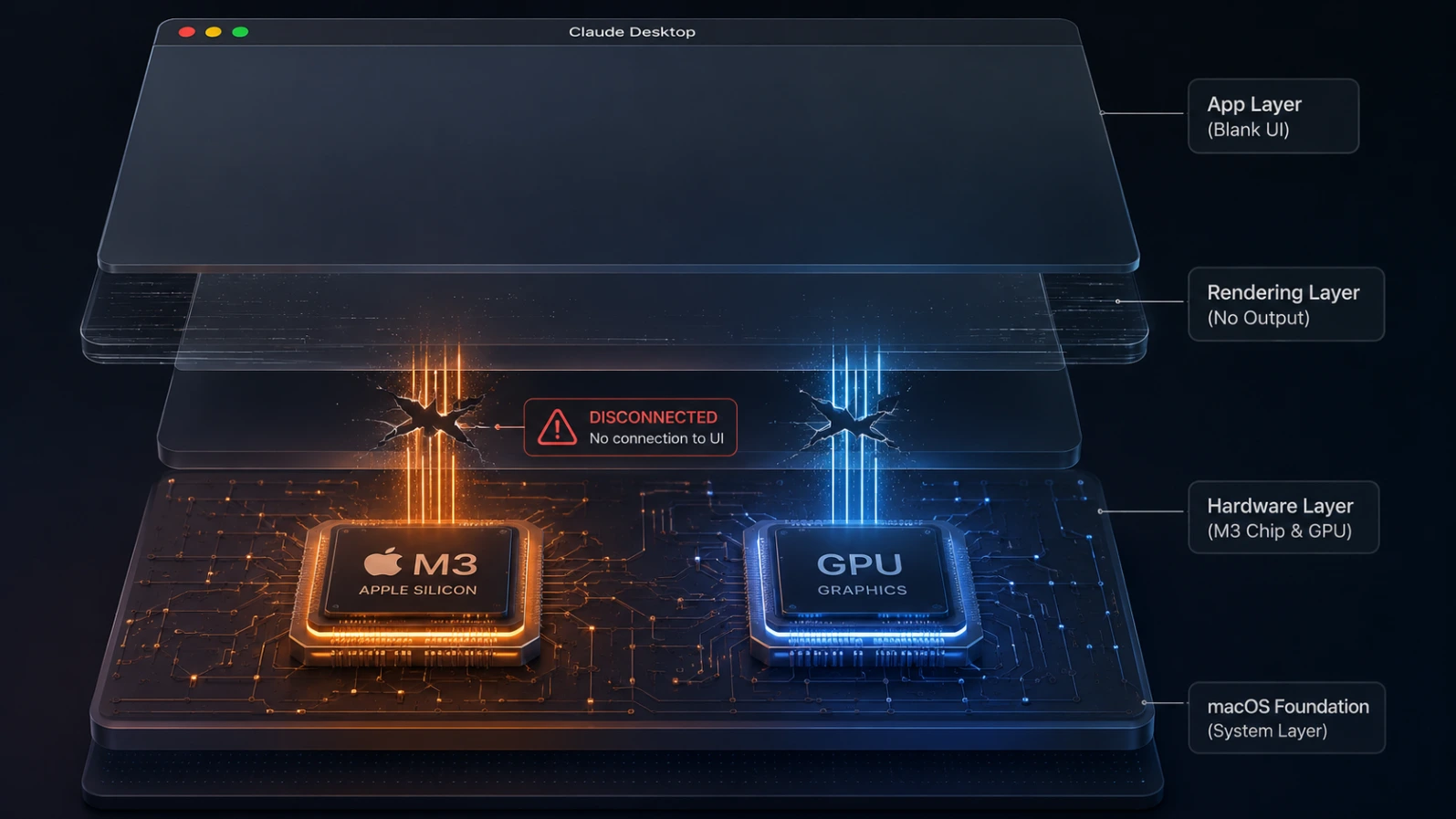
Why it happens: In almost every reported case, the root cause traces back to one of three things: a GPU compositing failure in the Electron rendering layer, a stale cached build after an app auto-update, or corrupted local app data left behind by a previous crash or forced quit.
What you'll learn: The full list of causes, how to recognize the symptoms in Console.app and Terminal, seven ordered fixes (from the 10-second reload to a full clean reinstall), advanced diagnostic techniques, and how to stop the blank screen from coming back.
What Causes This Problem?
A blank or white screen in Claude Desktop on macOS almost never means the app has actually crashed in most reported cases, the app is running (you'll see it in the Dock and in Activity Monitor), but nothing is being painted to the window. That distinction matters because it points to a rendering or data problem rather than a total software failure. Here are the documented causes, roughly ordered by how often they show up in bug reports:Claude Desktop Stuck on Blank Screen After Login or Update: Account, Auth & Corrupted State Fix
Cause | What's Happening |
|---|---|
GPU compositing failure | The Chromium/Electron renderer loads the interface in memory, but the GPU compositor fails to paint it to screen. Common on M-series chips and older Intel integrated graphics. |
Stale post-update cache | After an auto-update, the first launch tries to load an old cached build referencing asset files that no longer exist on Anthropic's CDN, causing a silent fetch failure. |
Corrupted local cache/data files | The Cache, Code Cache, or GPUCache folders under Application Support become corrupted, often after a forced quit or unclean shutdown. |
Fullscreen-state mismatch | Quitting the app while in fullscreen mode and relaunching can restore fullscreen state before the renderer is ready, resulting in a blank paint. |
macOS update side effects | A macOS version bump changes system graphics/display frameworks the app hasn't caught up with yet, breaking the render pipeline until the app is relaunched or reinstalled. |
Permissions / TCC issues | macOS's privacy permission database (TCC) occasionally blocks the app from accessing system resources it needs to render correctly. |
Network/DNS/proxy issues | Less common for a pure blank screen, but if the app can't reach Anthropic's servers at all (corporate firewall, broken DNS, misconfigured proxy), the UI can hang on an empty loading state. |
Software bugs in specific app builds | Some released versions have shipped with rendering regressions later fixed in point updates. |
Network-layer issues (DNS, proxy, firewall) are worth ruling out early if the blank screen coincides with a sign-in attempt, since Claude Desktop hands off authentication to your browser and back — a broken connection there can look like a rendering freeze even though it's actually a failed API call.
Symptoms
Here's how to tell which variant of the problem you're facing before you start troubleshooting:
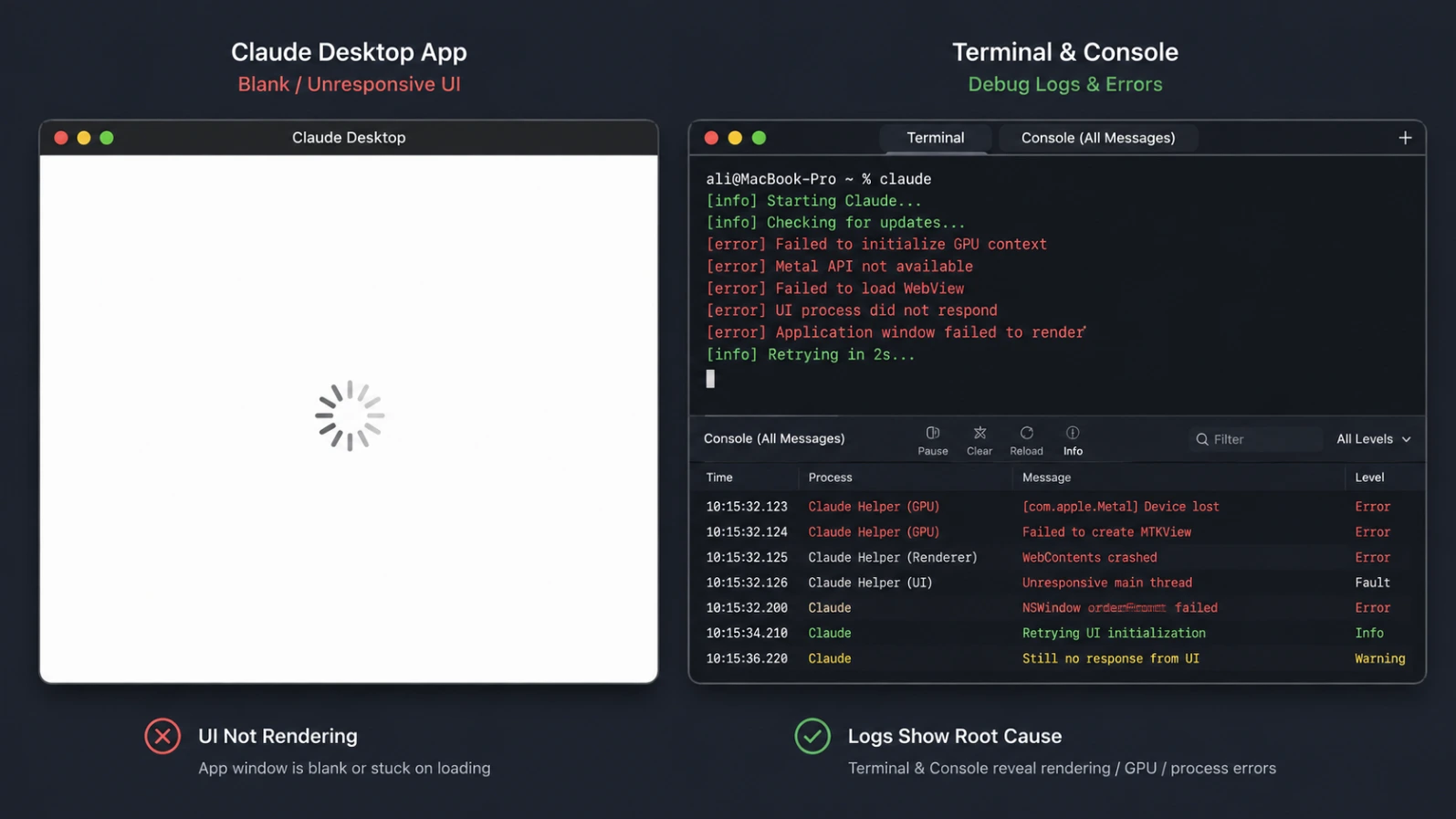
Completely blank white or gray window on launch the app icon bounces in the Dock, then settles into an empty window with no chat interface, sidebar, or input box.
Intermittent blanking during use the app works fine at first, then goes blank after switching apps, waking from sleep, or returning from a minimized state.
Temporary fix with Cmd+R or Mission Control pressing Cmd+R, or triggering a window repaint via a Mission Control swipe, briefly restores the interface before it goes blank again.
Blank screen only on the first launch after an update a second full quit-and-relaunch fixes it every time.
Terminal/log errors, typically visible in Console.app under the Claude process, such as:
[SPA] chunk preload failed, reloading
TypeError: Failed to fetch dynamically imported module
[BOOTSTRAP] Fatal error boundary triggered {"errorCode":"1XAF0WC"}
- GPU-related errors if you launch from Terminal with a debug flag:
Error: GPU access not allowed. Reason: GPU access is disabled through command line switch --disable-gpu
- No error at all — many users report the app simply sits blank indefinitely with nothing written to logs, which usually points to the GPU compositing scenario rather than a network or auth failure.
Step-by-Step Solutions
Work through these in order. Most people resolve the issue in Fix 1–3; Fix 6–7 are for persistent cases.
Fix 1: Force Quit and Relaunch
Why it works: If the renderer is simply stuck mid-paint (a temporary GPU or state glitch), a clean restart of the process often resolves it without touching any files.
Steps:
- Press Cmd + Option + Esc to open Force Quit Applications.
- Select Claude and click Force Quit.
- Confirm it's fully closed — check the Dock, or open Activity Monitor and search "Claude" to make sure no background process remains.
- Reopen Claude Desktop from Applications or Spotlight.
Expected result: The interface loads normally. If it blanks out again within a few minutes, move to Fix 2.
Fix 2: Clear the App's Cache Folders
Why it works: Corrupted or stale cache files are one of the most common causes of a post-update blank screen. Clearing them forces the app to rebuild its render cache from scratch on next launch.
Steps:
- Fully quit Claude Desktop (Cmd + Q, not just close the window).
- Open Terminal (Applications → Utilities → Terminal).
- Run:
rm -rf ~/Library/Application\ Support/Claude/Cache \
       ~/Library/Application\ Support/Claude/Code\ Cache \
       ~/Library/Application\ Support/Claude/GPUCache
- Relaunch Claude Desktop.
Expected result: The app performs a fresh cold start and renders normally. This is the single most effective fix for the "blank screen right after an update" pattern.
Fix 3: Reset App Permissions with tccutil
Why it works: macOS's Transparency, Consent, and Control (TCC) database occasionally holds stale permission entries after an update, which can interfere with how the app initializes its window. Resetting forces macOS to re-prompt for permissions cleanly.
Steps:
- Quit Claude Desktop completely.
- In Terminal, run:
tccutil reset All com.anthropic.claudefordesktop
3.Relaunch the app and re-grant any permission prompts that appear.
Expected result: Permission-related rendering blocks clear up. If the window is still blank, this rules out TCC as the cause and you should move to the GPU-specific fixes below.
Fix 4: Force a Repaint with Mission Control (Temporary Workaround)
Why it works: This doesn't fix the underlying cause, but confirms the diagnosis — if a window swap makes content appear, you're dealing with a GPU compositing failure, not a content-loading failure. Useful for narrowing down the problem while you wait for the permanent fix.
Steps:
- With Claude Desktop open and blank, trigger Mission Control (three-finger swipe up, or Ctrl + Up Arrow).
- Swipe back down or click back into the Claude window.
Expected result: Content briefly appears. This confirms a GPU/compositor issue — proceed to Fix 5.
Fix 5: Launch with GPU Compositing Disabled (Diagnostic)
Why it works: Disabling GPU acceleration forces the app to render using the CPU/software path instead, bypassing the broken compositor entirely. This is a diagnostic and short-term workaround, not a permanent setting, since it isn't exposed anywhere in the app's UI.
Steps:
- Quit Claude Desktop.
- In Terminal, run:
/Applications/Claude.app/Contents/MacOS/Claude --disable-gpu --disable-gpu-compositing
Expected result: On many affected M-series and Intel systems, the app renders correctly every time when launched this way. Note: on some newer builds, GPU access is blocked at the OS/security level and this flag will instead return a "GPU access not allowed" error — if that happens, skip to Fix 6.
Fix 6: Full Uninstall and Clean Reinstall
Why it works: Clears out any corrupted application support files, preferences, and leftover state that a cache-only clear didn't catch.
Steps:
- Quit Claude Desktop.
- Drag Claude from Applications to the Trash, or run:
bash
rm -rf /Applications/Claude.app
3.Remove leftover data:
rm -rf ~/Library/Application\ Support/Claude
rm -rf ~/Library/Caches/Claude
rm -rf ~/Library/Preferences/com.anthropic.claudefordesktop.plist
- Restart your Mac.
- Download a fresh copy of the universal build from claude.ai/download and reinstall.
Expected result: A clean slate resolves nearly all persistent cases. If the blank screen survives a full reinstall, you're likely dealing with a hardware/graphics-driver-level issue specific to your Mac model (this has been reported on some older Intel integrated-graphics machines) — see Advanced Fixes below.
Fix 7: Update macOS and Claude Desktop Together
Why it works: Some blank-screen reports are tied to a mismatch between an older app build and a newer macOS graphics framework, or vice versa. Keeping both current eliminates known compatibility regressions that have since been patched.
Steps:
- Open System Settings → General → Software Update and install any pending macOS updates.
- Open Claude Desktop's menu (if it renders at all) or check claude.ai/download for the latest version.
- Reinstall over the existing app if a manual update is needed.
Expected result: Version-mismatch-related rendering bugs are resolved.
Advanced Fixes
If the standard fixes above didn't work, these are for more technical troubleshooting.
Check Console Logs for the Real Error
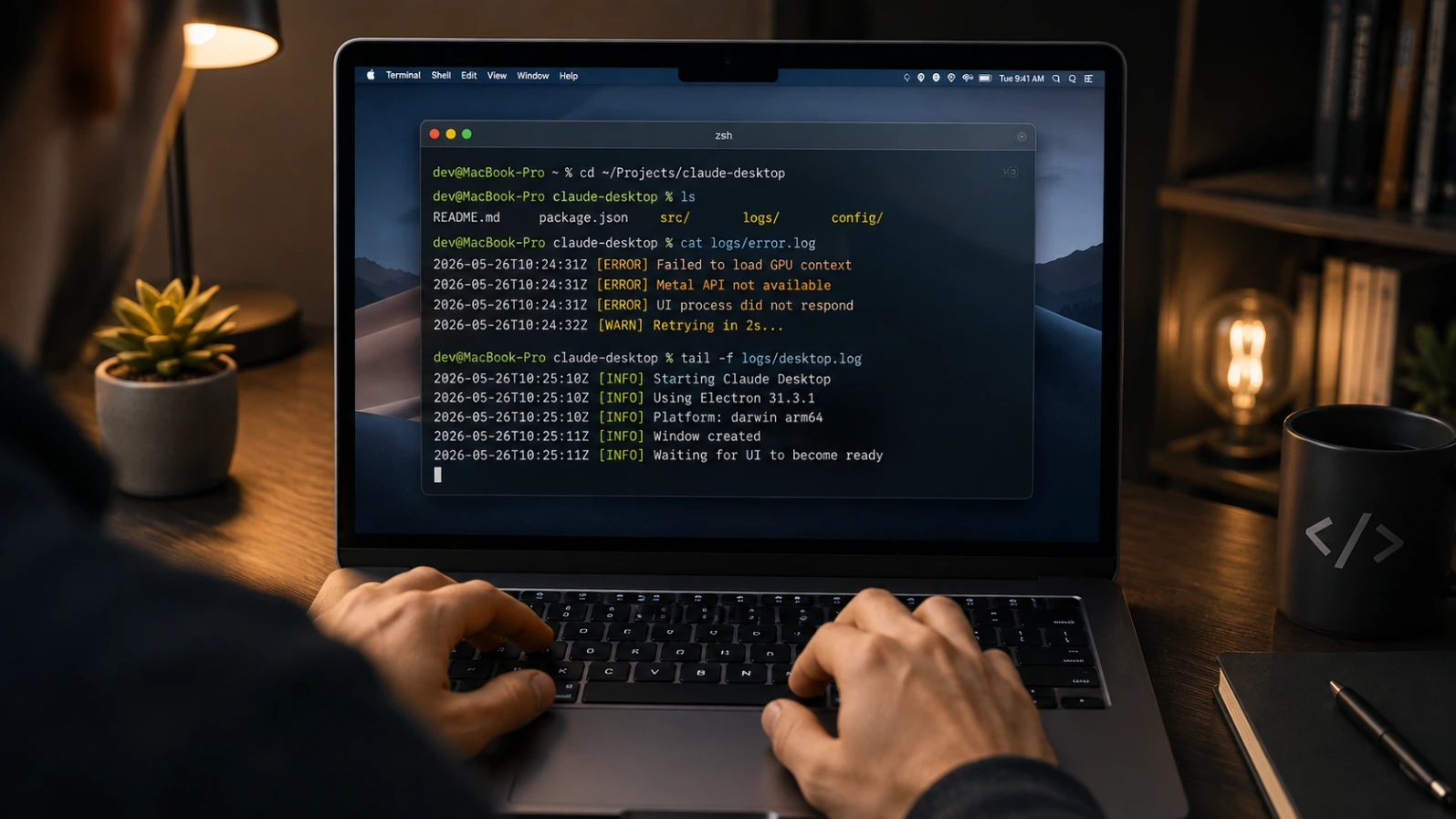
Open Console.app (Applications → Utilities), select your Mac under Devices, and filter by "Claude". Look specifically for:
- Fatal error boundary triggered with an errorCode — this points to a JavaScript-level crash, not a GPU issue.
- Failed to fetch dynamically imported module — indicates a stale-cache/CDN mismatch (use Fix 2).
- GPU access not allowed — confirms GPU acceleration is being blocked at the system level.
Test Network Connectivity Separately
Since sign-in requires a round trip to Anthropic's servers, rule out network problems if the blank screen appears specifically during login:
curl -I https://claude.ai
A successful response (HTTP 200/301/302) rules out DNS and basic connectivity as the cause. If this fails, check your Mac's DNS settings, VPN, or any corporate firewall/proxy that might be blocking claude.ai and anthropic.com domains.
Check for an Anthropic-Side Outage
Before assuming the problem is local, check status.anthropic.com — if there's an active incident, a blank or stuck loading screen can be a symptom on the service side rather than your machine.
Inspect GPU/Graphics Info
For Intel Macs with integrated graphics specifically, check for known GPU limitations:
system_profiler SPDisplaysDataType
This shows your GPU model and VRAM. Machines with older or lower-VRAM integrated GPUs (e.g., Intel UHD 617 on 2019 MacBook Air models) are disproportionately represented in blank-screen bug reports, suggesting a genuine compositor limitation on that hardware rather than a pure software bug.
Environment Variable Debug Mode
Some Electron-based apps expose additional logging via environment variables. You can try launching with verbose Electron logging to capture more detail for a bug report:
ELECTRON_ENABLE_LOGGING=1 /Applications/Claude.app/Contents/MacOS/C
Redirect the output to a file for easier review:
ELECTRON_ENABLE_LOGGING=1 /Applications/Claude.app/Contents/MacOS
What Other Affected Users Are Reporting
Cross-referencing publicly filed bug reports shows a consistent pattern worth knowing before you troubleshoot, so you can match your case to the right fix instead of guessing:
| Reported Setup | Symptom | What They Tried | Outcome |
|---|---|---|---|
| 2019 MacBook Air, Intel UHD 617 | Blank white screen on startup and intermittently during use | Cache clear, full reinstall, --disable-gpu flag | --disable-gpu returned a "GPU access not allowed" error on that build; only Cmd+R gave a temporary, recurring fix |
| M1 Pro MacBook | Completely blank window; content loads in memory but never paints | --disable-gpu --disable-gpu-compositing launch flag | This combination fixed it reliably every time — confirms a pure GPU compositing failure, not a content-loading one |
| M4 Pro MacBook, macOS Sequoia 15.7.4 | Stuck on a grey/blank screen, never renders | Force quit/relaunch, clearing ~/Library/Application Support/Claude and ~/Library/Caches/Claude, full uninstall/reinstall, tccutil reset | None resolved it — a case where the standard fixes weren't enough and points to a deeper, possibly hardware- or build-specific issue |
| Any Mac, right after an app auto-update | Blank window on the very first launch post-update only; second relaunch always works | N/A — known pattern | Root cause: the renderer briefly serves a stale cached build referencing asset files no longer on the CDN; a clean quit-and-reopen (or Fix 2's cache clear) resolves it |
| Any Mac | Blank window after quitting while in fullscreen mode | Exiting fullscreen after relaunch | Immediately fixes rendering — this is a state-restoration timing bug, not a GPU or cache issue |
Takeaway: if you're on Apple Silicon and the window loads-but-doesn't-paint (confirmed by the Mission Control trick in Fix 4), the GPU flag in Fix 5 is your best bet. If you're on older Intel integrated graphics, that flag may not work at all on your build, and you may be looking at a hardware-adjacent limitation rather than something fixable purely through software — in which case sticking with the Cmd+R workaround or Claude in your browser is the practical short-term path while you wait for an upstream fix. If none of the standard fixes work for your specific hardware, that itself is useful information worth including if you report the bug (see the FAQ below).
Prevention Tips
- Always fully quit with Cmd+Q rather than just closing the window, especially before your Mac sleeps, hibernates, or you switch external monitor configurations.
- Avoid quitting while in fullscreen mode if you've experienced the fullscreen-relaunch blank screen — exit fullscreen before quitting.
- Let updates finish completely before force-quitting or relaunching the app, since interrupting an update is a common trigger for the stale-cache scenario.
- Clear cache periodically if you update frequently — a quick rm -rf of the Cache folders takes seconds and prevents buildup of stale assets.
- Keep macOS reasonably current so you're not running an app build against a graphics framework several versions behind.
- Restart your Mac occasionally, particularly if you rarely reboot — this clears stuck background processes that can interfere with rendering.
FAQ
macOS updates can change underlying graphics and display frameworks that the app's GPU compositing layer depends on. Until the app catches up (or you clear its cache/reinstall), rendering can fail silently.
The symptom is the same, but the root cause can differ slightly. M-series Macs more often show a GPU compositing failure where content loads but doesn't paint; older Intel Macs with integrated graphics show similar symptoms but are more likely tied to genuine hardware/driver limitations.
No — clearing the Cache, Code Cache, and GPUCache folders only removes locally stored rendering assets, not your account data or conversation history, which lives on Anthropic's servers tied to your account.
This means GPU access is blocked at the system/security level on your build, so the software rendering fallback can't be forced this way. Move on to a full cache clear (Fix 2) or clean reinstall (Fix 6) instead.
At that point, check Console.app for the specific error code, verify you're not affected by an active Anthropic status incident, and check your GPU model with system_profiler SPDisplaysDataType — some older integrated-graphics hardware has documented compositor limitations that persist across reinstalls.
Blank/white screen issues have been reported across platforms, but the specific triggers differ — Windows reports are often tied to resuming from hibernate with an external monitor connected, which is a distinct scenario from the macOS causes covered here.
Capture your Console.app logs and, if possible, output from the ELECTRON_ENABLE_LOGGING=1 debug launch, then report it through Anthropic's support channels or the public GitHub issue tracker with your macOS version, chip type (Intel/M-series), exact app version, and which fixes you already tried — several existing reports from other Mac users follow this exact format and get useful engineering attention faster than a vague description.
Conclusion
The Claude Desktop blank screen on macOS almost always comes down to one of three root causes: a GPU compositing failure where the interface loads but doesn't paint, a stale cache referencing outdated assets after an update, or corrupted local app data from an unclean shutdown. For most people, the fastest fix in this macOS-specific architecture fix guide is clearing the app's cache folders (Fix 2) or doing a full quit-and-relaunch (Fix 1) — together these resolve the majority of reported cases.
If the problem persists, work through the GPU diagnostic (Fix 5) and clean reinstall (Fix 6) before assuming it's a hardware-level limitation on older Intel graphics. Going forward, quitting the app properly with Cmd+Q, letting updates complete fully, and periodically clearing cache will keep the issue from recurring.