If you open Claude Desktop and see nothing but an empty white or gray window with no chat interface, no sidebar, sometimes not even a login form you're dealing with one of the most common Claude Desktop problems. This guide walks through the full Account, Auth & Corrupted State Fix process: a clean reinstall, cache and local-data clearing, and an authentication reset, in the order that resolves the issue fastest for most people.
Who is affected: This shows up on both Windows and macOS, right after signing in, right after the app auto-updates, or intermittently during normal use after the computer wakes from sleep or hibernation.
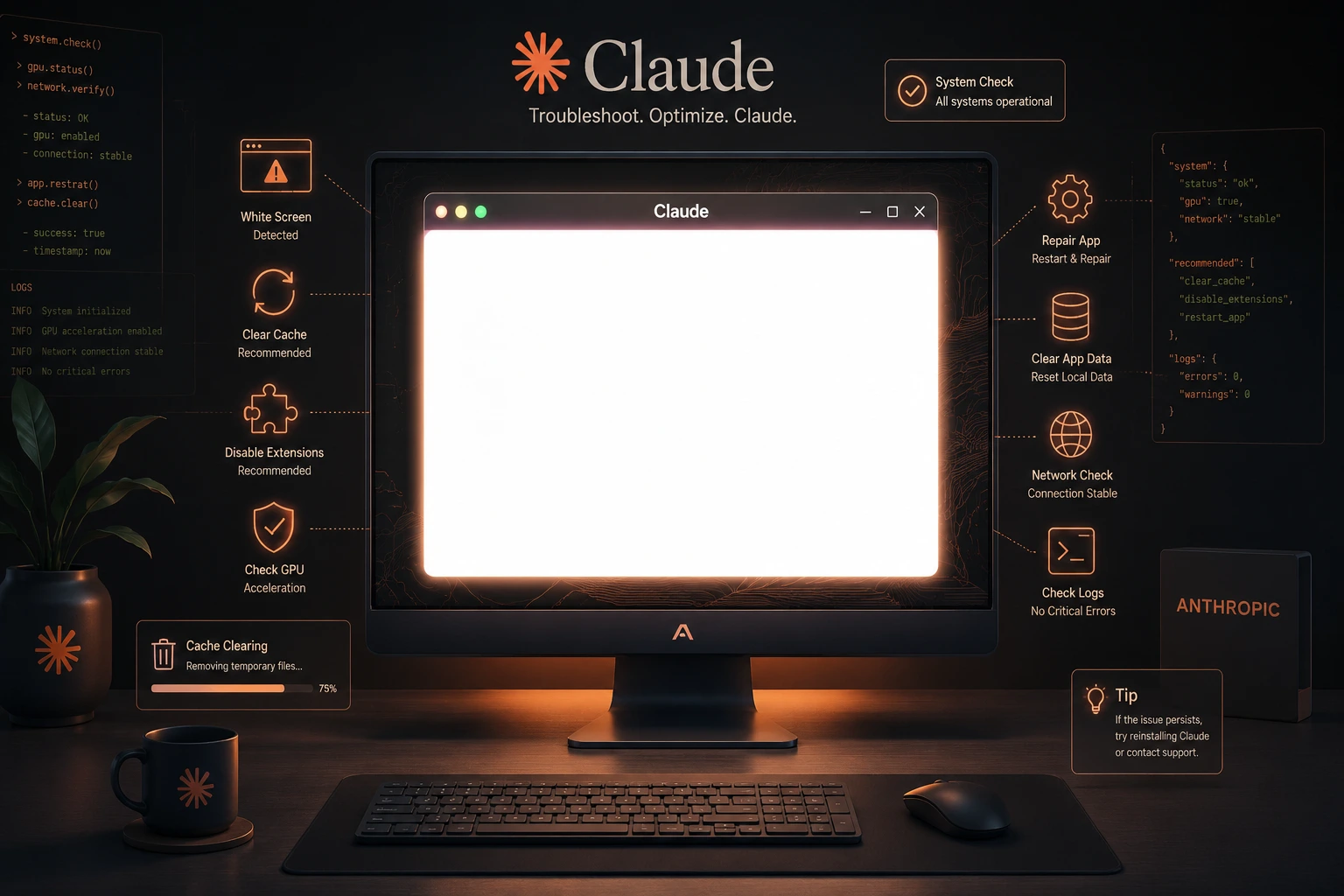
Why it happens: A blank screen almost always means the app's window opened successfully, but the content inside it, which is a web-based interface failed to load, render, or hand off your session correctly. That failure usually traces back to a corrupted local cache, a broken authentication token, a stale configuration file left over from a previous version, or (less often) a graphics-rendering glitch in the app's underlying Electron framework. In a smaller number of reported cases, it traces back to a known bug in a specific app version, or to Windows' MSIX package registration getting stuck mid-update, both covered below.
What you'll learn: what causes the blank screen, how to recognize the symptoms and read the logs, a step-by-step sequence of fixes from quick to nuclear, advanced diagnostics for persistent cases, what the community has actually reported in the wild, and how to stop it from happening again.
What Causes This Problem?
A Claude Desktop white screen after login is rarely one single bug; it's a symptom that several different underlying issues can produce. Here are the most common root causes, roughly ordered by how often they show up:
Cause | What's Happening |
|---|---|
Corrupted local cache | Old cached web assets (HTML/JS/CSS) conflict with a newer app version and fail to load |
Authentication/session token issue | The saved login session is expired, malformed, or the app can't hand off your account ID internally |
Interrupted or partial update | The app updated mid-download or mid-install, leaving mismatched files |
Leftover config from a previous install | Old settings, window-state, or extension files conflict with the current version |
GPU/rendering failure | The window opens but the Chromium/Electron renderer never paints content to the screen |
Stuck MSIX package registration (Windows) | The app updates via Windows' MSIX packaging format; if a background process is still holding files open during an update, the package can end up in a half-registered state |
A known bug in a specific app build | Occasionally the cause isn't your machine at all — a released version ships with a bug that Anthropic later acknowledges and fixes |
Network, DNS, or proxy blocking | The app can't reach Anthropic's servers to load your account or chat data |
Firewall or antivirus interference | Security software blocks the app's outbound connections |
Anthropic service outage | A temporary issue on Anthropic's side prevents the app from loading account data |
Account, Auth & Corrupted State Fix targets the first four causes directly, since they account for the large majority of reported cases, especially the ones that happen specifically after a login or an update. The MSIX and version-specific causes are less common but worth ruling out if the standard fixes don't work; see the Community-Reported Patterns section below.
Symptoms
Before jumping into fixes, confirm you're looking at the right problem. Typical symptoms include:
The app window opens with its title bar (minimize/maximize/close buttons) but the content area is completely white, gray, or black.
The window briefly shows a loading spinner or the login page, then goes blank.
Nothing happens when you click inside the window, no response to typing or scrolling.
The problem appeared right after the app auto-updated or right after you signed in on a new device.
Task Manager (Windows) or Activity Monitor (macOS) shows multiple Claude-related processes running, even though nothing is visible on screen. Some users have reported as many as 9 separate processes spawning per launch attempt with nothing on screen.
No visible error dialog is the most frustrating part, since the app usually fails silently. (If you do get a dialog, see the note on "Can't open this app" further down; that's a related but distinct failure mode with its own fix.)
If you check the app's log files (covered in the Advanced Fixes section below), you may see entries referencing a failed session handoff, a missing account identifier, or the renderer falling back to a slower bootstrap process that never completes.
Quick diagnostic check: open claude.ai in your regular web browser and sign in. If the web version works fine, the problem is local to your desktop app install not your account or Anthropic's service and the fixes below will almost certainly solve it. If the web version is also broken, check status.anthropic.com for an active incident before troubleshooting further.
Step-by-Step Solutions
Work through these in order. Most people resolve the issue at Fix 2 or Fix 3 you don't need to jump straight to a full reinstall.
Fix 1: Force-Quit and Relaunch
Why it works: A partial render failure or a stuck background process is often cleared by a full restart of the app, rather than just closing the window (closing the window frequently leaves the app running in the background on Windows in particular, Claude Desktop stays resident in the system tray after the window is closed, along with helper processes).
Windows:
Right-click the Claude icon in the system tray (near the clock).
Select Quit.
Open Task Manager (Ctrl+Shift+Esc) and confirm no Claude.exe or AnthropicClaude processes remain. End any that do.
Relaunch Claude Desktop.
You can also do this in one step from an elevated PowerShell window:
Get-Process claude*,Cowork*,Anthropic* -ErrorAction SilentlyContinue | Stop-Process -Force
macOS:
With Claude in focus, press Cmd+Q, or right-click the Dock icon and choose Quit.
Open Activity Monitor and confirm no Claude processes remain.
Relaunch the app.
Expected result: The app reopens and renders the login screen or your chat interface normally. If it's still blank, move to Fix 2.
Fix 2: Clear the App Cache
Why it works: Claude Desktop is built on a Chromium-based framework, and like a browser, it stores cached web assets (HTML, JavaScript, GPU resources) to speed up loading. If a cache file is corrupted commonly after an update changes the underlying files the app can hang trying to load stale, mismatched data instead of the current version.
Windows:
# 1. Fully quit Claude Desktop first (see Fix 1)
# 2. Open File Explorer and navigate to:
%APPDATA%\Claude\Cache

# 3. Delete the contents of this folder (keep the folder itself)
# 4. Also clear these related cache folders if present:
%APPDATA%\Claude\Code Cache
%APPDATA%\Claude\GPUCache
macOS:
# 1. Fully quit Claude Desktop first
# 2. Clear the cache directory
rm -rf ~/Library/Caches/Claude
Expected result: Relaunch the app. It should rebuild its cache from scratch and render normally. This is the single most effective fix for the "blank screen right after an update" pattern, and it's also the exact workaround the community landed on independently for the "requires Task Manager to kill all processes before app can reopen" version of this bug.
Fix 3: Reset Local App Data (Without Losing Your Chats)
Why it works: Your conversations live in your Anthropic account in the cloud, not solely on your device — so clearing local app data does not delete your chat history. This step removes local window-state files, corrupted settings, and stale session data that a simple cache clear doesn't touch.
Many versions of Claude Desktop include a built-in option for this:
- Open Claude Desktop (or relaunch it if it's blank — the menu may still be accessible).
- Go to Help → Troubleshoot → Clear Cache & Restart (menu location may vary by version).
Note: Some users have reported that this option occasionally signs them out completely rather than just clearing cache, so make sure you know your Anthropic account email and password before using it, and expect to sign back in afterward.
If the app is too unresponsive to reach that menu, do it manually:
Windows:
# Quit the app fully, then delete:
%APPDATA%\Claude
%LOCALAPPDATA%\AnthropicClaude
macOS:
# Quit the app fully, then run:
rm -rf ~/Library/Application\ Support/Claude
rm -rf ~/Library/Logs/Claude
Expected result: Relaunch the app. It will treat this as a first-time launch, show the login screen, and rebuild its local data folder cleanly. Sign back in and confirm your chat history reappears (it will, since it's stored in your account).
If you also use Claude Code: its session logs are stored separately, under %USERPROFILE%\.claude\projects\ on Windows — outside the app package entirely. Nothing in Fix 3 or Fix 4 touches that folder, so your Claude Code history is safe regardless of how deep you go into this troubleshooting process.
Fix 4: Clean Uninstall and Reinstall
Why it works: If cache and local-data resets don't help, there may be corrupted core application files from a botched auto-update. A clean reinstall replaces every app file with a fresh, verified copy.
Windows:
- Go to Settings → Apps → Installed apps, find Claude, and uninstall it.
- Delete any leftover folders manually:
%APPDATA%\Claude
%LOCALAPPDATA%\AnthropicClaude
- Download a fresh installer from claude.ai/download — don't reuse an old installer file.
- Install and sign in.
If you'd rather keep your local app-side settings (not your chat history — that's cloud-stored regardless), you can remove the package while preserving app data instead of a plain uninstall:
powershell
Get-Process claude*,Cowork*,Anthropic* -ErrorAction SilentlyContinue | Stop-Process -Force
Get-AppxPackage *laude* | Remove-AppxPackage -PreserveApplicationData
Then reinstall from the link above.
macOS:
- Quit Claude Desktop.
- Drag Claude.app from Applications to the Trash.
- Remove leftover data:
bash
rm -rf ~/Library/Application\ Support/Claude
rm -rf ~/Library/Caches/Claude
rm -rf ~/Library/Logs/Claude
- Download and install a fresh copy from claude.ai/download.
Expected result: A fully clean install with no legacy files. This resolves the vast majority of remaining blank-screen cases, including ones caused by an interrupted update. If a reinstall still doesn't work and you're on Windows, don't repeat it — jump to the Community-Reported Patterns section below, since a plain reinstall does nothing for the MSIX-registration failure mode.
Fix 5: Rule Out Network, Firewall, and Proxy Blocking
Why it works: If the app's window renders but nothing ever loads inside it (rather than failing to render at all), your network may be blocking the app from reaching Anthropic's servers to authenticate your session.
- Try connecting from a different network (for example, a mobile hotspot) to see if the blank screen disappears.
- If you're on a corporate or school network, ask your IT team whether a proxy or firewall is blocking outbound connections from the app.
- Temporarily disable antivirus or VPN software one at a time to isolate the culprit.
Expected result: If switching networks fixes the problem, work with your network administrator to allow the app's required connections rather than leaving it broken.
Community-Reported Patterns (What's Actually Been Seen in the Wild)
Beyond the general causes above, a few specific patterns keep coming up in bug trackers and support threads. If you've been through Fixes 1–5 and you're still stuck, check whether your symptoms match one of these.
"Reinstalling does nothing" — no local data folder is ever created
Some Windows users have reported that Claude Desktop opens to a blank screen with several processes running (one report counted 9), but no %APPDATA%\Claude or %LOCALAPPDATA%\AnthropicClaude folder is created at all — even after multiple full uninstalls and reinstalls. That's a signal the app is failing before it ever finishes initializing, not a cache problem, which is why cache-clearing and even reinstalling doesn't help. If this matches what you're seeing, the network/firewall check in Fix 5 and the dependency-service check below are worth trying before anything else, since the app may be failing to reach the resources it needs to complete its own setup.
"Can't open this app" — a related but distinct MSIX failure
If instead of a blank window you get an actual Windows dialog reading "Can't open this app — you'll need to go to advanced options for Claude and select Repair," that's a different, more specific failure than the blank-screen issue this guide is centered on. It's a standard Windows error for MSIX-packaged apps, and it typically happens when a background Claude process was still holding the app's files open during an update, leaving Windows' package registration half-completed.
The fix, in order:
- Kill the resident processes first, or Windows will refuse to run Repair:
powershell
Get-Process claude*,Cowork*,Anthropic* -ErrorAction SilentlyC
- Go to Settings → Apps → Installed apps → Claude → Advanced options → Repair. Note this is Repair, not Reset — Repair keeps your local app data, Reset deletes it (your cloud chat history is unaffected either way).
- If Repair itself is refused or fails, check whether the Windows virtualization services Claude Desktop relies on are running:
powershell
Get-Service vmcompute,hns -ErrorAction SilentlyContinue | Select-Object Name,Status,StartType
These default to Manual start and can end up stopped after a reboot. 4. If none of that works, fall back to Fix 4's reinstall-with-data-preserved approach above.
GPU crashes can trigger the same "package modified" state

A related root cause reported in the community: the app's GPU/rendering process crashes mid-session, which can cause Windows to flag the installed package as "Modified" and then refuse to launch it — surfacing as either a blank screen or the "Can't open this app" dialog. In most reports, Repair (above) resolves it; in a smaller number of cases the package state degraded further and only a full removal and reinstall worked.
A known, version-specific launch bug
Separately from the causes above, there was a documented, Anthropic-acknowledged incident tied to a specific Claude Desktop build where the app failed to start right after auto-updating, linked to a bug in the app's internationalization library. It reportedly affected some machines with non-English Windows display languages more than others. If you suspect you're on an old, broken build, the fastest fix is simply downloading and reinstalling the latest version from claude.ai/download; newer releases don't carry the bug forward. Anthropic's status page is the authoritative source for whether an incident like this is currently active — check status.anthropic.com if you suspect a version-specific bug rather than a local config issue.
Waking from sleep, hibernation, or an external monitor setup
Multiple reports describe the blank screen specifically appearing after the computer wakes from sleep or hibernation, especially with an external monitor connected, or after enabling Windows HDR. These point toward the GPU/rendering causes covered in Advanced Fixes below rather than an authentication issue — if this matches your pattern, jump to the GPU workaround section next.
Advanced Fixes
If the standard steps above didn't resolve it, these deeper diagnostics can pinpoint what's actually failing.
Reading the Logs
Claude Desktop writes log files that record what happens during startup, including whether the session/account handoff succeeded.
- macOS: ~/Library/Logs/Claude/main.log
- Windows: Check the Windows Event Viewer (Application log) for entries tied to claude.exe, or look for a logs folder inside %APPDATA%\Claude.
Look for entries near the end of the log around the time the app launched. Recurring patterns to watch for:
- References to a failed handoff of your account identifier, followed by a fallback process that never completes — indicates an auth/session problem, best resolved with Fix 3.
- GPU or "compositor" related entries, especially after waking from sleep or hibernation, or with an external monitor attached — indicates a rendering issue rather than an auth issue.
- Repeated connection timeout or DNS resolution errors — indicates a network-layer problem (see Fix 5).
You can also get a quick read-only snapshot of your install state on Windows before making any changes:
powershell
Get-AppxPackage *laude* | Select-Object Name,PackageFullName,Version,InstallLocation,Status,IsPartiallyStaged | Format-List
A Status other than Ok, or IsPartiallyStaged: True, points toward the MSIX registration issue covered above rather than a cache or auth problem.
Forcing a Software Render (GPU Workaround)
If logs point to a graphics/compositing failure — common on some laptop GPUs, ARM devices, or after resuming from hibernation with an external monitor attached — you can test whether disabling hardware acceleration resolves it. On Windows, this can be tested by launching the executable from a command prompt with a disable-GPU flag; if that resolves the blank screen, the issue is confirmed to be graphics-related rather than authentication-related, and updating your graphics drivers is the long-term fix. If you have Windows HDR enabled, also try temporarily disabling it — a black-screen rendering limitation tied specifically to HDR plus the app's GPU flags has been reported and, as of this writing, remains unresolved upstream.
Checking for Config File Conflicts
Old configuration or window-state files occasionally store an invalid saved window position or display setup (for example, from a monitor you no longer use), which can prevent the window from rendering content correctly. This is typically cleared as part of Fix 3's local-data reset above.
Confirming It's Not a Service-Side Issue
Before assuming the fault is local, always cross-check:
- claude.ai in a browser — does it load and let you sign in normally?
- status.anthropic.com — is there an active incident?
If both come back clean, the problem is confidently local to your device, and the fixes above will resolve it.
Prevention Tips
- Let the app update fully before closing it. Interrupting an in-progress update is one of the most common causes of a corrupted install.
- Quit fully from the tray, not just the window. Closing the window on Windows leaves the app resident in the tray, which — per the community reports above — is the specific condition that can leave an in-progress update half-registered. Before walking away from your PC, or when an update looks due, right-click the tray icon and choose Quit.
- Restart the app periodically, especially if you leave it running for days at a time — this clears minor memory and rendering glitches before they compound.
- Keep your OS and graphics drivers current, particularly on laptops that switch between integrated and discrete GPUs.
- Avoid force-quitting via Task Manager/Activity Monitor during an active update unless the app is genuinely frozen.
- Don't run multiple installs side by side (for example, a Microsoft Store version and a standalone installer version) — pick one installation method and stick with it.
- Check status.anthropic.com first if a blank screen appears suddenly across multiple people on your team, since that points to a service issue — or occasionally a bad app release — rather than something to fix locally.
- Don't panic-reinstall as your first move. If your symptoms match the MSIX "Can't open this app" pattern above, Repair (with processes killed first) resolves it without the extra time cost of a full reinstall.
FAQ
No. Your conversations are stored in your Anthropic account, not only on your device. After reinstalling and signing back in, your full chat history reappears. If you also use Claude Code, its local session logs live outside the app package entirely and are untouched by any of these fixes.
Auto-updates occasionally leave mismatched cache or core files if the update process is interrupted, or if an old cached version of the interface conflicts with the newly installed one. On Windows specifically, an update can also be interrupted by a background Claude process still holding files open, which can leave the app's package registration in a broken state. Clearing the cache (Fix 2) or doing a clean reinstall (Fix 4) resolves the ordinary version of this in almost all cases; the Community-Reported Patterns section covers what to do if it doesn't.
Move to Fix 3 (reset local app data) and then Fix 4 (clean uninstall/reinstall) in order. If both fail, check the logs for GPU-related entries — some hardware, particularly certain laptop GPU configurations, needs the hardware-acceleration workaround described in Advanced Fixes. If reinstalling repeatedly has no effect at all and no local data folder ever appears, see the "reinstalling does nothing" pattern above.
Yes. The underlying causes — cache corruption, session/auth handoff failures, and rendering glitches — affect both platforms, though the exact file paths for clearing cache and local data differ, as shown above. The MSIX package-registration failure mode is Windows-specific, since it relates to how Windows installs and updates packaged apps.
No. A blank screen is an app-side rendering or local-data problem, not a sign of unauthorized account access. If you're ever unsure, you can always check your account activity by signing in through the web browser instead.
This issue is unrelated to your subscription tier. It affects free, Pro, Max, Team, and Enterprise accounts equally, since it's a local application issue rather than an account-permissions issue.
That confirms the issue is isolated to the desktop application itself. Work through Fixes 1–4 in order; a clean reinstall (Fix 4) resolves this for the overwhelming majority of users in this exact situation.
It's related but distinct — see the Community-Reported Patterns section above. The short version: kill Claude's background processes first, then use Windows' built-in Repair option (not Reset) from Advanced options for the app.
Conclusion
A blank or white screen in Claude Desktop after login or after an update is almost always caused by one of a few things: a corrupted cache, a broken authentication/session handoff, leftover data from a previous version, a GPU rendering failure, or on Windows specifically a stuck package update. The Account, Auth & Corrupted State Fix approach in this guide works through the common causes in the most efficient order: restart the app, clear the cache, reset local app data, and finally perform a clean uninstall and reinstall if needed with a dedicated path for the Windows-specific MSIX failure if standard reinstalling doesn't help.
For most people, clearing the cache (Fix 2) or resetting local app data (Fix 3) solves the problem outright, since your chat history is safely stored in your Anthropic account and unaffected by any of these steps. If you're still stuck afterward, reading the app's log file will usually tell you whether you're dealing with an authentication issue, a rendering issue, or a network block and point you straight to the right advanced fix.
Going forward, letting updates finish uninterrupted, quitting fully from the tray rather than just closing the window, restarting the app periodically, and keeping your graphics drivers current will prevent most repeat occurrences.