Claude Code permission denied errors can stop development work immediately, whether you're using Windows, macOS, Linux, Docker, WSL, VS Code, or Cursor IDE. Common messages include EACCES, EPERM, Access Denied, Command Not Found, and Unauthorized (401).

The good news is that most permission-related problems can be resolved quickly once you identify the actual cause. In many cases the issue is not a broken installation at all; it may be caused by npm ownership conflicts, expired authentication credentials, incorrect PATH settings, operating system security restrictions, or IDE-specific environment problems.
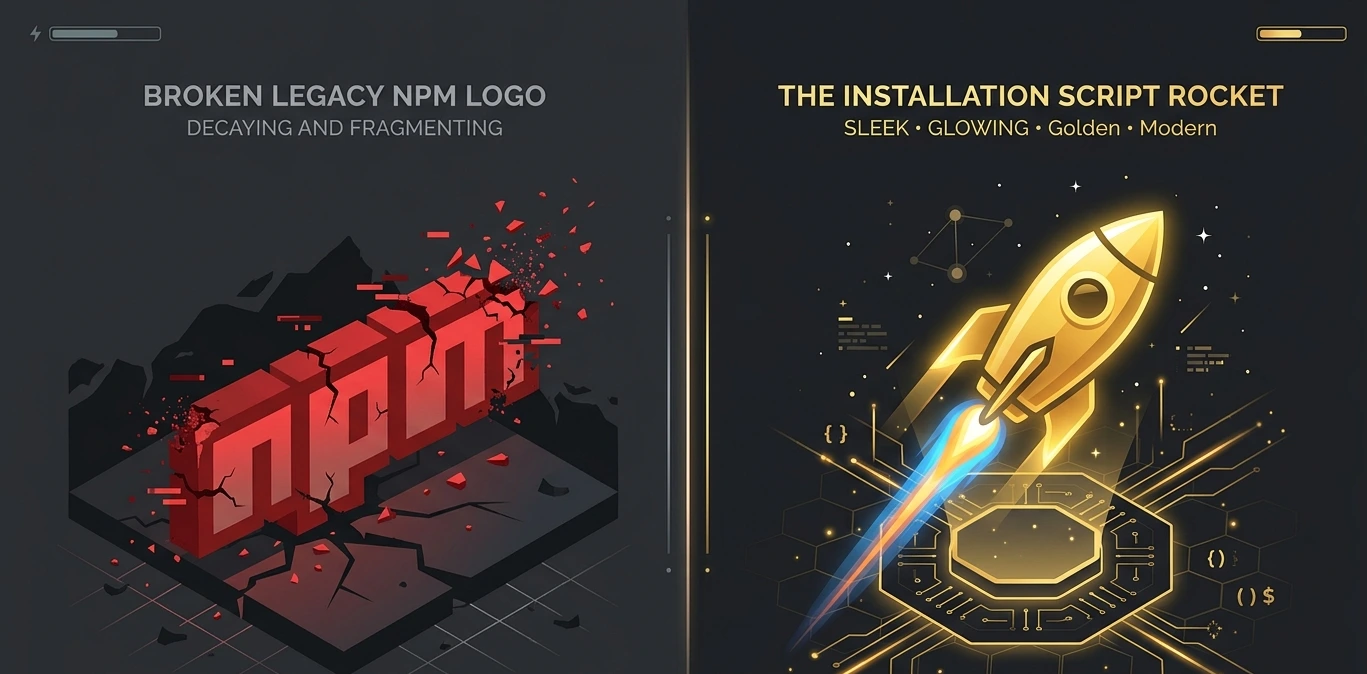
⚠️ IMPORTANT 2026 UPDATE: npm installation of Claude Code is now DEPRECATED. Anthropic recommends using the official install scripts or package managers (Homebrew, WinGet) instead of npm install -g @anthropic-ai/claude-code. Many permission errors stem directly from the old npm-based installation method. |
New Recommended Installation Methods (2026)
If you installed Claude Code using the old npm method, migrating to an official installer resolves most permission issues immediately.
macOS / Linux (Recommended)
curl -fsSL https://claude.ai/install.sh | bash
macOS via Homebrew
brew install --cask claude-code
Windows (Recommended — PowerShell)
irm https://claude.ai/install.ps1 | iex
Windows via WinGet
winget install Anthropic.ClaudeCode
💡 Tip: After switching from npm to an official installer, fully uninstall the old npm global package first: npm uninstall -g @anthropic-ai/claude-code |
Quick Answer
If Claude Code suddenly shows permission denied errors, follow this order:
Step 1 — Check authentication: claude auth status
Step 2 — Verify Claude is on PATH: which claude
Step 3 — Check npm ownership: ls -la $(npm root -g)
Step 4 — If ownership problems exist, switch to the official installer and reinstall Claude Code.
For many users, re-authenticating and reinstalling via the official installer resolves the issue immediately.
Common Claude Code Permission Error Messages
The exact error message often reveals the root cause:
Error Message | Most Likely Cause | Recommended Fix |
|---|---|---|
EACCES: permission denied | Ownership or permissions issue | Fix npm ownership or reinstall |
EPERM: operation not permitted | OS security restriction | Check system permissions |
Access Denied | Authentication issue | Run: claude auth login |
Unauthorized (401) | Expired authentication | Re-authenticate |
Forbidden (403) | Account restriction | Verify account access |
Command Not Found | PATH issue | Fix PATH configuration |
ENOENT | Missing installation files | Reinstall Claude Code |
Cannot access ~/.claude | Configuration permissions | Fix home directory ownership |
EISDIR / read-only filesystem | WSL drive mismatch | Move project to Linux filesystem |
connect ECONNREFUSED | Firewall / proxy blocking | Check corporate proxy settings |
Why Claude Code Permission Denied Happens
1. Using the Deprecated npm Installation Method
The most common root cause in 2026 is still using the old npm install -g @anthropic-ai/claude-code command, which Anthropic has now deprecated. This method creates root-owned files that regular users cannot modify later, and conflicts with system Node.js installations.Why AI-Generated Code Creates Technical Debt
2. Installing Claude Code with sudo
Using sudo npm install -g @anthropic-ai/claude-code creates root-owned files that the regular user cannot modify later:
# ❌ DO NOT do this
sudo npm install -g @anthropic-ai/claude-code
3. Root-Owned npm Directories
Global npm directories may already be owned by root before you even install Claude Code:
EACCES: permission denied, mkdir '/usr/local/lib/node_modules'
4. Authentication Problems
Authentication failures frequently appear as permission errors. Check status with:
claude auth status
5. PATH Configuration Issues
If the Claude binary cannot be found, you may see misleading permission-related messages. Verify with which clause.
6. Multi-User Linux Permission Architecture
On shared Linux systems, a common issue is when one user installs Claude Code globally (especially with sudo) and another user then tries to run it. Each user should have their own Claude Code installation using per-user prefix configuration:
# Set per-user npm prefix (add to ~/.bashrc or ~/.zshrc)
export NPM_CONFIG_PREFIX=~/.npm-global
export PATH=$PATH:~/.npm-global/bin
# Then install without sudo
npm install -g @anthropic-ai/claude-code
7. ~/.claude Directory Permission Issues
The configuration directory at ~/.claude needs to be owned by the current user. Permissions get corrupted when Claude is ever run as root:
# Fix ownership of the config directory
sudo chown -R $USER:$USER ~/.claude
chmod 700 ~/.claude
8. Operating System Restrictions
Security settings in Windows, macOS (Gatekeeper, SIP), Docker, and WSL can block Claude Code from accessing required files and directories.
9. IDE Environment Conflicts
VS Code and Cursor may load different shell environments than your regular terminal, leading to a different PATH and missing environment variables.
Quick Troubleshooting Checklist
Follow this order for fastest resolution:
- claude auth status — Verify you are authenticated.
which claude — Confirm Claude is on PATH.
ls -la $(npm root -g) — Check npm directory ownership.
Verify OS restrictions / SIP / SELinux / AppArmor.
Check antivirus exclusions.
Restart VS Code or Cursor completely.
Migrate to official installer if still on npm-based install.
Fix 1: Repair npm Ownership
If you must continue using npm, repair the ownership of global npm directories:
# Check current ownership
ls -la $(npm root -g)
# Fix ownership (macOS/Linux)
sudo chown -R $USER:$GROUP $(npm config get prefix)
sudo chown -R $USER:$GROUP ~/.npm

Fix 2: Switch to nvm (Recommended for npm Users)
nvm installs Node.js per-user so no sudo is ever needed:
# Install nvm
curl -o- https://raw.githubusercontent.com/nvm-sh/nvm/v0.39.7/install.sh | bash
# Source it
source ~/.nvm/nvm.sh
# Install a recent Node.js version
nvm install --lts
nvm use --lts
# Now install Claude Code without sudo (or use official installer above)
npm install -g @anthropic-ai/claude-code
Fix 3: Re-Authenticate
Expired authentication is the single most common cause of sudden permission errors. Always check this first:
# Check status
claude auth status
# If expired or missing, log in again
claude auth login
If you're in an enterprise environment, your API key may have been rotated. Verify with your IT/ops team and update the key:
# Set API key directly (if not using OAuth flow)
export ANTHROPIC_API_KEY=sk-ant-...
Fix 4: Fix PATH Configuration
# Find where claude is installed
which claude || find / -name 'claude' -type f 2>/dev/null | head -5
# Add to PATH — place in ~/.bashrc, ~/.zshrc, or ~/.profile
export PATH=$PATH:/path/to/claude/bin
# Reload shell
source ~/.bashrc
Fix 5: macOS System Integrity Protection (SIP)
macOS SIP blocks writes to system directories like /usr/local. Never try to disable SIP — instead, configure npm to use a user-writable location:
# Create a local directory for global npm packages
mkdir -p ~/.npm-global
npm config set prefix '~/.npm-global'
# Add to ~/.zshrc or ~/.bash_profile
export PATH=$PATH:~/.npm-global/bin
source ~/.zshrc
Fix 6: Windows — UAC and Execution Policy
Option A — Use the official installer (recommended): Run PowerShell as Administrator and use:
irm https://claude.ai/install.ps1 | iex
Option B — Fix PowerShell execution policy:
# Check current policy
Get-ExecutionPolicy
# Allow running scripts
Set-ExecutionPolicy -ExecutionPolicy RemoteSigned -Scope CurrentUser
Option C — Fix npm permissions on Windows:
# In PowerShell (Admin)
npm config set prefix %APPDATA%\npm
# Then reinstall Claude Code
Fix 7: WSL (Windows Subsystem for Linux)
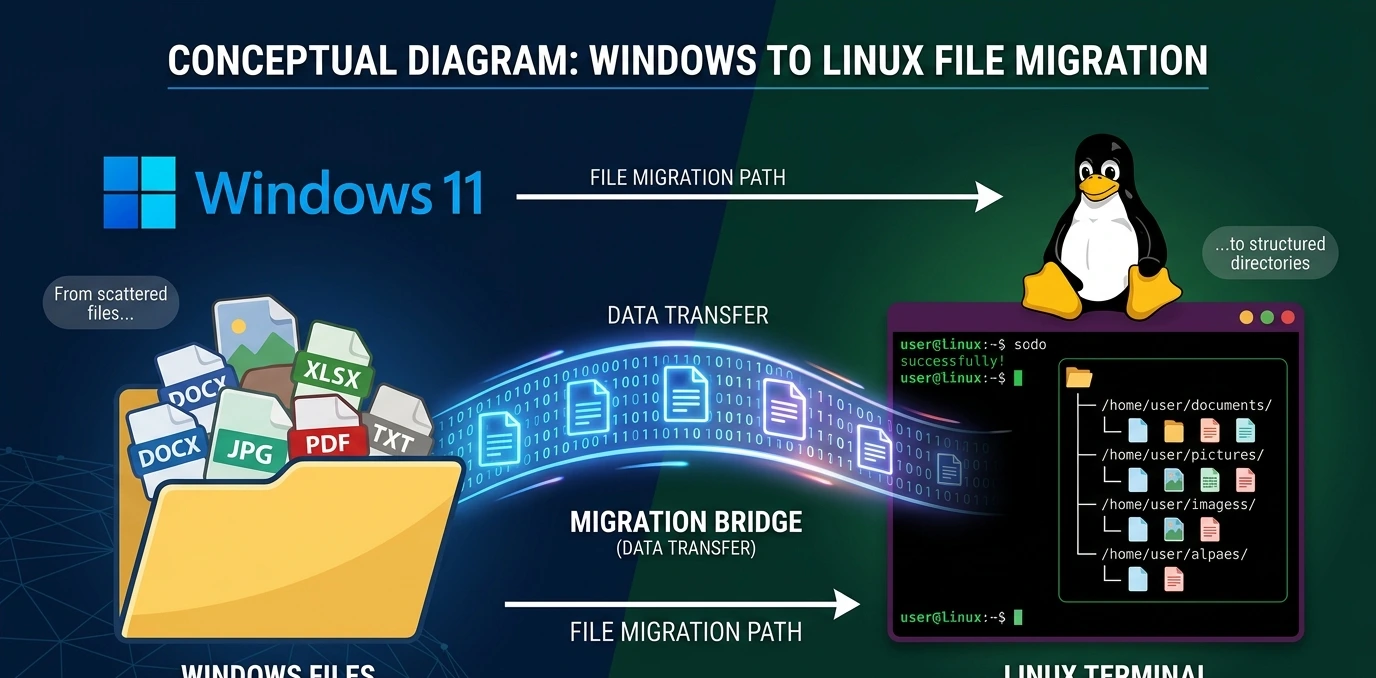
Most important rule: Keep your projects inside the Linux filesystem, not on the Windows drive:
# ✅ Good — Linux filesystem
~/projects/myapp
# ❌ Bad — Windows drive mounted in WSL (causes EPERM)
/mnt/c/Users/yourname/projects/myapp
WSL2 has significantly better filesystem performance and permission handling than WSL1. If you're on WSL1, upgrade:
# In Windows PowerShell (Admin)
wsl --set-version <DistroName> 2
Fix 8: VS Code Permission Denied
VS Code launches a shell that may not inherit all your dotfile configurations. Try:
Step 1: Set the integrated shell explicitly: Terminal › Integrated › Default Profile
Step 2: Ensure VS Code uses your login shell so PATH is inherited.
Step 3: Check Workspace Trust — restricted trust blocks many filesystem operations.
Step 4: Restart VS Code completely after any PATH change (not just the terminal — the whole app).
Verify Claude's PATH inside the VS Code terminal:
which claude
echo $PATH

Fix 9: Cursor IDE Permission Denied
Cursor caches environments aggressively. After any installation or PATH change:
Quit Cursor entirely (Cmd+Q / Alt+F4, not just close the window).
Relaunch from the terminal (not from Dock/Start Menu) so it inherits your fresh shell environment.
Verify PATH inside Cursor's terminal with: which claude
If authentication expired, run: claude auth login inside the Cursor terminal.
Docker-Specific Permission Issues
When running Claude Code inside a Docker container, permission errors often come from user mapping mismatches:
# Run as non-root user inside container
FROM node:20-slim
RUN useradd -m appuser
USER appuser
RUN npm install -g @anthropic-ai/claude-code
# Or use the install script
RUN curl -fsSL https://claude.ai/install.sh | bash
If you must use volume mounts, ensure the host directory is owned by the same UID as the container user:
docker run --user $(id -u):$(id -g) -v $(pwd):/app my-image
Antivirus and Security Software Conflicts

Security software frequently blocks Claude Code's authentication tokens, configuration files, and shell commands. Affected products include:
Windows Defender / Microsoft Defender for Endpoint
Bitdefender, Norton, Sophos
CrowdStrike Falcon
Carbon Black, SentinelOne
To test if antivirus is the cause, temporarily disable real-time protection and try running Claude Code. If it works, add exclusions for:
~/.claude/ — configuration directory
~/.npm/ — npm cache
~/.nvm/ — nvm directory (if using nvm)
Claude Code binary path (output of which claude)
Enterprise and Shared Machine Environments
For teams and corporate environments, the following configuration prevents ownership conflicts between developers:
Use per-user installations — never install Claude Code globally as root.
Standardize via nvm — each developer manages their own Node.js version.
Store credentials separately — never share API keys; each developer authenticates individually.
Corporate proxies — set HTTPS_PROXY and NO_PROXY environment variables if behind a proxy.
IT allowlisting — request allowlisting for api.anthropic.com and claude.ai in firewall rules.
Example proxy configuration:
export HTTPS_PROXY=http://proxy.company.com:8080
export NO_PROXY=localhost,127.0.0.1
claude auth login
Community-Reported Fixes
Based on GitHub issues, Reddit threads, and developer discussions, here are the most effective community-sourced solutions:
Fix: Session token corruption
Sometimes the OAuth session token stored in ~/.claude/auth gets corrupted. Force a fresh login:
rm -rf ~/.claude/auth
claude auth login
Fix: Conflicting Node.js versions
Multiple Node.js versions installed via different managers (Homebrew, nvm, system) can conflict. Verify which node Claude Code was compiled for:
node --version
which node
nvm current # if using nvm
Fix: SELinux / AppArmor (Linux servers)
On CentOS/RHEL/Fedora with SELinux, or Ubuntu with AppArmor, check for denials in the audit log:
# SELinux
ausearch -m avc -ts recent
# AppArmor
journalctl -t kernel | grep apparmor | tail -20
Best Practices to Prevent Permission Errors
Practice | Why It Matters |
|---|---|
Use the official installer (install.sh / WinGet) | Avoids all npm permission issues entirely |
Never use sudo with npm | Root-owned files cause recurring permission errors |
Use nvm for Node.js management | Per-user install; no root ever needed |
Keep projects inside Linux FS (WSL) | Avoids EPERM on Windows-mounted drives |
Verify authentication regularly | Token expiry causes sudden permission-like errors |
Keep Claude Code updated | Bug fixes and improved permission handling |
Never run Claude as root | Corrupts ~/.claude directory ownership |
Avoid chmod 777 | Creates security vulnerabilities; use targeted chown instead |
Add antivirus exclusions proactively | Prevents unexpected blocks after security updates |
Use per-user installations on shared machines | Prevents conflicts between developers |
Conclusion
The #1 fix in 2026 is to migrate from the deprecated npm installation to the official Claude Code installer. Most permission errors stem from root-owned files created by sudo npm install, which the official installer sidesteps entirely.
Beyond that, the fastest troubleshooting path is:
claude auth status — verify authentication
which claude — verify PATH
ls -la $(npm root -g) — check npm ownership
Migrate to official installer if still using npm
Following these steps resolves the majority of reported Claude Code permission denied issues across Windows, macOS, Linux, Docker, WSL, VS Code, and Cursor IDE.
Official Resources
If you continue experiencing permission denied errors after applying the fixes in this guide, consult the official Claude Code resources for the latest installation methods, authentication updates, and known issues:
Claude Code Documentation
Claude Support Center
Claude Code GitHub Repository
Claude Code GitHub Issues Tracker
Official documentation should always be considered the authoritative source for newly discovered bugs, installer changes, and platform-specific requirements.
Frequently Asked Questions (FAQs)
The most common cause of a sudden breakage is expired authentication. OAuth tokens issued by Anthropic have a limited lifespan. Run claude auth status and, if expired, claude auth login. A secondary cause is antivirus software that received a definition update overnight and is now blocking Claude's config directory.
Yes — having both can cause PATH conflicts. Uninstall first: npm uninstall -g @anthropic-ai/claude-code, then run the official installer for your platform. Also remove any old binary from ~/.npm-global/bin/ if it lingers.
IDEs launch an interactive non-login shell which may skip ~/.bash_profile or ~/.zprofile where your PATH is set. Fix: add your PATH export to ~/.bashrc (bash) or ~/.zshrc (zsh), then fully restart the IDE — not just the terminal panel. You can also set "terminal.integrated.shellArgs.osx": ["-l"] in VS Code settings to force a login shell.
Yes, for your home directory and npm prefix only. Running sudo chown -R $USER:$USER ~/.npm ~/.claude is safe and a common fix. Never chown system directories like /usr or /usr/local recursively — that can break your OS. Also avoid chmod 777; instead use targeted chmod 700 ~/.claude.
Almost certainly your project lives on /mnt/c/ (the Windows drive). Move it to the Linux filesystem (~/projects/) and the EPERM errors will disappear. The Windows NTFS driver mounted in WSL does not support all Linux file permission operations. Also confirm you are on WSL2 (wsl --list --verbose), not WSL1.
It is an authentication issue, not a filesystem permission issue. 401 means the API key or OAuth token is missing, wrong, or expired. Run claude auth login to refresh. If you are using an API key directly, verify ANTHROPIC_API_KEY is exported in your shell and has not been revoked in the Anthropic console.
Avoid it. Running Claude as root corrupts the ~/.claude directory ownership, which then causes permission errors for every subsequent run as a normal user. In Docker, create a dedicated non-root user (RUN useradd -m appuser && USER appuser) instead of running as root.
Without sudo, use a fully user-space setup:
curl -fsSL https://claude.ai/install.sh | bash — official installer writes only to your home directory, no sudo needed.
Or install nvm: curl -o- https://raw.githubusercontent.com/nvm-sh/nvm/v0.39.7/install.sh | bash, then install Node.js and Claude Code without sudo.
Set NPM_CONFIG_PREFIX=~/.npm-global so npm never touches system directories.
Three habits prevent 95% of recurring permission issues:
Use the official installer — never npm install -g with sudo.
Authenticate proactively — run claude auth status before starting a long session.
Keep projects in your home directory — avoid /mnt/c (WSL), /tmp, or system directories.
It looks like one but is actually a network routing issue. Set proxy environment variables before running Claude:
export HTTPS_PROXY=http://proxy.yourcompany.com:8080
export NO_PROXY=localhost,127.0.0.1
claude auth login
If TLS inspection is enabled, your IT team may also need to add the Anthropic certificate to the trusted store, or allowlist api.anthropic.com at the proxy level.