Quick Answer: Claude Code authentication failed errors usually occur because of expired login sessions, invalid API keys, corrupted credential files, or network restrictions. The fastest fix is to run claude auth logout followed by claude auth login, then verify your API key and environment variable configuration.

What Is the "Authentication Failed" Error?
Authentication is the process Claude Code uses to verify your identity before allowing access to Anthropic services. When authentication fails, Claude Code cannot verify that your account or API credentials are valid.
You may see messages such as:
Authentication failed
Unauthorized (401)
Invalid credentials
Token validation failed
API key not found
Please run /login
Authentication can occur using:
OAuth Login — Browser-based authentication tied to your Claude account.
API Key Authentication — Using the ANTHROPIC_API_KEY environment variable.
Important Note: If your terminal shows zsh: permission denied: claude or file execution errors rather than a login token failure, this is a macOS binary permission issue. Read our complete guide on How to Fix Claude Code CLI Permission Denied Issues.
Why Does Claude Code Authentication Fail?
1. Expired OAuth Session
OAuth login sessions can expire or become invalid after long inactivity periods, password changes, session revocation, or token refresh failures.
2. Invalid API Key
API keys may stop working because the key was deleted, rotated, copied incorrectly, or hidden characters were introduced during paste operations. Even a single incorrect character causes authentication failure.
3. Missing Environment Variables
Many developers assume their API key is available everywhere. In reality, one terminal may have the variable while another does not. VS Code may not inherit shell variables, and Docker containers start with clean environments.
4. Corrupted Credential Files
Claude Code stores authentication information locally. If these files become corrupted due to interrupted writes, system crashes, file permission issues, or manual edits, authentication may fail even though your account is valid.
5. Network Restrictions
Corporate networks often block authentication requests through firewalls, VPNs, proxy servers, or TLS inspection systems. The result is an authentication error even though credentials are correct.
6. Multiple Claude Code Installations
Having old npm installations alongside new official installations, or multiple versions in PATH, can create conflicts between authentication systems.
7. Account-Level Restrictions
Authentication may fail due to billing problems, organization restrictions, suspended accounts, or plan limitations. In these cases, local troubleshooting alone will not fix the problem.
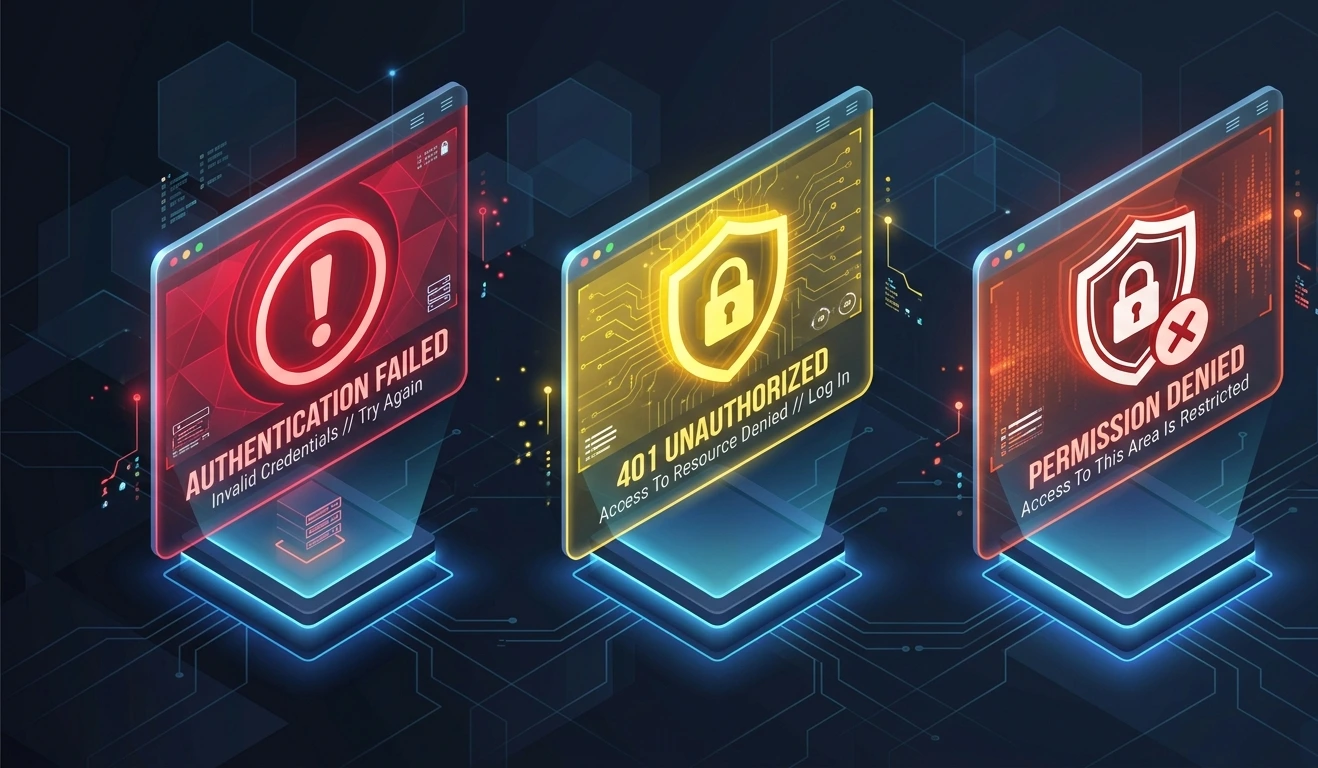
Authentication Failed vs 401 vs Permission Denied
Understanding the difference between these errors dramatically reduces troubleshooting time.
Error | Meaning | Fastest Fix |
|---|---|---|
Authentication Failed | Generic authentication problem | Re-login |
401 Unauthorized | Invalid API key or token | Verify credentials |
Permission Denied | Account restriction | Check billing |
Session Expired | OAuth session ended | Login again |
Token Validation Failed | Corrupted or invalid token | Clear credentials |
Quick Fix Checklist
Before diving into advanced troubleshooting, try these steps:
Run claude auth status
Run claude auth logout
Run claude auth login
Verify ANTHROPIC_API_KEY
Check billing status
Disable VPN temporarily
Confirm Node.js 18+
Check proxy settings
Clear credential cache
Restart terminal
Fix 1: Re-Authenticate Through Claude Code
This is the first fix you should attempt.
Check Authentication Status
claude auth status
Log Out
claude auth logout
Log Back In
claude auth login
Complete the browser-based login process. Once finished, verify status again:
claude auth status
Expected Result: You should see a successful authentication status without errors.
Fix 2: Validate or Reset Your API Key
If you're using API key authentication, an invalid key is one of the most common causes of authentication failures. Use this fix if you see 401 Unauthorized, Invalid credentials, or API key rejected.
Step 1: Verify Your API Key Exists
Linux/macOS:
echo $ANTHROPIC_API_KEY
Windows PowerShell:
echo $env:ANTHROPIC_API_KEY
Step 2: Test the Key Directly
curl https://api.anthropic.com/v1/messages \ -H "x-api-key: $ANTHROPIC_API_KEY" \ -H "anthropic-version: 2023-06-01" \ -H "content-type: application/json" \ -d '{"model":"claude-haiku","max_tokens":10,"messages":[{"role":"user","content":"hello"}]}'
Step 3: Create a New API Key
If the key is invalid, open the Anthropic Console, create a new API key, and replace the old one.
Step 4: Save the Key Permanently
echo 'export ANTHROPIC_API_KEY="your-key"' >> ~/.bashrcsource ~/.bashrc
Fix 3: Check Environment Variables
Many authentication failures occur because environment variables aren't loaded correctly.
Verify Current Environment
echo $ANTHROPIC_API_KEY
Search Shell Configuration Files
grep ANTHROPIC_API_KEY ~/.bashrc ~/.zshrc ~/.profile
Add Variable Permanently
Bash:
echo 'export ANTHROPIC_API_KEY="your-key"' >> ~/.bashrcsource ~/.bashrc
Zsh:
echo 'export ANTHROPIC_API_KEY="your-key"' >> ~/.zshrcsource ~/.zshrc
Windows PowerShell:
[System.Environment]::SetEnvironmentVariable("ANTHROPIC_API_KEY", "your-key", "User")
Check for Hidden Characters
echo -n "$ANTHROPIC_API_KEY" | cat -A
Hidden characters frequently break otherwise valid keys.
Fix 4: Clear Corrupted Credentials
Credential corruption is a known cause of authentication failures.
Remove Credential File
Linux/macOS:
rm ~/.claude/.credentials.json
Re-Authenticate
claude auth login
Nuclear Option (if problems continue)
rm -rf ~/.claude/claude auth login
Fixing Claude Auth Login Permission & Expired Session Tokens
When `claude auth login` fails or continuously loops back to an authorization prompt, local session cache corruption is usually responsible.

Step 1: Verify current session status
claude auth status

Step 2: Force logout and remove cached tokens
claude auth logout
rm -rf ~/.claude/auth
rm -f ~/.claude/.credentials.json

Step 3: Re-authenticate via browser
claude auth login

If browser authorization fails to callback to your terminal (common in SSH sessions, Docker, or remote environments), copy the manual authorization code from the terminal prompt and paste it directly into your active browser window.
Fix 5: Fix Network, VPN & Proxy Problems
Corporate networks often block authentication requests.
Test Connectivity
curl -I https://api.anthropic.com
Check Proxy Variables
echo $HTTP_PROXYecho $HTTPS_PROXY
Configure Proxy
export HTTPS_PROXY=http://proxy:portexport HTTP_PROXY=http://proxy:port
Add Corporate Certificate
export NODE_EXTRA_CA_CERTS=/path/to/company-cert.pem
If login works after disabling VPN, add Anthropic endpoints to your allowlist or configure split tunneling.
Fix 6: Reinstall Claude Code
If nothing else works, reinstall Claude Code.
Remove Old Installations
npm uninstall -g @anthropic-ai/claude-code
Official Linux/macOS Installer
curl -fsSL https://claude.ai/install.sh | bash
Windows Installation
irm https://claude.ai/install.ps1 | iex
Verify Installation
claude --version
claude auth login
Fix 7: VS Code Authentication Issues
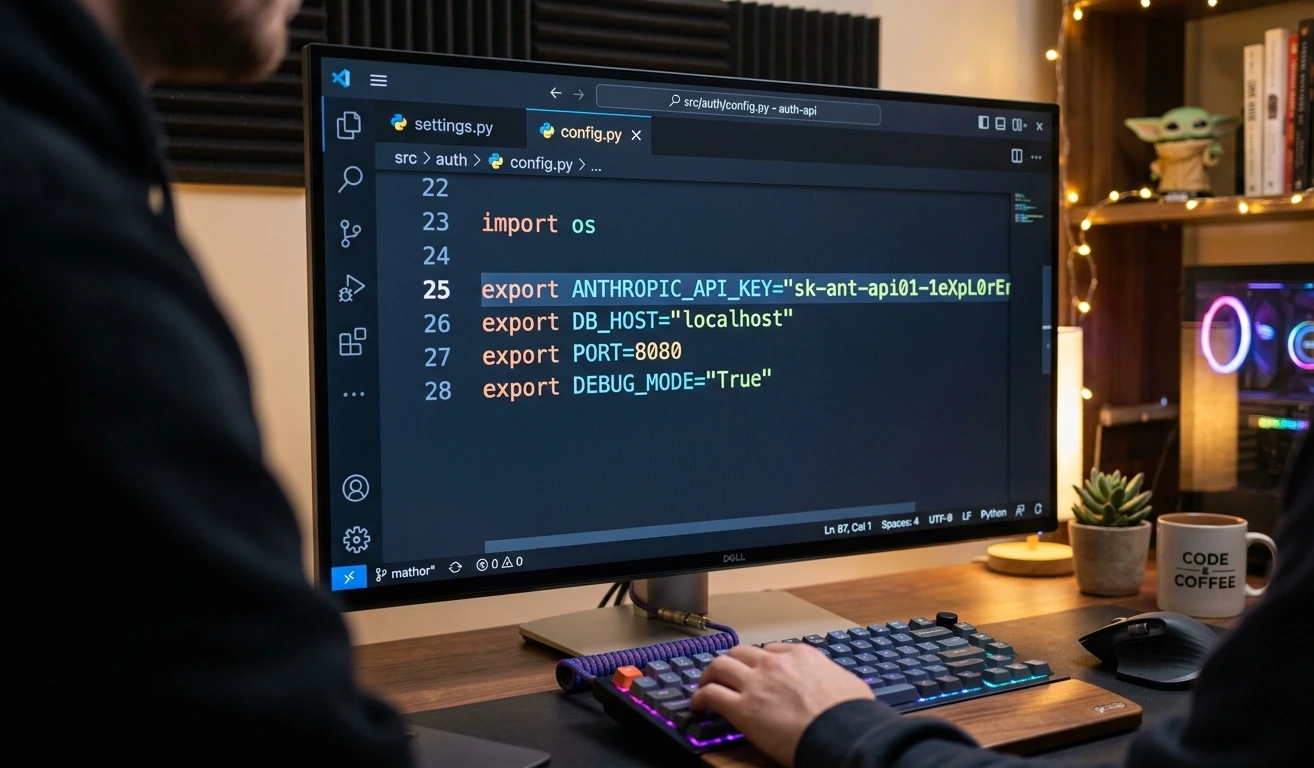
Sometimes Claude Code works in Terminal but fails in VS Code.
Check Environment Variable
Inside VS Code Terminal:
echo $ANTHROPIC_API_KEY
If blank, VS Code isn't inheriting your environment.
Fix Inheritance (settings.json)
{ "terminal.integrated.inheritEnv": true}
macOS users, also add:
{ "terminal.integrated.shellArgs.osx": ["-l"]}
Fix 8: WSL2, SSH & Docker Authentication
Browser callbacks don't always work inside remote environments.
Manual OAuth Flow
Run claude auth login, then open the displayed URL in a local browser, copy the authorization code, and paste it into the terminal.
Docker — Pass API Key
docker run \ -e ANTHROPIC_API_KEY="$ANTHROPIC_API_KEY" \ your-image
Docker Compose
environment: - ANTHROPIC_API_KEY=${ANTHROPIC_API_KEY}
Expert Tips to Prevent Authentication Errors
1. Store API Keys Securely
Never hardcode API keys into source code, Git repositories, or shared config files. Use environment variables, secret managers, CI/CD secrets, or Vault solutions.
2. Rotate API Keys Regularly
Rotate keys periodically for improved security. Always update all environments after key rotation.
3. Keep Claude Code Updated
Authentication improvements are frequently released. Check your version:
claude --version
4. Use a Single Authentication Method
Avoid mixing OAuth login and API key login unless absolutely necessary. Using one method consistently reduces troubleshooting complexity.
5. Monitor Team Credential Changes
In team environments, authentication issues often occur after user removal, organization changes, billing updates, or access policy modifications. Document authentication workflows internally.
Common Mistakes That Cause Authentication Failures
Mistake #1: Using an Old API Key
After generating a new key, old keys stop working. Always verify which key is currently active.
Mistake #2: Forgetting to Reload the Shell
After adding an environment variable, run source ~/.bashrc or source ~/.zshrc.
Mistake #3: Editing Credential Files Manually
Credential files should never be edited by hand. Incorrect formatting can break authentication.
Mistake #4: Running Multiple Claude Installations
Conflicting installations can authenticate differently. Check with which -a claude and remove duplicates.
Mistake #5: Ignoring Proxy Settings
Corporate proxies frequently block authentication traffic. Always verify network restrictions before assuming credentials are invalid.
Frequently Asked Questions
This usually happens because your OAuth session has expired, your credential cache is corrupted, or your authentication token can no longer be validated.
A 401 error typically indicates an invalid API key, expired token, revoked credentials, or incorrect authentication configuration.
Yes. Some VPN providers block, reroute, or interfere with authentication requests, causing login failures.
VS Code may not inherit the same environment variables as your shell session.
No. Environment variables usually need to be passed explicitly into containers.
The fastest fix is usually:
claude auth logoutclaude auth login
followed by verifying your API key configuration.
Final Thoughts
Most Claude Code authentication failed errors are caused by expired login sessions, invalid API keys, corrupted credential caches, or network restrictions.
Start with the simplest solution first:
Check authentication status
Log out and log back in
Verify API keys
Confirm environment variables
Check proxy and VPN settings
By maintaining updated credentials, rotating API keys responsibly, and keeping Claude Code current, you can prevent the majority of authentication problems before they disrupt your workflow.