Claude Code becomes much more useful when you stop repeating the same instructions in every session.
If you regularly ask Claude to review code, investigate bugs, generate tests, prepare commits, or follow a specific development workflow, you can turn those repeated instructions into a reusable slash command.
For example, instead of repeatedly typing:
Review this code for bugs, security issues, missing tests, and maintainability problems.
you can create a reusable workflow and invoke it with:
/review
There is an important update, though.
Claude Code's custom commands have been merged into Skills. The older .claude/commands/ format still works, but Skills are the recommended approach for new workflows because they support things that simple command files cannot, including supporting files, automatic invocation, tool controls, path-based activation, and isolated execution.
This guide explains both approaches, but focuses on the current Skills-first workflow.
What Are Custom Commands in Claude Code?
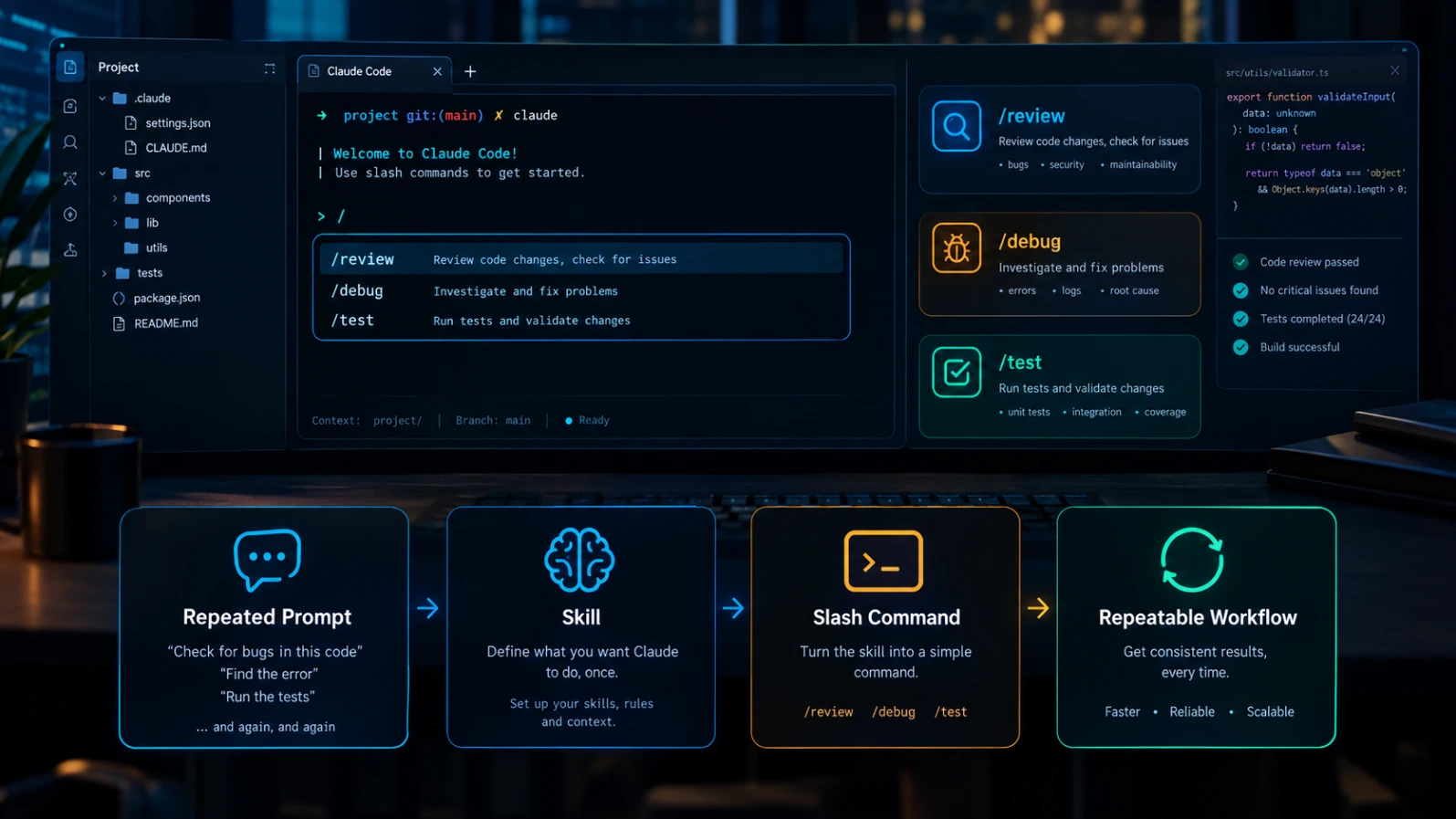
A custom command is a reusable workflow that you can trigger with a slash command.
For example:
/review
or:
/debug-api
or:
/test
Instead of writing the same detailed instructions every time, you store them in your project configuration.
This is useful for repetitive development tasks such as:
- Code reviews
- Debugging
- Test generation
- Documentation
- Security checks
- Refactoring
- Git workflows
- API migrations
- Release checks
- Project-specific coding standards
The basic idea is simple:
Your instructions
       ↓
Reusable Skill
       ↓
/command
       ↓
Repeatable workflow
The major difference today is that Claude Code treats custom commands and Skills as part of the same system.
Custom Commands vs Skills: What Changed?
Older Claude Code tutorials often tell you to create:
.claude/commands/review.md
That method still works.
But current Claude Code documentation recommends creating a Skill:
.claude/skills/review/SKILL.md
Both can expose:
/review
The difference is what you can do with them.
| Feature | Legacy Command | Skill |
|---|---|---|
| Markdown instructions | Yes | Yes |
| Slash invocation | Yes | Yes |
| Arguments | Yes | Yes |
| Supporting files | Limited | Yes |
| Automatic activation | Limited | Yes |
| Tool controls | Limited | Yes |
| Invocation controls | No | Yes |
| Forked execution | No | Yes |
| Path-based triggering | No | Yes |
| Recommended for new workflows | No | Yes |
Claude Code's current documentation describes commands as including both built-in commands and bundled Skills, while directing developers to Skills when creating their own commands.
So if you're starting from scratch, use Skills.
If you already have .claude/commands/ files, you don't have to immediately migrate them.
How to Create a Custom Command in Claude Code
Let's create a practical /review Skill.
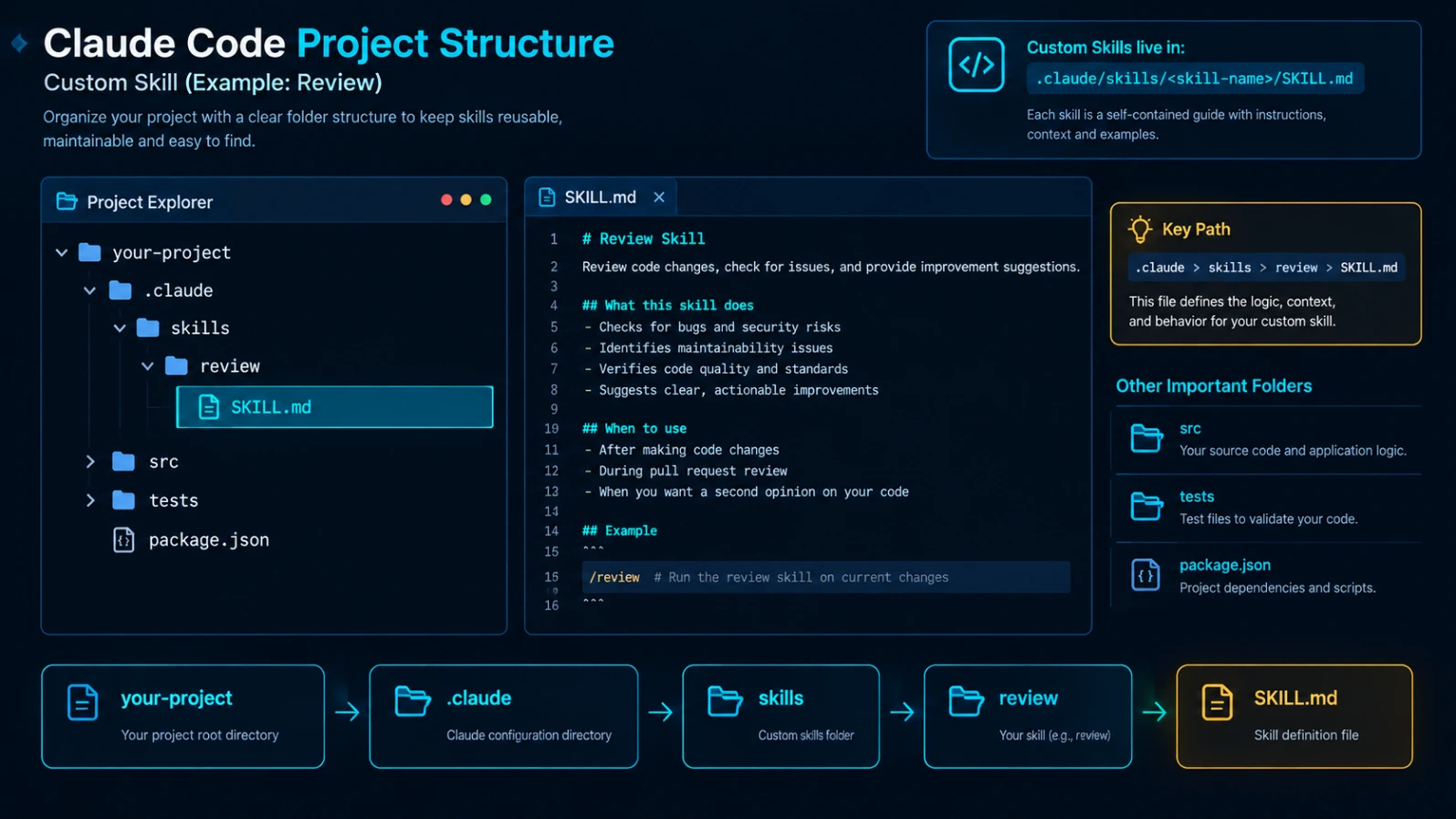
Step 1: Create the Skill Directory
Inside your project, create:
.claude/skills/review/
Then create:
.claude/skills/review/SKILL.md
Your project can look like this:
your-project/
├── .claude/
│   └── skills/
│       └── review/
│           └── SKILL.md
├── src/
├── tests/
└── package.json
Project Skills live under .claude/skills/.
For a personal Skill that you want available across projects, use:
~/.claude/skills/review/SKILL.md
This gives you two useful scopes:
Project Skill
.claude/skills/
Useful for:
- Team workflows
- Project conventions
- Repository-specific processes
Personal Skill
~/.claude/skills/
Useful for:
- Personal coding workflows
- Reusable shortcuts
- Preferences shared across projects
Claude Code automatically discovers Skills in these locations.
Step 2: Create SKILL.md
A simple Skill can look like this:
---
name: review
description: Review code for bugs, security problems, maintainability issues, and missing tests.
---

Review the relevant code carefully.

Check for:

1. Bugs and incorrect behavior
2. Security problems
3. Error handling issues
4. Maintainability concerns
5. Missing or weak tests
6. Unnecessary complexity

Prioritize important issues over minor style preferences.

Do not modify files unless the user asks you to.
The frontmatter tells Claude Code about the Skill.
The Markdown below it contains the actual workflow instructions.
The description is especially important.
Claude can use that description to determine whether the Skill is relevant to a user's request. A vague description makes automatic activation less reliable.
Step 3: Run the Custom Command
Once the Skill exists, start Claude Code in the project and run:
/review
The command should load the Skill and follow its instructions.
You can also allow Claude to recognize when the Skill is relevant.
For example, if your Skill says:
description: Review code for bugs, security issues, missing tests, and maintainability problems.
then a request such as:
Can you review the authentication changes I just made?
can match that Skill automatically.
That is one of the biggest differences between modern Skills and the old simple command-file approach.
How to Pass Arguments to Custom Commands
Arguments make custom commands much more flexible.
Claude Code supports $ARGUMENTS.
For example:
---
name: explain
description: Explain a source file and its dependencies.
---

Explain this file:

$ARGUMENTS

Cover:

- What the file does
- Important functions
- Dependencies
- Potential problems
You can then run:
/explain src/auth.js
The argument becomes:
src/auth.js
inside $ARGUMENTS.
This means one Skill can work with many files instead of requiring a separate command for every file.
Use Positional Arguments
For more structured commands, you can use positional arguments.
For example:
---
name: migrate
description: Migrate a component from one technology to another.
---

Migrate:

Component: $0
From: $1
To: $2

Preserve existing behavior and tests.
Then:
/migrate Button React Vue
The values become:
$0 = Button
$1 = React
$2 = Vue
Claude Code also supports forms such as $ARGUMENTS[N] for positional argument access.
This is useful when you want one reusable command instead of many nearly identical commands.
A Practical /review Skill
Here's a stronger example for developers.
Create:
.claude/skills/code-review/SKILL.md
Then use:
---
name: code-review
description: Review code changes for correctness, security risks, performance problems, maintainability issues, and missing tests.
---

Review the current code changes.

Check:

- Correctness
- Security
- Error handling
- Performance
- Maintainability
- Test coverage
- Edge cases

Prioritize real problems over stylistic preferences.

For every important finding:

1. Explain the problem.
2. Identify the relevant file.
3. Explain why it matters.
4. Suggest a practical fix.

Do not modify files unless explicitly asked.

Organize findings by severity:

- Critical
- High
- Medium
- Low
Now you can run:
/code-review
or give Claude a request that matches the Skill's description.
The important improvement here isn't merely saving keystrokes.
It's creating a repeatable review standard.
Organize Commands by Category
As your Skill library grows, naming becomes important.
Instead of creating random names such as:
/review1
/review2
/check
/test-new
use meaningful names:
/review-security
/review-performance
/test-feature
/debug-api
/generate-docs
/migrate-component
The older command format also supports organizing commands in subdirectories, which can produce namespaced commands. Current Claude Code's command system supports namespaced paths for commands and Skills in nested locations.
A useful structure is:
.claude/
└── skills/
    ├── review/
    │   └── SKILL.md
    ├── testing/
    │   └── SKILL.md
    ├── debugging/
    │   └── SKILL.md
    └── documentation/
        └── SKILL.md
Don't create dozens of Skills just because you can.
Start with workflows you actually repeat.
Make a Skill Manual-Only
Some workflows should never activate automatically.
Imagine a production deployment Skill:
---
name: deploy
description: Deploy the application to production.
disable-model-invocation: true
---
Now the workflow requires an explicit:
/deploy
This is useful for actions with side effects.
Examples include:
- Deploying production code
- Publishing packages
- Sending messages
- Pushing changes
- Deleting resources
- Modifying infrastructure
The current Skills system provides disable-model-invocation specifically for controlling whether Claude can invoke a Skill automatically.
Hide a Skill From Manual Invocation
You can also do the opposite.
If a Skill is intended as background knowledge for Claude rather than a command you manually run, use:
user-invocable: false
This is useful when you want Claude to have specialized instructions without presenting the Skill as a normal user-facing slash command.
For example:
---
name: legacy-billing-context
description: Provides architecture and coding conventions for the legacy billing system.
user-invocable: false
---

Follow these conventions when working with the legacy billing system...
The Skill can remain available to Claude when relevant without being a normal user command.
Control Which Tools a Skill Can Use
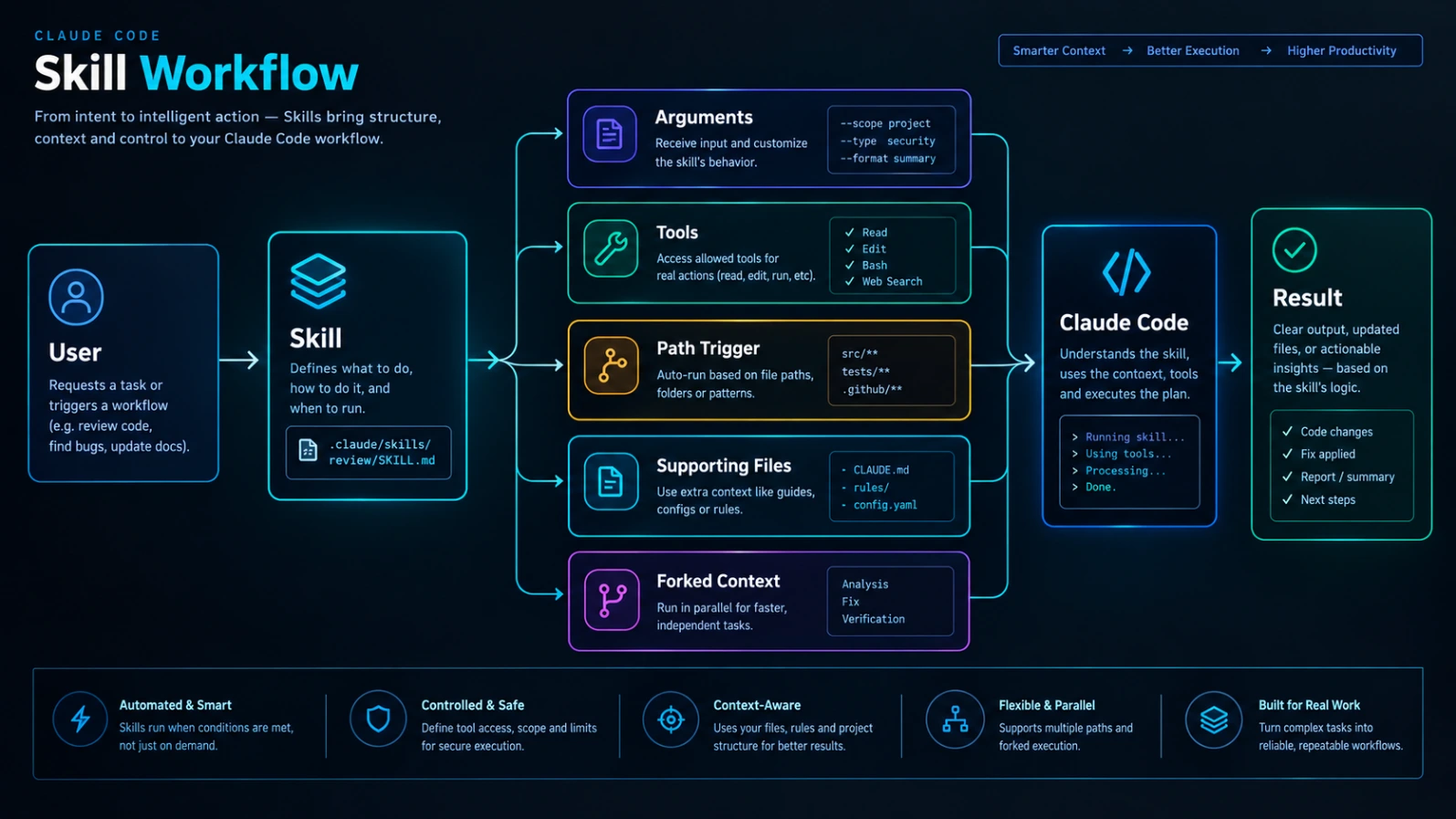
Another major advantage of Skills is tool control.
You can define:
allowed-tools: Read, Grep
This can be useful for read-only workflows.
For example:
---
name: inspect
description: Analyze the project without modifying files.
allowed-tools: Read, Grep, Glob
---

Inspect the relevant code and report your findings.

Do not modify files.
You can also use:
disallowed-tools:
when you need to remove certain tools while the Skill is active.
This is particularly useful when you're building automation that should have a tightly controlled tool set.
Important: Don't blindly trust Skills downloaded from other repositories. A Skill can request powerful tool access, so inspect its frontmatter and instructions before adding it to a project. Current Claude Code documentation specifically highlights tool permissions as an important part of Skill behavior.
Run a Skill in an Isolated Context
Large workflows can create a lot of context.
For example, a huge code review might inspect dozens of files and produce thousands of lines of intermediate information.
You can use:
context: fork
to run the Skill in a separate subagent context.
For example:
---
name: deep-review
description: Perform a detailed review of the current codebase.
context: fork
---

Perform a detailed review of the relevant code.

Focus on correctness, security, performance, and test coverage.

Return only the important findings.
This can keep a large workflow from filling the main conversation with unnecessary intermediate context.
A forked Skill runs with its own task context rather than simply duplicating your entire conversation.
You can also specify an agent when appropriate.
For example:
context: fork
agent: Explore
The exact agent behavior depends on the configuration and current Claude Code version, so use this only when you actually need isolated execution.
Use Path-Based Skill Activation
Another powerful feature is path-based relevance.
Suppose you have a Skill specifically for Java code:
paths:
  - "src/**/*.java"
You can make the Skill relevant when matching files are involved.
This is useful in large repositories where different parts of the project use different technologies.
For example:
src/
├── frontend/
├── backend/
├── services/
└── legacy-java/
You could have different Skills for different areas rather than giving Claude one enormous universal instruction set.
Path-based triggering is one of the capabilities that distinguishes Skills from simple legacy command files.
Add Supporting Files to a Skill
This is another reason to prefer Skills for new workflows.
A simple command might contain everything inside one Markdown file.
A Skill can instead have a complete directory:
.claude/
└── skills/
    └── security-review/
        ├── SKILL.md
        ├── checklist.md
        ├── examples.md
        ├── reference/
        │   └── security-rules.md
        └── scripts/
            └── scan.sh
This lets you separate the main workflow from supporting material.
For example:
SKILL.md
could explain the workflow.
checklist.md
could contain a detailed checklist.
examples.md
could contain examples.
This prevents the main Skill from becoming unnecessarily large.
A good rule is:
Keep SKILL.md focused. Move large reference material into supporting files.
Dynamic Context: Make Commands Aware of the Current Project
Skills can also use dynamic shell-command output.
For example:
## Git Status

!`git status --short`

## Current Changes

!`git diff HEAD`

Review the current changes and identify important problems.
The shell commands are evaluated and their output is inserted into the Skill's content before Claude processes it.
This opens up useful workflows such as:
- Git diff reviews
- Pull-request summaries
- Release checks
- Change reports
- Test summaries
- Project diagnostics
However, this feature needs care.
You're effectively allowing commands to run as part of the Skill workflow.
Don't insert arbitrary shell commands simply because they make the Skill look more powerful.
Use trusted commands and understand the permission behavior before committing a Skill to a shared repository.
Example: Git Summary Skill
A practical example is:
---
name: git-summary
description: Summarize current Git changes and identify potential risks.
---

## Git Status

!`git status --short`

## Git Diff

!`git diff HEAD`

## Task

Summarize the changes.

Then identify:

- Potential bugs
- Security risks
- Missing tests
- Unintended changes
- Documentation that may need updating

Do not modify files.
Now:
/git-summary
can generate a consistent summary from the repository's current state.
This is much more useful than manually copying git diff output into every conversation.
Chain Multiple Skills Together
One of the newer capabilities worth knowing is Skill chaining.
You can invoke multiple Skills at the beginning of a prompt.
For example:
/review /security-review Review the authentication changes.
The current Claude Code command system supports chaining multiple Skills, with up to six Skills in one invocation.
This creates interesting workflows.
For example:
/review /test
could combine code review instructions with testing instructions.
Or:
/security-review /documentation
could combine a security check with documentation requirements.
You don't need to chain Skills for simple tasks, but it becomes useful as your project grows.
Build Commands Around Real Workflows
The strongest custom commands aren't generic prompts.
They encode actual procedures.
For example, a weak command is:
Review this code.
A stronger command says:
Review the current changes.

Check:

1. Correctness
2. Security
3. Error handling
4. Performance
5. Test coverage
6. Maintainability

Prioritize important findings.

Explain why each finding matters.

Do not modify files unless asked.
The second version is more useful because it defines a process.
That is the real value of custom commands:
They turn repeated instructions into reusable development procedures.
Three Custom Commands Worth Creating First
If you're new to Claude Code customization, don't create 30 Skills on day one.
Start with three.
1. /review
Use it for:
- Bugs
- Security
- Performance
- Maintainability
- Missing tests
2. /debug
Use it for:
- Reproducing errors
- Investigating root causes
- Inspecting relevant files
- Testing possible fixes
3. /test
Use it for:
- Finding relevant tests
- Generating tests
- Running tests
- Investigating failures
- Checking edge cases
These three workflows are useful across many development projects.
After they work reliably, add specialized Skills.
Share Custom Commands With Your Team
One of the best reasons to put project Skills inside .claude/ is collaboration.
For example:
.claude/
└── skills/
    ├── code-review/
    ├── security-review/
    ├── testing/
    └── release-check/
You can commit these files to Git with the rest of your project.
Your team then gets the same workflows.
This can turn Claude Code configuration into part of your team's development standards.
Instead of telling every new developer:
"Here is how we review authentication changes."
you can encode the process in a Skill.
The repository becomes the source of truth for the workflow.
Community training material and practical examples also emphasize versioning project commands/Skills in Git so teams can share the same workflow definitions.
What Happens If a Command and Skill Have the Same Name?
This is an important migration detail.
Suppose you have both:
.claude/commands/review.md
and:
.claude/skills/review/SKILL.md
They represent the same command name:
/review
The Skill version takes precedence.
This means you should avoid maintaining two different implementations of the same command name unless you intentionally understand which one Claude Code will use.
Should You Migrate Old .claude/commands/ Files?
Usually, don't rush.
If you already have:
.claude/commands/review.md
and it works, you can continue using it.
For new workflows, prefer:
.claude/skills/review/SKILL.md
You can migrate older commands when you need features such as:
- Supporting files
- Automatic activation
- Tool permissions
- Path-based activation
- Forked execution
- More advanced frontmatter
This gives you a gradual migration path instead of forcing you to rebuild everything.
Custom Commands vs CLAUDE.md
These two are easy to confuse.
Use CLAUDE.md for persistent project instructions.
For example:
Use TypeScript.
Use Vitest for testing.
Do not edit generated files.
Use camelCase for variables.
Use a Skill for a repeatable workflow:
/review
that tells Claude exactly how to review a change.
A simple rule:
Persistent project knowledge → CLAUDE.md
Repeatable procedure → Skill
This distinction keeps your project configuration cleaner.
Custom Commands vs Hooks
Hooks are different.
A Skill is a reusable workflow.
A hook is an automated event-driven action.
For example:
/review
could be a Skill.
A hook could automatically perform an action after a particular Claude Code event.
So ask:
Do I want Claude or me to intentionally run this workflow?
Use a Skill.
Should something happen automatically when a particular event occurs?
A hook may be better.
Custom Commands vs Subagents
Subagents are designed for specialized or isolated work.
Skills are reusable instructions and workflows.
They can also work together.
For example, a Skill can use:
context: fork
to run its workflow in a separate subagent context.
This is useful for heavier jobs such as:
- Large code reviews
- Repository analysis
- Refactoring investigations
- Specialized audits
But don't add subagents simply because they sound advanced.
For a basic /review command, a normal Skill is usually enough.
Don't Confuse Built-In Commands With Custom Commands
Claude Code already includes many built-in commands and bundled Skills.
The current command reference includes workflows such as:
/code-review
/debug
/verify
/batch
/security-review
/loop
among many others.
This means you shouldn't create a custom command for something Claude Code already provides unless you need a project-specific version.
For example, if the built-in review workflow already covers what you need, use it.
Create your own Skill when you want your project's specific process.
That's a better reason for customization than simply recreating existing functionality.
Common Mistakes When Creating Custom Commands
1. Making One Giant Skill
Avoid creating:
/development
with hundreds of unrelated instructions.
Break workflows into focused Skills.
For example:
/review
/debug
/test
/document
/security-review
2. Writing a Weak Description
The description matters because Claude uses it to determine whether a Skill is relevant.
Bad:
description: Code stuff
Better:
description: Review changed code for correctness bugs, security risks, performance issues, and missing tests.
The second description gives Claude a much clearer signal.
3. Putting Huge Reference Material Into SKILL.md
Don't turn SKILL.md into a 500-line encyclopedia if the workflow doesn't need all of it every time.
Keep the main instructions focused.
Move detailed material into:
reference/
or other supporting files.
This makes Skills easier to maintain and easier for Claude to use efficiently.
4. Giving a Skill Too Much Tool Access
Don't automatically add every available tool.
If a Skill only needs to read files, don't give it unnecessary write or shell capabilities.
Use allowed-tools and disallowed-tools deliberately.
5. Automatically Invoking Dangerous Workflows
A deployment Skill shouldn't casually activate because Claude thinks the application is ready.
For potentially destructive or high-impact workflows, consider:
disable-model-invocation: true
Then require:
/deploy
from the user.
6. Creating Commands You Never Reuse
Don't build a command just because you can.
A good custom command should solve a repeated problem.
If you've only needed a particular prompt once, a normal prompt may be better.
A Reusable Skill Template
You can start with:
---
name: your-command
description: Clearly explain what this workflow does and when it should be used.
---

# Goal

Explain the purpose of the workflow.

# Steps

1. Inspect the relevant files.
2. Understand the current implementation.
3. Perform the required analysis.
4. Make changes only when appropriate.
5. Run relevant checks.
6. Report the result clearly.

# Rules

- Follow the project's existing conventions.
- Do not invent information.
- Do not claim tests passed unless they actually passed.
- Avoid unnecessary changes.
Then run:
/your-command
As your workflow becomes more advanced, add:
- $ARGUMENTS
- $0, $1
- Supporting files
- allowed-tools
- disable-model-invocation
- user-invocable
- context: fork
- paths
- Dynamic context
Don't add these features until you actually need them.
How to Test Your Custom Command
Don't assume a Skill works because Claude recognizes its name.
Test it against a realistic task.
For /review:
- Make a small code change.
- Run /review.
- Check whether Claude identifies the relevant files.
- Check whether it follows your review criteria.
- Check whether findings are actionable.
- Check whether it avoids unnecessary edits.
If the output isn't useful, improve the Skill's instructions.
Don't automatically make the Skill longer.
A good Skill should make Claude's behavior more consistent, not merely more verbose.
The Best Way to Build a Claude Code Command Library
Start with the work you repeat.
Look at your last few Claude Code sessions.
If you repeatedly typed:
Review this code for security problems...
create:
/review
If you repeatedly typed:
Investigate why this API is returning 500...
create:
/debug-api
If you repeatedly typed:
Generate tests for this feature...
create:
/test-feature
Then improve the Skills based on real use.
This produces a command library based on your actual development workflow rather than a collection of theoretical prompts.
Final Takeaway
Creating custom commands in Claude Code has evolved beyond simple Markdown files inside .claude/commands/.
The current approach is Skills-first.
For a new workflow, use:
.claude/
└── skills/
    └── review/
        └── SKILL.md
A Skill can provide:
- A reusable slash command
- Arguments
- Automatic activation
- Supporting files
- Tool restrictions
- Manual-only invocation
- Path-based activation
- Dynamic context
- Forked execution
- Team-wide project workflows
The older:
.claude/commands/review.md
format still works and remains useful for simple legacy commands, but Skills are the stronger choice for new development workflows.
The most important thing is not how many commands you create.
It's whether they encode workflows you actually repeat.
Start with three:
/review
/debug
/test
Make them reliable.
Then add specialized Skills as your workflow grows.
That is where Claude Code customization becomes genuinely useful: you're no longer asking Claude to rediscover your preferred process every time. You're turning that process into reusable project knowledge.