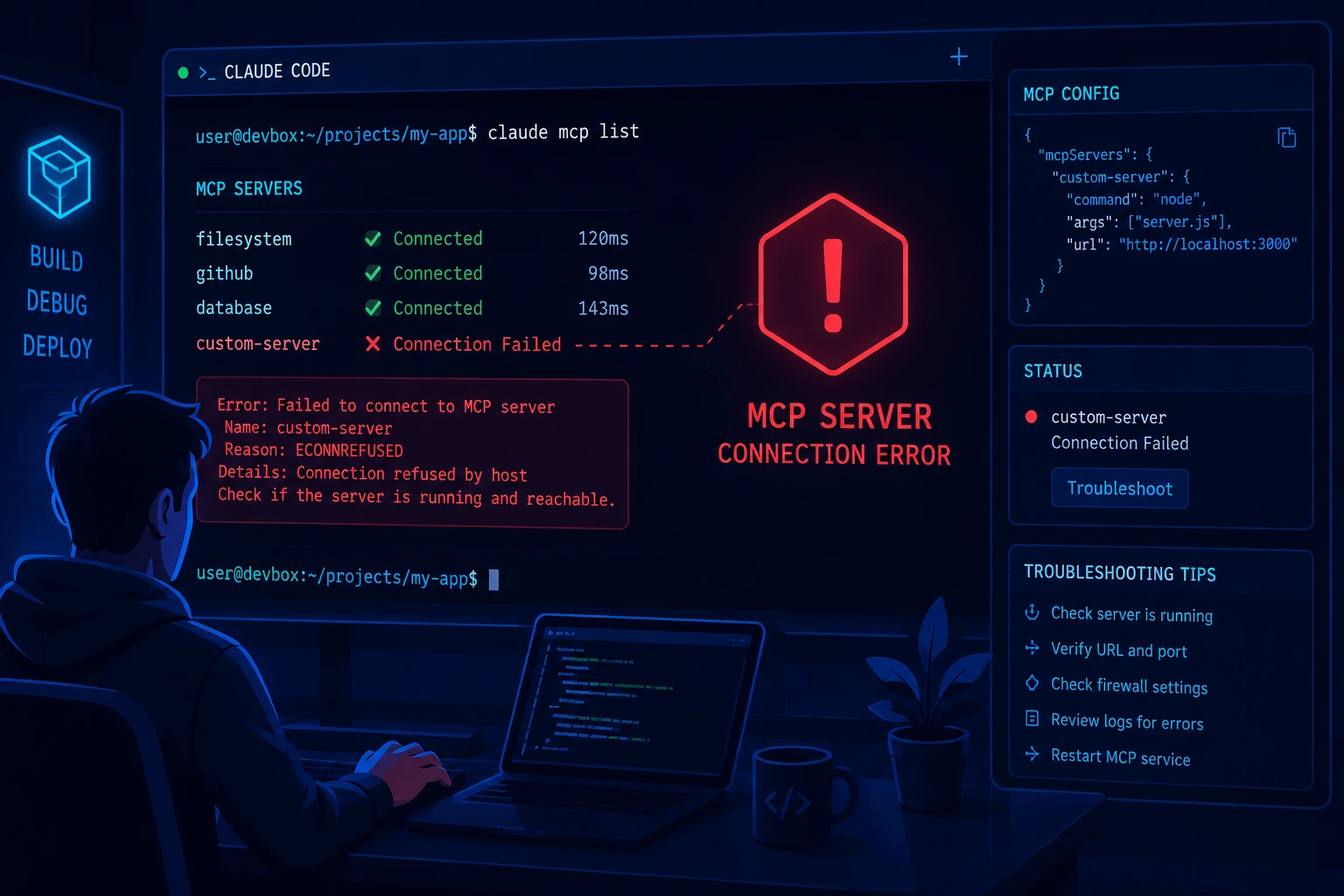
If a Claude Code MCP server won't connect, won't load its tools, or throws an error when you start a session, the fastest path to a fix is to stop guessing and read the actual status Claude Code gives you. Every MCP failure in Claude Code shows one of a handful of specific statuses: Failed to connect, Connection error, Needs authentication, or a server with no tools and each one points to a different cause.
Quick Answer
Run this first, from your terminal (not inside a claude session):
bash
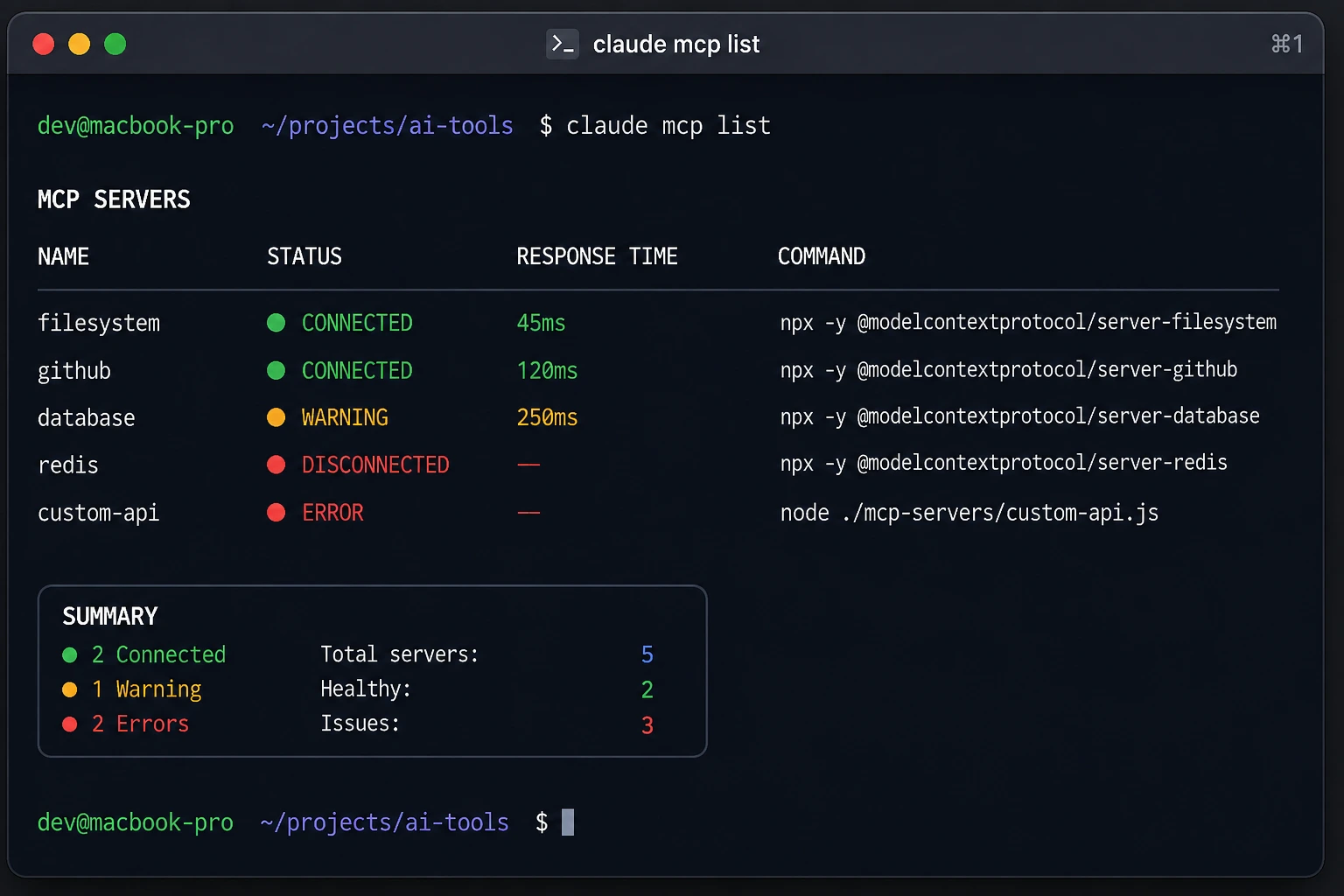
claude mcp list
This shows every configured server and its status. Then run, inside a session:
/mcp
or from your terminal:
bash
claude mcp get <server-name>
Claude mcp prints the error details of an HTTP status code, a missing environment variable, or the exact command Claude Code tried to run. Most "MCP server not working" problems fall into one of these buckets:
The server was added in the wrong project or wrong config file
The server's status is Failed to connect or Connection error (process/network issue)
The server needs authentication you haven't completed
The server connects but registers zero tools (usually a missing API key)
A PATH issue means Claude Code can't find node or npx, even though your terminal can
The sections below match each symptom to its fix.
Symptoms: What "Not Working" Looks Like
MCP problems in Claude Code usually show up as one of these:
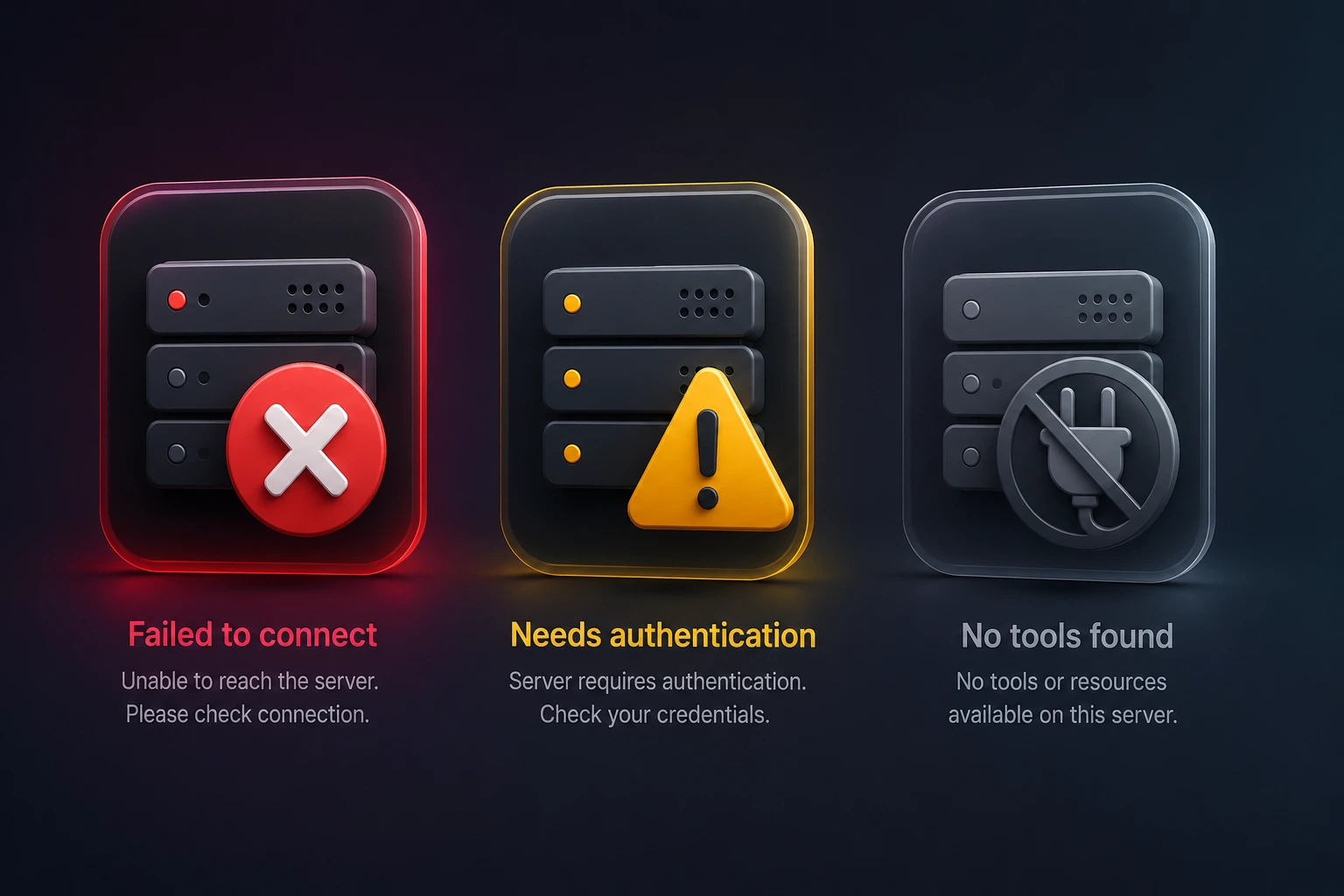
Status you see | What it means |
|---|---|
No MCP servers configured | Claude Code found no servers for the current directory |
✘ Failed to connect | The server didn't respond |
✘ Connection error | The connection attempt threw an error |
! Needs authentication | Server is reachable but requires sign-in or a token |
! Connected · tools fetch failed | Server connected but couldn't list its tools |
Server shows connected, tool list is empty | Server started but registered no tools |
⏸ Pending approval | A project-scoped server you haven't approved yet |
Both Failed to connect and Connection error mean the server didn't start or the URL didn't respond, but they differ in how much detail Claude Code shows — see the diagnosis step below.
Step 1 — Diagnose Before You Fix Anything
Don't start editing config files yet. Run both of these:
bash
claude mcp list
/mcp
For a specific server, get the full error detail with:
bash
claude mcp get <server-name>
This is the single most useful diagnostic command.
Step 2 — Match Your Error to Its Cause
Fix: "No MCP servers configured"
- You added the server from a different project. Local-scoped servers are tied to the directory you were in. Re-add from the current project, or use --scope user:
bash
claude mcp add --scope user --transport http my-server https://example.com/mcp
- You edited a config file at the wrong path. Claude Code only reads two files:
| Scope | File | Available to |
|---|---|---|
| local (default) | ~/.claude.json, under the project entry | Only you, only this project |
| project | .mcp.json in the project root | Everyone who clones the project |
| user | ~/.claude.json, top-level mcpServers key | Only you, all projects |
It does not read ~/.claude/settings.json, ~/.claude/mcp_servers.json, or %APPDATA%\Claude\mcp.json.
- A malformed entry in .mcp.json. Claude Code silently skips broken entries. Run claude mcp list and check for a parse warning.
Fix: "Failed to connect" or "Connection error"
- Failed to connect: claude mcp list/claude mcp get <name> show the HTTP status or error text (v2.1.219+).
- Connection error: no extra detail on any version — go straight to manual checks.
HTTP/hosted servers — confirm reachability:
bash
curl -I https://mcp.example.com
- 404/405 → server is up (many endpoints only answer POST); a 404 usually means the wrong path — compare claude mcp get <name>'s URL to the server's documented endpoint.
- 401/403 → server is up, needs auth.
- No response → check the URL and network.
Local (stdio) servers — run the exact command yourself:
bash
npx -y @playwright/mcp@latest
- Starts and waits → server works; compare the command in claude mcp get <name> to what you typed — if it differs, you likely omitted the -- separator.
- Errors immediately → the message usually names what's missing.
Fix: "Needs authentication"
Run /mcp, select the server, choose Authenticate. On v2.1.186+, you can also run:
bash
claude mcp login my-server
claude mcp login my-server --no-browser      # no local browser
claude mcp login my-server --callback-port 8080   # fixed redirect URI
claude mcp logout my-server && claude mcp login my-server   # force fresh sign-in
The bearer-token trap: for static-token servers:
bash
claude mcp add --transport http my-server https://mcp.example.com --header "Authorization: Bearer YOUR_TOKEN"
If the server rejects that header, Claude Code shows ✘ Failed to connect, not Needs authentication — a bearer header suppresses the OAuth fallback entirely. If you see this, remove --header and re-add without it to let OAuth run. Also check claude mcp list for hidden whitespace warnings on pasted tokens.
Fix: Connection Timed Out at Startup
bash
MCP_TIMEOUT=60000 claude
powershell
$env:MCP_TIMEOUT = "60000"; claude
This is a different clock from a single tool call hanging mid-session — that's MCP_TOOL_TIMEOUT or a per-server timeout field (ms) in .mcp.json.
Fix: Server Response Gets Truncated
bash
export MAX_MCP_OUTPUT_TOKENS=50000
Claude Code warns above ~10,000 tokens of MCP output and truncates around 25,000 by default.
Fix: Server Connects but No Tools Appear
Run /mcp, select the server. Empty tool list usually means a missing required env var:
bash
claude mcp add my-server --env API_KEY=your_key -- npx -y @some/mcp-package
or in .mcp.json:
json
{
  "mcpServers": {
    "my-server": {
      "type": "stdio",
      "command": "npx",
      "args": ["-y", "@some/mcp-package"],
      "env": { "API_KEY": "your_key" }
    }
  }
}
Fix: PATH / Node.js / npx Issues
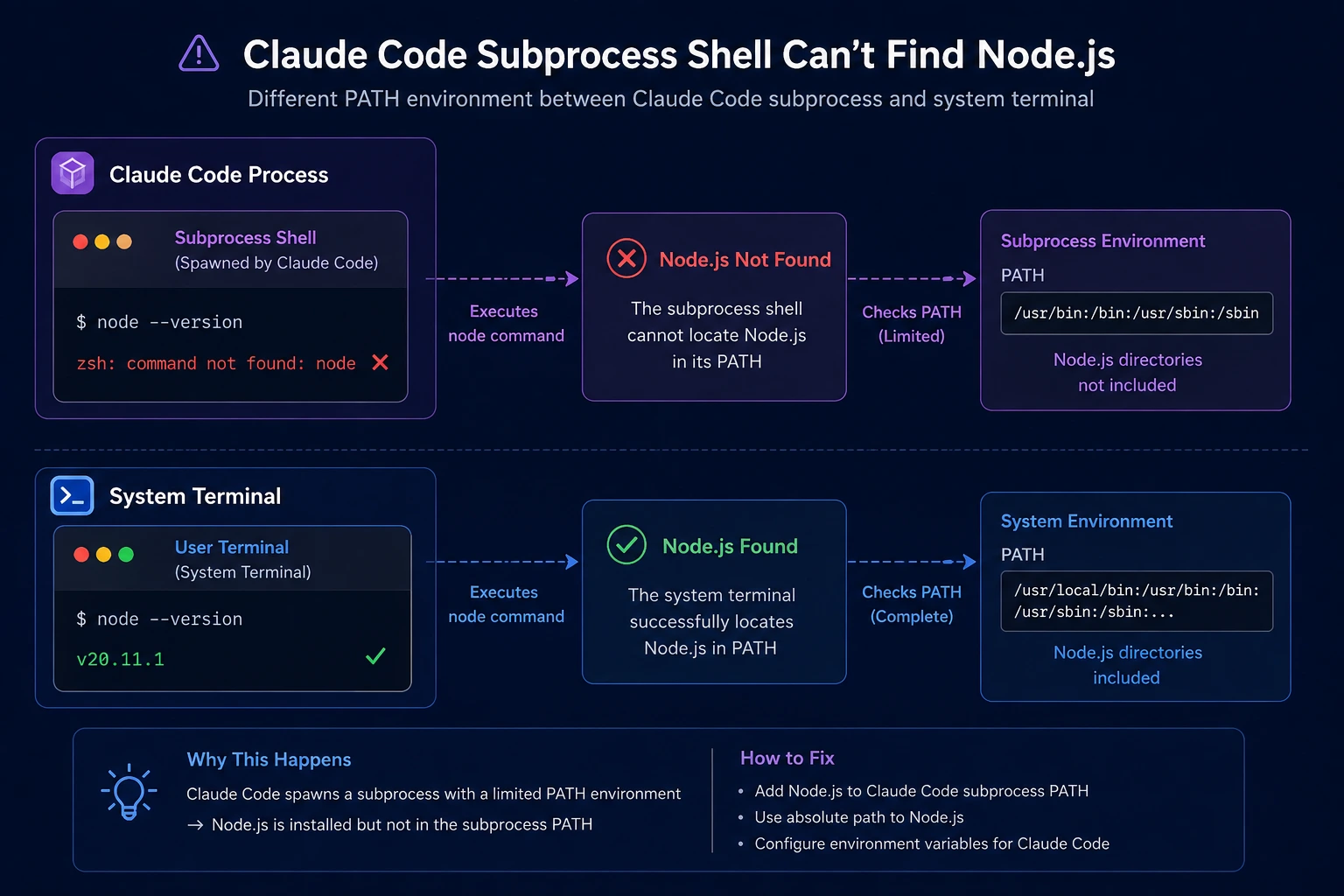
Claude Code spawns subprocesses in a different shell environment than your terminal, so node/npx can be "missing" even though your terminal finds them fine — especially with nvm.
- Use the absolute path (which node) in your server's command field.
- Make nvm load in non-interactive shells — add its init block to ~/.zshrc/~/.bashrc, not just ~/.zprofile.
Fix: Windows-Specific Failures
bash
claude mcp add --transport stdio my-server -- cmd /c npx -y @some/package
Without cmd /c, Windows can't execute npx directly (Connection closed). The --mcp-config flag has also been unreliable on Windows in some releases — use claude mcp add instead.
Fix: Changes to .mcp.json Don't Take Effect
Restart the session after editing. If servers still don't appear, check claude mcp list for parse warnings, and reset a stuck rejection with:
bash
claude mcp reset-project-choices
Fix: Server Name Conflicts with a Built-in Server
Claude Code reserves workspace, claude-in-chrome, and computer-use. A config using one of these is skipped silently. Pick a distinctive name, then confirm the winner with claude mcp list / claude mcp get <name> — this also resolves duplicate names across scopes, where local beats project beats user.
Fix: /mcp Shows "No MCP servers configured" but claude mcp list Disagrees
A known discrepancy on some versions: /mcp in-session says nothing's configured while claude mcp list shows servers connected (most common with project-scoped servers on Windows). If this happens:
- Trust claude mcp list over /mcp.
- Run /doctor for a fuller diagnostic.
- Test whether the server actually works by asking Claude to use it by name.
- If a project-scoped server never got an approval prompt at all, check .claude/settings.local.json for an enabledMcpServers entry, or run claude mcp reset-project-choices.
Fix: MCP Tools Don't Work in Non-Interactive / Scripted Mode
Servers connected via claude.ai-native connectors (not claude mcp add) have been reported unavailable under --print/--output-format stream-json, even when shown connected interactively. Prefer CLI-added servers for anything you script or run in CI.
Fix: A Local Server Corrupts Its Own Connection with Console Output
For stdio servers you maintain yourself: MCP uses stdout as the protocol channel. Any stray print() or verbose library logging to stdout corrupts the stream. Logs must go to stderr.
Test the Server Outside Claude Code Entirely
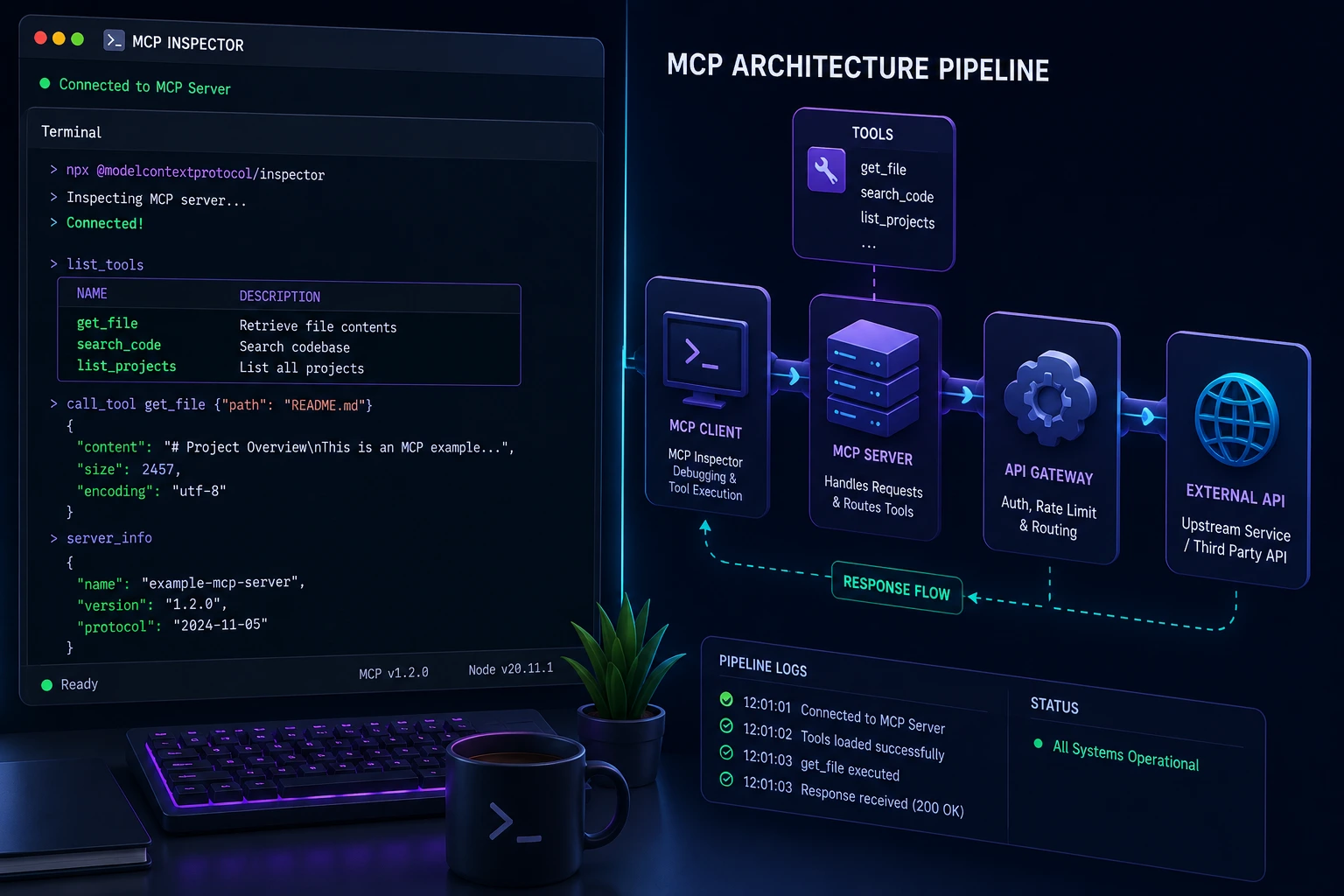
bash
npx @modelcontextprotocol/inspector --server-url https://mcp.example.com/mcp --transport http
npx @modelcontextprotocol/inspector --cli https://mcp.example.com/mcp --transport http --method tools/list
If the Inspector connects and lists tools, the fault is on the Claude Code side. If it fails too, the fault is the server, network, or credential.
Advanced Debugging: Run the Server Manually
Isolate whether the problem is Claude Code or the server by running the server's exact command or curling its URL directly, outside Claude Code.
Common Mistakes That Cause This
- Running claude mcp add from the wrong project directory
- Editing ~/.claude/settings.json instead of ~/.claude.json / .mcp.json
- Omitting the -- separator before a local server's command
- Assuming a server that works standalone will work identically under Claude Code, ignoring PATH differences
- Not restarting the session after editing .mcp.json
- On Windows, calling npx directly instead of cmd /c npx
FAQs
Run both from the same working directory. Local-scoped servers are tied to a specific project path, so checking from a different folder can show different results.
Only for one specific case: changes to .mcp.json are read at session start, so a restart is required after editing it. Restarting won't fix a PATH problem, a bad URL, or a missing environment variable.
Only ~/.claude.json (for local- and user-scoped servers) and <project>/.mcp.json (for project-scoped servers). No other file path is read for server definitions.
This is almost always a PATH/environment mismatch — Claude Code spawns subprocesses in a different shell environment than your interactive terminal. Use absolute paths to nodes, or ensure your version manager (like nvm) initializes in non-interactive shells.
claude mcp remove <server-name>. If it's defined at more than one scope, add --scope local, --scope project, or --scope user to specify which copy to delete.
No — the first time Claude Code encounters a project-scoped server (from a cloned repo's .mcp.json), it prompts for approval before running it.
Check /mcp and select the server to confirm its tool list isn't empty. An empty list means it needs a required environment variable, typically an API key, passed via --env or the env field in .mcp.json. If the tool list isn't empty and Claude simply isn't calling the tool, that's a separate issue — the model weighs your phrasing against its instructions, and a vague request can lose that judgment call even with a fully healthy server. Try invoking a specific MCP prompt directly with /mcp__servername__promptname (if the server exposes one) to remove the ambiguity and confirm the server itself works.
No — it means the configuration was written to disk, not that a connection succeeded. Added and ✘ Failed to connect can both be true for the same server at the same time; they describe different steps. Always follow an ad with a claude mcp list to check the actual connection status.
The Playwright MCP server needs a Chromium binary that isn't bundled automatically. Run npx playwright install chromium once, then retry.
This is the signature of a single malformed entry in .mcp.json or ~/.claude.json. A stray trailing comma, a smart quote pasted in from a web page instead of a straight quote, or a missing bracket can invalidate the whole file, not just one server's entry. Validate the file's JSON syntax (python3 -m json.tool path/to/.mcp.json will error out at the exact bad line) before assuming individual servers broke.
Run the server standalone: for a local server, run its exact command/args directly in your terminal; for a hosted server, curl the URL or use the MCP Inspector (npx @modelcontextprotocol/inspector). If the server behaves correctly outside Claude Code, the fault is in your Claude Code configuration or environment, not the server.
Conclusion
Most "Claude Code MCP server not working" problems trace back to one of a small number of causes: the wrong config file, a project-scope mismatch, a PATH issue Claude Code hits but your terminal doesn't, a missing environment variable, or an unresolved authentication step. Start with claude mcp list and claude mcp get <name> to get the exact status and error detail, match it against the fixes above, and you'll usually isolate the cause in a couple of minutes rather than guessing through configuration changes.
(Word count: ~2,850 after incorporating additional verified failure modes — see note in Section 17. This runs above the original 2,000–2,500 target because the added sections cover genuinely distinct causes rather than padding; consider trimming the "stdout logging" and "non-interactive mode" subsections first if a hard length cap is required, since they serve a narrower slice of readers than the rest.)