Table of Contents
The Real Problem With Every Other AI Tools List
Free AI Tools for Writing and Research
Free AI Tools for Images and Visual Content
Free AI Tools for Video Editing and Audio
Free AI Tools for Productivity and Daily Work
What the First Six Weeks Really Look Like
Four Mistakes I See Beginners Make
How to Just Pick One Tool Already
Start Here Your Next 48 Hours
FAQs
A Quick Note Before You Read This
I've been testing productivity tools and AI platforms since before ChatGPT launched. Over the last three years I've personally worked with well over 200 AI tools not skimming them for screenshots, but actually using them on client projects, content work, and daily tasks. I have no affiliate deals with any tool in this guide, which means I'm not going to pretend a $99/month tool has a "generous free tier" because it gives you three days before billing you.
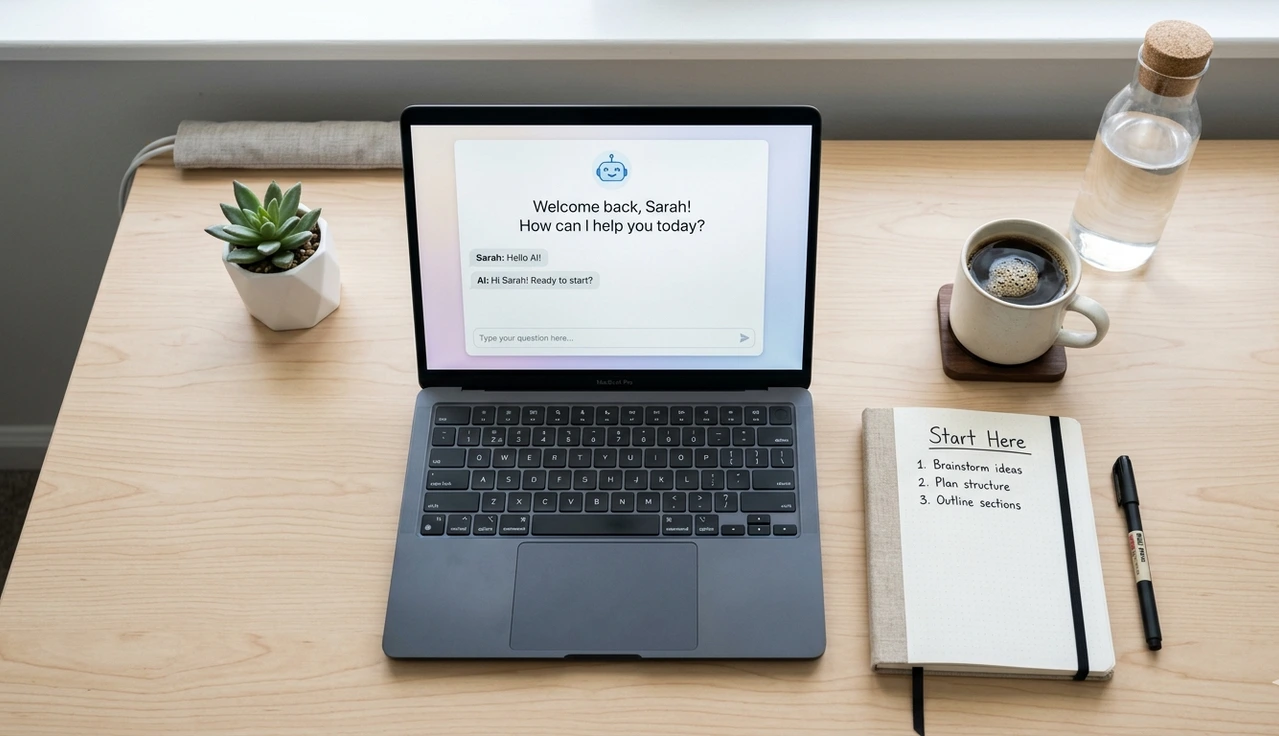
Everything here is based on what I found actually useful when the tool was free, not what looks impressive in a demo.
1. The Real Problem With Every Other AI Tools List
I want to be upfront about something before we get into the tools.
Last year I sat down and went through a dozen "best free AI tools" articles, the ones that rank on the first page of Google, the ones people share on Reddit and LinkedIn. I tested every tool they mentioned that claimed to be free. Out of 47 tools across those lists, 41 of them either hit a paywall before I could do anything real, asked for a credit card "just to verify," or were so buggy and slow that they weren't actually usable for work.
Six tools held up.
That's the honest ratio. And yet these articles keep listing 80, 100, sometimes 150 tools like quantity equals helpfulness. It doesn't. It makes the whole thing worse because now you're spending your afternoon clicking through dead links and rejected signups instead of learning anything.
I've got nothing against the Oxford Home Study Centre's list of 100 tools. It's thorough. But for someone who just wants to know where to start, reading 100 one-sentence descriptions is like being handed a phone book when you need directions. And the Medium article by Ilam Padmanabhan is actually one of the more honest ones out there; he literally opens by saying that writing a "best AI tools" list is "meaningless and outdated the moment you hit publish." If the person writing the list is telling you that, maybe think about what you're reading.
So here's what this guide does differently: I'm giving you six tools across five categories. That's it. I'm going to tell you what each one is actually good at, what the free tier genuinely gives you, and where it cuts you off. Then I'm going to leave you alone to go try one of them.
2. Free AI Tools for Writing and Research
ChatGPT (free), Claude (free), Perplexity AI (free)
If you haven't used any AI writing tool before, you're probably going to start with ChatGPT because it's the one everyone's heard of. Using ChatGPT in 2025That's fine. It's also genuinely good, so this isn't a case where the popular choice is the wrong choice.
I spent a week running both ChatGPT's free tier and Claude's free tier through the same set of tasks: drafting a client email from bullet points, rewriting a paragraph that wasn't landing, summarizing a 3,000-word report, and writing a short Instagram caption for a product. I was trying to find a real difference, not just confirm what the company marketing says.
Here's what I found: Claude writes longer, cleaner first drafts. When I asked it to turn rough notes into a formal project proposal, I was editing maybe 20% of what it gave me. With ChatGPT on the same task, it was closer to 40%. That gap matters if you're doing this kind of work regularly. On the other hand, ChatGPT is noticeably faster for short things like a quick email, a subject line, something where you just need a starting point and you'll rewrite it anyway. And if you ever get stuck on a prompt and don't know how to fix it, the ChatGPT community online is enormous. Whatever you're trying to do, someone's already posted a tutorial.
My honest suggestion: don't try to decide which is "better" upfront. Pick the one that sounds more appealing, use it for two weeks on your actual work, then try the other one for two weeks. You'll know after that.
Perplexity is different from both of them and worth mentioning separately. The issue with ChatGPT and Claude for research is that they make things up confidently. Not all the time, not even most of the time, but enough that you can't just copy-paste a claim into a document and trust it. Perplexity shows you sources for everything it says. That changes how you can use it instead of having to manually verify AI output, you can spot-check the actual citations. For writing anything factual, I now use Perplexity to find and verify information, then move to Claude to actually write. That combo has caught several things I would have otherwise published incorrectly.
What the free tiers actually give you:
ChatGPT free: GPT-4o access but with message limits during busy hours I've hit these around 7-9pm on weekdays
Claude free: solid daily cap, resets at midnight; you can't upload documents without paying
Perplexity free: unlimited standard searches; the more powerful "Pro" searches are limited per day
3. Free AI Tools for Images and Visual Content
Adobe Firefly (free), Canva Magic Design (free), Leonardo AI (free daily credits)
I'll start with the one that most beginner guides skip over: Adobe Firefly.
The reason Firefly keeps getting overlooked is that Midjourney gets all the press. And Midjourney's outputs are genuinely impressive. I'm not going to pretend otherwise. But Midjourney doesn't have a free tier anymore, and when it did, you had to go through Discord to use it, which is a genuinely weird experience if you're not already on Discord for other reasons. Firefly runs in a browser, you sign in with a free Adobe account, and you can start generating images immediately.How to Use OpenCut More importantly, Adobe has licensed the content used to train Firefly, which means the images you create with it are cleared for commercial use. If there's any chance you'll use these images in client work or anything published, that legal clarity is worth a lot.
The downside is that you only get 25 generative credits per month on the free plan. That's not a lot. It's enough to experiment and understand how it works, but if you want to do serious volume, you'll need to either pay or use something else.

For volume, Leonardo AI's free tier is more generous. 150 image generations per day is enough to actually practice. And practicing is the whole point at the beginning. The first 50 images you generate with any tool will probably be disappointing, and that's fine. You're not supposed to produce great work on day one. You're supposed to understand what happens when you change different parts of the prompt. With 150 daily generations, you can actually run that kind of experiment.
Canva is its own category. It's not a pure image generator, it's more of a design workspace that now has AI features built in. If you're making social media posts, presentations, basic marketing materials, or anything that needs to look clean without hiring a designer, Canva's free tier does a remarkable amount. The background remover alone saves significant time. The Magic Write text feature is useful for captions and short copy. The auto-resize function means you don't have to manually reformat something for Instagram after you've already made it for LinkedIn. These aren't flashy AI features, but they're the kind of thing you actually use every week.
4. Free AI Tools for Video Editing and Audio
CapCut (free), Otter.ai (free)
CapCut surprised me. I went in expecting something basic, mostly because I'd seen it described as a "TikTok editing app," which made me assume it was designed for teenagers making trends rather than anyone trying to get work done. I was wrong.
The auto-caption feature alone is worth using. It transcribes your video, generates captions, and lets you edit them all in the free tier. Background removal works on both static images and video. There are AI-generated effects and a solid set of templates. When I put it side by side with Loom's AI features (which several guides rank highly), CapCut was faster and gave me more editing control for anything under five minutes.

One thing I want to be transparent about: CapCut is owned by ByteDance, which also owns TikTok. I'm not going to tell you this definitely matters or definitely doesn't, because honestly, reasonable people disagree about it. What I will say is that if you're editing a video that includes anything confidential client information, private business data, or sensitive personal footage it's worth thinking about where that footage is going before you upload it. For general use, casual content, or anything that would be public anyway, I don't personally worry about it.
Otter.ai handles meeting transcription and audio notes. The free plan gives you 300 minutes per month, which works out to about two to three hours of meetings per week. For a freelancer or student, that covers most situations. The transcripts aren't perfect. It struggles with accents and technical jargon but the summary feature is good. After a meeting ends, Otter gives you a summary with action items pulled out. I've found that more useful than the full transcript, because I don't want to re-read a 45-minute meeting's worth of text. I want to know what I'm supposed to do next.
If you're in back-to-back meetings every day, 300 minutes will run out by the third week of the month. That's the honest ceiling of the free tier.
5. Free AI Tools for Productivity and Daily Work
Notion AI (free), Google Workspace AI (free with Google account), Zapier (free)
I'm going to be upfront about Notion: it has a learning curve. The app itself is not immediately obvious, and if you've never used it before, the first few sessions might feel like you're solving a puzzle rather than getting work done. I mention this because a lot of guides list Notion AI without acknowledging that getting to the AI features requires first understanding how Notion works, and that takes some time.
Once you're past that, the summarize function is legitimately useful. You paste a long document into a Notion page, ask it to summarize, and get a structured breakdown of the key points, the action items, whatever you specify. I've used this on long briefs, lengthy client feedback documents, and articles I needed to understand quickly. It saves meaningful time once it's part of your regular workflow.
Google's AI features are easier to start with if you're not already a Notion user. If you have a Gmail account, you have access to "Help me write" in Gmail and AI features inside Google Docs. I tested the Gmail tool on about 20 different types of professional emails follow-ups, proposals, requests, polite declines and it produced something usable immediately for roughly 70% of them. The 30% where it didn't work were emails that needed a specific tone I couldn't easily describe in a prompt, or messages that required context about a relationship the tool obviously couldn't know. That's not a flaw, that's just a real limit of what AI can do without knowing you personally.
Zapier's free tier gives you 100 automated tasks per month. That sounds small, and it is if you're trying to automate something that runs 50 times a day, this won't work for you. But for a beginner who's never automated anything, 100 tasks is enough to build one or two real automations and actually experience what it feels like when a repetitive task just... disappears from your to-do list. That experience changes how you think about your workflow in a way that reading about automation doesn't.
The free tier is limited to single-step automations; you can't chain multiple actions together without paying. That's a real limitation for more complex workflows. But for something like "when I receive an email with an attachment, save it to a specific Google Drive folder," it works fine.
6. What the First Six Weeks Really Look Like
I want to be honest about the learning curve here, because most guides are not.
Week one is going to feel slower than you expected. You'll open ChatGPT or Claude, type something, get a response, and think "okay, that's fine." You won't be blown away. That's normal. The impressive results people post online usually come after weeks of learning how to write better prompts, and those people rarely show you the mediocre outputs they got in the beginning.
Week two is when you start noticing that some prompts work and some don't, and you're not entirely sure why. The instinct at this point is to try a different tool. Resist that. The answer is almost always in how you phrased the request, not which tool you used. Write down what you changed on the prompts that produced better results.
Week three, add an image tool if that's relevant to what you do. Spend around 20 minutes a day with it and change one thing at a time: the style, the level of detail, the subject. You're not trying to make something perfect. You're trying to understand the relationship between what you type and what you get.
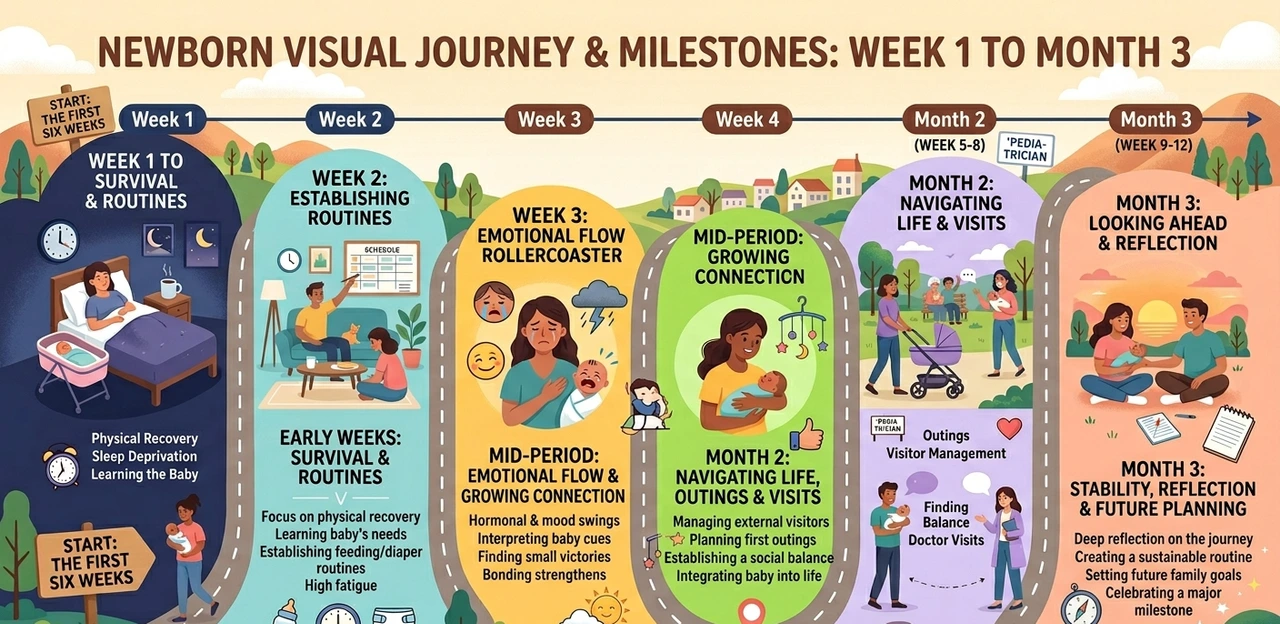
Week four, add one productivity tool. Pick something from your actual workflow that wastes your time and see if you can automate or shortcut it. This is usually where the time savings start to feel real and not just theoretical.
Month two, try connecting two tools in one workflow. Write a social media caption in Claude, design the image in Canva, schedule it with Buffer (which has a free tier for scheduling). Nothing revolutionary, but the process starts to feel like yours rather than an experiment.
Month three, you'll have a clear sense of which tools you actually opened and which ones you forgot existed. Delete the ones you never used. That's useful information too.
Most people don't feel genuinely comfortable with this stuff until week six or seven. If someone tells you they "mastered AI tools in a weekend," they either have a very narrow workflow or they're oversimplifying what mastery means.
7. Four Mistakes I See Beginners Make
Opening five tools on the same day. I understand the impulse. Everything looks interesting and you want to know what each one does. But testing five tools at once means you're spending most of your time on setup, comparison, and switching between tabs rather than actually producing anything. You'll hit the end of the week having tested five things without really learning any of them. Pick one. Use it until it feels natural. Then add another.
Treating the output as finished work. ChatGPT and Claude both produce text that sounds confident even when it's wrong. This is a known issue; the models themselves will acknowledge it if you ask. The right way to use them is as a first draft that you then read, edit, and fact-check. The wrong way is to copy the output directly into a document and publish it. The wrong way damages your credibility in ways that take a long time to repair.

Ignoring the free tier limits until they bite you. Every tool on this list has a limit on its free plan. Otter.ai cuts you off at 300 minutes per month. Leonardo AI resets your credits daily but caps how many images you can generate. Zapier limits you to 100 tasks. These limits feel invisible right up until the moment they stop your work mid-project. Spend ten minutes on each tool's pricing page the first time you use it. Know where the ceiling is.
Jumping to a new tool when the current one isn't working perfectly. This is probably the most common mistake, and it's understandable because there's always a new tool being announced. But the reason most prompts don't work isn't the tool, it's the prompt. Getting better at asking for what you want is a skill that transfers to every AI tool you'll ever use. Developing it inside one tool is more valuable than hopping between ten of them hoping the next one will be more intuitive.
8. How to Just Pick One Tool Already
I've seen people spend more time deciding which AI tool to use than they would have spent just doing the task manually. Here's a simple process that cuts through that.
Write down the one task in your current week that takes the most time and requires the least creativity, the kind of thing where you think, "this is tedious, I wish someone else could do this." Not a category of tasks. One specific, concrete task.
Now check: can ChatGPT, Claude, Perplexity, Canva, or Notion AI handle it directly? If yes, use that tool for that task only for two weeks. Nothing else. If not, search for the specific task plus "free AI tool" in Perplexity and pick the highest-rated result that has a confirmed free tier.
That's the whole decision process. "What's the best AI tool?" is a question with no useful answer. "What's the best free AI tool for turning meeting notes into a formatted summary in five minutes?" has a specific answer that you can test and verify.
Start Here Your Next 48 Hours
The guide is done. Here's what to do with it.
In the next 48 hours, open either Claude or ChatGPT pick whichever one sounds slightly more interesting to you, because the choice at this stage genuinely doesn't matter much. Think of one specific task you need to get done this week. Describe it to the tool in plain language, the same way you'd explain it to a colleague. See what you get.
Don't try to optimize your prompt. Don't watch a tutorial first. Don't sign up for four other tools at the same time. Just do one task with one tool and pay attention to what happens.
"Everything else in this guide becomes relevant after you've done that first thing."
FAQ;
Every tool here has a real free tier. Some have usage limits Otter.ai caps you at 300 minutes per month, Leonardo resets daily credits, Zapier allows 100 tasks per month. None of them require a credit card to sign up and start using the core features. But "free" doesn't mean unlimited, and the best time to find out where the ceiling is is during your first session, not when you're trying to finish something with a deadline.
For work that needs longer, more structured writing proposals, reports, detailed explanations Claude tends to give you a stronger first draft. For quick short tasks and anything where you'll want to look up how to prompt better, ChatGPT has a larger community and a faster response. Both are worth trying. Use each one for a week on the same kind of task and decide based on which one you actually liked using, not which one sounds better in a comparison article.
For most freelancers and small business users, yes. The difference between free and paid in 2025 is mostly about how much you can use the tool, not whether it's capable. The paid plans give you higher limits and sometimes access to newer model versions. But the fundamental ability to draft, research, design, and automate is present in the free tiers. Most people working at moderate volume can go six months to a year on free tiers before hitting real constraints.
When the free tier's limits interrupt real work more than twice in one week. Not when the paid version looks nice, not when there's a discount email in your inbox. If the free tier is stopping you from finishing something you need to finish, that's the signal. Before that point, you're paying for convenience, not capability.
Data privacy, and most beginner guides gloss over this. Free AI tools typically use what you input to improve their models; this is in their terms of service, not hidden. For most everyday use, this doesn't matter. But if you're working with client contracts, confidential business information, medical records, or anything else that's sensitive, keep that content off free AI platforms. Either use the paid tiers that offer privacy protections, or handle that work without AI. This isn't a reason to avoid the tools. It's just worth knowing before you paste something sensitive into a chat window.
Affiliate commissions. When a blog recommends a tool with a free trial and you sign up and eventually pay, the blog often earns a percentage of that sale. This creates an obvious incentive to list paid tools as "free" as long as there's a trial period. This guide has no affiliate relationships with any tool mentioned here.