
Introduction
If you use Claude Code for development work, connecting it to GitHub is one of the most useful things you can do. The GitHub MCP server for Claude Code lets you query repositories, manage issues and pull requests, monitor CI/CD runs, and review security alerts — all through natural language, right inside your AI coding session. No context-switching. No manual copy-pasting of file contents.
Model Context Protocol (MCP) is the open standard that makes this possible. It gives AI tools like Claude a structured way to talk to external services. GitHub's official MCP server, released and maintained by GitHub itself, is one of the most capable implementations out there.
This guide covers everything: what the GitHub MCP server is, how to set it up in Claude Code (both remote and local options), how to handle common errors, and what changed in 2026 that you need to know about.
Who Should Use This?
This setup is especially useful for:
- Solo developers managing repositories
- Open-source maintainers reviewing pull requests
- DevOps engineers monitoring GitHub Actions
- Security teams investigating Dependabot alerts
- Engineering teams collaborating through Claude Code
What Is the GitHub MCP Server for Claude Code?
The GitHub MCP server is an official open-source server built and maintained by GitHub. It exposes GitHub's platform capabilities, repositories, issues, pull requests, Actions, Dependabot, security scanning, and more through the Model Context Protocol.
When you connect it to Claude Code, your AI assistant gains real-time access to your GitHub context. Instead of describing a bug in a message, you can ask Claude to "look at the failing workflow in my repo and explain why it's failing." Claude can fetch the actual log, read the code, and reason about it together.
Claude Code GitHub integration via MCP is not a plugin or an add-on — it's a proper two-way connection. Claude can read data and take actions (create issues, comment on PRs, update branches) depending on what permissions you grant your token.
What Can It Actually Do?
Here's a summary of the main capability areas:
Toolset | What Claude Can Do |
|---|---|
repos | Browse files, search code, read commits, understand project structure |
issues | Create, read, update, and close issues; triage bugs |
pull_requests | Review PRs, comment, approve, request changes |
actions | Monitor workflow runs, analyze build failures |
code_security | Check Code Scanning alerts and findings |
dependabot | Review Dependabot vulnerability alerts |
secret_protection | Scan for exposed secrets before committing (GA May 2026) |
discussions | Access GitHub Discussions threads |
notifications | Read and manage your GitHub notifications |
orgs | Work with organization data and team info |
copilot_spaces | Access and query GitHub Copilot Spaces (remote-only) |
github_support_docs_search | Search GitHub documentation (remote-only) |
copilot | Work with the Copilot coding agent (remote-only) |
context | Understand the current user and repo context (strongly recommended) |
By default, only the core toolsets (repos, issues, pull_requests) are enabled. You can add or restrict specific ones based on your workflow using HTTP headers.
Why People Struggle With This Setup
Setting up the github mcp setup is straightforward once you understand the moving parts but there are a few places where things commonly go wrong:
Version mismatches are the most common issue. The claude mcp add-json command only works in Claude Code version 2.1.1 and newer. If you're running an older version, you need to use claude mcp add --transport http instead. Many setup guides online don't distinguish between these, so people paste the wrong command and get a confusing error.
Token problems are the second most common source of failure. Your GitHub Personal Access Token needs the right scopes for the tools you want to use. A token with only public_repo access will fail silently when you try to work with private repositories or organization data.
Docker is not running trips up people doing local setups. The local GitHub MCP server runs in a Docker container. If Docker Desktop isn't running in the background, the server simply won't start and the error message isn't always clear about why.
Scope confusion Claude Code has three configuration scopes: local (just you, just this project), project (everyone on the team, via .mcp.json), and user (you, across all projects). Using the wrong scope means the server isn't available where you expect it.
OAuth vs PAT confusion The remote server supports OAuth, but full OAuth flow currently only works in VS Code 1.101+. For Claude Code and Claude Desktop, always use the PAT (Personal Access Token) method.
Common Causes of GitHub MCP Server Issues
Before jumping into solutions, here's a diagnostic checklist:
Claude Code version is 2.1.1 or newer (claude --version)
GitHub Personal Access Token exists and hasn't expired
Token has repo scope (for private repo access) or public_repo for public only
Docker Desktop is installed and running (local setup only)
You're running Claude Code inside the correct project directory
No JSON syntax errors in config file (Claude Desktop users)
The deprecated @modelcontextprotocol/server-github npm package is NOT being used
claude mcp list shows github in the list of servers
You are NOT trying to use OAuth with Claude Code (use PAT instead)
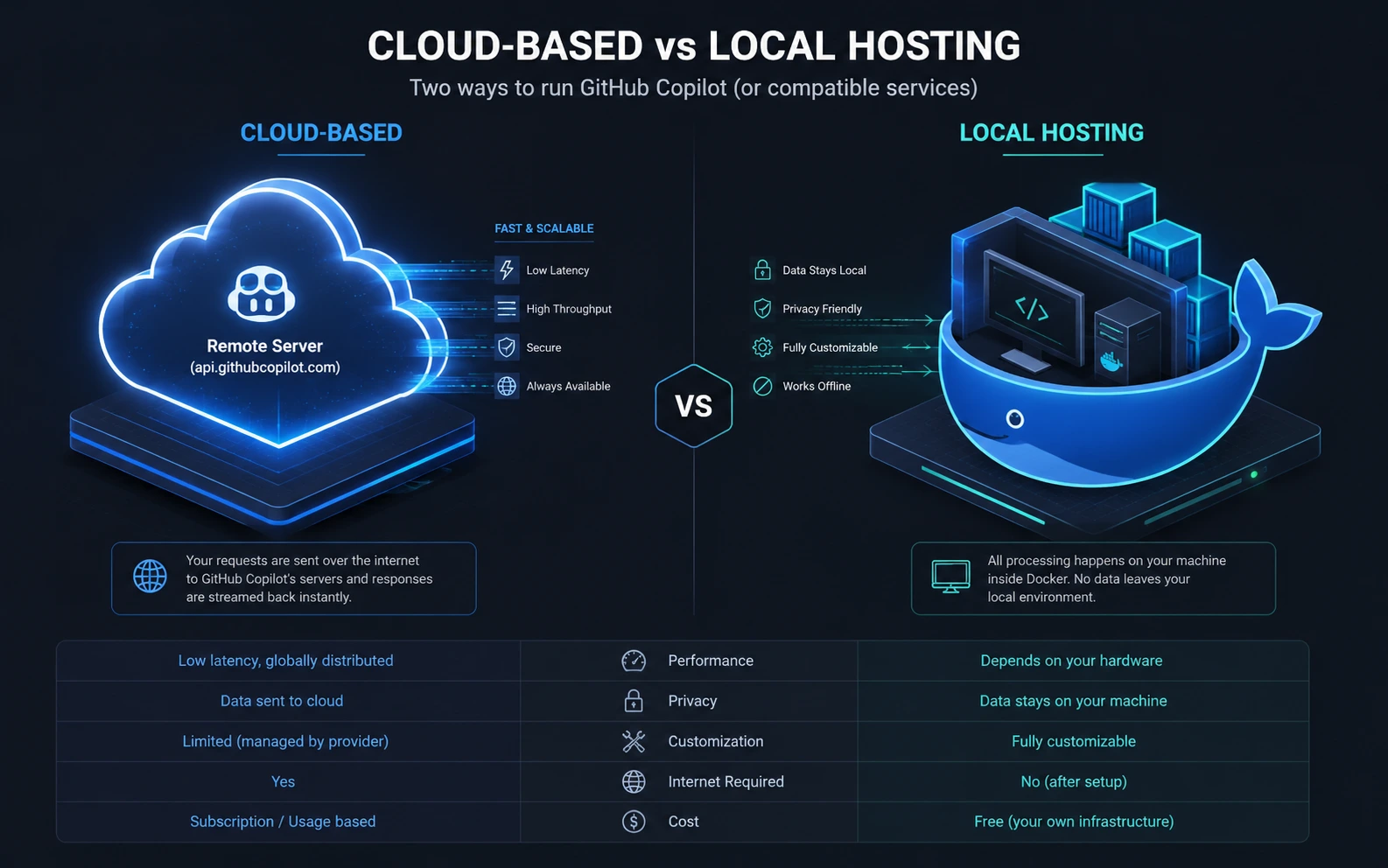
Setup Methods Comparison

| Method | Docker Required | Difficulty | Recommended For |
|----------|----------|----------|----------|
| Remote Server | No | Easy | Most users |
| Docker | Yes | Medium | Self-hosted environments |
| Local Binary | No | Medium | Advanced users |
| Claude Desktop | Usually Yes | Medium | Desktop users |
Step-by-Step Solutions
Method 1: Remote Setup (Recommended for Claude Code)
The remote GitHub MCP server is hosted by GitHub at https://api.githubcopilot.com/mcp/. This is the simplest approach: no Docker, no local binary.
Important: The official Claude Code docs use --transport http flag syntax. Both claude mcp add --transport http and claude mcp add-json work choose based on your Claude Code version.
Step 1: Create a GitHub Personal Access Token
Go to github.com/settings/personal-access-tokens/new. Create a fine-grained token and grant permissions based on what you need. At minimum:
Contents (read) for file/code access
Issues (read/write) for issue management
Pull requests (read/write) for PR review
Actions (read) for CI/CD visibility
Step 2: Store your token securely
Don't hardcode the token. Create a .env file in your project:
GITHUB_PAT=your_token_here
Then add it to your .gitignore:
echo -e ".env\n.mcp.json" >> .gitignore
Step 3: Add the MCP server to Claude Code
Option A — Using --transport http flag (official Claude Code docs syntax):
claude mcp add --transport http github https://api.githubcopilot.com/mcp/ \
  --header "Authorization: Bearer YOUR_GITHUB_PAT"
Option B — Using add-json (Claude Code 2.1.1+):
claude mcp add-json github '{"type":"http","url":"https://api.githubcopilot.com/mcp/","headers":{"Authorization":"Bearer YOUR_GITHUB_PAT"}}'
To read the token from your .env file instead of hardcoding it:
# macOS/Linux
export GITHUB_PAT="$(grep '^GITHUB_PAT=' .env | cut -d '=' -f2-)"
claude mcp add --transport http github https://api.githubcopilot.com/mcp/ \
  --header "Authorization: Bearer $GITHUB_PAT"
# Windows PowerShell
$githubPatLine = Get-Content .env | Select-String "^\s*GITHUB_PAT\s*=" | Select-Object -First 1
$env:GITHUB_PAT = ($githubPatLine.Line -split "=", 2)[1].Trim().Trim('"').Trim("'")
claude mcp add --transport http github https://api.githubcopilot.com/mcp/ --header "Authorization: Bearer $env:GITHUB_PAT"
Windows / CLI note:claude mcp add-json may return "Invalid input" when adding an HTTP server on Windows. Use the --transport http format shown in Option A instead.
Step 4: Restart Claude Code and verify
claude mcp list
You should see github in the output. You can also run claude mcp get github to see the full configuration.
Scope options (add --scope flag if needed):
Default (local): available to you in the current project only
--scope project: shared with the whole team via .mcp.json
--scope user: available to you across all projects
Method 2: Local Setup with Docker
Use this if you want everything running locally, or if the remote server doesn't work in your environment.
Step 1: Install and start Docker
Download Docker Desktop from docker.com. Make sure it's running before proceeding.
Step 2: Pull the GitHub MCP server image
docker pull ghcr.io/github/github-mcp-server
If you get authentication errors on pull, run docker logout ghcr.io first and try again.
Step 3: Add the server to Claude Code
claude mcp add github -e GITHUB_PERSONAL_ACCESS_TOKEN=YOUR_GITHUB_PAT -- docker run -i --rm -e GITHUB_PERSONAL_ACCESS_TOKEN ghcr.io/github/github-mcp-server
With an environment variable:
claude mcp add github -e GITHUB_PERSONAL_ACCESS_TOKEN=$(grep GITHUB_PAT .env | cut -d '=' -f2) -- docker run -i --rm -e GITHUB_PERSONAL_ACCESS_TOKEN ghcr.io/github/github-mcp-server
Step 4: Restart Claude Code and verify
claude mcp list
Method 3: Local Binary (No Docker)
If Docker isn't an option, you can run the server as a binary directly.
Download the latest release binary from github.com/github/github-mcp-server/releases
Add it to your PATH
Register it with Claude Code:
claude mcp add-json github '{"command": "github-mcp-server", "args": ["stdio"], "env": {"GITHUB_PERSONAL_ACCESS_TOKEN": "YOUR_GITHUB_PAT"}}'
Method 4: Claude Desktop Setup
Claude Desktop uses a different configuration approach — a JSON config file rather than CLI commands.
Find and open the config file:
macOS: ~/Library/Application Support/Claude/claude_desktop_config.json
Windows: %APPDATA%\Claude\claude_desktop_config.json
Linux: ~/.config/Claude/claude_desktop_config.json
Add this block:
{
  "mcpServers": {
    "github": {
      "command": "docker",
      "args": [
        "run",
        "-i",
        "--rm",
        "-e",
        "GITHUB_PERSONAL_ACCESS_TOKEN",
        "ghcr.io/github/github-mcp-server"
      ],
      "env": {
        "GITHUB_PERSONAL_ACCESS_TOKEN": "YOUR_GITHUB_PAT"
      }
    }
  }
}
Save the file, restart Claude Desktop, and check Settings → Developer to confirm the server appears.
Note: Claude Desktop does not support "type": "http" configs. Use the Docker setup shown above. GitHub's remote server requires each host to register a GitHub App or OAuth App for OAuth flow — currently only VS Code 1.101+ has full remote server support with OAuth.
Controlling Toolsets with HTTP Headers
One of the most powerful features of the remote GitHub MCP server is the ability to customize which toolsets are active using HTTP request headers. This reduces context size and helps Claude make better tool choices.
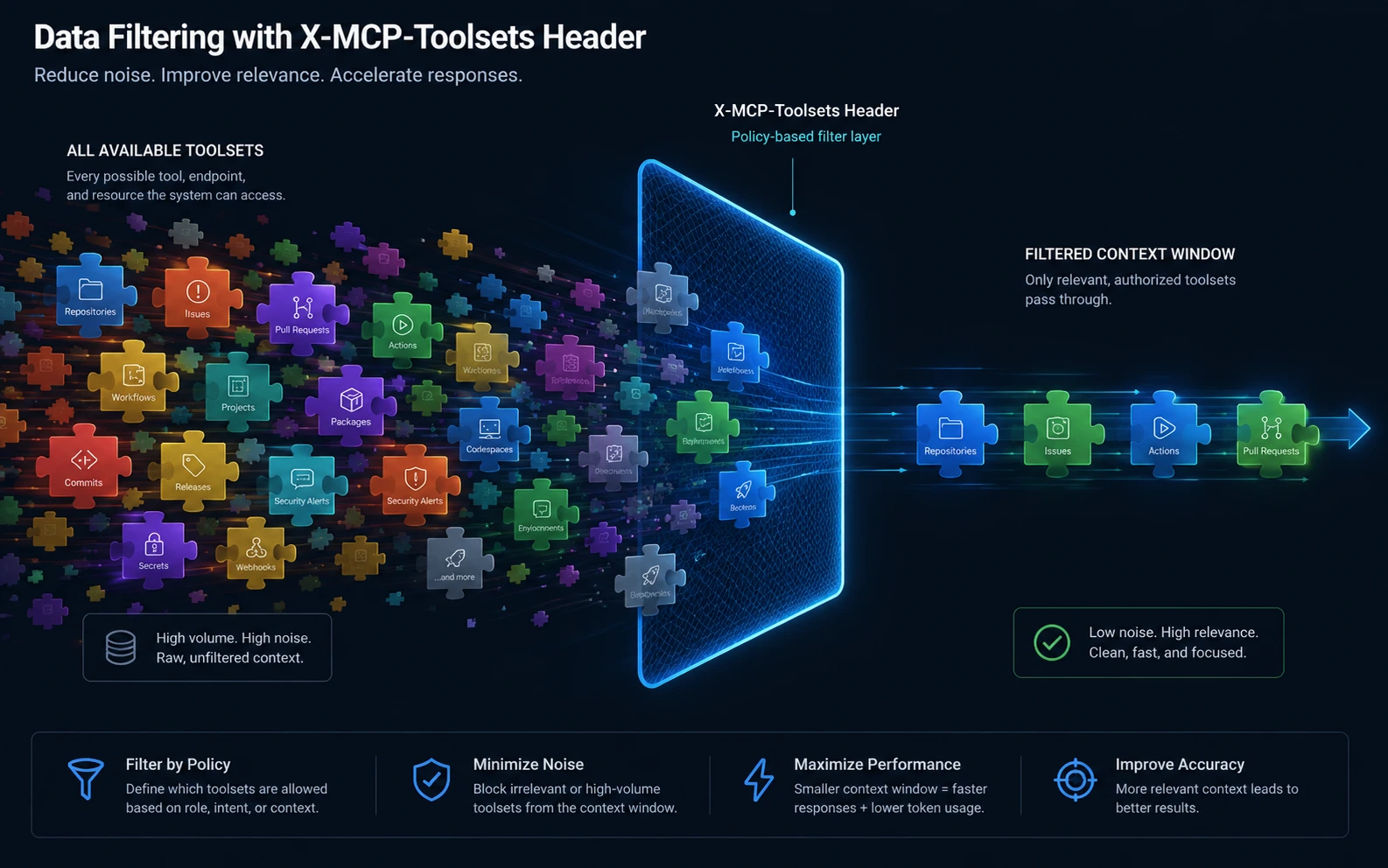
X-MCP-Toolsets Header
Use this header to enable specific toolset groups:
# Enable only repos and pull_requests
claude mcp add --transport http github https://api.githubcopilot.com/mcp/ \
  --header "Authorization: Bearer YOUR_PAT" \
  --header "X-MCP-Toolsets: repos,pull_requests"

# Enable default tools plus stargazers
# header value: "default,stargazers"

# Enable ALL available toolsets
# header value: "all"

# Enable secret scanning (not in default set)
# header value: "default,secret_protection"

# Enable Copilot Spaces (remote-only)
# header value: "default,copilot_spaces"
X-MCP-Tools Header (Granular Control)
If you only need specific tools rather than entire toolsets, use X-MCP-Tools:
# Enable only two specific tools instead of loading entire toolsets
claude mcp add --transport http github https://api.githubcopilot.com/mcp/ \
  --header "Authorization: Bearer YOUR_PAT" \
  --header "X-MCP-Tools: get_file_contents,list_pull_requests"
This is especially useful because some of the most-used tools come from different toolsets — loading only what you need keeps response times fast and context clean.
In .mcp.json format:
{
  "github": {
    "type": "http",
    "url": "https://api.githubcopilot.com/mcp/",
    "headers": {
      "Authorization": "Bearer YOUR_PAT",
      "X-MCP-Toolsets": "repos,issues,pull_requests,secret_protection"
    }
  }
}
Secret Protection Toolset (GA May 2026)
GitHub's secret_protection toolset is now generally available as of May 2026. It lets you scan your code for exposed secrets — API keys, passwords, tokens — before you commit or open a pull request, so leaked credentials never make it into your repository.
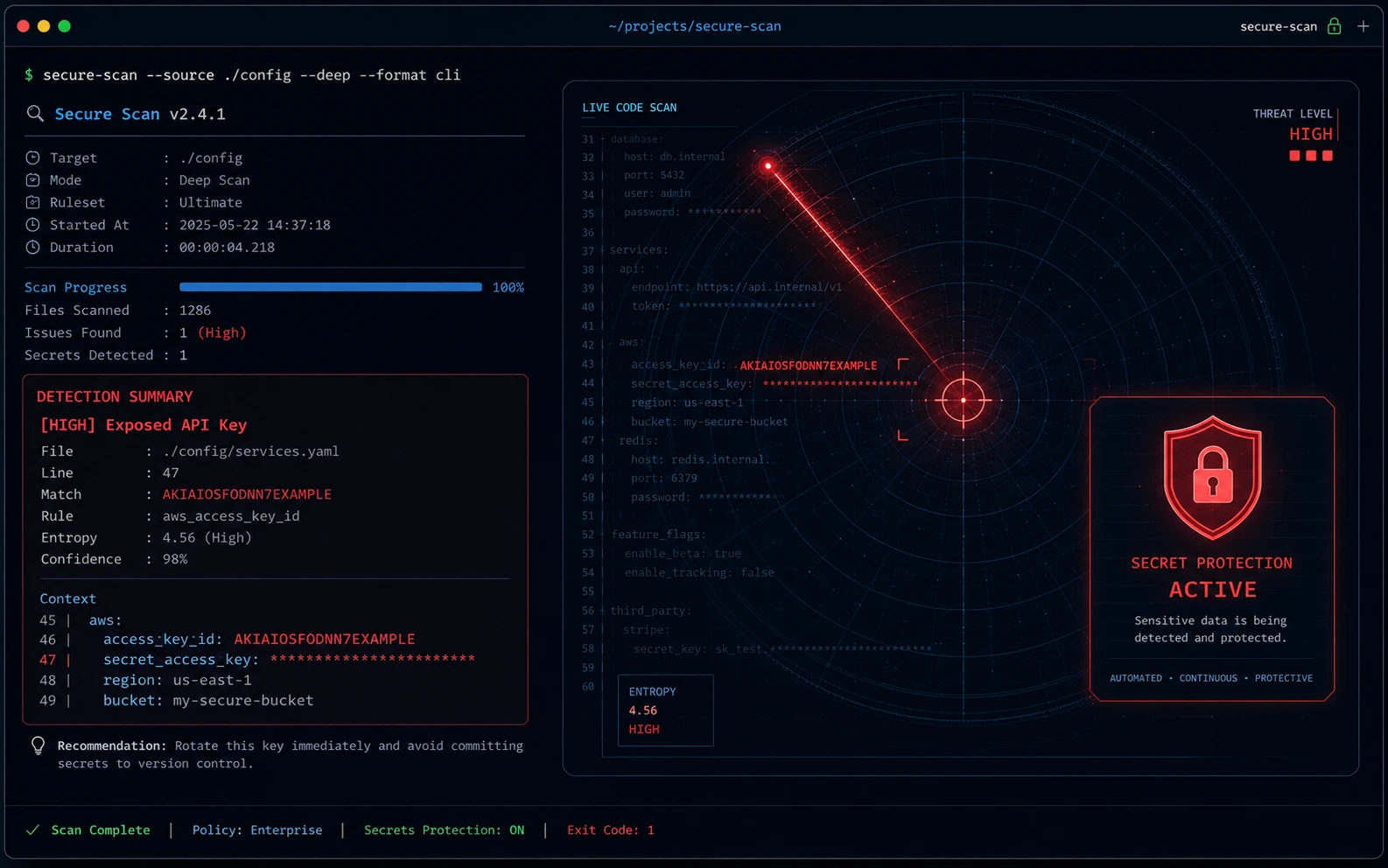
To enable it, add secret_protection to your toolsets header. It is not included in the default set.
claude mcp add --transport http github https://api.githubcopilot.com/mcp/ \
  --header "Authorization: Bearer YOUR_PAT" \
  --header "X-MCP-Toolsets: default,secret_protection" \
  --header "X-MCP-Tools: run_secret_scanning"
Note: The run_secret_scanning tool must be explicitly included as an additional tool. It is currently attached to the copilot toolset rather than secret_protection, so you must list it separately.
Once enabled, you can ask Claude naturally:
"Scan my current changes for exposed secrets and show me which files and lines I should update before I commit."
The scan respects your organization's push protection configuration (repository-level settings are not used).
Advanced Troubleshooting Methods
Checking MCP Logs
For Claude Code, use the /mcp command inside the app to see server status and any connection errors. The /mcp panel also shows the tool count next to each connected server.
For Claude Desktop on macOS:
ls ~/Library/Logs/Claude/
cat ~/Library/Logs/Claude/mcp-server-github.log
On Windows:
%APPDATA%\Claude\logs\
Removing and Re-adding a Broken Configuration
If the server is listed but not working:
bash
claude mcp remove github
Then go through the setup steps again. Start with the remote method — it's the most reliable for Claude Code.
Validating Your Token
Test your token directly with curl:
bash
curl -H "Authorization: Bearer YOUR_GITHUB_PAT" https://api.github.com/user
If this returns your GitHub user info, the token is valid. If it returns a 401, the token is expired or malformed.
OAuth Error in Claude Code
If you see OAuth-related errors when connecting to the remote server, this is expected — Claude Code's remote OAuth support for GitHub is limited. Switch to the PAT method:
bash
claude mcp remove github
claude mcp add -s user --transport http github https://api.githubcopilot.com/mcp/ \
  --header "Authorization: Bearer YOUR_PAT"
Automatic Reconnection
Claude Code automatically reconnects HTTP servers if they disconnect mid-session, using exponential backoff — up to five attempts, starting at a one-second delay and doubling each time. If reconnection fails after five attempts, the server is marked as failed and you can retry manually from /mcp. Stdio (local Docker) servers are NOT reconnected automatically.
Using GitHub Enterprise
If you're on GitHub Enterprise Server, the remote server URL won't work. Use the local Docker setup and set:
bash
GITHUB_HOST=your-enterprise-hostname.com
Check the official documentation for enterprise-specific configuration options.
Real-World Examples
Example 1: Debugging a Failed CI Run
Instead of navigating to GitHub, clicking through Actions tabs, and reading log files manually, you open Claude Code and say:
"Check the latest Actions run on the main branch of my repo. What's failing and why?"
Claude queries the actions toolset, fetches the workflow run, reads the step logs, and gives you a direct explanation — often with a suggested fix.
Example 2: Triaging New Issues
"Show me all open issues labeled 'bug' that haven't been commented on yet, and give me a priority ranking based on the description."
Claude reads the issue list, filters by label, checks comment count, and returns a structured triage list. You can then ask it to add labels or comments directly.
Example 3: Reviewing a Pull Request
"Summarize the changes in PR #247 and tell me if there are any obvious problems."
Claude fetches the PR diff, reads the file changes, and gives you a code review summary. It can also check if any Dependabot alerts are related to files touched in the PR.
Example 4: Security Audit
"Are there any critical Dependabot alerts in my repo? What packages are affected?"
Claude uses the dependabot toolset to pull the alert list and explains the vulnerabilities in plain language, including which dependencies to upgrade and to what version.
Example 5: Pre-Commit Secret Scan (New in 2026)
"Scan my current changes for exposed secrets and show me the files and lines I should update before I commit."
With the secret_protection toolset enabled, Claude runs the scanner, respects your organization's push protection rules, and flags any detected credentials before they land in your repository.
Latest Updates (2026)
The GitHub MCP server has moved quickly since its initial release. Here's what's changed and what matters for your setup:
Remote Server is Now the Primary Recommended Method GitHub's official documentation explicitly recommends the remote server (https://api.githubcopilot.com/mcp/) for most Claude integrations. It's faster to set up, doesn't require Docker, and gets updates automatically. Note the trailing slash — some errors arise from omitting it.
--transport http is the Official Claude Code Syntax The official Claude Code documentation uses claude mcp add --transport http github <url> --header "Authorization: Bearer YOUR_PAT" as the primary method. The add-json command also works on Claude Code 2.1.1+ but may return "Invalid input" on Windows for HTTP servers.
OAuth is NOT Fully Supported for Claude Code Full remote OAuth is currently only available in VS Code 1.101 or later. For Claude Code and Claude Desktop, always use PAT authentication. Attempting OAuth in Claude Code will result in connection errors.
SSE Transport is Deprecated Server-Sent Events (SSE) transport has been officially deprecated. If you have any legacy SSE configurations for GitHub MCP, migrate to the --transport http format.
@modelcontextprotocol/server-github npm Package is Deprecated As of April 2025, the community npm package for GitHub MCP is officially deprecated. If any documentation or tutorial tells you to install this npm package, it's outdated. Use GitHub's official Docker image or remote server instead.
Fine-Grained Tool Control via X-MCP-Tools Header You can now use the X-MCP-Tools header to load only the specific tools you need, rather than enabling entire toolsets. Production usage data shows the most-used tools often span multiple toolsets — this header lets you load only get_file_contents and list_pull_requests without enabling 27+ tools.
Secret Protection Toolset is Now GA (May 2026) The secret_protection toolset — which lets you scan for exposed secrets before committing — graduated from public preview to general availability in May 2026. Requires GitHub Secret Protection to be enabled on your repository.
New Toolsets Available Several new toolsets have been added: copilot_spaces (access Copilot Spaces), github_support_docs_search (search GitHub docs), and copilot (work with the Copilot coding agent). These are remote-server-only toolsets and are not available in the local Docker image.
OAuth Scope Filtering The remote server now automatically filters available tools based on your token's permissions. If your token doesn't have write access to pull requests, PR-write tools will be hidden automatically — no manual toolset configuration needed for basic permission scoping.
Scope Naming Changes Configuration scope names changed in recent Claude Code versions:
- project (old) is now local
- global (old) is now user The old names may still work but the new names are canonical.
Dynamic Tool Updates Claude Code now supports MCP list_changed notifications, allowing the GitHub MCP server to update its available tools dynamically without requiring you to disconnect and reconnect.
Insiders Mode Available The remote server has an insiders endpoint at https://api.githubcopilot.com/mcp/insiders for early access to new tools and features. Replace the URL in your config to opt in.
Docker Compatibility Issues on Claude Desktop Noted GitHub has officially acknowledged some users are experiencing Docker-based MCP issues on Claude Desktop and is actively investigating. If Claude Desktop + Docker isn't working, use Claude Code (remote setup) while the fix rolls out.
When to Contact Support
Reach out to GitHub support (support.github.com) if:
- Your Personal Access Token keeps failing even after recreation
- The remote server returns 401 despite a valid token
- Your organization has policies blocking MCP access and you need them adjusted
Reach out to Anthropic support (support.claude.com) if:
- Claude Code's mcp commands aren't recognized at all
- The /mcp command shows persistent connection errors after correct configuration
- You're on a paid plan and experiencing MCP quota or rate limiting issues
For open-source bugs and feature requests, GitHub's MCP server repo at github.com/github/github-mcp-server accepts issues and contributions.
FAQ
It's an official server built by GitHub that connects AI tools like Claude to GitHub's platform via the Model Context Protocol. It allows AI assistants to read repos, manage issues and PRs, monitor CI/CD, and more — using natural language.
No. For Claude Code, the remote server option (https://api.githubcopilot.com/mcp/) requires no Docker. Docker is only needed for local server setups, or for Claude Desktop (which doesn't support the remote server's OAuth flow yet).
It depends on what you want to do. For basic read-only access to code and issues, repo (for private repos) or public_repo is sufficient. For PR management, add pull requests read/write. For Actions, add workflow. Fine-grained tokens let you limit access to specific repositories, which is the safest approach.
This usually means you're on Claude Code version 2.1.0 or older, or you're on Windows adding an HTTP server. Use the official syntax instead: claude mcp add --transport http github https://api.githubcopilot.com/mcp/ --header "Authorization: Bearer YOUR_PAT".
First, run claude mcp get github to check the full config. Then use /mcp inside Claude Code to see the server's connection status. Common causes: the token expired, Docker isn't running (local setup), or the server is configured for a different project scope.
Full OAuth is currently only supported in VS Code 1.101+. For Claude Code and Claude Desktop, use a Personal Access Token (PAT) passed as a Bearer header. Attempting OAuth in Claude Code will produce connection errors.
Add both the secret_protection toolset and the run_secret_scanning tool to your headers: X-MCP-Toolsets: default,secret_protection and X-MCP-Tools: run_secret_scanning. Requires GitHub Secret Protection to be enabled on your repository.
GitHub Copilot is a separate product focused on in-editor code completion. The GitHub MCP server integration with Claude Code gives you full natural language interaction with GitHub's platform — managing issues, reviewing PRs, analyzing CI runs — not just code suggestions.
Yes. Use --scope project when adding the server. This creates a .mcp.json file in your repository root that everyone on the team uses. Make sure the file does NOT contain hardcoded tokens — use environment variables instead, and add .mcp.json to .gitignore if it contains any secrets.
No. That package was deprecated in April 2025. Do not use it. Use GitHub's official Docker image (ghcr.io/github/github-mcp-server) or the remote server URL instead.
Yes, but the remote server URL (api.githubcopilot.com/mcp) won't work. You need to use the local server setup and set GITHUB_HOST to your enterprise hostname. Refer to the enterprise configuration section of the official repo for specifics.
local (default) stores the config in the current project, available only to you. project stores it in .mcp.json for the whole team. The user stores it globally for you across all projects. If you work on one main repo with GitHub, project scope makes sense. If you want it everywhere, use user.
Troubleshooting Checklist
Use this before anything else when something isn't working:
Run claude --version — confirm you're on 2.1.1 or newer
Run claude mcp list — confirm github is listed
Test your PAT: curl -H "Authorization: Bearer YOUR_PAT" https://api.github.com/user
Check you're using PAT auth, not OAuth (OAuth only works in VS Code 1.101+)
Check Docker is running: docker ps (local setup only)
Try the /mcp command inside Claude Code for live status
Remove and re-add the server: claude mcp remove github, then set up again
Check logs: ~/Library/Logs/Claude/ (macOS) or %APPDATA%\Claude\logs\ (Windows)
Confirm you're not using the deprecated npm package
Make sure your toolset headers use the correct names (X-MCP-Toolsets, not GitHub-MCP-Toolsets)
Official References
- GitHub MCP Server Repository
- GitHub MCP Documentation
- Claude Code MCP Documentation
- GitHub Changelog
Conclusion
The GitHub MCP server for Claude Code is one of the most practical integrations you can add to your development workflow right now. Once it's running, you stop context-switching between your terminal and GitHub's web UI. You ask questions and take actions in plain language, and Claude has the real GitHub data to work with.
Setup is genuinely simple: create a GitHub Personal Access Token, run one command in your terminal, restart Claude Code, and you're done. The most important things to get right are using the PAT method (not OAuth), specifying the correct URL with trailing slash (/mcp/), and keeping your token secure in a .env file rather than hardcoding it.
Next steps:
Run claude --version to confirm you're on 2.1.1+
Create a fine-grained GitHub PAT at github.com/settings/personal-access-tokens/new
Follow Method 1 for the remote setup
Open Claude Code and try: "List the open issues in my repo sorted by most recently updated"
Once basic setup works, explore toolset headers to add secret_protection or copilot_spaces
Explore restricting toolsets with X-MCP-Tools once you know which GitHub features you actually use
If you run into trouble, the troubleshooting checklist above covers 95% of cases. For everything else, the official GitHub MCP server repo is well-maintained and issues get responses quickly.