✅ QUICK ANSWER: Claude Code update failures are most commonly caused by insufficient npm permissions, an outdated Node.js version (requires ≥18.0.0), a corrupted npm cache, or a conflicting global installation. Running sudo npm install -g @anthropic-ai/claude-code@latest or clearing the npm cache with npm cache clean --force resolves the majority of cases in under two minutes. |
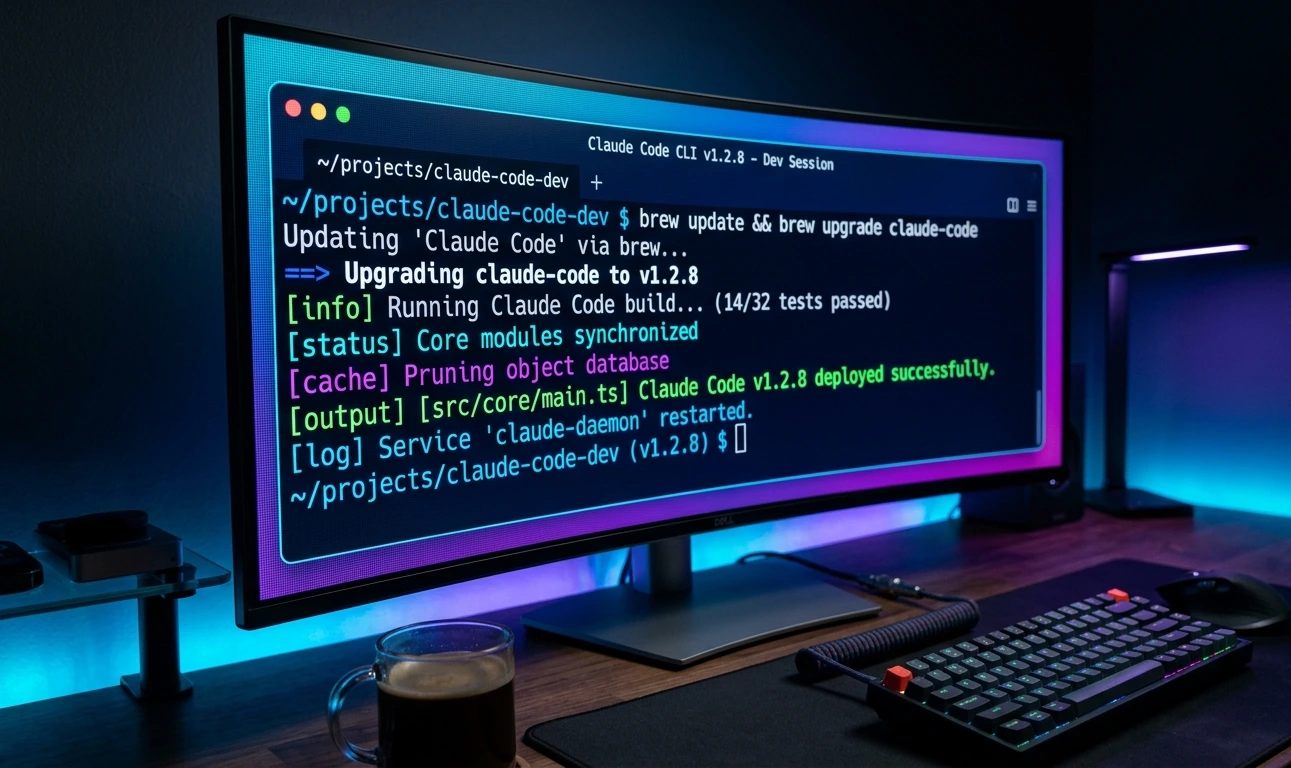
1. What Is the "Claude Code Update Failed" Issue?
Claude Code is distributed as a Node.js CLI package (@anthropic-ai/claude-code) via npm. Every update goes through npm's global installation pipeline — a common source of friction on macOS, Linux, and Windows.
Failure modes vary: a permission denied error, the install appearing to succeed but the old version keeps running, or the process hanging indefinitely. This guide covers every documented cause and every working fix, in order of likelihood.
📌 Current stable release: v2.1.167 — Requires Node.js ≥ 18.0.0 |
2. Why Does This Happen? Every Known Cause
1. Permission Errors (Most Common)
When npm's global directory is owned by root but you're running as a regular user, the update process cannot write the new binary. Especially common on macOS with system-installed Node.js, and on Linux systems where npm was installed via apt or yum.
2. Node.js Version Too Old
Claude Code requires Node.js 18.0.0 or higher. Running an older version causes the installer to fail during the post-install build step — often showing a generic 'install failed' rather than a clear version mismatch message.
3. Corrupted npm Cache
npm caches downloaded packages locally. If a previous partial install corrupted the cache entry for @anthropic-ai/claude-code, subsequent update attempts will fail even when everything else is correct.
4. Network or Proxy Interference
Corporate VPNs, firewalls, and misconfigured proxy settings frequently interrupt npm registry requests. The install may start successfully, stall mid-download, or fail with a certificate error.
5. Conflicting or Locked Global Installation
If Claude Code is running in an active terminal session or locked by another process, npm cannot replace the binary on Windows. On Unix systems, an ownership mismatch (sudo vs non-sudo installs) causes failures.
6. Outdated npm Itself
An older version of npm may not correctly handle the package's metadata format. npm should be kept current independently of Node.js.
7. Auto-Updater Issues (New in 2026)
Claude Code's built-in auto-updater can sometimes conflict with manual npm updates. Endpoint-security scanning of new binaries can cause the updater to time out. Use DISABLE_AUTOUPDATER=1 to temporarily bypass this.
3. Common Error Messages & What They Mean

Error Message | Meaning | Severity | Recommended Fix |
EACCES: permission denied | npm cannot write to the global directory | High | Fix npm permissions or use nvm |
ENOENT: no such file or directory | Installation path doesn't exist or is broken | Medium | Reinstall clean; verify npm prefix |
npm ERR! code ENOTFOUND | DNS resolution failed — registry unreachable | Medium | Check network/VPN; try --registry flag |
npm ERR! code ETIMEDOUT | Download stalled — network timeout | Medium | Retry; check proxy settings |
npm ERR! engine: node@<18 | Node.js version below minimum requirement | High | Upgrade Node.js to ≥18.0.0 |
npm ERR! code EINTEGRITY | Checksum mismatch — corrupted download or cache | Medium | npm cache clean --force, then retry |
npm ERR! code EEXIST | File already exists at install path | Low | Uninstall first, then reinstall |
npm ERR! code E403 | Authentication required or token expired | High | Re-authenticate; check npm token |
EPERM: operation not permitted | File locked (common on Windows) | Medium | Close active Claude Code sessions; retry |
SyntaxError: Unexpected token | Node.js version incompatibility at runtime | High | Upgrade Node.js to ≥18.0.0 |
gyp ERR! build error | Native module compilation failed | High | Install build tools; see advanced section |
"When the Problem Is NOT On Your Computer"
Check Anthropic Service Status
Sometimes update failures occur because:
Package release problems
Registry propagation delays
API outages
Infrastructure incidents
4. Quick Fix Checklist
Before going deep on any single fix, run through this checklist. Most failures are resolved by step 3 or 4.
1 | Check Node.js version: node --version (must be ≥ 18.0.0) |
2 | Check npm version: npm --version (update if below 9.x) |
3 | Confirm internet access: curl https://registry.npmjs.org |
4 | Close any active Claude Code terminal sessions before updating |
5 | Try: npm install -g @anthropic-ai/claude-code@latest |
6 | If EACCES: prefix with sudo (macOS/Linux) or run as Administrator (Windows) |
7 | If still failing: npm cache clean --force then retry |
8 | Verify install succeeded: claude --version |
5. New 2026 Additions — Native Installer & /doctor
Native Installer (Recommended for Fresh Installs)
Claude Code now has a native installer that automatically handles PATH configuration and includes auto-updates. This is more reliable than manual npm install for new setups.
macOS / Linux:
curl -fsSL https://claude.ai/install.sh | bash
Windows (PowerShell):
irm https://claude.ai/install.ps1 | iex
⚠️ Note: If Claude Code was previously installed via npm, stick with npm for updates to avoid PATH conflicts. Use the native installer only for fresh setups. |
Run /doctor First — Always
Before any manual troubleshooting, run /doctor inside Claude Code. It performs a rapid health check across the most likely failure points:
Installation and version status
Malformed settings JSON
MCP config errors
Keybinding conflicts
Plugin loading problems
The output gives you a concrete next action, eliminating guesswork. Treat it as your mandatory first step.
Disable the Auto-Updater During Troubleshooting
If updates are hanging, the built-in auto-updater may be conflicting with manual npm updates or being blocked by endpoint-security scanning:
# Disable only auto-updates
DISABLE_AUTOUPDATER=1 claude
# Disable auto-updates + telemetry + error reporting
CLAUDE_CODE_DISABLE_NONESSENTIAL_TRAFFIC=1 claude
6. Step-by-Step Solutions
Fix 1: Update via npm with the Correct Command
When to use: Always the first thing to try. Use when claude --version reports an old version after what seemed like a successful update.

# Check current version claude --version |
# Run the explicit update command npm install -g @anthropic-ai/claude-code@latest |
# Verify the new version claude --version |
The @latest tag forces npm to resolve against the registry rather than relying on a locally cached manifest.
Fix 2: Clear the npm Cache
When to use: When you see EINTEGRITY errors, checksum failures, or when the same install command has failed twice with identical output.
npm cache clean --force npm cache verify npm install -g @anthropic-ai/claude-code@latest |
Fix 3: Upgrade Node.js to a Supported Version
When to use: When you see npm ERR! engine errors, SyntaxError: Unexpected token on launch, or node --version returns anything below v18.
Using nvm (recommended):
curl -o- https://raw.githubusercontent.com/nvm-sh/nvm/v0.39.7/install.sh | bash source ~/.bashrc # or ~/.zshrc on macOS nvm install 20 nvm use 20 nvm alias default 20 npm install -g @anthropic-ai/claude-code@latest |
Minimum: Node.js 18.0.0 | Recommended: Node.js 20 LTS | Also supported: Node.js 22
Fix 4: Uninstall and Reinstall Clean
When to use: When partial installs have left broken files, EEXIST errors occur, or the binary behaves unexpectedly after an update attempt.
npm uninstall -g @anthropic-ai/claude-code which claude # should return empty or 'not found' npm cache clean --force npm install -g @anthropic-ai/claude-code@latest claude --version |
Fix 5: Fix npm Global Directory Permissions
When to use: When you consistently get EACCES errors. This is the proper long-term fix — using sudo npm install repeatedly worsens the problem over time.
mkdir -p ~/.npm-global npm config set prefix '~/.npm-global' # Add to your ~/.bashrc or ~/.zshrc: export PATH=~/.npm-global/bin:$PATH source ~/.bashrc npm install -g @anthropic-ai/claude-code@latest |
Fix 6: Use a Node Version Manager (nvm or fnm)
When to use: Setting up a new machine, or if you keep running into permission errors despite fixing the npm prefix. This is the most robust long-term setup.
Using fnm (faster alternative to nvm):
# macOS/Linux curl -fsSL https://fnm.vercel.app/install | bash # Windows winget install Schniz.fnm fnm install 20 fnm use 20 npm install -g @anthropic-ai/claude-code@latest |
Fix 7: Resolve Network and Proxy Issues
When to use: When you see ENOTFOUND, ETIMEDOUT, CERT_HAS_EXPIRED, or when the install hangs with no progress for more than 60 seconds.
# Test direct registry access curl -I https://registry.npmjs.org # Set proxy (replace with your actual proxy URL) npm config set proxy http://proxy.company.com:8080 npm config set https-proxy http://proxy.company.com:8080 # Use specific registry (for VPN users) npm install -g @anthropic-ai/claude-code@latest --registry https://registry.npmjs.org |
Fix 8: Fix Authentication Errors
When to use: When the update fails with 403 Forbidden, 401 Unauthorized, or npm ERR! code E403. Note: @anthropic-ai/claude-code is a public package — a stale .npmrc token is almost certainly interfering.
cat ~/.npmrc # check for stale tokens npm logout npm install -g @anthropic-ai/claude-code@latest |
Fix 9: Complete Reset (Last Resort — New)
When to use: When all other fixes have failed and the installation is in an unknown broken state.
npm uninstall -g @anthropic-ai/claude-code rm ~/.claude.json rm -rf ~/.claude/ curl -fsSL https://claude.ai/install.sh | bash claude config |
✅ This complete reset preserves your API keys stored in your environment variables. Only local config files are removed. |
7. Advanced Troubleshooting
Diagnose the Full Installation State
which claude npm list -g --depth=0 npm config get prefix which -a node # check for multiple Node.js installs |
Run npm with Verbose Logging
When the error message is ambiguous, verbose mode shows exactly where the failure occurs:
npm install -g @anthropic-ai/claude-code@latest --verbose 2>&1 | tee install-log.txt |
Review install-log.txt and search for the first ERR! line — that's the actual root cause.
Settings Scope Precedence Issue
If settings are not applying, check the scope precedence: Managed > Command line > Local > Project > User. A .claude/settings.local.json file overrides .claude/settings.json for the same key. IT-deployed managed-settings.json files take highest priority and cannot be overridden.
Rate Limits: 429 and 529 Errors
429 (Rate Limit): The API returns a retry-after header. If your client ignores it and fast-retries, this appears as timeout/flaky behavior. Respect retry-after, add jittered backoff, reduce parallel Claude Code task concurrency.
529 (Overload): Temporary server overload. Back off and retry. Check status.anthropic.com before touching the local config.
Windows-Specific: ~/.claude.json Folder Bug

A documented failure mode: if ~/.claude.json is accidentally created as a folder instead of a file, Claude Code crashes with RangeError: Maximum call stack size exceeded. Fix:
# Rename the folder and recreate as file mv ~/.claude.json ~/.claude.json.backup claude config # recreates the file properly |
Sandbox Issues (Linux/WSL)
Linux/WSL2 requires bubblewrap and socat packages for sandbox support:
sudo apt install bubblewrap socat |
Facebook's Watchman file watcher is incompatible with Claude Code's sandbox. Add it to excludedCommands if you encounter errors.
8. VS Code & IDE-Specific Fixes
VS Code Integrated Terminal Doesn't See the Update
VS Code caches environment variables at startup. After updating Claude Code in an external terminal:
Close all VS Code integrated terminal tabs
Run Developer: Reload Window from the Command Palette (Cmd/Ctrl+Shift+P)
Open a new integrated terminal and run claude --version
If the version is still old, configure terminal.integrated.env.osx (or .linux/.windows) in VS Code settings to explicitly set PATH.
JetBrains IDEs (WebStorm, IntelliJ)
Go to Preferences → Tools → Terminal
Enable "Shell integration" if not already on
Restart the IDE, not just the terminal
Terminal Multiplexers (tmux, screen)
Sessions started before the update will have the old binary path cached. Start a new window/pane:
tmux new-window claude --version |
9. Common Mistakes That Make Things Worse
Mistake | What Goes Wrong |
Running sudo npm install -g repeatedly | Root-owned files pile up; future user-level installs always fail |
Upgrading npm with sudo npm install -g npm | Same permission ownership problem, now for npm itself |
Deleting /usr/local/lib/node_modules manually | Breaks other globally installed packages; orphaned symlinks |
Using --force without understanding why | Can overwrite system files; masks the real problem |
Updating while Claude Code is running | File lock errors on Windows; incomplete binary replacement |
Installing Node.js from multiple sources | PATH conflicts; npm and node resolve to different installs |
Ignoring the --verbose flag | Makes root-cause diagnosis much harder than needed |
Skipping claude --version post-install | You won't know if the update actually took effect |
10. Best Practices: Prevent Update Failures
Use nvm or fnm for Node.js management — this single decision eliminates the majority of permission-related update failures.
Keep Node.js on the LTS track — stay on Node.js 20 LTS which receives security patches for 30 months.
Update npm independently — run npm install -g npm@latest after any Node.js upgrade.
Don't mix system Node.js with nvm — creates PATH confusion that's hard to debug.
Run updates in a clean terminal — don't update Claude Code in a session that's already running it.
Check status.anthropic.com first when widespread failures occur — some issues trace back to platform-level problems or a bad package release.
Pin Claude Code updates in team workflows — document the required Node.js version and exact update command in your project's CONTRIBUTING.md.
11. Expert Tips
Tip 1: Set a .nvmrc file in your home directory
Putting your preferred Node.js version in ~/.nvmrc means nvm switches to the right version automatically in new shells, preventing accidental use of system Node.js.
Tip 2: Use npm install instead of npm update for global packages
npm install -g package@latest is more reliable than npm update -g package. The update command respects ^ semver ranges in ways that can leave you on an older major version.
Tip 3: Check the npm registry directly if you suspect a version mismatch
npm view @anthropic-ai/claude-code version # latest published npm view @anthropic-ai/claude-code versions --json # all versions |
Tip 4: Alias the update command
alias update-claude='npm install -g @anthropic-ai/claude-code@latest && claude --version' |
Tip 5: Roll back to a specific version
npm install -g @anthropic-ai/claude-code@2.1.100 # example Use npm view @anthropic-ai/claude-code versions --json to list all available versions. |
12. Troubleshooting Decision Tree
Start: npm install -g @anthropic-ai/claude-code@latest |
Error / Symptom | Next Action |
EACCES / permission denied | Fix 5 (reconfigure npm prefix) or Fix 6 (use nvm). Quick fix: sudo npm install -g @anthropic-ai/claude-code@latest |
node version / SyntaxError | Run node --version. If < 18.0.0 → Fix 3. If ≥ 18 → check for multiple Node.js installs |
EINTEGRITY / checksum error | Fix 2 (clear npm cache), then retry |
ENOTFOUND / ETIMEDOUT / certificate | Fix 7 (network/proxy troubleshooting) |
E403 / E401 / authentication | Fix 8 (clear npm token / logout) |
EEXIST / file already exists | Fix 4 (uninstall then reinstall clean) |
No error, but old version still runs | Check PATH: which claude. VS Code: Reload Window. tmux: New pane |
Update hangs indefinitely | Ctrl+C to cancel. Test: curl -I https://registry.npmjs.org. Try: DISABLE_AUTOUPDATER=1 claude, then retry |
Still failing after all fixes | Run --verbose, check first ERR! line. Check status.anthropic.com and GitHub Issues. Try Fix 9 (Complete Reset) |
Frequently asked questions
Here are some common questions about our company.
The most common cause is a PATH issue — your shell is finding a different claude binary, not the one npm just updated. Run which clause to see the full path, then compare to npm config and get prefix. If they don't match, add the correct npm bin directory to the front of your PATH and reload your shell config.
You shouldn't. Needing sudo is a symptom of an npm permission misconfiguration. Using sudo repeatedly makes things worse by creating root-owned files that user-level commands can't touch later. Fix 5 or Fix 6 is the correct long-term solution.
Node.js 18.0.0 is the minimum. Node.js 20 LTS is recommended for production use. Node.js 22 is also supported. Versions below 18 fail during installation or at runtime.
Cancel with Ctrl+C. Test registry access: curl -I https://registry.npmjs.org. If that times out, check your VPN/proxy/firewall. If reachable, run with --verbose to identify where it's stalling. Try DISABLE_AUTOUPDATER=1 clause and then retry the update.
npm is the traditional distribution method, but the new native installer (curl -fsSL https://claude.ai/install.sh | bash) works on macOS/Linux without manually managing npm. On Windows, use the PowerShell installer.
npm is trying to compile a native add-on and missing build tools. On macOS: xcode-select --install. On Ubuntu/Debian: sudo apt-get install build-essential. On Windows: npm install -g windows-build-tools from an Administrator PowerShell.
No. The npm package contains only the CLI binary and its dependencies. Your configuration files, API keys, and local data are stored separately in your home directory and are not touched by uninstalling or reinstalling the npm package.
REQUIRED="2.1.167" CURRENT=$(claude --version 2>/dev/null | grep -oP '\d+\.\d+\.\d+') if [ "$CURRENT" != "$REQUIRED" ]; then echo "Version mismatch. Run: npm install -g @anthropic-ai/claude-code@$REQUIRED" fi |
npm view @anthropic-ai/claude-code version # latest published claude --version # your current version |
Sources
Anthropic Claude Code Documentation
Claude Code GitHub Issues
npm Registry Package Page
Anthropic Status Page