Featured Snippet Answer
If Claude Code terminal is not responding, the most common causes are a hung process, expired authentication token, unsupported Node.js version, network timeout, corrupted configuration, or VS Code terminal conflicts. Start by pressing Ctrl+C, running claude doctor, checking your Node.js version, and re-authenticating with claude auth login.

Claude Code Terminal Not Responding: Complete Fix Guide (2026)
Claude Code is designed to provide a fast AI-powered coding experience directly inside your terminal. However, one of the most frustrating issues developers encounter is when Claude Code suddenly stops responding.
Sometimes the terminal freezes completely. In other cases, commands appear to run forever without producing output. Some users see the cursor blinking endlessly, while others encounter a situation where Claude Code launches but refuses to accept input.
The good news is that most terminal freezes are caused by a handful of common issues and can usually be fixed within a few minutes.
This guide explains every major cause, how to diagnose the problem quickly, and the exact fixes that work across Windows, macOS, Linux, WSL, Docker, and VS Code environments.
About This Guide
This troubleshooting guide was created using official Claude Code documentation, Node.js compatibility requirements, authentication workflows, developer troubleshooting reports, and real-world deployment scenarios.
The goal is simple:
- Identify the root cause quickly
- Avoid unnecessary reinstalls
- Fix terminal freezes safely
- Restore productivity as fast as possible
Whether you're using Claude Code inside VS Code, a standalone terminal, SSH session, Docker container, or enterprise environment, the troubleshooting steps below will help.
Official Resources
Before troubleshooting locally, always verify whether the issue is caused by a service outage.
Useful resources:
- Claude Code Documentation
- Anthropic Status Page
- Anthropic Support Center
If a service incident is active, local troubleshooting may not resolve the problem.
Table of Contents
- Signs Claude Code Is Frozen
- What "Terminal Not Responding" Means
- Why Claude Code Stops Responding
- Quick Fix Checklist
- Common Error Messages
- Fix 1: Interrupt a Hung Process
- Fix 2: Restart the Session
- Fix 3: Re-Authenticate
- Fix 4: Fix Node.js Issues
- Fix 5: Resolve Network Problems
- Fix 6: Clear Claude Code Cache
- Fix 7: Reinstall Claude Code
- Fix 8: Fix VS Code Integration
- Fix 9: Installation-Specific Problems
- Fix 10: Third-Party Tool Conflicts
- Advanced Troubleshooting
- Decision Tree Workflow
- Common Mistakes
- Best Practices
- FAQ
Signs Claude Code Is Frozen
You may be experiencing a terminal freeze if:
- Commands never return output
- Cursor continues blinking indefinitely
- Claude Code launches but accepts no input
- Authentication never completes
- VS Code terminal becomes unresponsive
- Commands appear stuck forever
- No output appears even with verbose mode enabled
These symptoms often indicate one of the underlying issues discussed below.
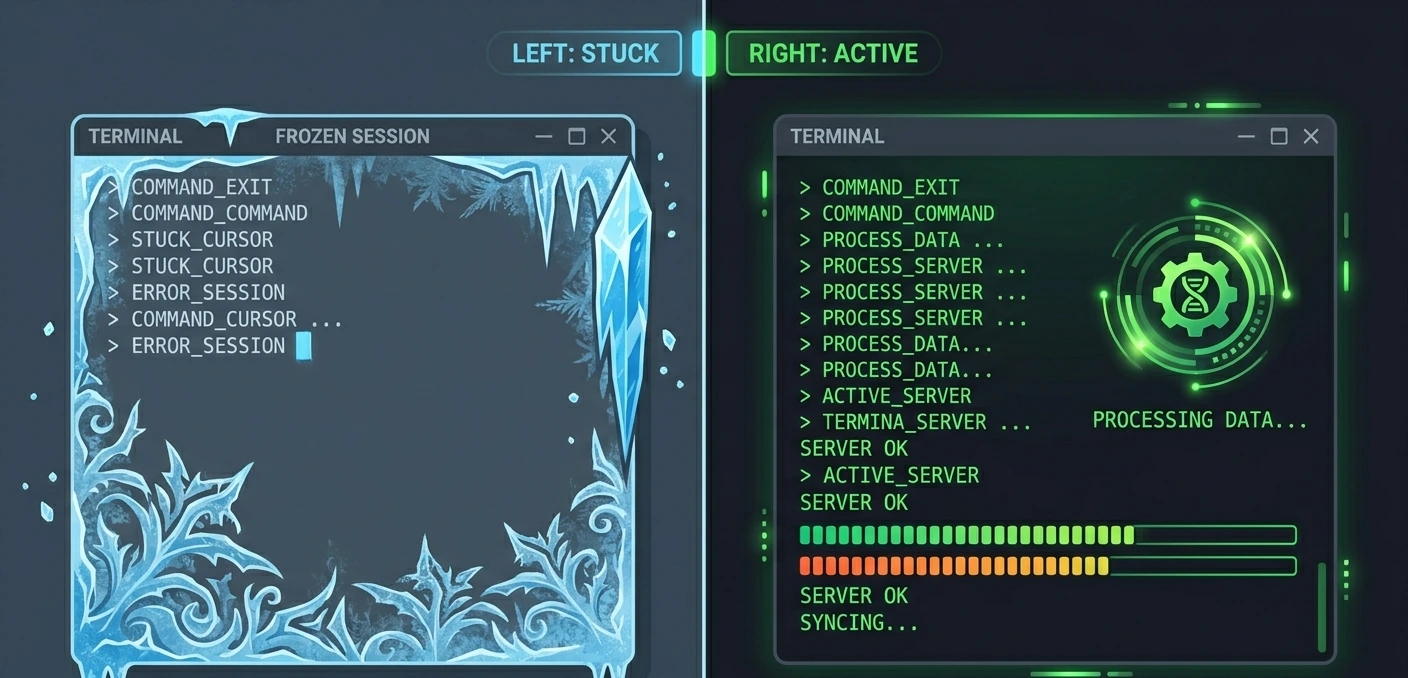
Frozen vs Processing Normally
Many developers assume Claude Code is frozen when it is actually processing a large request.
Behavior | Frozen | Processing |
CPU Usage | Near 0% | Active |
Network Activity | None | Ongoing |
Verbose Logs | No updates | Updating |
Output | No changes | Progress visible |
Recovery | Requires action | Finishes naturally |
If CPU activity and verbose logs continue updating, Claude Code is likely still working.
Why Does Claude Code Terminal Stop Responding?
Most freezes fall into one of the following categories:
1. Hung or Zombie Process
A previous Claude Code session may still be running in the background.
This stale process can:
- Lock resources
- Hold active sessions
- Prevent new commands from executing
This is one of the most common causes of terminal freezes.
2. Authentication Problems
Claude Code relies on authentication tokens.
When tokens expire or become corrupted:
- Requests fail silently
- Sessions appear frozen
- Commands never complete
Many users experience this after waking a laptop from sleep mode.
3. Node.js Version Mismatch
Claude Code requires a supported Node.js version.
Running an outdated version can cause:
- Startup hangs
- Initialization failures
- Silent crashes
Current recommendation:
Node.js 20 LTS
4. Network and Proxy Issues
Claude Code communicates with remote services continuously.
Problems often occur when:
- VPNs are enabled
- Corporate proxies intercept traffic
- Firewalls block connections
- Internet connectivity is unstable
5. Corrupted Configuration
Broken files inside the Claude configuration directory can prevent successful startup.
Examples:
- Invalid config.json
- Corrupted project state
- Damaged cache files
6. VS Code Terminal Conflicts
Some VS Code extensions interfere with terminal communication.
Common offenders include:
- Terminal managers
- Shell customizers
- AI assistant extensions
- Workspace restrictions
7. Memory Exhaustion
Large repositories can consume significant RAM.
When memory becomes scarce:
- Commands appear frozen
- Response times increase dramatically
- Processes stall
8. Large Context Operations
Very large codebases require more processing time.
Repositories containing:
- Tens of thousands of files
- Large build outputs
- Massive logs
can appear frozen even when functioning normally.
9. API Outages
Sometimes the problem is not local.
If the backend service is experiencing issues:
- Requests may hang
- Commands may never return
- Authentication may fail
Always check service status first.
10. Wrong Tool Being Used
Many users confuse Claude Code with:
- Continue
- Roo Code
- Cline
- Copilot Chat
Each tool has different troubleshooting procedures.
Fixes designed for Claude Code may not work on third-party assistants.
Quick Fix Checklist
Before performing advanced troubleshooting:
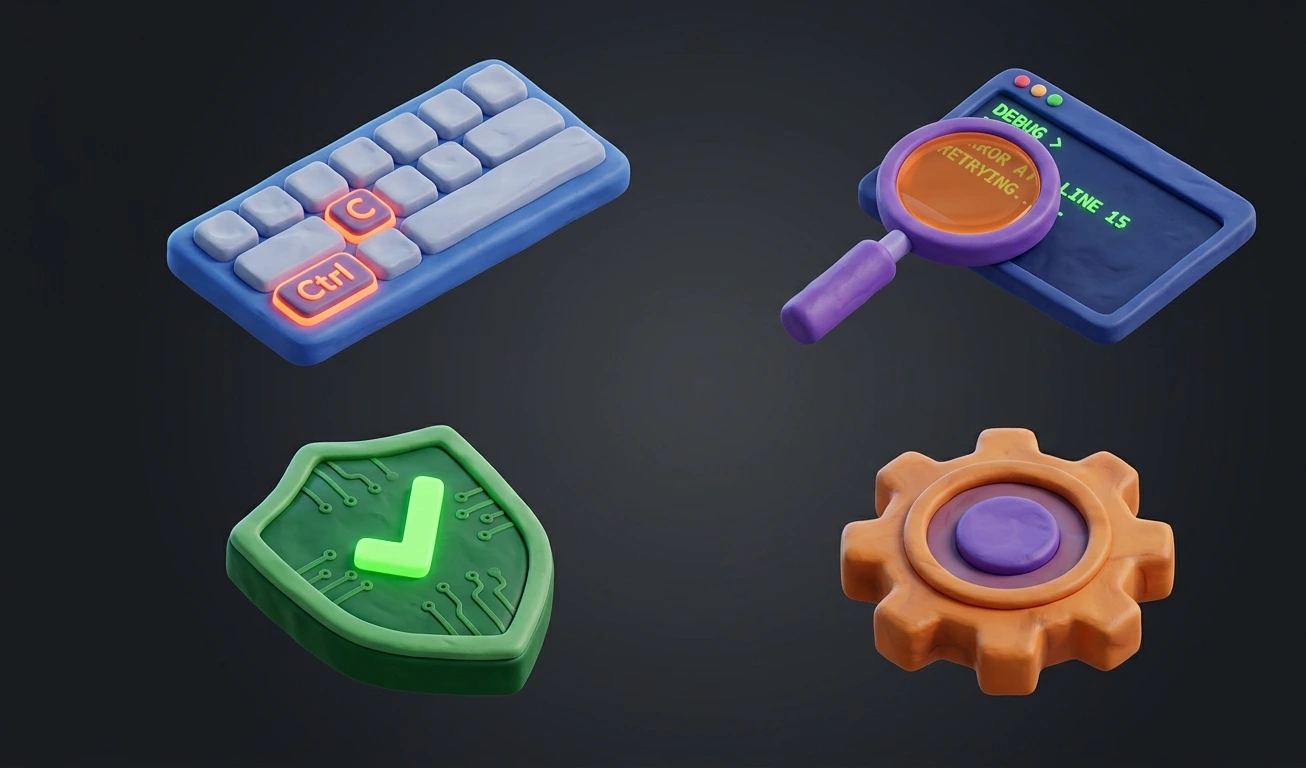
Step 1
Press:
Ctrl + C
This interrupts most hung processes.
Step 2
Run:
claude doctor
This quickly checks:
- Authentication
- Connectivity
- Configuration
- Environment health
Step 3
Verify Claude responds:
claude --version
Step 4
Refresh authentication:
claude auth login
Step 5
Check Node version:
node --version
Recommended:
v20 LTS
Step 6
Test internet connectivity.
Step 7
Temporarily disable:
- VPN
- Proxy
- Firewall rules
Step 8
Run:
claude --verbose
Verbose mode often reveals the exact point where the process becomes stuck.
Common Error Messages
| Error | Meaning |
| 401 Unauthorized | Authentication issue |
| ECONNREFUSED | Cannot reach service |
| ETIMEDOUT | Network timeout |
| EACCES | Permission problem |
| ENOMEM | Insufficient memory |
| SELF_SIGNED_CERT_IN_CHAIN | SSL inspection issue |
| spawn ENOENT | Missing executable |
| 429 Too Many Requests | Rate limiting |
| Model Not Available | Access restriction |
| No Output | Usually auth or process hang |
The next section covers the exact fixes for each scenario.
Fix 1: Stop a Hung Claude Code Process
A stuck background process is one of the most common reasons Claude Code appears frozen.
If a previous session did not close correctly, it may continue running in the background and prevent new sessions from starting properly.
Windows
Open Task Manager and look for:
- node.exe
- claude.exe
End the process and restart Claude Code.
macOS
Use:
pkill -f claude
or
pkill -f node
Linux
Identify the process:
ps aux | grep claude
Then terminate it:
kill -9 PID
Replace PID with the actual process ID.
After stopping the process, launch Claude Code again and test whether responsiveness returns.
Fix 2: Restart the Claude Code Session
Sometimes the session state becomes corrupted.
The fastest solution is a complete restart.
Close Current Session
Press:
Ctrl + C
Wait a few seconds.
Start a New Session
Launch Claude Code again.
If you use VS Code, close and reopen the integrated terminal before testing.
Many temporary freezes are resolved by a simple restart.
Fix 3: Re-Authenticate Your Account
Authentication failures frequently appear as terminal freezes.
Instead of showing an error immediately, some requests simply wait forever.
Sign Out
Remove the existing session.
Sign In Again
Run:
claude auth login
Complete authentication in your browser.
After login finishes, return to the terminal and verify functionality.
Verify Authentication
Run:
claude doctor
If authentication succeeds, Claude Code should show healthy account status.
Fix 4: Update Node.js
Node.js incompatibility causes many startup and runtime issues.
Check Version
Run:
node --version
Recommended Version
For 2026 releases:
Node.js 20 LTS
Update Node.js
If you use:
- nvm
- fnm
- Volta
switch to the latest LTS release.
After upgrading Node.js:
- Restart terminal
- Reinstall Claude Code if necessary
- Test again
Many initialization problems disappear immediately after upgrading.
Fix 5: Resolve Network Connectivity Issues
Claude Code requires stable internet connectivity.
If requests cannot reach backend services, commands may appear frozen.
Test Internet Access
Verify:
- Websites load normally
- DNS resolution works
- No packet loss exists
Disable VPN Temporarily
VPN routing issues can cause:
- High latency
- Authentication failures
- Request timeouts
Disconnect temporarily and test again.
Check Corporate Proxies
Enterprise networks sometimes intercept encrypted traffic.
This can lead to:
- SSL certificate errors
- Endless loading
- Connection failures
Contact your network administrator if required.
Fix 6: Clear Claude Code Cache
Corrupted cache files can prevent successful startup.
Backup Configuration First
Before removing anything, save important settings.
Remove Cache
Delete temporary Claude Code cache files.
Then restart the application.
If the cache was corrupted, responsiveness often returns immediately.
Fix 7: Reinstall Claude Code
If configuration and cache cleanup fail, perform a clean installation.
Remove Existing Installation
Uninstall Claude Code completely.
Install Latest Release
Download the newest version.
Re-Authenticate
Run:
claude auth login
again after installation.
Verify Installation
Run:
claude --version
and
claude doctor
to confirm a healthy setup.
Fix 8: Resolve VS Code Terminal Problems
Many users experience issues only inside VS Code.
The standalone terminal may work perfectly while VS Code remains frozen.
Reload Window
Open Command Palette:
Developer: Reload Window
This resolves many temporary extension conflicts.
Test External Terminal
Run Claude Code outside VS Code.
If it works there, VS Code is likely the source of the problem.
Disable Extension Conflicts
Temporarily disable:
- Terminal managers
- Shell integrations
- AI coding assistants
- Environment managers
Restart VS Code and test again.
Fix 9: Use Claude Doctor for Diagnostics
Modern Claude Code releases include built-in diagnostics.
Run:
claude doctor
This command checks:
- Authentication
- Network access
- Environment variables
- Configuration health
- Installation integrity
Any reported issue should be fixed before moving to advanced troubleshooting.
Fix 10: Use Verbose Mode to Find the Root Cause
When basic troubleshooting fails, verbose logging becomes extremely valuable.
Run:
claude --verbose
Watch for:
- Authentication failures
- Timeout messages
- SSL errors
- Network failures
- Initialization problems
Verbose logs often reveal the exact point where execution becomes stuck.
Special Fix for Large Repositories
Claude Code may appear frozen when analyzing very large projects.
Examples include:
- Monorepos
- Massive build outputs
- Large log directories
- Thousands of generated files
Reduce Project Size
Exclude:
- node_modules
- build
- dist
- logs
- generated assets
Smaller working sets improve responsiveness dramatically.
WSL-Specific Fixes
Windows Subsystem for Linux can occasionally become unstable.
Restart WSL
Run:
wsl --shutdown
Then reopen your Linux environment.
Verify Networking
Ensure WSL can access the internet properly.
Network failures inside WSL often look like Claude Code freezes.
Docker-Specific Fixes
Containerized environments introduce additional complexity.
Check:
- Memory limits
- CPU limits
- Network access
- Mounted volumes
Containers with insufficient resources may appear frozen while waiting for available memory.
Enterprise Network Fixes
Corporate environments often introduce restrictions.
Potential issues include:
- SSL inspection
- Proxy authentication
- Firewall filtering
- Certificate replacement
Coordinate with your IT team if Claude Code functions normally on personal networks but fails inside the corporate environment.
Advanced Troubleshooting
If Claude Code still refuses to respond after applying all previous fixes, use these advanced diagnostic techniques.
Run Verbose Logging
Execute:
claude --verbose
Look for:
Authentication failures
Network timeout errors
SSL certificate issues
Configuration loading failures
Permission-related errors
Verbose mode often reveals the exact component causing the freeze.
Check System Resources
Low system resources can create behavior that looks identical to a terminal freeze.
Monitor:
CPU usage
RAM usage
Disk activity
Network activity
If memory usage is consistently above 90%, Claude Code may struggle to process large contexts.
Test in a Clean Environment
Create a temporary environment and launch Claude Code there.
This helps identify whether the issue originates from:
Extensions
Shell customizations
Project-specific configuration
Environment variables
If Claude Code works correctly in a clean environment, the root cause is likely local configuration.
Verify Permissions
Permission issues may prevent Claude Code from accessing required files.
Check:
Home directory permissions
Project directory permissions
Configuration folder permissions
Security software restrictions
Permission errors often generate EACCES or EPERM messages.
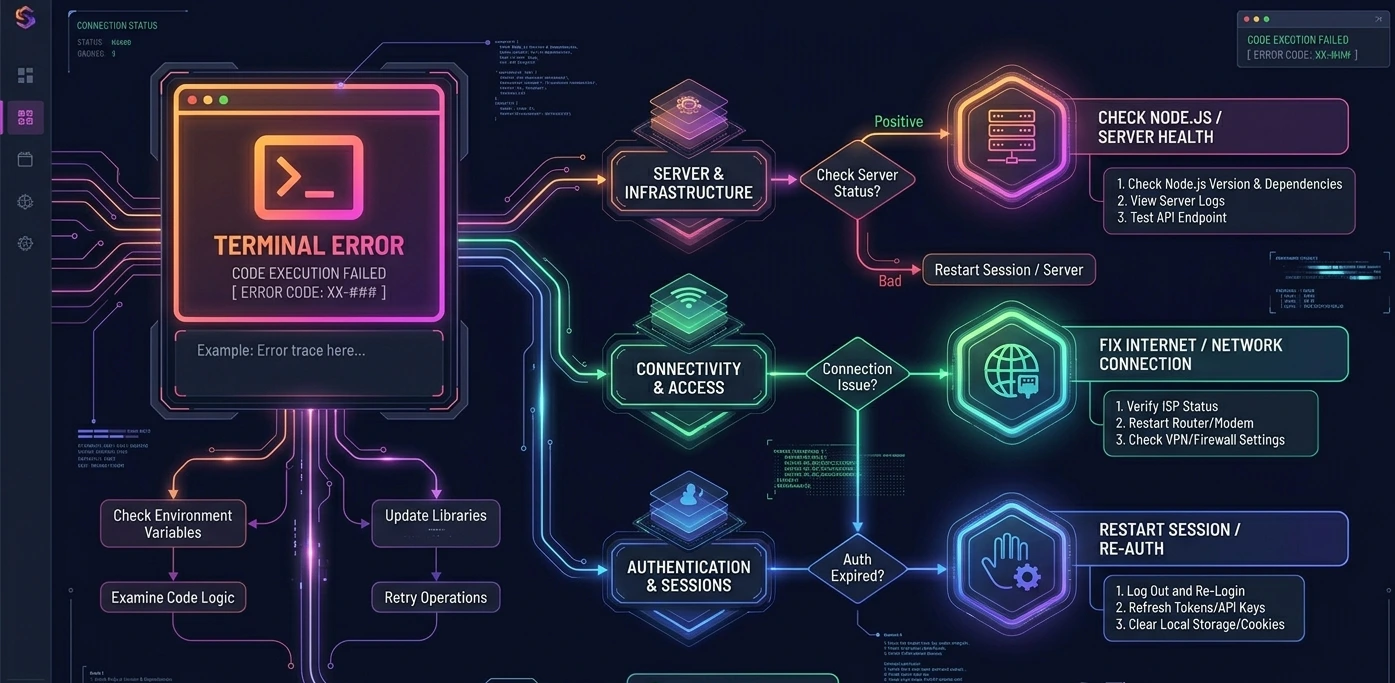
Claude Code Troubleshooting Decision Tree
Use this workflow to identify the fastest solution.
Claude Code Not Responding?
↓
Does Ctrl + C Work?
YES → Restart session
NO → Terminate process
↓
Does Authentication Work?
NO → Run:
claude auth login
↓
YES
↓
Is Node.js Updated?
NO → Upgrade to Node.js 20 LTS
↓
YES
↓
Does the Internet Work?
NO → Fix connectivity
↓
YES
↓
Running Inside VS Code?
YES → Disable extensions and reload window
↓
NO
↓
Large Repository?
YES → Exclude unnecessary files
↓
NO
↓
Still Broken?
Run:
claude doctor
and collect verbose logs for further investigation.
Common Mistakes to Avoid
Many troubleshooting attempts fail because developers focus on symptoms rather than causes.
Avoid these common mistakes.
Reinstalling Immediately
A reinstall is rarely necessary.
Most problems originate from:
Authentication
Networking
Node.js versions
Environment conflicts
Always perform diagnostics first.
Ignoring Node.js Requirements
Running unsupported versions causes many startup failures.
Keep Node.js updated and use a supported LTS release.
Leaving VPNs Enabled During Testing
VPN routing issues frequently cause:
Slow responses
Timeouts
Authentication failures
Always test with VPN disabled before moving to advanced troubleshooting.
Forgetting to Check Service Status
If backend services experience problems, local fixes will not help.
Check official status information before spending hours debugging.
Running as Administrator or Root Unnecessarily
Elevated privileges can introduce unexpected permission and security issues.
Use standard user permissions whenever possible.
Best Practices to Prevent Future Freezes
The best troubleshooting strategy is preventing issues before they occur.
Keep Claude Code Updated
New releases often contain:
Bug fixes
Performance improvements
Compatibility updates
Install updates regularly.
Use Supported Node.js Versions
Node.js compatibility remains one of the most important factors for stability.
Prefer:
Node.js 20 LTS
Restart Long-Running Sessions
Very long sessions may accumulate state and increase resource consumption.
Restart occasionally to maintain responsiveness.
Keep Repositories Clean
Exclude:
Build directories
Generated files
Large logs
Temporary artifacts
This reduces context size and improves performance.
Monitor Resource Usage
Watch for:
Memory pressure
Excessive CPU usage
Disk bottlenecks
Performance problems are easier to fix when identified early.
Backup Configuration Files
Before making major changes:
Export settings
Save configuration files
Document custom workflows
This simplifies recovery if problems occur.

When To Contact Anthropic Support
If none of the fixes in this guide solve the problem, contact support.
Prepare the following information:
Claude Code version
Node.js version
Operating system
Error messages
Verbose logs
Steps to reproduce the issue
Providing complete diagnostics significantly reduces resolution time.
Frequently Asked Questions
The most common causes are authentication issues, network timeouts, Node.js incompatibility, or a hung process.
Yes. Unsupported Node.js versions frequently cause startup failures and unresponsive behavior.
Yes. Claude Code communicates with remote services and requires a stable connection.
Usually due to extension conflicts, terminal integration problems, or workspace restrictions.
Yes. VPN routing issues can introduce latency, connection failures, and authentication problems.
Yes. SSL inspection and proxy authentication can interfere with API communication.
Absolutely. Large repositories and long contexts may consume significant memory.
Only after backing it up first.
Configuration files may contain useful settings and authentication information.
It performs diagnostics on authentication, connectivity, environment configuration, and installation health.
No. Most issues are solved through authentication, networking, configuration, or environment fixes.
Large codebases require more indexing and processing time, especially when unnecessary files are included.
Yes. Security tools sometimes block executables, network requests, or file access.
It indicates a network timeout where the request did not receive a response within the expected timeframe.
Expired credentials, failed authentication, or invalid login sessions.
Yes. Containers with insufficient CPU or RAM may become unresponsive.
Authentication sessions and network connections may become invalid after sleep mode.
Yes. Corrupted cache files can prevent successful startup and normal operation.
Yes. Extension conflicts are a common cause of VS Code-specific problems.