Claude Code hooks are commands that run automatically at fixed points in a session: before a tool runs, after a file is edited, when you submit a prompt, or when Claude finishes its turn. Because they run every time, they cover the jobs where "Claude usually remembers" isn't good enough, like formatting, blocking destructive commands and protecting secrets.
Here are the ten covered below, and the event each one uses:
# | Hook | Event | What it does |
|---|---|---|---|
1 | Auto-format | PostToolUse | Runs your formatter on every edited file |
2 | Test after edit | PostToolUse | Runs relevant tests and feeds failures back to Claude |
3 | Block dangerous commands | PreToolUse | Stops destructive shell commands before they run |
4 | Protect sensitive files | PreToolUse | Blocks edits to .env, secrets and similar paths |
5 | Git checkpoints | PostToolUse or Stop | Saves recoverable states on a scratch branch |
6 | Session context | SessionStart | Gives Claude branch and repo state, and re-injects rules after compaction |
7 | Prompt context | UserPromptSubmit | Adds dynamic facts to each prompt |
8 | Desktop notifications | Notification | Alerts you when Claude is waiting |
9 | Completion gate | Stop | Keeps Claude working until checks pass |
10 | Activity log | PostToolUse | Keeps an audit trail of tool calls |
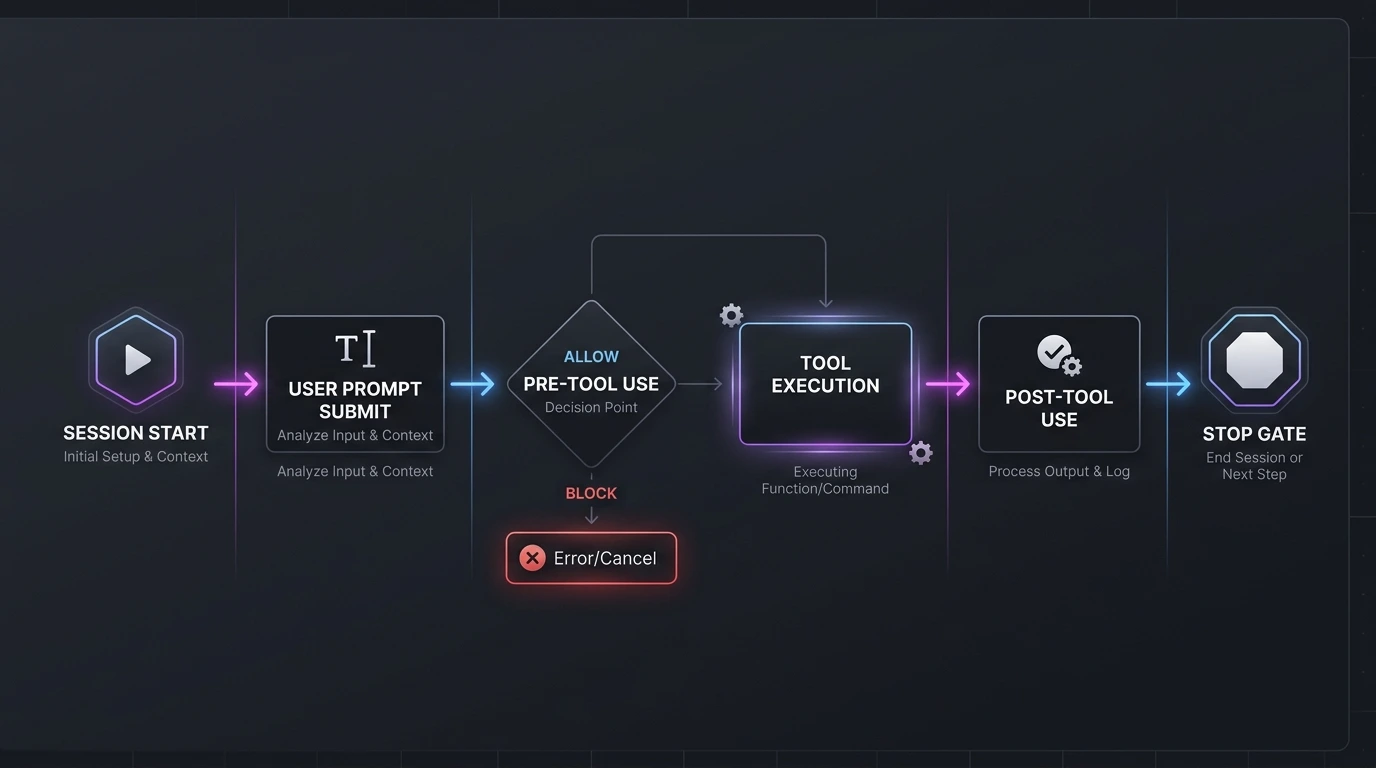
This table is a set of practical patterns, not a measured ranking of what developers use most. The rest of the article shows how each one works and where it can go wrong.
What Claude Code hooks are
Anthropic's hooks reference describes hooks as user-defined handlers that run at specific points in Claude Code's lifecycle. Your handler receives JSON describing the event, can inspect it, and can optionally return a decision such as allow, deny or block.
Two details are worth knowing before you copy any config:
Hooks aren't only shell commands. The current reference lists five handler types: command, http, mcp_tool, prompt and agent. Agent hooks are marked experimental. Every example below uses command hooks, which are the right starting point.
There are a lot of events. The current reference lists more than thirty, including SessionStart, UserPromptSubmit, PreToolUse, PermissionRequest, PostToolUse, PostToolUseFailure, Notification, SubagentStart, SubagentStop, Stop, PreCompact and SessionEnd. Older articles quote smaller numbers (15 or 26) because events have been added over time. Check the reference for your installed version.
Blake Crosley, who wrote about running 95 hooks, puts the value simply: hooks give you deterministic guardrails on top of a probabilistic model. His own experience is one developer's account, but the idea matches the official documentation.
How to set up a hook
Where hooks live
Location | Scope | Shareable |
|---|---|---|
~/.claude/settings.json | All your projects | No |
.claude/settings.json | One project | Yes, commit it |
.claude/settings.local.json | One project | No, gitignored |
Managed policy settings | Whole organization | Yes, admin-controlled |
Plugin hooks/hooks.json | While the plugin is enabled | Yes |
Skill or subagent frontmatter | While that skill or subagent is active | Yes |
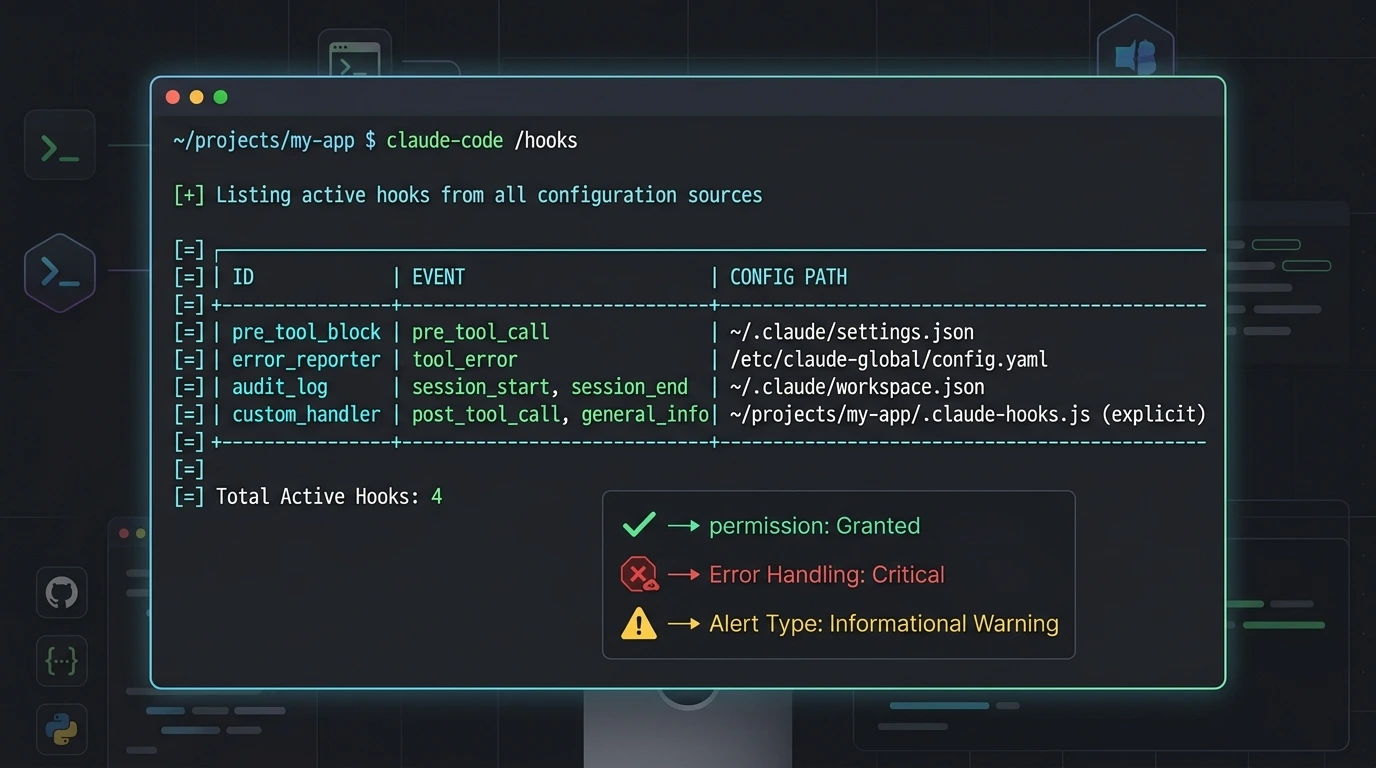
Hooks from these sources merge rather than replace each other. Type /hooks in Claude Code to open a read-only browser that shows every configured hook and where it came from. To change a hook, edit the JSON file.
The basic structure
{

  "hooks": {

    "PostToolUse": [

      {

        "matcher": "Edit|Write",

        "hooks": [

          {

            "type": "command",

            "command": "\"$CLAUDE_PROJECT_DIR\"/.claude/hooks/format.sh"

          }

        ]

      }

    ]

  }

}
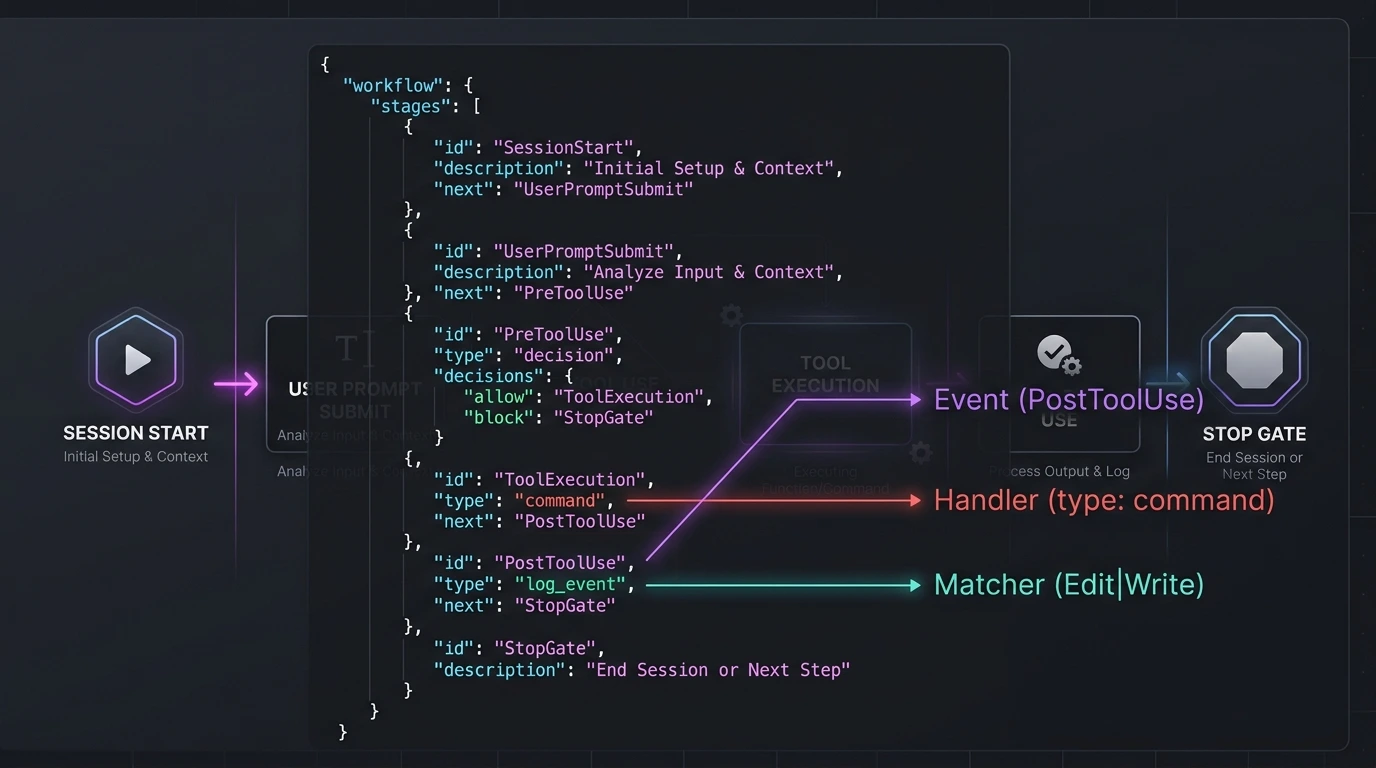
There are three layers: the event (when), the matcher (which tool or context), and the handler (what runs).
Matchers are case-sensitive. A value made only of letters, digits, underscores, hyphens, commas and pipes is compared as an exact name or a list of exact names, so Edit|Write matches those two tools and nothing else. Any other character switches it to a regular expression. Leaving the matcher out, or using *, matches everything. MCP tools are named mcp__<server>__<tool>, and you need a trailing .* to match a whole server (mcp__github__.*); mcp__github on its own matches nothing.
How data reaches your hook
This is the point where many tutorials go wrong. Claude Code sends event data to a command hook as JSON on stdin. You read it with a tool like jq:
INPUT=$(cat)

FILE=$(echo "$INPUT" | jq -r '.tool_input.file_path // empty')
Several popular guides show variables such as $CLAUDE_FILE_PATH or $CLAUDE_TOOL_INPUT_file_path. The current hooks reference doesn't document these, and at least one independent guide calls them outdated. Parse stdin instead. The variables you can rely on are $CLAUDE_PROJECT_DIR (the project root) and, for plugin hooks, $CLAUDE_PLUGIN_ROOT.
How your hook answers
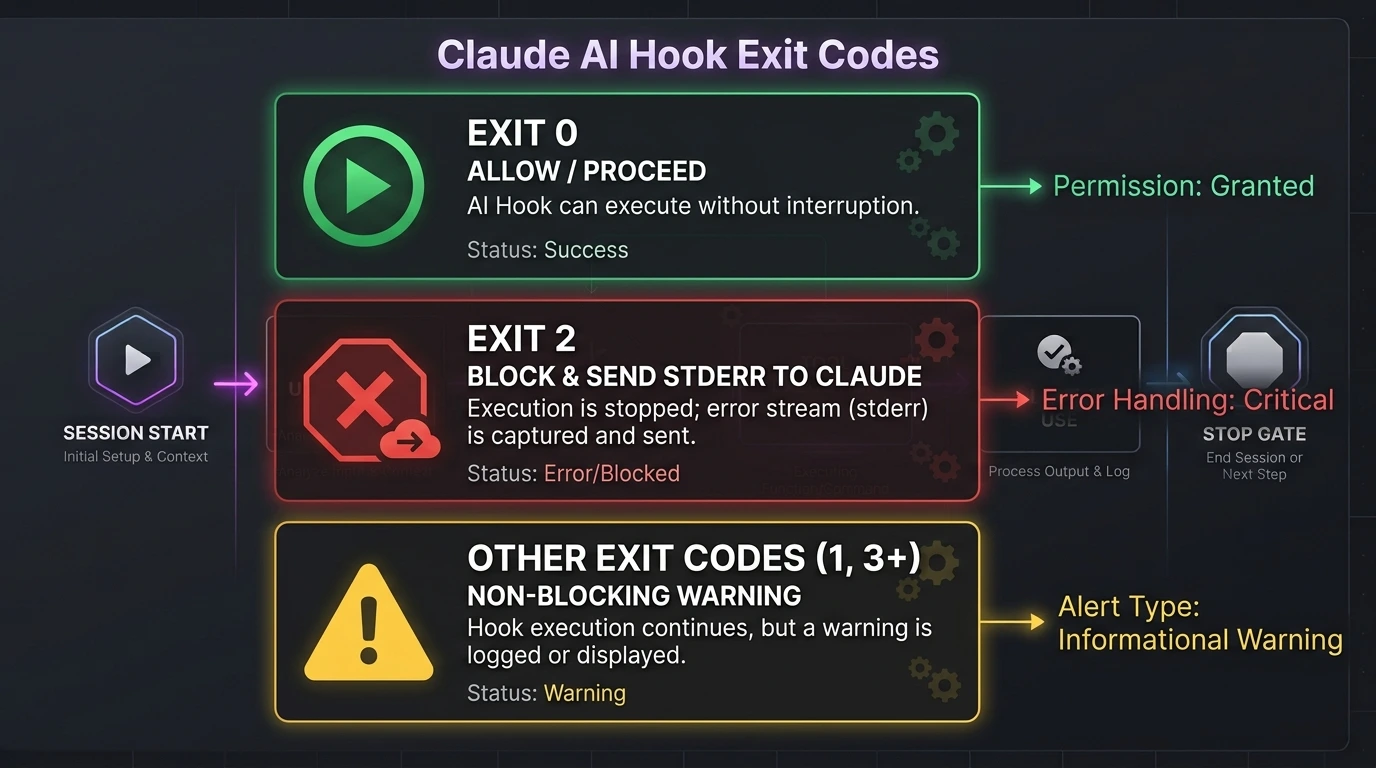
Result | What happens |
|---|---|
Exit 0, no output | No decision. Normal permission flow continues |
Exit 2 | Blocking error on events that can block. Your stderr goes to Claude as the reason |
Exit 0 with JSON on stdout | Structured control, such as permissionDecision: "deny" |
Any other exit code, including 1 | Non-blocking error. The action still proceeds |
The last row catches people out. Exit 1 is the usual Unix failure code, but for most hook events it doesn't block anything. If a hook enforces a rule, use exit 2 or return a deny decision.
Also note that a script path that doesn't exist or isn't executable fails as a non-blocking error, which means a mistyped path can leave a safety hook silently switched off. Watch for the "hook error" notice the first time you run a new hook, and run chmod +x on your scripts.
1. Auto-format code after every edit
Event: PostToolUse, matcher Edit|Write
Formatting is the most common first hook. Claude edits a file, your formatter runs, and diffs stay clean without another prompt.
Save as .claude/hooks/format.sh:
#!/bin/bash

FILE=$(jq -r '.tool_input.file_path // empty')

[ -z "$FILE" ] && exit 0

case "$FILE" in

  *.ts|*.tsx|*.js|*.jsx|*.json|*.css) npx prettier --write "$FILE" >/dev/null 2>&1 ;;

  *.py) black "$FILE" >/dev/null 2>&1 ;;

  *.go) gofmt -w "$FILE" ;;

esac

exit 0

Register it:

{

  "hooks": {

    "PostToolUse": [

      {

        "matcher": "Edit|Write",

        "hooks": [

          {

            "type": "command",

            "command": "\"$CLAUDE_PROJECT_DIR\"/.claude/hooks/format.sh"

          }

        ]

      }

    ]

  }

}
The script reads the edited file's path from stdin, picks a formatter by extension, and always exits 0 so a formatting hiccup never interrupts Claude.
Use it when: several people share a codebase, or Claude touches many files in one task. Watch out for: a formatter can change code after Claude wrote it, so still review the diff. If you have the same files open in an editor with format-on-save, consider turning that off while Claude works, since two tools rewriting one file can create confusing changes.
2. Run tests after code changes
Event: PostToolUse, matcher Edit|Write
A hook can run the tests related to the file Claude just changed. A PostToolUse hook can't undo the edit, but if it exits 2, its stderr is shown to Claude, which is how you build a "fix what you just broke" loop.
Save as .claude/hooks/test-on-edit.sh:
#!/bin/bash

FILE=$(jq -r '.tool_input.file_path // empty')

case "$FILE" in

  */src/*.ts|*/src/*.tsx)

    cd "$CLAUDE_PROJECT_DIR" || exit 0

    OUTPUT=$(npx vitest related "$FILE" --run 2>&1)

    if [ $? -ne 0 ]; then

      echo "$OUTPUT" | tail -20 >&2

      exit 2

    fi

    ;;

esac

exit 0
Register it the same way as hook 1, pointing at test-on-edit.sh. The example uses Vitest's related mode; Jest has --findRelatedTests.
Running the whole suite after every single edit is usually too slow. Scope it to related tests, or set "async": true on the handler so Claude keeps working while tests run. Async is available for command hooks only, and the result reaches Claude on a later turn. For a completion check instead of a per-edit check, see hook 9.
Watch out for: tests only prove what they cover. Flaky tests will also derail sessions, because Claude will keep chasing failures that aren't real.
3. Block dangerous terminal commands
Event: PreToolUse, matcher Bash
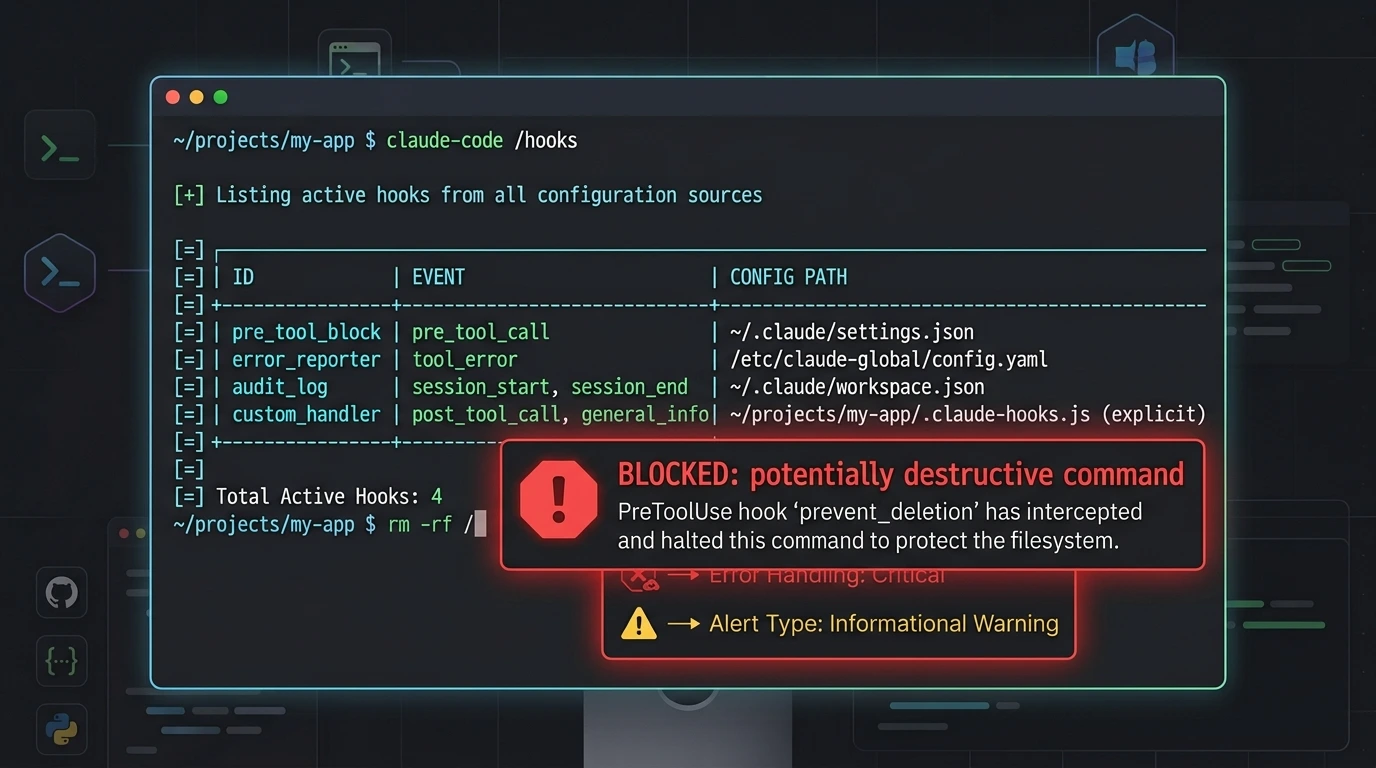
This is the hook most worth having if Claude ever runs unattended. A PreToolUse hook sees the command before it executes and can stop it.
Save as .claude/hooks/block-dangerous.sh:
#!/bin/bash

COMMAND=$(jq -r '.tool_input.command // ""')

if echo "$COMMAND" | grep -qE 'rm -rf /|rm -rf ~|DROP (TABLE|DATABASE)'; then

  echo "Blocked: potentially destructive command." >&2

  exit 2

fi

exit 0

Register it:

{

  "hooks": {

    "PreToolUse": [

      {

        "matcher": "Bash",

        "hooks": [

          {

            "type": "command",

            "if": "Bash(rm *)",

            "command": "\"$CLAUDE_PROJECT_DIR\"/.claude/hooks/block-dangerous.sh"

          }

        ]

      }

    ]

  }

}
Two things in that config are worth explaining:
The if field uses permission-rule syntax to filter further. Here the script only starts for commands matching rm *, so it doesn't spawn on every harmless ls. Note that if allows only one rule per handler, so a script that also watches DROP TABLE needs its own handler entry with a matching if (or no if at all).
Instead of exit 2, a hook can print JSON with hookSpecificOutput.permissionDecision set to "deny", "ask" or "allow" and a reason. The current reference documents this as the structured way to control PreToolUse. (Some older posts show a top-level "decision": "block" for this event; the current reference reserves that pattern for events such as Stop and PostToolUse.)
A real-world example. Blake Crosley reports that his git-safety hook exists because Claude once force-pushed it while "cleaning up history". His hook pattern-matches on the command string rather than trying to guess intent, so the model can't talk its way around it. Force-pushing a feature branch stays allowed, while main and master don't. That is one developer's account, but it shows the right design: narrow rules, deterministic, and based on an incident.
Security note. Text matching is not a complete defence. A command can be built through variables, subshells or scripts. The docs say the if filter is best-effort and that when Claude Code can't tell what a command will run, it runs your hook anyway. For hard rules, combine hooks with the permission system, narrow permissions and backups. Also, a hook that times out on PreToolUse doesn't block the call, so a stalled hook isn't a gate.
4. Protect sensitive files and directories
Event: PreToolUse, matcher Edit|Write
Save as .claude/hooks/protect-files.sh:
#!/bin/bash

FILE=$(jq -r '.tool_input.file_path // empty')

case "$FILE" in

  */.env|*/.env.*|*/secrets.json|*/package-lock.json|*/migrations/*)

    echo "Blocked: $FILE is a protected file." >&2

    exit 2

    ;;

esac

exit 0
Register it as a PreToolUse hook with matcher Edit|Write.
Useful details from the official reference:
For Write, Edit and Read, file_path always arrives as an absolute path, and ~ or relative spellings are expanded first, so a path check can't be dodged that way.
On Windows the path arrives with backslashes. A check written with forward slashes won't match, so normalize separators before comparing.
Files you reference with @ in a prompt are inserted without any tool call, so no PreToolUse hook fires for them. If you need to keep a path out of Claude's view entirely, use a Read deny rule in your permissions rather than a hook.
Limitation: a hook blocks matching tool calls only. It isn't a filesystem boundary, so keep OS permissions and proper secret management in place.
5. Create Git checkpoints
Event: PostToolUse or Stop, ideally on a scratch branch
When a long session goes wrong, it helps to know the last good state. A hook can commit after edits or at the end of each turn.
{

  "hooks": {

    "Stop": [

      {

        "hooks": [

          {

            "type": "command",

            "command": "cd \"$CLAUDE_PROJECT_DIR\" && git add -A && (git diff --cached --quiet || git commit -m 'wip: claude turn' --no-verify --quiet)",

            "async": true

          }

        ]

      }

    ]

  }

}
This commits everything when Claude finishes a turn, and skips quietly when nothing changes. Community examples use similar checkpoint hooks, some on every edit rather than every turn.
The trade-offs are real, and a few of them are serious:
git add -A can pick up files you never meant to commit. Check your .gitignore first.
--no-verify skips your pre-commit hooks, so only use it on personal branches.
You end up with many small commits. Work on a scratch branch and squash before merging.
Never auto-push unfinished work to a shared branch.
Checkpoints don't replace code review or remote backups.
6. Give Claude context at the start of a session
Event: SessionStart
A SessionStart hook can print the branch, working-tree status and recent commits. For this event, plain stdout is added to Claude's context.
{

  "hooks": {

    "SessionStart": [

      {

        "matcher": "startup",

        "hooks": [

          {

            "type": "command",

            "command": "cd \"$CLAUDE_PROJECT_DIR\" && git status --short && git log --oneline -5"

          }

        ]

      }

    ]

  }

}
The matcher tells you how the session began: startup, resume, clear, compact or fork.
A second use worth copying: re-inject rules after compaction. When the context window fills, Claude Code compacts the conversation and details can get lost. Two independent guides recommend a SessionStart hook with the compact matcher that reprints the rules you can't afford to lose:
  "hooks": {

    "SessionStart": [

      {

        "matcher": "compact",

        "hooks": [

          {

            "type": "command",

            "command": "echo 'Use pnpm, not npm. Run pnpm test before finishing. Do not edit files under migrations/.'"

          }

        ]

      }

    ]

  }

}
A few more facts from the reference:
SessionStart runs on every session, so keep it fast. It also has access to CLAUDE_ENV_FILE, where you can append export lines to set environment variables for later Bash commands.
Injected text is capped at 10,000 characters. Anything longer is saved to a file and replaced with a short preview.
Don't dump entire logs into every session. A concise summary works better.
Static instructions that never change belong in CLAUDE.md, not in a hook.
7. Add dynamic context when a prompt is submitted
Event: UserPromptSubmit
Use this for facts that change, such as the current branch or environment. It can't rewrite your prompt. It can only add context alongside it, or block the prompt.
#!/bin/bash

BRANCH=$(git -C "$CLAUDE_PROJECT_DIR" branch --show-current 2>/dev/null)

echo "Current branch: ${BRANCH:-unknown}. This repo uses pnpm and tests run with pnpm test."
Register it as a UserPromptSubmit hook. It needs no matcher, because this event always fires. Plain stdout is added to Claude's context. If you want more control, return JSON where additionalContext sits inside hookSpecificOutput:
{

  "hookSpecificOutput": {

    "hookEventName": "UserPromptSubmit",

    "additionalContext": "Current branch: feat/login. Tests run with pnpm test."

  }

}
Two practical tips from the reference: write the context as factual statements ("this repo uses pnpm") rather than orders, because text framed as out-of-band system commands can trigger Claude's prompt-injection defences and get shown back to you instead of used. And this event has a shorter default timeout (30 seconds) because it blocks every prompt while it runs.
One more use: a UserPromptSubmit hook can block a prompt with exit 2, so you can stop pasted API keys from ever reaching the model. The block message includes the original prompt by default unless you set suppressOriginalPrompt, and the text can still appear in local session files, so treat it as a guard against accidents, not a way to keep secrets off disk.
8. Get a desktop notification when Claude needs you
Event: Notification
{

  "hooks": {

    "Notification": [

      {

        "matcher": "permission_prompt|idle_prompt",

        "hooks": [

          {

            "type": "command",

            "command": "osascript -e 'display notification \"Claude Code needs your attention\" with title \"Claude Code\"'"

          }

        ]

      }

    ]

  }

}
That's the macOS version. On Linux, replace the command with notify-send "Claude Code" "Claude needs your attention". The two matcher values cover the moments Claude is blocked on you: a permission request and an idle wait.
Hooks run without a controlling terminal, so they can't write escape sequences straight to the screen. If you'd rather not depend on platform commands, the reference describes a terminalSequence output field that asks Claude Code to emit a supported terminal notification for you. It only works in interactive sessions, and only for an allowlisted set of sequences.
A notification hook only alerts you. It doesn't approve anything.
9. Add a quality gate before Claude finishes
Event: Stop
A Stop hook can keep Claude working when a check fails. It fires when Claude finishes responding, not only at the end of a whole task, so keep the check cheap.
Save as .claude/hooks/stop-gate.sh:
#!/bin/bash

INPUT=$(cat)

# Let Claude stop if this hook already sent it back to work once

if [ "$(echo "$INPUT" | jq -r '.stop_hook_active')" = "true" ]; then

  exit 0

fi

cd "$CLAUDE_PROJECT_DIR" || exit 0

if ! OUTPUT=$(npm test --silent 2>&1); then

  jq -n --arg reason "Tests are failing. Fix them before finishing: $(echo "$OUTPUT" | tail -20)" \

    '{decision: "block", reason: $reason}'

fi

exit 0

Register it:

{

  "hooks": {

    "Stop": [

      {

        "hooks": [

          {

            "type": "command",

            "command": "\"$CLAUDE_PROJECT_DIR\"/.claude/hooks/stop-gate.sh",

            "timeout": 120

          }

        ]

      }

    ]

  }

}
Why the stop_hook_active check matters. Without it, a failing test blocks Claude, Claude tries to stop again, the hook blocks again, and the loop never ends. When Claude has already been sent back once, the field is true, and the script lets it go. The trade-off is that Claude may then stop with tests still failing, so read the result. One guide also reports a built-in cap on consecutive Stop blocks; check the current reference for the exact behaviour in your version.
For subjective checks ("is this task really finished?") a prompt hook can use a model to decide. That costs tokens and time, so use command hooks for pass/fail checks and prompt or agent hooks only for judgment calls.
10. Keep a log of tool activity
Event: PostToolUse, matcher *
When something odd happens in a long session, a record of what ran is invaluable. A wildcard PostToolUse hook can append a line per tool call.
Save as .claude/hooks/activity-log.sh:
#!/bin/bash

INPUT=$(cat)

TOOL=$(echo "$INPUT" | jq -r '.tool_name // "unknown"')

SESSION=$(echo "$INPUT" | jq -r '.session_id // "unknown"')

FILE=$(echo "$INPUT" | jq -r '.tool_input.file_path // ""')

printf '%s | %s | %s | %s\n' "$(date -u +%FT%TZ)" "$SESSION" "$TOOL" "$FILE" \

  >> "$HOME/.claude/tool-activity.log"

exit 0
Register it with "matcher": "*" and "async": true so logging never slows Claude.
Developers who run Claude for long stretches report that this kind of audit trail is one of the first things they missed. One DEV Community author said an early health check of their setup found no activity logging, no context monitoring and no error detection from Bash output, and fixing those gaps was part of hardening an autonomous setup. That is a self-reported case, not a benchmark.
Watch out for: don't log secrets, credentials or sensitive sources. Logs grow fast, so add rotation and restrict access, especially on shared machines.
Lessons from people who run many hooks
These are individual accounts, useful as experience but not universal rules:
Start small. Blake Crosley built 95 hooks over about nine months and says he would start with three: git safety, context injection and a quality gate. His first month produced 25 hooks, many of which added context Claude already had, and the overhead was measurable.
Build hooks after incidents. In both his write-up and the DEV Community collection from Yurukusa, each hook has a "why it exists" story: a force-push, a runaway loop of subagents, a broken package published while errors were unresolved, a session that silently ran out of context. Hooks built in response to real problems tend to be narrower and better tested than hooks built from a checklist.
Use context warnings. Yurukusa's most valued hook warns as the context window fills so you can compact before quality drops. Whether it works for you depends on the data your version exposes to hooks, so test it before relying on it.
Catch errors early. A syntax-check hook that runs after each edit stops Claude from stacking several more file changes on top of a broken one.
Block publishing while errors are open. One collection blocks git push, npm publish and similar external actions while the error log has unresolved entries, but still allows local work.
Test your hooks. Crosley reports that adding a test harness exposed three hooks that were silently failing on edge cases.
Watch latency. He measured about 200ms of total overhead per event for his setup and found that one dispatcher per event beat many independent hooks each reading stdin. Your numbers will differ.
Hooks, CLAUDE.md, skills and MCP: which one for what
They solve different problems, and mixing them up is a common source of frustration.
Question | Use |
|---|---|
Must this happen every single time? | Hook |
Is it guidance that needs judgment? | CLAUDE.md |
Does Claude need access to an external service or data? | MCP server |
Is it a reusable multi-step process? | Skill |
Aspect | Hook | CLAUDE.md | Skill | MCP server |
|---|---|---|---|---|
Behaviour | Runs on configured events | Read as instructions | Loaded when relevant | Adds tools Claude can call |
Enforcement | Deterministic for the rules you write | Advisory | Depends on invocation | Tool use is Claude's choice |
Best for | Formatting, blocking, logging, gates | Conventions, preferences, style | Reviews, workflows, generation | Databases, APIs, browsers |
Hooks can also target MCP tools with matchers like mcp__github__.*, so you can validate or log MCP calls, and hooks can be attached to a skill's frontmatter so they're active only while the skill is in use.
Command, prompt, agent and HTTP hooks
Type | Speed | Cost | Best for |
|---|---|---|---|
command | Fast | None beyond the script | Pass/fail checks, formatting, blocking |
http | Depends on the endpoint | Your service | Central policy or logging service |
prompt | A few seconds | Model tokens | Simple judgment calls |
agent | Slowest | More model tokens | Checks that need to read code (experimental) |
Start with command hooks. Reach for the others when you need judgment rather than verification.
Where Kiro fits
Kiro is a separate AI development environment that also offers event-driven automation, alongside spec-driven development. Its hooks and Claude Code's hooks have their own configuration formats and product workflows, so a hook written for one shouldn't be assumed to work in the other. Check Kiro's own documentation for its current hook events and syntax.
Best practices
Start with one or two hooks. Formatting and a scoped safety check are enough for the first week. Add more only when something actually goes wrong.
Pick the event by timing. Use PreToolUse for checks before a tool runs, PostToolUse for follow-ups, SessionStart for context, UserPromptSubmit for per-prompt facts, Notification for alerts and Stop for end-of-turn checks.
Keep hooks fast. Handlers default to a 600-second timeout, but a slow hook is felt on every matching event. Use narrow matchers, the if field, async for work that doesn't need to block, and avoid unnecessary network calls.
Test with fake input. Feed your script sample JSON before you enable it:
echo '{"tool_name":"Bash","tool_input":{"command":"ls"}}' | ./my-hook.sh

echo $?
Treat hooks as code that runs with your privileges. They execute with your user account's permissions. Review hooks in any repository you clone before trusting it, always quote variables in scripts, and keep secrets out of committed settings. Organizations can restrict which hooks run with the allowManagedHooksOnly managed setting.
Keep humans in the loop for high-risk changes. Authentication, payments, access control and production data changes still need review, whatever automated checks you have.
Remember what hooks don't see. They fire when Claude uses tools, including inside subagents, where the input carries agent_id and agent_type. They don't fire for content inserted through @ file references.
Common problems and fixes
Problem | Likely cause | What to check |
|---|---|---|
Hook doesn't appear in /hooks | Invalid JSON or wrong file | Validate the JSON (no trailing commas or comments) and confirm the file location |
Hook never fires | Wrong event or matcher | Matchers are case-sensitive: Bash works, bash doesn't |
Block doesn't block | Script exits 1, or the path is wrong | Use exit 2 or a deny decision, and check the "hook error" notice |
JSON output is ignored | Extra text on stdout | A shell profile that echoes on startup can corrupt JSON. Print only from interactive shells |
Command not found | Non-interactive shell has a different PATH | Use absolute paths, and confirm jq is installed |
Script does nothing | Not executable | Run chmod +x on the script |
Stop hook loops | No stop_hook_active check | Exit 0 when the field is true |
Formatter fails silently | Missing formatter or wrong path | Run the same command by hand |
Coding feels slow | Expensive hooks on broad matchers | Narrow the matcher, add if, use async |
Notification hook did nothing | Wrong matcher value | Use permission_prompt, idle_prompt or another supported type |
To see what actually happened, open the transcript view (Ctrl+O) for a one-line summary per hook, or start Claude with claude --debug (or use /debug mid-session) for matched hooks, exit codes and output.
FAQ
What are the most useful hooks to start with?
Auto-formatting, a scoped dangerous-command blocker, and either a notification or a test gate. Add the rest as real problems appear.
Should I use a hook or CLAUDE.md?
Use CLAUDE.md for guidance Claude should weigh, and a hook when something must happen every time. If ignoring a rule would cost you data or a production incident, make it a hook.
Can a hook stop Claude from deleting files?
It can block matching tool calls, such as specific rm commands or edits to protected paths. It isn't a complete boundary, because commands can be written in many forms. Layer it with permissions, filesystem access controls and backups.
Do hooks work on Windows?
Yes. The reference shows PowerShell examples and a shell setting, and command hooks run in Git Bash or PowerShell depending on your setup. Scripts written for macOS or Linux need adapting. Remember that file paths arrive with backslashes.
Do hooks run inside subagents?
Yes. Hooks from settings, managed policy and plugins run inside subagents too, and the input carries agent_id and agent_type so you can tell them apart.
Do hooks cost anything?
A command hook costs nothing beyond running your script. Prompt and agent hooks use model tokens.
Conclusion
The most useful hook setup isn't the biggest one. It's the one that fixes problems you actually have, without adding delay or confusion. Begin with formatting and one narrow safety check, confirm they behave using sample input, then add a completion gate and notifications as your sessions get longer. When a hook blocks something, make sure the reason it returns helps Claude adjust instead of retrying blindly.