Overview

Getting the "Claude Code Failed to Connect" error can instantly stop your workflow. Whether you're coding in VS Code, Cursor, WSL, macOS, Linux, or Windows, this error usually means Claude Code cannot communicate with Anthropic's servers.
The problem is that this message is generic. The real cause could be:
Network connectivity issues
DNS failures
SSL certificate errors
Corporate proxy restrictions
Expired login sessions
Invalid API keys
Firewall blocks
Temporary Anthropic outages
Signs of Connection Problems
You may have a connection issue if you notice any of these symptoms:
Claude Code stuck on "Connecting..."
Unable to connect to API / API unreachable
Connection timeout (ECONNREFUSED, ECONNRESET, ETIMEDOUT)
SSL certificate verification failed / SELF_SIGNED_CERT_IN_CHAIN
OAuth token expired / Invalid API key
DNS lookup failures / Random disconnects
What Does This Error Actually Mean?
1. Network Failures
Claude Code cannot establish a connection to Anthropic servers. Common examples: ECONNREFUSED, ETIMEDOUT, DNS failures, Firewall blocks.
2. SSL / TLS Failures
The connection reaches the server but fails during certificate verification. Common examples: SSL certificate verification failed, SELF_SIGNED_CERT_IN_CHAIN.
3. Authentication Failures
The connection works, but Anthropic rejects your credentials. Examples: Invalid API key, OAuth token revoked, Session expired.
Quick Fix Checklist
1. Test Connectivity
curl -I https://api.anthropic.com
2. Check Service Status
Visit Anthropic's status page and verify there are no active incidents.
3. Check Authentication
/status
4. Re-login
/logout
/login
5. Run Diagnostics
/doctor
12 Proven Fixes
Fix 1: Verify Network Connectivity
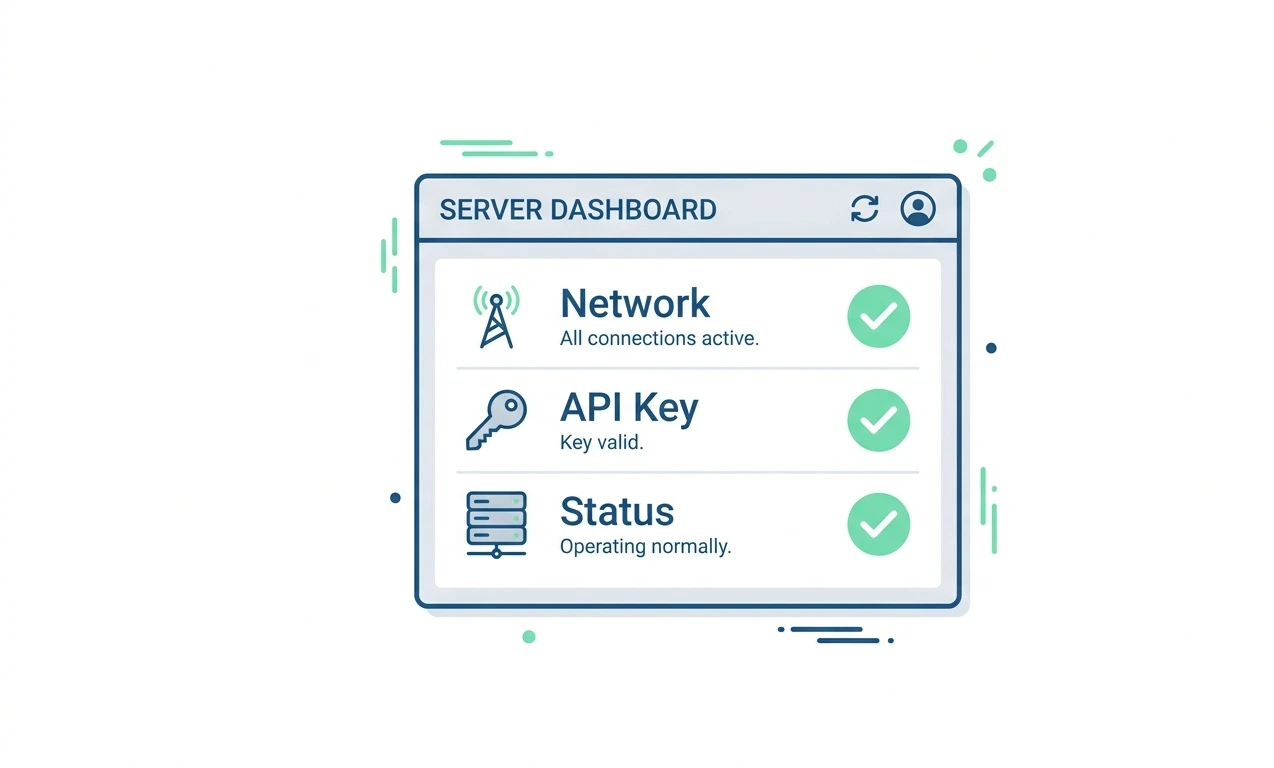
Network issues remain the most common cause. Run:
curl -I https://api.anthropic.com
Expected result: HTTP/1.1 405 Method Not Allowed — this confirms the endpoint is reachable.
If the command fails: check internet access, disable VPN temporarily, try another network, verify firewall settings.
Fix 2: Check Anthropic Service Status
Check the status page for active incidents. Always eliminate platform-side problems before changing local settings.
Fix 3: Configure Corporate Proxy
export HTTPS_PROXY=http://proxy.company.com:8080
For authenticated proxy:
export HTTPS_PROXY=http://username:password@proxy.company.com:8080
export NO_PROXY="localhost,127.0.0.1"
Fix 4: Resolve SSL Certificate Errors

Common messages: SSL certificate verification failed, SELF_SIGNED_CERT_IN_CHAIN
Correct solution:
export NODE_EXTRA_CA_CERTS=/path/to/corporate-ca.pem
NEVER use NODE_TLS_REJECT_UNAUTHORIZED=0 — disabling TLS validation creates serious security risks.
Fix 5: Repair Authentication Problems
/status
env | grep ANTHROPIC
unset ANTHROPIC_API_KEY
/logout then /login
Fix 6: Verify Your API Key
Confirm the key is active
Check for whitespace (copy-paste errors)
Verify billing access
Generate a fresh key if needed
Fix 7: Allow Required Domains Through Firewalls
Your firewall should allow:
api.anthropic.com
claude.ai
platform.claude.com
downloads.claude.ai
statsig.anthropic.com
sentry.io
Fix 8: Fix WSL DNS Issues
Common error: getaddrinfo ENOTFOUND api.anthropic.com
cat /etc/resolv.conf
Temporary fix:
echo "nameserver 8.8.8.8" | sudo tee /etc/resolv.conf

Fix 9: Remove VPN Routing Problems
VPN clients can create DNS conflicts, routing loops, or blocked API access. Try disconnecting VPN, test connectivity, then reconnect.
Fix 10: Check Docker Desktop Interference
Docker networking sometimes interferes with outbound connections. Exit Docker Desktop, restart Claude Code, and retry.
Fix 11: Increase Timeouts
Slow networks can trigger premature failures:
export API_TIMEOUT_MS=900000
Fix 12: Update Claude Code
Older versions may contain SSL bugs, authentication issues, or retry logic problems:
claude update
Error Comparison Table
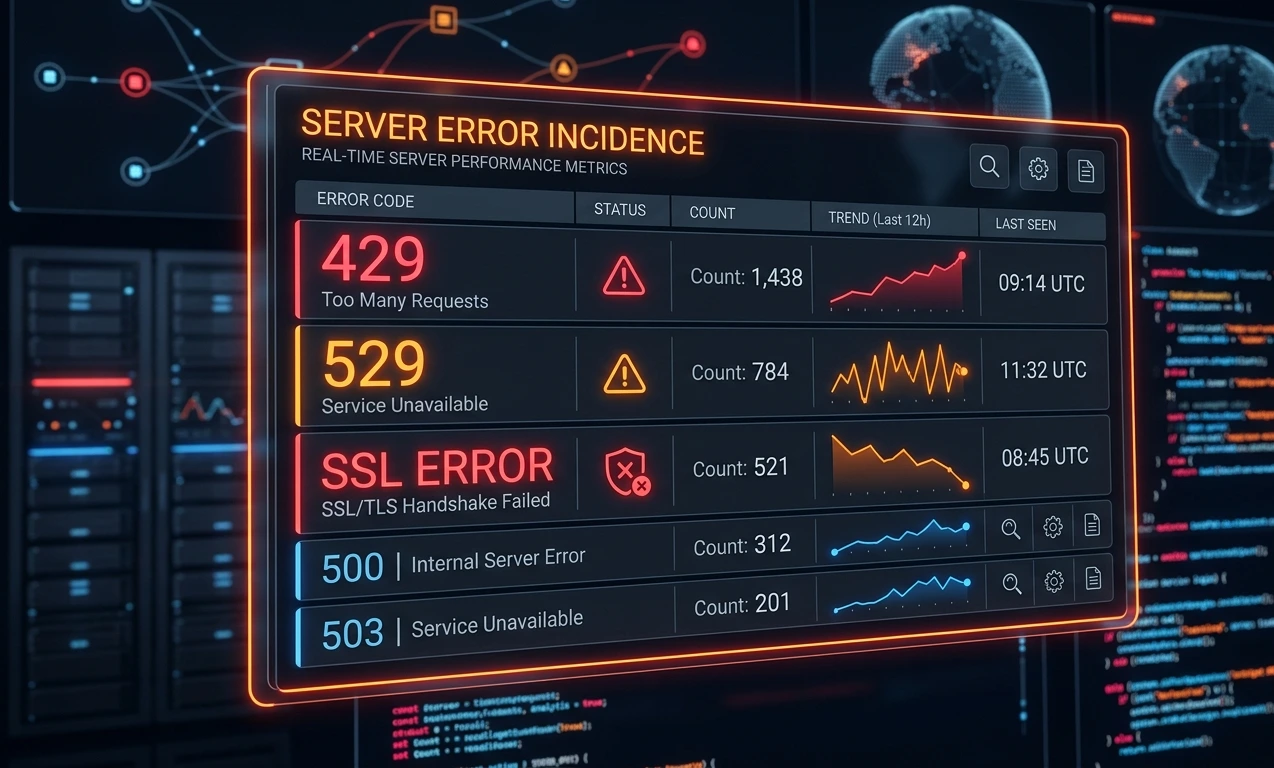
Error | Cause | Solution |
|---|---|---|
Failed to Connect | Network | Check connectivity |
Session Expired | Authentication | Login again |
Invalid API Key | Credential issue | Replace key |
429 Error | Rate limit | Wait |
529 Error | Service overload | Retry later |
SSL Error | Certificate issue | Configure CA bundle |
Common Mistakes to Avoid
Using NODE_TLS_REJECT_UNAUTHORIZED=0 (disables certificate validation)
Forgetting environment variables can override login sessions
Testing only in a browser (different networking stack than Node.js)
Ignoring status page incidents
Not restarting the terminal after environment variable changes
Best Practices for Stable Connections
Keep Claude Code updated
Use OAuth login when possible
Configure proxies properly
Use trusted DNS providers
Avoid disabling SSL validation
Monitor service status
Run /doctor regularly
Store configuration in settings.json
Frequently Asked Questions
Most commonly because of unstable internet, VPN conflicts, SSL certificate issues, or request timeouts.
Corporate proxies and SSL inspection tools frequently interfere with outbound connections.
Yes. Some security suites inspect HTTPS traffic and can trigger SSL-related failures.
No. Always use a trusted CA bundle instead of disabling TLS validation.
Check the official status page. If an incident exists, local troubleshooting won't resolve the problem.