Introduction: Cursor Broke Mid-Session. Now what?
You're three hours into a coding session. Cursor AI is flying autocomplete is on point, Chat is turning your rough prompts into clean, functional code. Then it just... stops.

The chat panel shows a loading spinner that never resolves. Autocomplete vanishes. Maybe you get a vague "request failed" badge. Maybe Cursor crashes entirely on your next startup. Whatever form the breakdown takes, one thing is clear: the cursor is not working, and you need it fixed fast.
This isn't a rare bug. Developers across every platform Windows, macOS, Linux report the same issues repeatedly on the official Cursor forums. Some are paying Pro subscribers who've been locked out of every model for days. Others find that the very first chat prompt works after a restart, but every prompt after that silently fails. What Are AI Agents for Developers?
The good news is that almost every Cursor AI problem follows a predictable pattern. Once you know the pattern, the fix is usually straightforward.
This guide covers all of it: symptoms, causes, fixes, advanced debugging, and what to do when standard fixes don't work.
What "Cursor AI Not Working" Actually Looks Like
Before jumping to fixes, get precise about which problem you have. Different symptoms point to different root causes.
Chat stuck on loading dots. You type a prompt, press Enter, and the three loading dots appear and never stop. This is one of the most reported issues on the Cursor community forum. Multiple developers have noted the pattern: the first prompt after restarting works, then every subsequent one silently fails no error, no response.
Autocomplete/Cursor Tab completely gone. The editor works fine, but the grey-text inline suggestions have disappeared. Sometimes accompanied by a console error: No full commit provider registered a specific error that points to a broken Copilot++ connection rather than a general network issue.
"Error calling tool" during agent tasks. When Cursor's AI agent tries to execute a tool or function call, it throws an error calling tool message. This typically means an API authentication problem, an outdated SDK, or a misconfigured tool parameter.
ERROR_OPENAI: Unable to reach the model provider. A specific error that appears when Cursor can't connect to external model providers Claude, GPT-4, Gemini, or even Cursor's own Composer. Paying users have reported this error breaking access to every model simultaneously for multiple days.
Generic or useless suggestions. Cursor responds, but has no awareness of your actual codebase. Suggestions are generic boilerplate with no connection to your functions, classes, or architecture.
Cursor crashes on startup. The app freezes during loading, closes immediately, or hangs indefinitely on launch.
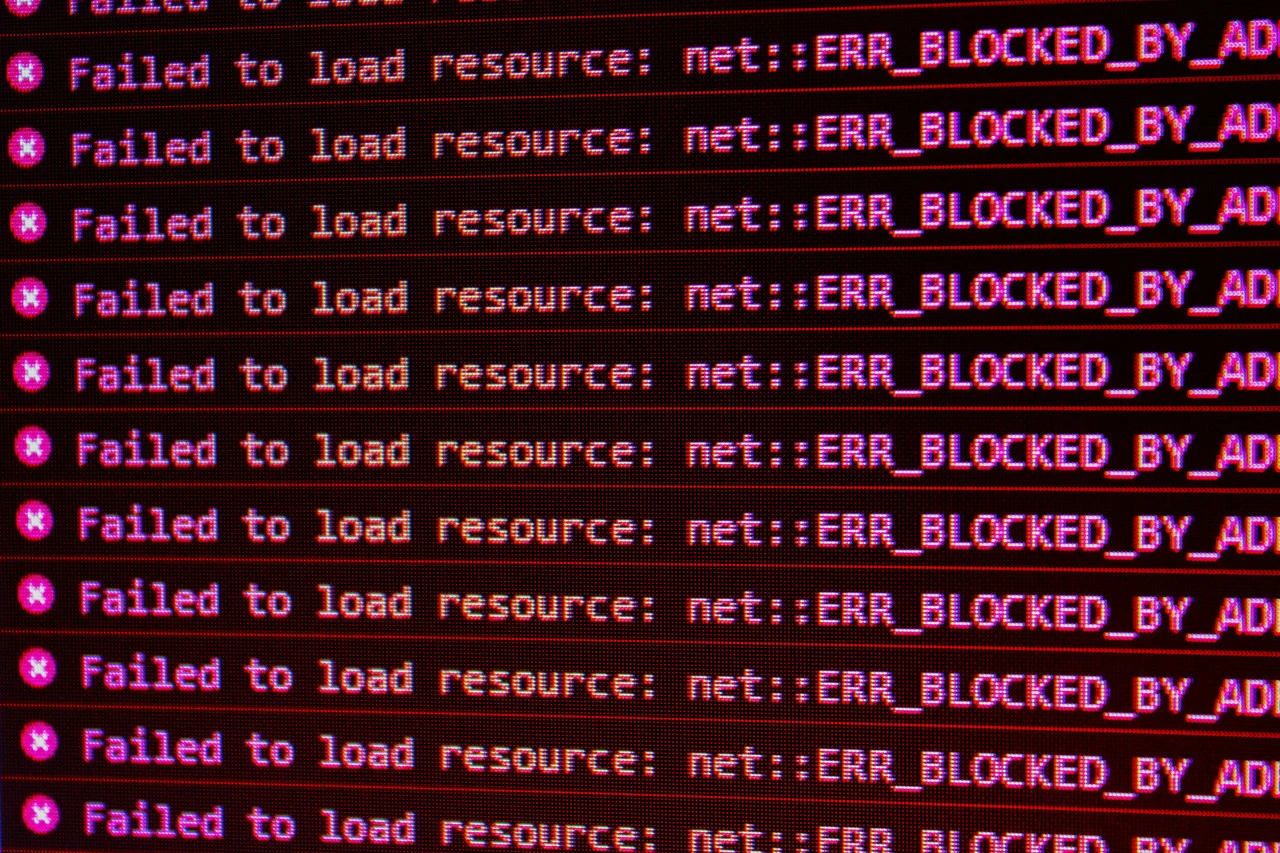
net::ERR_PROXY_CONNECTION_FAILED in console. A proxy or network configuration is actively blocking Cursor's backend requests.
Knowing your specific symptom saves 30–60 minutes of trying fixes that don't apply.
Why Cursor AI Breaks: Root Causes Explained
1. Network and Connectivity Problems

Cursor sends all AI requests to cloud-based servers. VPNs, corporate firewalls, and proxy tools (especially Zscaler) block these connections silently. The result is infinite loading with no error message because the request never gets through to return one.
2. HTTP/2 Incompatibility
Cursor uses HTTP/2 for AI streaming features. Many corporate networks and enterprise proxies don't support HTTP/2. When HTTP/2 is blocked, Cursor's indexing, chat, and autocomplete all fail without an obvious explanation.
3. Corrupted Cache Files
Cursor is built on Electron and caches local data aggressively. After a bad update or an interrupted session, these cache files corrupt and cause startup failures, frozen chat, and broken autocomplete.
4. API Key or Authentication Issues
If you're using Cursor with a personal API key (for OpenAI or Anthropic models), an expired or invalid key triggers the error calling tool and ERROR_OPENAI errors. This is especially common after billing cycles or account changes.
5. SDK or Library Version Mismatches
When using Cursor AI's SDK in your own projects, version mismatches between your installed SDK and Cursor's current API cause tool call failures. This is a separate issue from the editor itself but equally common.
6. Codebase Indexing Failures
Cursor needs to map your entire project to provide context-aware suggestions. If indexing fails because of permission errors, too many files, or opening the wrong directory suggestions become generic and useless.
7. Extension Conflicts

Some VS Code extensions interfere with Cursor's AI layer. The No full commit provider registered error is frequently linked to language server extensions that compete with Cursor Tab's completion engine.
8. Corrupted Chat History
If a previous chat session references files or images that no longer exist, Cursor can fail silently on every subsequent prompt even after the original session is closed. Cursor AI High CPU Usage Fix (2026)The broken reference stays in memory until you actively clear it.
9. Cursor Server Outages
Sometimes it genuinely isn't your fault. Cursor's backend goes down and takes AI features with it. Paying users have reported complete lockouts lasting multiple days during major incidents.
11 Proven Fixes for Cursor AI Not Working
Work through these in order. Start with the quickest checks.
Fix 1: Check Cursor Server Status First
Before changing a single setting, verify the issue isn't global.
Visit status.cursor.sh and check all service indicators. Also check the Cursor community forum, Discord, and Reddit large outages surface there within minutes. If others are reporting the same issue at the same time, no local fix will help. Wait for the outage to resolve.
If status is green and the community is quiet, proceed to the next step.
Fix 2: Proper Restart Sequence
A proper restart is different from just closing and reopening the window.
Fully quit Cursor through the application menu (not just closing the window), wait 15–20 seconds, then reopen. If that doesn't work, restart your entire computer. A full system restart clears DNS caches, resets network sessions, kills locked processes, and removes temporary system conflicts that a simple app restart misses.
Fix 3: Clear the Cursor Cache
Corrupted cache files are behind a large percentage of Cursor failures. Clear them on your OS:
macOS:
rm -rf ~/Library/Application\ Support/Cursor/Cache
rm -rf ~/Library/Application\ Support/Cursor/GPUCache
rm -rf ~/Library/Application\ Support/Cursor/Code\ Cache
Windows: Delete the contents of:
C:\Users\[YourName]\AppData\Roaming\Cursor\Cache
C:\Users\[YourName]\AppData\Roaming\Cursor\GPUCache
Linux:
rm -rf ~/.config/Cursor/Cache
rm -rf ~/.config/Cursor/GPUCache
Restart Cursor after clearing. This resolves startup crashes, frozen chat, and broken autocomplete in a significant number of cases.
Windows users can automate this with a batch file:
@echo off
taskkill /f /im cursor.exe >nul 2>&1
rmdir /s /q "%APPDATA%\Cursor\Cache"
echo Cache cleared. Restart Cursor manually.
Run this before opening Cursor to prevent repeat issues.
Fix 4: Disable HTTP/2 (Critical Fix for Corporate Networks)
This is one of the highest-impact fixes in 2026, and it's consistently underused.
Cursor relies on HTTP/2 for all AI streaming features — chat, autocomplete, indexing. Corporate networks and proxies like Zscaler block HTTP/2, causing failures that look like general connection problems but are actually protocol-level blocks.
Symptoms that point to this fix:
Chat stuck loading on corporate/office networks
AI requests timing out
Indexing never completing
net::ERR_PROXY_CONNECTION_FAILED in developer console
Fix: Open settings (Ctrl+, or Cmd+,) and add:
json { "cursor.general.disableHttp2": true } |
Or navigate to settings, search for HTTP/2, and enable Disable HTTP/2.
Restart Cursor. This forces HTTP/1.1 which most networks support.How to Fix Claude Code 429 For many developers on corporate networks, this single setting resolves every AI issue immediately.
Fix 5: Check and Fix Your API Key
If you're seeing an error calling tool or ERROR_OPENAI: Unable to reach the model provider, verify your API key.
Log into your Cursor dashboard.
Navigate to the API/settings section.
Check that your key is valid and hasn't expired.
If using a personal OpenAI or Anthropic key, verify your billing account is active and funded.
Replace the key in Cursor settings if it's expired.
Never share your API key publicly unauthorized usage can trigger errors that look like authentication failures even when the key itself is valid.
Fix 6: Disable Your VPN
VPNs interfere with Cursor's AI connections more often than most developers expect. Some VPNs route traffic through regions where Cursor's API endpoints are restricted. Others simply interrupt the connection without producing a useful error.
Test by fully disconnecting your VPN, restarting Cursor, and testing AI chat. If it works without the VPN, you have three options: whitelist Cursor's traffic in your VPN settings, switch to a VPN region that doesn't block the endpoints, or configure your VPN to exclude Cursor from routing.
Fix 7: Re-Enable Copilot++ and Fix "No Full Commit Provider Registered"
If autocomplete (Cursor Tab) stopped working while chat is still functional, this is a Copilot++-specific issue rather than a broader connectivity problem.
Basic fix:
Open Settings → AI.
Find the Copilot++ toggle.
Turn it OFF, wait 10 seconds, turn it back ON.
If you see No full commit provider registered in the developer console (Help → Toggle Developer Tools):
This error means Cursor Tab's completion engine isn't initializing properly. Common causes include extension conflicts with language server plugins. Try disabling all extensions, restarting Cursor, confirming Cursor Tab works, then re-enabling extensions one by one to find the conflict.
Also verify you haven't exceeded your plan's Cursor Tab usage limits on the free tier, this feature has monthly limits that silently disable it when exceeded.
Fix 8: Fix the "Error Calling Tool" Issue
The error calling tool message appears specifically during Cursor's agent or AI tool-use features. It's different from a general connection failure.
Step-by-step fix:
1.Verify your API key (see Fix 5).
2.Update your Cursor installation this error frequently appears after Cursor updates introduce new tool-calling APIs that older versions don't support. Go to Help → Check for Updates.
3.Update your SDK or libraries if using Cursor AI programmatically:
npm install @cursorai/sdk@latest
4. Check tool parameters this error can mean the AI is calling a tool with missing or incorrect parameters. Review your tool configuration in settings.
5. Test network connectivity tool calls require a stable connection. Temporarily disable VPN and firewall to isolate.
6. Check Cursor server status tool-calling features can be independently degraded during partial outages even when basic chat works.
Fix 9: Re-Index Your Codebase
If Cursor AI is responding but suggestions are generic, your codebase index has failed or is incomplete.
Rebuild the index: Press Ctrl+Shift+P (or Cmd+Shift+P), type Cursor: Index Codebase, and watch the output. Look for:
permission denied — check folder permissions
too many files — add a .cursorignore file
invalid root folder — you've opened the wrong directory
Critical mistake to avoid: Opening a subdirectory instead of the project root. If your project is at /myapp but you open /myapp/src, Cursor only indexes the src folder. It has no awareness of anything above it. Close and reopen from the actual project root.
For monorepos: Always open at the repo root, not inside a specific package folder.
Create a .cursorignore file to keep indexed file counts manageable:
node_modules/ dist/ build/ .git/ coverage/ .next/ __pycache__/ |
This improves indexing speed, AI relevance, and overall performance. Projects that include node_modules in the index regularly exceed Cursor's practical ceiling of around 50,000–100,000 files.
Fix 10: Disable Extension Conflicts
Some extensions break Cursor's AI layer silently. This is most common with:
Aggressive linters that hook into the language server
Competing AI autocomplete plugins (Copilot, Codeium, Tabnine)
Custom Git tools
Experimental language servers (the Godot tools extension is a documented example)
Isolation method:
Disable all non-essential extensions.
Restart Cursor.
Test AI features.
Re-enable extensions one at a time.
When the issue returns, the last extension you enabled is the culprit.
Update it, report the conflict to its developer, or keep it disabled when using Cursor's AI features.
Fix 11: Reset Settings, Then Clean Reinstall
Reset settings first:
# macOS mv ~/Library/Application\ Support/Cursor/User/settings.json \ ~/Library/Application\ Support/Cursor/User/settings.json.backup |
Windows path:
C:\Users\[YourName]\AppData\Roaming\Cursor\User\settings.json |
If that fails clean reinstall:
Uninstall Cursor completely.
Delete all remaining Cursor folders from AppData (Windows) or Application Support (macOS).
Download the latest version from cursor.sh.
Reinstall and log back in.
Your project files are completely safe; they live in your file system, not inside Cursor. Only settings, extensions, and chat history are affected.
Fix for Cursor Chat That Works Once Then Fails Every Time
This specific pattern first prompt works after restart, all subsequent prompts fail is widely reported on the Cursor community forum across Windows, Linux, and macOS.
Root cause: Cursor is referencing files or images from a previous chat session that no longer exist on disk. The missing file reference breaks the chat context for all future prompts in that session.
Fix sequence:
Open Cursor's developer tools: Help → Toggle Developer Tools.
Look for errors like Unable to read file 'path/to/deleted/file' or args are not defined.
Clear cache (see Fix 3).
Delete any chat sessions that referenced images, screenshots, or files you've since removed.
Restart Cursor.
After this, the chat should respond normally to multiple prompts without requiring a restart between each one.
What To Do When Nothing Works: Escalation Path
Sometimes you've tried every fix and the Cursor is still completely broken. This happens. Paying users have been locked out of all models for multiple days during serious incidents.
Step 1: Document everything. Note your Cursor version, OS, the exact error message, and your Request ID (visible in error messages like ERROR_OPENAI). This is essential for support.
Step 2: Try a different network. Switch from your office network to a mobile hotspot, or vice versa. This isolates whether the issue is network-specific.
Step 3: Try a different model. If Claude is failing, try GPT-4 or Gemini within Cursor. Model-specific outages are common even when general connectivity is fine.
Step 4: Contact Cursor support via their official channel, including your Request ID from the error message. Request IDs let their team trace exactly what happened on the backend.
Step 5: Use a temporary alternative. While waiting for resolution, GitHub Copilot (built into VS Code), Windsurf, or Codeium can keep you productive. These are the same editor environment, just different AI backends.
Step 6: Set up a local model fallback. Developers who can't afford downtime install Ollama with CodeLlama as a local backup:
curl -fsSL https://ollama.ai/install.sh | sh
ollama pull codellama:34b
Then configure Cursor to use the local model in settings. Slower than cloud models, but immune to connectivity issues and outages.
Common Mistakes That Make Things Worse
Not checking server status first. Developers spend hours debugging local settings during global outages. Make status.cursor.sh your first stop, always.
Opening subdirectories instead of the project root. This single mistake is responsible for a huge number of "why are Cursor's suggestions terrible" complaints. The fix is one minute: close and reopen at the correct root.
Leaving node_modules in the indexed files. This tanks indexing performance and often causes indexing to fail entirely on large projects. Add .cursorignore from day one.
Assuming rate limiting is a bug. On the free tier and during heavy usage, vague "request failed" errors are often just rate limits. Wait a few minutes before debugging.
Not updating Cursor before troubleshooting. Many errors — including the error calling tool failure — are patched in recent releases. Check for updates before spending time on other fixes.
Pasting screenshots of temporary debug files into Chat. This creates a chat history that references files you'll eventually delete. When those files are gone, the chat breaks silently. Either avoid this pattern or clear chat history after cleanup sessions.
Pro Tips for Stable Long-Term Performance
Use .cursorignore from day one. Don't wait until performance degrades. Start every project with a .cursorignore that excludes build artifacts, package directories, and generated files.
Keep Cursor updated. New releases consistently patch AI bugs, network issues, and indexing failures. Check Help → Check for Updates regularly or enable automatic updates.
Switch DNS to 1.1.1.1. Changing to Cloudflare's DNS has measurably reduced connection error rates for some developers. Low effort, worth trying if you're experiencing intermittent connectivity issues.
Schedule heavy AI work off-peak. Cursor's backend experiences significantly higher load during US business hours (roughly 9 AM–6 PM Eastern). If you're doing large context-window operations and hitting timeouts, shifting to early morning or evening can make a real difference.
Read the logs when stuck. Help → Open Log File. Search for ERROR and FATAL. These log entries reveal the actual cause of failures far faster than trial-and-error troubleshooting.
Run Network Diagnostics proactively. Settings → Network → Run Diagnostics tells you exactly what's blocked before you spend time on unrelated fixes. Make it your first technical step after checking server status.
Real Developer Example
A developer is migrating a large Vue 2 application (around 750 component files) to Vue 3. Cursor AI Chat is their primary tool for the migration — translating component syntax, updating lifecycle hooks, identifying compatibility breaks.

On day two, Cursor Chat suddenly freezes after every prompt. The first prompt after each restart works. Everything after that silently fails with infinite loading dots. There are no error messages in the visible UI.
Investigation: The developer opens Cursor's developer tools (Help → Toggle Developer Tools) and finds repeated errors: Unable to read file 'C:\dev\project\debug_out\screenshot_20241015.png' — a debug screenshot from two weeks earlier that was deleted during a project cleanup.
Fix: Clear cache, delete all chat sessions referencing the missing file, rebuild the codebase index.
Result: Chat responds normally to multiple sequential prompts without requiring restarts.
Prevention: The developer now clears chat history at the end of each work session and never pastes temporary file screenshots into persistent Chat sessions.
FAQ: 7 Questions Developers Ask Most
Mid-session disconnects usually come from rate limiting (common on free and Pro plans during heavy usage), unstable network connections, or Cursor server load during peak US hours. If it happens consistently at a certain point in your workflow, check whether you're near usage limits or running very large context operations that take a long time to complete.
This error means Cursor can't connect to the AI model backend. Check your API key first — verify it's valid and your billing account is active. Then run network diagnostics (Settings → Network → Run Diagnostics). If you're on a corporate network, disable HTTP/2 in settings. If all models are affected simultaneously, check status.cursor.sh for an ongoing outage.
This console error means Cursor Tab's autocomplete engine isn't initializing. Usually caused by an extension conflict with a language server or competing autocomplete plugin. Disable all extensions, confirm Cursor Tab works, then re-enable one by one to find the conflict. Also check your plan limits Cursor Tab is rate-limited on the free tier.
Your codebase index either failed or is indexing the wrong location. Run Cursor: Index Codebase from the command palette, check for errors, and verify you opened Cursor at the actual project root rather than a subdirectory. Add a .cursorignore file to exclude large directories like node_modules.
This error points to an API authentication problem, an outdated SDK version, or a misconfigured tool. Verify your API key is valid, update Cursor to the latest version, update any Cursor SDK libraries in your project, and check your tool configuration for missing parameters.
No. Your project code lives in your own file system and is completely unaffected by reinstalling Cursor. Only Cursor-specific data resets: editor settings, installed extensions, and chat history. Your code is safe.
Include your Cursor version, OS, exact error message, and the Request ID from the error (it appears in errors like ERROR_OPENAI as a UUID). Request IDs allow Cursor's team to trace the exact backend event. File the report at cursor.sh/support or through the community forum, and follow up if you don't hear back within 48 hours.
Advanced Debugging: Going Deeper
Read the error logs. Help → Open Log File. Search for ERROR or FATAL. The log reveals specific failed calls, missing files, extension crashes, and network errors with precise timestamps. This is the fastest path from guessing to knowing.
Check your system proxy settings. On macOS especially, system-level proxy configurations silently route Cursor's traffic through unexpected proxies. In Terminal, run scutil --proxy to see what's configured. Unexpected entries here have resolved persistent connection drops for many developers.
Test with a different model. Switch between available models in Cursor's chat settings. Model-specific outages or overload conditions can cause failures that look like broader connectivity issues. If one model fails but another works, the issue is backend-specific rather than local.
Disable IPv6. Some network configurations have IPv6 issues that create intermittent, hard-to-diagnose Cursor connection failures. Disabling IPv6 on your network adapter is a low-effort step worth testing for persistent problems.
Write a proper bug report. A useful report includes: a specific, descriptive title ("AI Chat Freezes After Second Prompt When Files Are Missing" rather than "Chat is broken"), your OS and Cursor version, exact reproduction steps, expected vs. actual behavior, and relevant log snippets with ERROR or FATAL markers. The Request ID from your error message is the most valuable piece of information you can include.
Final Verdict
Cursor AI is genuinely one of the best AI-powered coding environments available right now. But it has real, recurring failure modes and the error messages it produces when things break are often vague to the point of being unhelpful.
The practical reality is that most cursor errors fall into a small number of categories: network and HTTP/2 issues (especially on corporate networks), corrupted cache files, codebase indexing problems, and extension conflicts. Solving these requires a methodical approach rather than random troubleshooting.
Work through the fixes in order. Check server status first. Clear cache early. If you're on a corporate network, disable HTTP/2 before doing anything else. If suggestions are generic, fix the indexing root directory. If autocomplete specifically is broken, look at the No full commit provider registered error and extension conflicts.
For the minority of cases where nothing works document the Request ID, try a different network, and contact support with specific details. In the meantime, a local model fallback keeps you productive while waiting for a resolution.
Cursor's occasional brittleness is a real cost, but it remains worth it for most developers. With the right maintenance habits .cursorignore, regular updates, log monitoring — the downtime becomes rare.
5 Schema FAQ Questions (JSON-LD)
json [ { "@type": "Question", "name": "Why is Cursor AI not working?", "acceptedAnswer": { "@type": "Answer", "text": "Cursor AI can stop working due to network connectivity issues, corrupted cache files, HTTP/2 incompatibility on corporate networks, extension conflicts, codebase indexing failures, expired API keys, rate limiting, or server-side outages. Start by checking status.cursor.sh, then clear your cache and run Cursor's built-in network diagnostics." } }, { "@type": "Question", "name": "How do I fix Cursor AI chat not responding?", "acceptedAnswer": { "@type": "Answer", "text": "If Cursor Chat gets stuck on loading dots, clear your cache (delete the Cache and GPUCache folders from Cursor's AppData/Application Support directory), delete any chat sessions referencing deleted files, and disable HTTP/2 by adding cursor.general.disableHttp2: true to settings. Restart Cursor after each step." } }, { "@type": "Question", "name": "What does 'error calling tool' mean in Cursor AI?", "acceptedAnswer": { "@type": "Answer", "text": "The 'error calling tool' message in Cursor means the AI agent failed to execute a tool or function call. Common causes are an invalid or expired API key, an outdated Cursor installation, SDK version mismatch, or missing tool parameters. Verify your API key, update Cursor to the latest version, and check your tool configuration." } }, { "@type": "Question", "name": "How do I fix Cursor AI autocomplete not working?", "acceptedAnswer": { "@type": "Answer", "text": "If Cursor Tab autocomplete stopped working, go to Settings → AI and toggle Copilot++ off then back on. If you see 'No full commit provider registered' in the developer console, disable all extensions, confirm autocomplete works, then re-enable extensions one by one to find the conflict. Also check that you haven't exceeded your plan's usage limits." } }, { "@type": "Question", "name": "Does reinstalling Cursor AI delete my code?", "acceptedAnswer": { "@type": "Answer", "text": "No. Reinstalling Cursor AI does not delete your project code. Your files are stored in your own file system and are completely unaffected. Only Cursor-specific data resets: editor settings, installed extensions, and chat history. Your code is completely safe." } } ] |
Featured Snippet Answer
Question: How do I fix Cursor AI when it stops working?
Answer: To fix Cursor AI when it stops working: (1) Check status.cursor.sh for server outages. (2) Fully quit Cursor, wait 20 seconds, and restart. (3) Clear the cache by deleting the Cursor Cache and GPUCache folders from your system's application data directory. (4) If on a corporate or office network, disable HTTP/2 by adding "cursor.general.disableHttp2": true to your settings. (5) Verify your API key is valid and your billing account is active. (6) Check that Copilot++ is enabled in Settings → AI. (7) Disable extensions one by one to rule out conflicts. (8) Run Cursor: Index Codebase from the command palette and confirm you opened the project at its root directory. Most Cursor AI issues resolve within these eight steps.